Isingeniso
This manual provides comprehensive instructions for the INPHIC Tri-Mode Wireless Mouse, Model B0FQCFSHPQ. It covers setup, operation, maintenance, and troubleshooting to ensure optimal performance and user experience. Please read this manual thoroughly before using the product.
Umkhiqizo Uphelileview
The INPHIC Tri-Mode Wireless Mouse offers versatile connectivity options (Bluetooth 5.0, Bluetooth 4.0, and 2.4G USB) and an ergonomic design for comfortable use. Key features include a visible battery indicator, silent click buttons, and adjustable DPI settings.
Okuqukethwe Kwephakheji
- INPHIC Tri-Mode Wireless Mouse
- Isamukeli se-USB (sigcinwe egundwini)
- Ikhebuli yokushaja ye-USB-C
- Incwadi Yomsebenzisi (le dokhumenti)
Izingxenye Zegundane

- Izinkinobho Zokuchofoza Kwesobunxele/Kwesokudla: Ukusebenza buthule.
- Isondo Lokuskrola: Kokuskrola okuqondile.
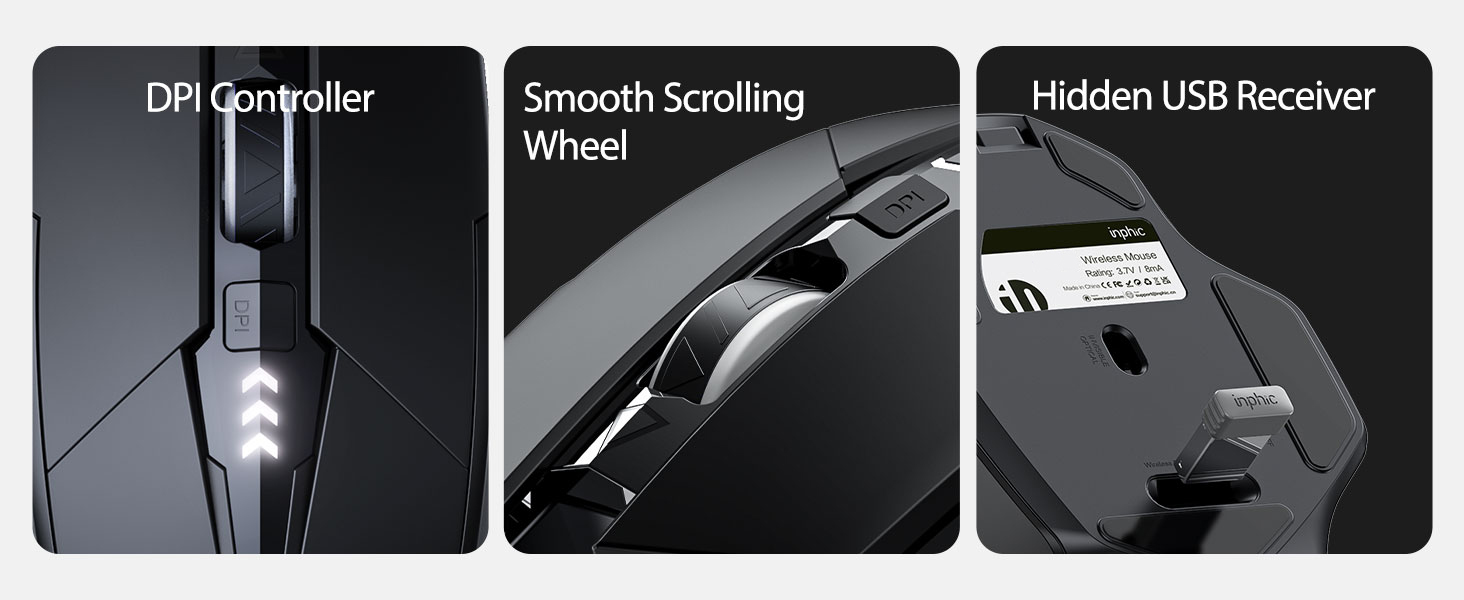
- Inkinobho ye-DPI: Adjusts cursor speed (800/1200/1600/2000/2400 DPI).
- Forward/Backward Buttons (Side): Ukuze uzulazule ngaphakathi web iziphequluli noma file abahloli bamazwe.
- Inkomba Yebhethri: LED lights on top display remaining battery level.
- Connection Type Switch (Bottom): Toggles between 2.4G USB, Bluetooth 4.0, and Bluetooth 5.0 modes.
- Power Switch (Bottom): ON/OFF iswishi.
- USB Receiver Slot (Bottom): Stores the 2.4G USB receiver.
- Charging Port (Front): USB-C port for recharging the internal battery.
Setha
Ukushaja Kwasekuqaleni
Before first use, fully charge the mouse for approximately 1 hour. Connect the USB-C charging cable to the mouse's charging port and to a USB power source (e.g., computer USB port, USB wall adapter).

Ukuxhuma iMouse
The mouse supports three connection modes: 2.4G USB, Bluetooth 4.0, and Bluetooth 5.0. Use the switch on the bottom of the mouse to select your desired mode.
2.4G Uxhumano lwe-USB
- Thola isamukeli se-USB esigcinwe esikhaleni esingaphansi kwegundane.
- Xhuma isamukeli se-USB embotsheni ye-USB etholakalayo kukhompuyutha yakho.
- Switch the connection mode on the bottom of the mouse to "2.4G".
- Turn on the mouse using the power switch. The mouse should connect automatically.
Bluetooth Connection (BT 4.0 / BT 5.0)
- Switch the connection mode on the bottom of the mouse to "BT 4.0" or "BT 5.0".
- Vula igundane usebenzisa iswishi yamandla.
- On your device (laptop, tablet, etc.), open Bluetooth settings.
- Cinga new Bluetooth devices. The mouse should appear as "INPHIC Mouse" or similar.
- Khetha igundane ukuze ulibhangqe.
- Once paired, the mouse is ready for use.
Qaphela: Bluetooth 5.0 is compatible with Windows 8/10 (not Windows 7 or XP), Android, and Mac OS systems. iOS systems (iPad and iPhone) require iOS 14 or later for Bluetooth 5.0 compatibility.
Imiyalelo yokusebenza
Vula/Vala
Use the ON/OFF switch located on the bottom of the mouse to power the device. To conserve battery, turn off the mouse when not in use for extended periods.
Ukushintsha Amamodi Okuxhumana
The mode switch button on the bottom of the mouse allows you to cycle between 2.4G USB, Bluetooth 4.0, and Bluetooth 5.0 connections. This enables seamless switching between multiple paired devices.

Ilungisa i-DPI (Isivinini Sekhesa)
Press the DPI button located on the top of the mouse, below the scroll wheel, to cycle through 5 adjustable DPI levels: 800, 1200, 1600, 2000, and 2400. This allows you to customize cursor sensitivity to your preference.

Inkomba Yebhethri
The mouse features a visible battery indicator on its top surface. LED lights illuminate to show the remaining battery power, providing a clear visual cue for when recharging is needed.

Imodi Yokulala Ezenzakalelayo
To conserve power, the mouse will automatically enter sleep mode after 5 minutes of inactivity. To wake the mouse, simply click any button.
Isondlo
Ukuhlanza
Wipe the mouse with a soft, dry cloth. For stubborn dirt, a slightly damp indwangu ingasetshenziswa, ukuqinisekisa ukuthi akukho umswakama ongena ezingxenyeni zangaphakathi. Gwema amakhemikhali anamandla noma izihlanzi ezihudulayo.
Ukunakekela Ibhethri
- Recharge the mouse when the battery indicator shows low power.
- Gwema ukushajwa ngokugcwele ibhethri njalo ukuze welule ubude bayo bempilo.
- Gcina igundane endaweni epholile, eyomile uma lingasetshenziswa isikhathi eside.
Ukuxazulula inkinga
| Inkinga | Imbangela Engenzeka | Isixazululo |
|---|---|---|
| Igundane aliphenduli |
|
|
| Ukunyakaza kwesikhombisi kuyashintshashintsha noma kuhamba kancane |
|
|
| Izinkinga zokuxhumeka kwe-Bluetooth |
|
|
Imininingwane
| Isici | Imininingwane |
|---|---|
| Imodeli | B0FQCFSHPQ |
| Ubuchwepheshe bokuxhumana | Bluetooth 5.0 / Bluetooth 4.0 / 2.4G USB Wireless |
| Amazinga we-DPI | 800 / 1200 / 1600 / 2000 / 2400 (Adjustable) |
| Izinkinobho | 6 (Left, Right, Scroll Wheel, DPI, Forward, Backward) |
| Uhlobo Lwebhethri | Rechargeable (400mAh built-in) |
| Imbobo yokushaja | I-USB-C |
| Ibanga lokusebenza | Kufika kumamitha ayi-10 (33 amafidi) |
| Ubukhulu bomkhiqizo | 4.7 x 3.1 x 0.04 amayintshi |
| Isisindo sento | 3.36 amakhilogremu |
| Ukuhambisana | Windows 7/8/10/XP, Vista, Mac OS. Bluetooth 5.0: Windows 8/10, Android, Mac OS, iOS 14+ (iPad/iPhone). 2.4G USB: Any USB-enabled device. |

Iwaranti kanye Nokusekela
INPHIC products are designed for reliability and performance. For warranty information and technical support, please refer to the official INPHIC webisayithi noma uxhumane nesevisi yabo yamakhasimende ngokuqondile.
- Umkhiqizi: I-INPHIC
- Umdayisi: YingFeiTe (on Amazon)
- Inqubomgomo Yokubuyisela: Refer to Amazon's current return policy.
- Oxhumana naye Wokusekela: Ukuze uthole usizo, vakashela i- INPHIC Store on Amazon noma isikhulu somkhiqizi webindawo.
Ulwazi Lokuphepha Olubalulekile
- Ungalivezi igundane emazingeni okushisa aphezulu noma emswakama.
- Gwema ukuwisa noma ukubeka igundane ngaphansi kwemithelela enamandla.
- Do not attempt to disassemble or repair the mouse yourself. This may void the warranty.
- Gcina endaweni lapho izingane zingafinyeleleki khona.
Ividiyo Yomkhiqizo
Incazelo yevidiyo: An official product video from INPHIC demonstrating the features and usage of the INPHIC Bluetooth Mouse. It shows the mouse being unboxed, its various components, connection methods, and ergonomic design in action.


