1. Setha
1.1 Okuqukethwe Kwephakheji
Qinisekisa ukuthi zonke izingxenye zikhona kuphakheji:
- Keychron M6 8K Wireless Gaming Mouse
- Ikhebula le-USB-C kuya ku-USB-C
- I-USB-A kuya ku-USB-C Adaptha
- 2.4 GHz USB-A Receiver
- I-adaptha Yesandiso Yomamukeli

Image: Keychron M6 8K mouse with its cable, adapters, and 2.4 GHz receiver.
1.2 Izindlela zokuxhuma
The Keychron M6 8K mouse supports three connectivity modes: 2.4 GHz wireless, Bluetooth 5.3, and wired USB-C.
- 2.4 GHz Wireless: For low-latency gaming. Insert the 2.4 GHz USB-A receiver into your computer's USB port. Use the extension adapter if needed for better signal.
- I-Bluetooth 5.3: For energy-efficient office use and multi-device flexibility. Pair with up to 3 devices.
- Intambo ye-USB-C: For direct connection and charging. Connect the mouse to your computer using the provided USB-C cable.
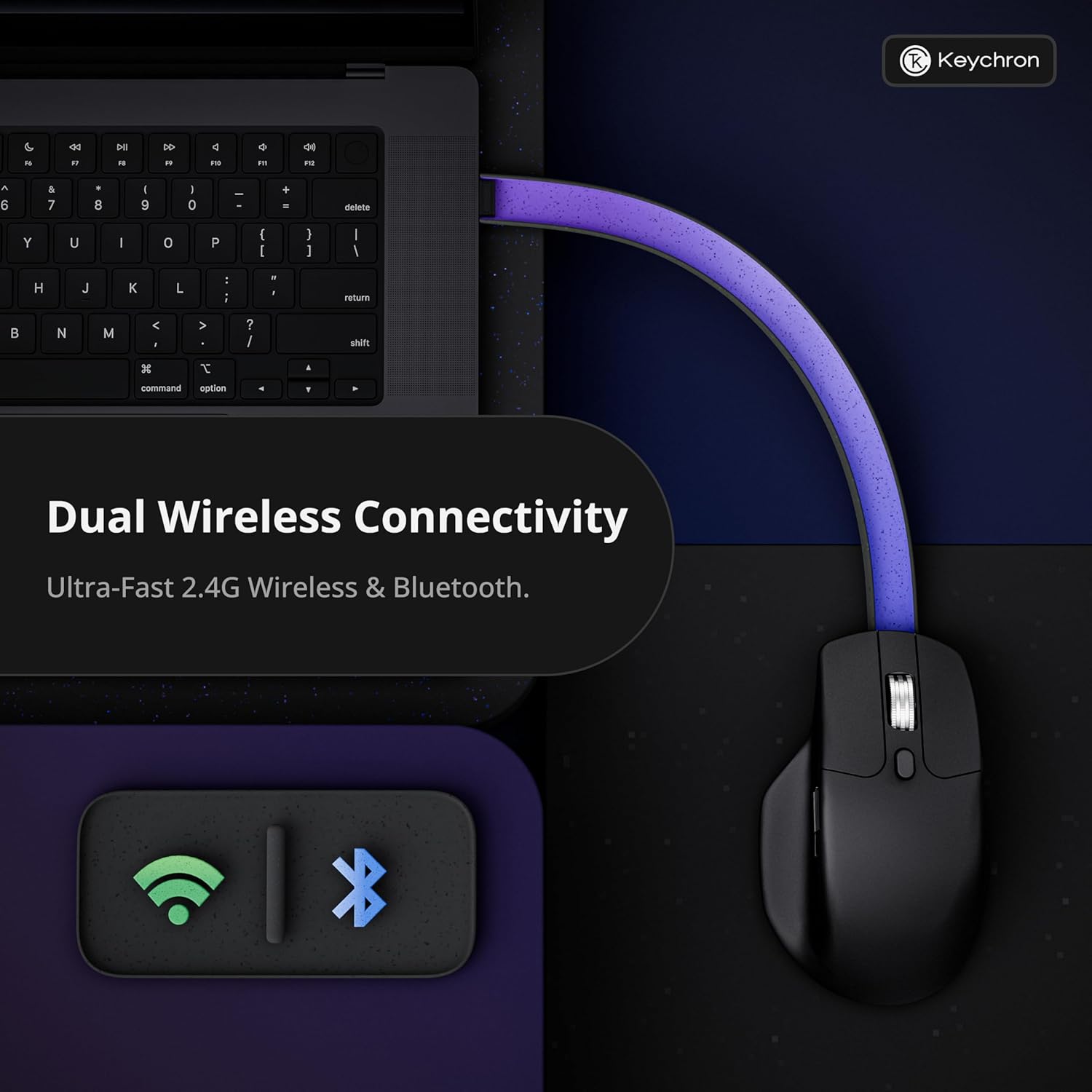
Image: Diagram illustrating the dual wireless connectivity options (2.4GHz and Bluetooth) of the Keychron M6 8K mouse.
1.3 Initial Pairing (Bluetooth)
- Ensure the mouse is powered on and in Bluetooth mode (check the switch on the bottom).
- On your device (Mac/Windows/Linux), open Bluetooth settings.
- Select 'Keychron M6' from the list of available devices to pair.
- The mouse's indicator light will confirm successful pairing.
2. Iziqondiso Zokusebenza
2.1 Button Functions and Customization
The Keychron M6 8K features over ten programmable buttons, including silent micro switches for noise-free clicking. Buttons can be customized using the Keychron Launcher web uhlelo lokusebenza.
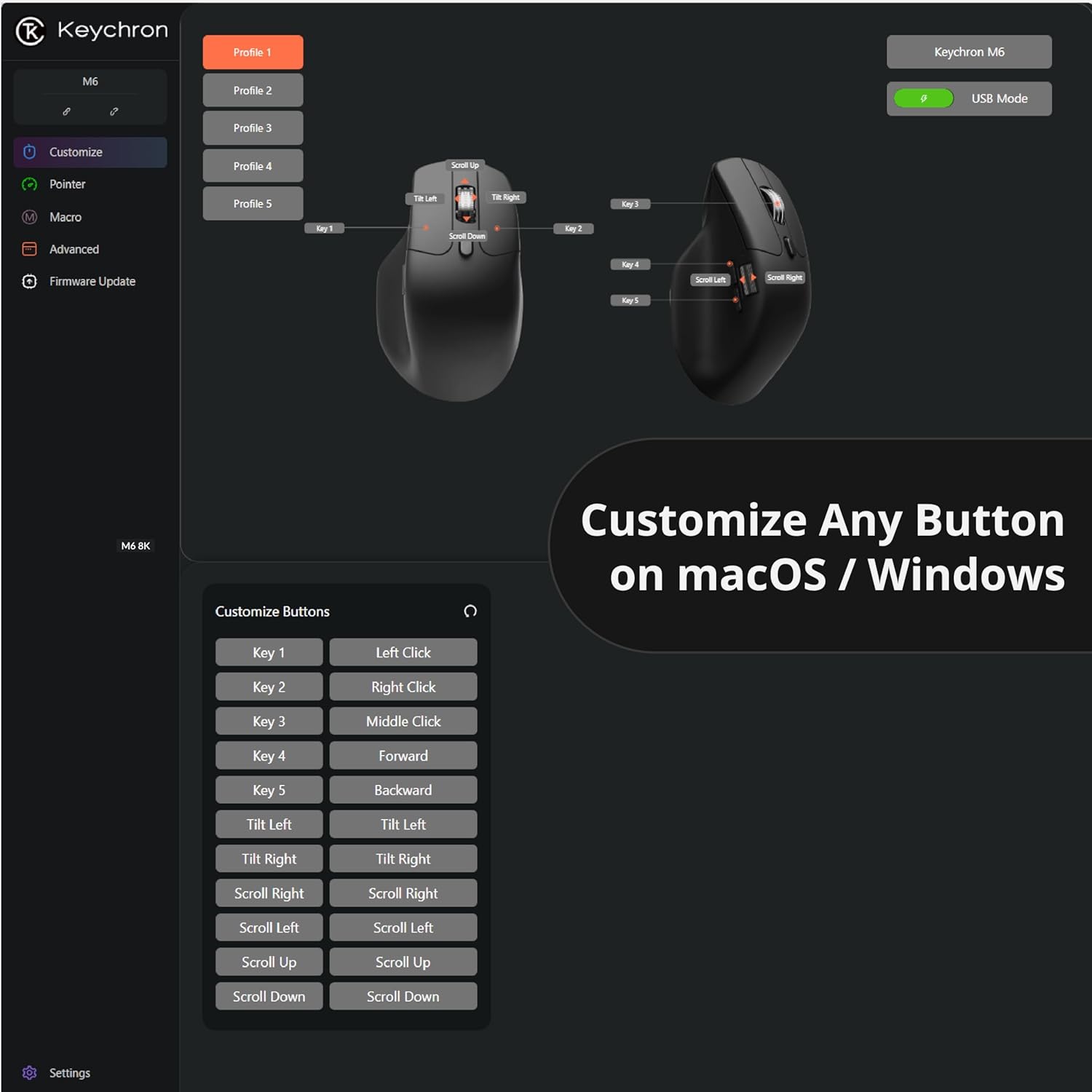
Image: Screenshot of the Keychron Launcher web app interface showing button customization options for the M6 mouse.
2.2 Dual-Mode Scroll Wheel
The mouse is equipped with a premium dual-mode scroll wheel:
- Hyper-fast Infinite Scroll: Ideal for quickly navigating long documents or code.
- Tactile Ratchet Mode: Provides precise control for detailed tasks.
Switch between modes using the dedicated button located near the scroll wheel.

Image: Close-up of the Keychron M6 8K mouse highlighting its dual scrolling mode feature.
2.3 Ukulungiswa Kwezinga Lokuvota kanye ne-DPI
The PixArt 3950 sensor offers up to 30,000 DPI and 8000Hz polling rate. These settings can be adjusted directly on the mouse or through the Keychron Launcher web app. The mouse features 5 on-board memory profiles to store your custom DPI, polling rate, button mappings, and macros.

Image: Visual representation of the Keychron M6 8K's high-precision PixArt 3950 sensor, 750 IPS tracking, 8000Hz polling rate, 0.7mm LOD, and 30000 DPI.

Image: Diagram showing various polling rate options for the Keychron M6 8K mouse.
3. Isondlo
3.1 Ukuhlanza
To maintain optimal performance, regularly clean your mouse. Use a soft, dry cloth to wipe the surface. For optical sensor, use a cotton swab lightly dampened with isopropyl alcohol to gently clean the sensor area.
3.2 Ulwazi Lwebhethri
The Keychron M6 8K mouse is equipped with a rechargeable battery, offering up to 120 hours of usage (at 1000Hz polling rate). Charge the mouse using the provided USB-C cable. The mouse can be used in wired mode while charging.
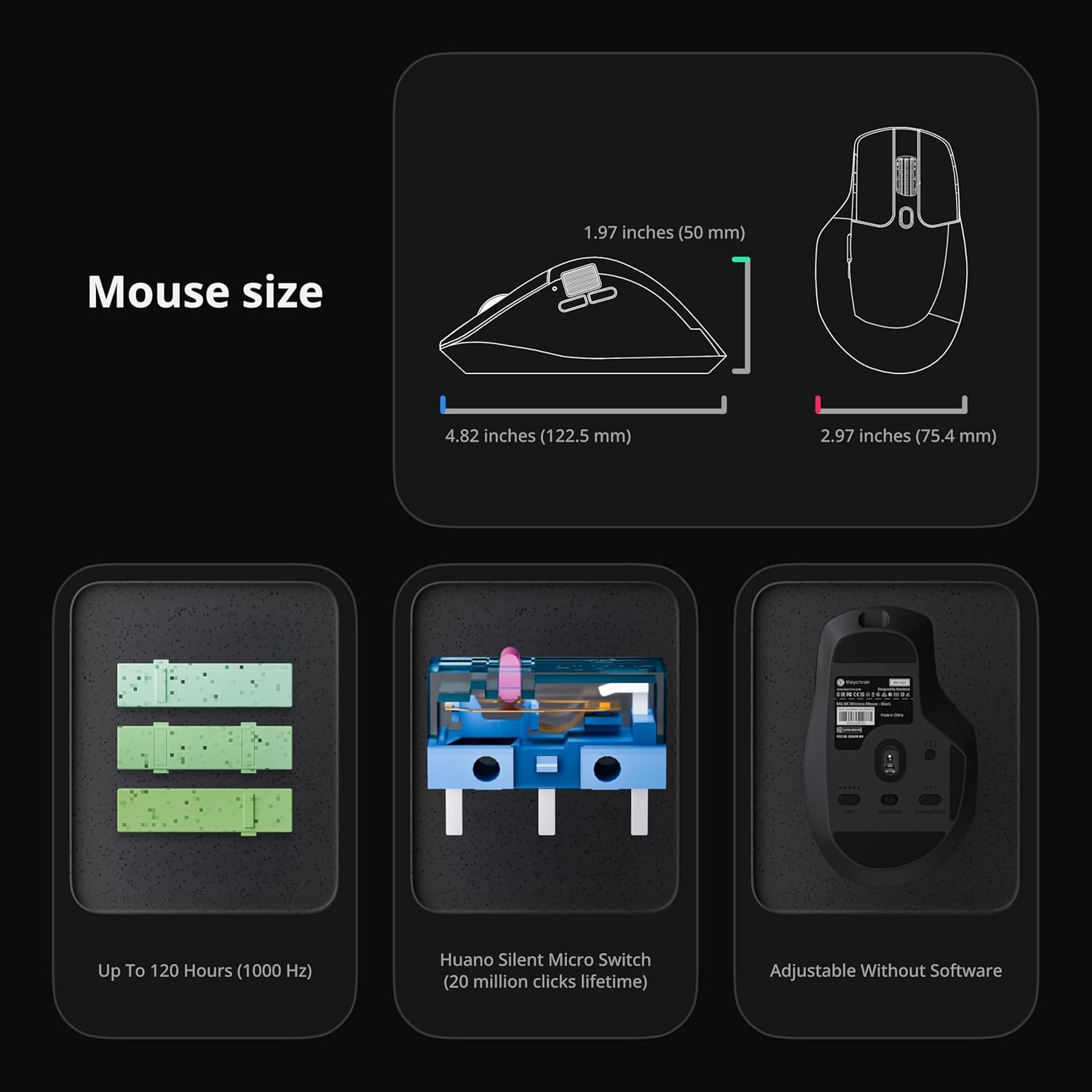
Image: Diagram showing the dimensions of the Keychron M6 8K mouse, its Huano Silent Micro Switches (20 million clicks lifetime), and battery life up to 120 hours (at 1000 Hz).
4. Ukuxazulula izinkinga
4.1 Izinkinga zokuxhuma
- 2.4 GHz: Ensure the USB receiver is securely plugged in and the mouse is in 2.4 GHz mode. Try a different USB port or use the extension adapter.
- I-Bluetooth: Ensure Bluetooth is enabled on your device and the mouse is in Bluetooth mode. Re-pair the device if connection is lost.
- Intambo: Check the USB-C cable connection. Try a different cable or USB port.
4.2 Unresponsive Buttons or Scroll Wheel
- Qinisekisa ukuthi igundane lishajwe ngokugcwele.
- Clean any debris around the buttons or scroll wheel.
- Reset the mouse to factory settings via the Keychron Launcher if customization issues are suspected.
5. Imininingwane
| Ibhrendi | Keychron |
| Igama Lemodeli | M6 |
| Inombolo Yemodeli | M6S-A23 |
| Umbala | Mnyama |
| Ubuchwepheshe bokuxhumana | Bluetooth, 2.4 GHz Wireless, USB-C Wired |
| Ubuchwepheshe bokutholwa kokunyakaza | Optical (PixArt 3950 Sensor) |
| Mouse Maximum Sensitivity | 30,000 DPI |
| Izinga Lokuvota | Kufika ku-8000Hz |
| Isici Esikhethekile | Soundless Clicks, Ergonomic Design, Infinite Scroll Wheel, 5 On-Board Memory Profiles |
| Ubuningi Benkinobho | Over 10 programmable buttons |
| Ukuma kwezandla | Kulungile |
| Amadivayisi Ahambisanayo | Personal Computer (Windows, macOS, Linux) |
| Uhlobo olungenantambo | 33 izinyawo |
| Impilo Yebhethri | Up to 120 hours (at 1000Hz) |
| Impahla Ebiyelwe | Ipulasitiki |
6. Iwaranti
The Keychron M6 8K Wireless Gaming Mouse comes with a Iwaranti Yomkhiqizi Yonyaka ongu-1. Please retain your proof of purchase for warranty claims. For detailed warranty terms and conditions, refer to the official Keychron webisayithi noma uxhumane nokwesekwa kwamakhasimende.
7. Ukusekela
7.1 Keychron Launcher Web Uhlelo lokusebenza
For advanced customization, including button remapping, macro creation, LOD adjustment, and RGB fine-tuning, use the Keychron Launcher web app. No software download is required, and your preferences are saved to the mouse's on-board memory.
Vakashela i-Keychron esemthethweni website for access to the Keychron Launcher and additional support resources.
7.2 Amavidiyo Omkhiqizo Asemthethweni
Keychron M6 8K Wireless Bluetooth 2.4 GHz Connection Mouse
Ividiyo: I-official overview of the Keychron M6 8K Wireless Mouse, demonstrating its features and connectivity options.
Keychron M6 Silent Wireless Optical Gaming Mouse
Video: A demonstration of the silent clicking and optical tracking capabilities of the Keychron M6 mouse.


