1. Isingeniso
This manual provides detailed instructions for the setup, operation, and maintenance of your NETUM RD-1202W Industrial Bluetooth Barcode Scanner. The RD-1202W is a robust and versatile 2D/1D barcode reader designed for various industrial and commercial applications, offering multiple connectivity options and enhanced durability.
Izici ezibalulekile zifaka:
- Industrial Durability: IP67 rated for dust, splash, and water resistance, with drop protection up to 12 ft (3.65 m).
- Ukuxhumana Okuguquguqukayo: Supports 2.4G wireless and Bluetooth (HID/SPP/BLE) for connection to various devices.
- Multiple Scanning Modes: Manual trigger, continuous, auto-sensing, and storage modes.
- Ukusebenza Okuphezulu Kweskena: Advanced 1.3M CMOS sensor for fast and accurate reading of 1D and 2D barcodes.
- Impilo ende yebhethri: 2600mAh battery provides extended operation and charging via the included cradle.
2. Umkhiqizo Uphelileview
The NETUM RD-1202W barcode scanner is designed for ergonomic handling and robust performance. Below is an illustration of the scanner and its charging dock.
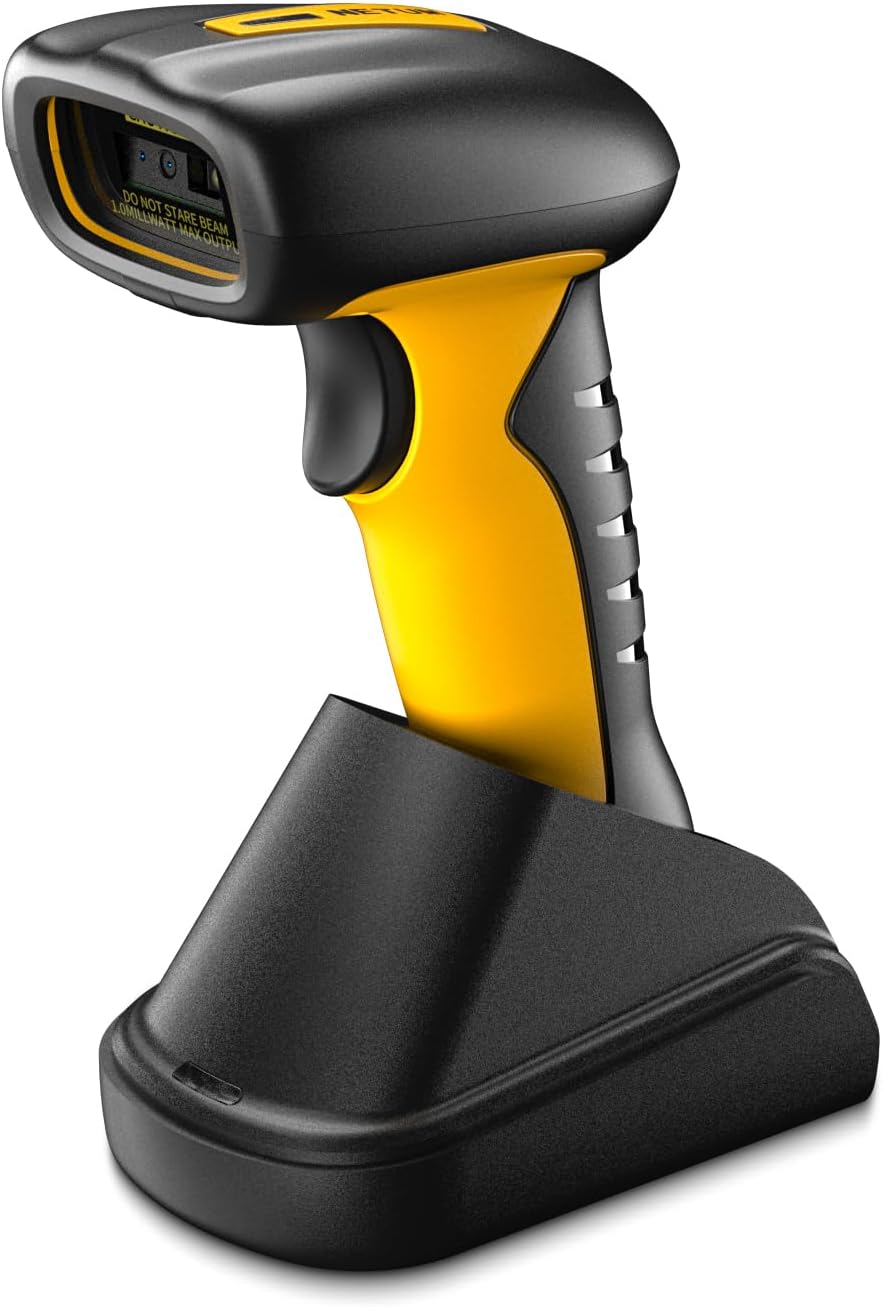
Umfanekiso 2.1: NETUM RD-1202W Barcode Scanner and Charging Dock. The image displays the yellow and black scanner resting in its black charging cradle, highlighting its ergonomic design and the scanner's lens.
2.1 Okuqukethwe Kwephakheji
Qinisekisa ukuthi zonke izinto zikhona kuphakheji:
- NETUM RD-1202W Barcode Scanner
- Charging Dock with 2.4G Receiver
- Ikhebula le-USB
- Incwadi Yomsebenzisi (le dokhumenti)
3. Isethaphu kanye Nokuxhumana
The RD-1202W offers both 2.4G wireless and Bluetooth connectivity options.
3.1 Ukushaja Iskena
- Connect the USB cable to the charging dock and then to a power source (e.g., computer USB port or USB power adapter).
- Place the scanner onto the charging dock. Ensure proper alignment for charging.
- The scanner's indicator light will show charging status. A full charge typically takes approximately 4 hours.
The 2600mAh battery provides up to 20 hours of continuous operation or 30 working days if scanning 2000 barcodes per day.
3.2 2.4G Ukuxhuma Okungenantambo
This method uses the 2.4G receiver built into the charging dock for a plug-and-play experience.
- Connect the charging dock to your computer's USB port using the provided USB cable. The computer should automatically recognize the receiver.
- Turn on the barcode scanner.
- The scanner will automatically pair with the receiver. A successful connection is usually indicated by an audible beep and/or a change in the scanner's indicator light.
The communication distance for 2.4G wireless is 30-100m (line of sight).
3.3 Ukuxhumana kwe-Bluetooth
The scanner supports HID, SPP, and BLE modes for connecting to laptops, PCs, smartphones, tablets, iPhones, iPads, and POS systems.
- Nika amandla i-Bluetooth kudivayisi yakho: Ensure Bluetooth is active on your host device (e.g., computer, tablet, smartphone).
- Set Scanner to Bluetooth Mode: Scan the specific "Bluetooth Pairing" barcode from the included quick start guide or the full manual (if provided separately) to put the scanner into Bluetooth pairing mode. The scanner's indicator light will typically flash to indicate it's discoverable.
- Bhanqa Nedivayisi: On your host device, search for available Bluetooth devices. Select "NETUM RD-1202W" (or similar name) from the list.
- Qinisekisa Ukuxhumeka: Once paired, the scanner will emit a confirmation beep, and its indicator light will change to a steady state.
Refer to the specific setting barcodes in the manual for switching between HID, SPP, and BLE modes if required by your application.
4. Ukusebenzisa Iskena
The RD-1202W offers various scanning modes to suit different operational needs.
4.1 Amamodi wokuskena
- Imodi yokuqalisa ngesandla: Press the trigger button to scan each barcode individually. This is the default mode.
- Imodi yokuskena eqhubekayo: The scanner continuously emits a scan beam, reading barcodes as they pass within its field of view without needing to press the trigger.
- Auto-Sensing Scanning Mode: The scanner activates its beam only when a barcode is detected in its proximity, providing hands-free operation while conserving battery.
- Imodi Yesitoreji: When out of range of Bluetooth or 2.4G wireless connectivity, the scanner can store up to 100,000 barcodes in its internal memory (2MB flash memory). To upload stored data, re-establish connection and scan the "Upload Data" barcode (refer to the full manual for specific setting barcodes).
To switch between these modes, scan the corresponding setting barcodes found in the detailed user manual provided with the product.
4.2 Barcode Scanning Procedure
- Ensure the scanner is powered on and connected to your host device.
- Point the scanner's lens at the barcode you wish to scan.
- For manual trigger mode, press the trigger button. For continuous or auto-sensing modes, position the barcode within the scan area.
- A successful scan is indicated by an audible beep and/or a green light flash. The scanned data will be transmitted to your connected device.
The scanner is equipped with an advanced 1280H × 1024V pixels (1.3M) CMOS sensor, allowing it to read various small barcodes smoothly (1D: ≥3 mil; 2D: ≥5 mil (HD); 2D: ≥7 mil (SR)).
5. Isondlo
Proper maintenance ensures the longevity and optimal performance of your barcode scanner.
- Ukuhlanza Iskena: Sebenzisa indwangu ethambile, engenalinti kancane dampened with water or a mild cleaning solution to wipe the exterior of the scanner and the scanning window. Avoid abrasive cleaners or solvents.
- Ukunakekelwa kwebhethri: To maximize battery life, avoid fully discharging the battery frequently. Store the scanner in a cool, dry place when not in use for extended periods.
- Ukuvikelwa Kwemvelo: While the scanner is IP67 rated for dust and water resistance, prolonged exposure to extreme conditions should be avoided. Do not submerge the scanner in water.
- Isitoreji: Store the scanner and its accessories in a safe place, away from direct sunlight, extreme temperatures, and corrosive materials.
6. Ukuxazulula izinkinga
If you encounter issues with your NETUM RD-1202W scanner, refer to the following common problems and solutions:
| Inkinga | Imbangela Engenzeka | Isixazululo |
|---|---|---|
| Iskena asivuli amandla. | Ibhethri eliphansi noma inkinga yamandla. | Charge the scanner using the charging dock and USB cable. Ensure the cable and power source are functional. |
| Scanner does not connect to device. | Incorrect connection mode, out of range, or pairing issue. |
|
| Scanner reads barcodes inaccurately or not at all. | Damaged barcode, dirty scanning window, or incorrect symbology settings. |
|
| Scanned data does not appear on the screen. | Application not in focus or input field not active. | Ensure the cursor is in the desired input field of your application (e.g., text editor, POS software). |
If the problem persists, please contact NETUM customer support for further assistance.
7. Imininingwane
| Isici | Imininingwane |
|---|---|
| Inombolo Yemodeli | RD-1202W |
| Ukuxhumana | 2.4G Wireless, Bluetooth (HID/SPP/BLE) |
| Inzwa | 1280H × 1024V pixels (1.3M) CMOS |
| Isivinini sokuskena | High-speed global exposure, Max frame rate 120FPS |
| Barcode Resolution | 1D: ≥3 mil; 2D: ≥5 mil (HD); 2D: ≥7 mil (SR) |
| Ibhethri | I-2600mAh Lithium Polymer |
| Impilo Yebhethri Elindelwe | 20 hours continuous operation (approx. 30 days with 2000 scans/day) |
| Expected Charge Time | 4 amahora |
| Inkumbulo ye-Flash | 2MB (stores up to 100,000 barcodes) |
| Ibanga Lokuxhumana | 30-100m (umugqa wokubona) |
| Ukuqina | IP67 (Dust-proof, Splash-proof, Waterproof), 12 ft (3.65 m) drop protection |
| Ubukhulu (Iphakheji) | 8.66 x 5.91 x 3.15 amayintshi |
| Isisindo sento | 14.1 amakhilogremu |
| Umkhiqizi | I-NETUM |
8. Iwaranti kanye Nokusekela
NETUM provides a Iwaranti yonyaka ongu-1 from the date of purchase for the RD-1202W barcode scanner. This warranty covers manufacturing defects and ensures product reliability.
For technical support, warranty claims, or any inquiries regarding your NETUM product, please contact NETUM customer service. Contact information can typically be found on the NETUM official webindawo noma ngenkundla yakho yokuthenga.
Sicela ugcine ubufakazi bakho bokuthenga ukuze uqinisekise iwaranti.


