1. Isingeniso
This manual provides detailed instructions for the setup, operation, and maintenance of your GameSir X5s Mobile Gaming Controller. Please read this manual thoroughly before use to ensure optimal performance and longevity of your device.
2. Okuqukethwe Kwephakheji
- GameSir X5s Mobile Gaming Controller
- Ikhebuli yokushaja ye-USB-A kuya ku-USB-C
- Replaceable Silicone Pads (various sizes)
- Button Cap Puller
- Ikesi Lesitoreji
- Incwadi Yeziqondiso
3. Setha
3.1 Ukuhambisana Kwedivayisi
The GameSir X5s controller is compatible with a wide range of devices, including Nintendo Switch 2, Nintendo Switch, Android phones, iPhones, and iPad mini. It supports devices with a length between 105mm and 213mm.
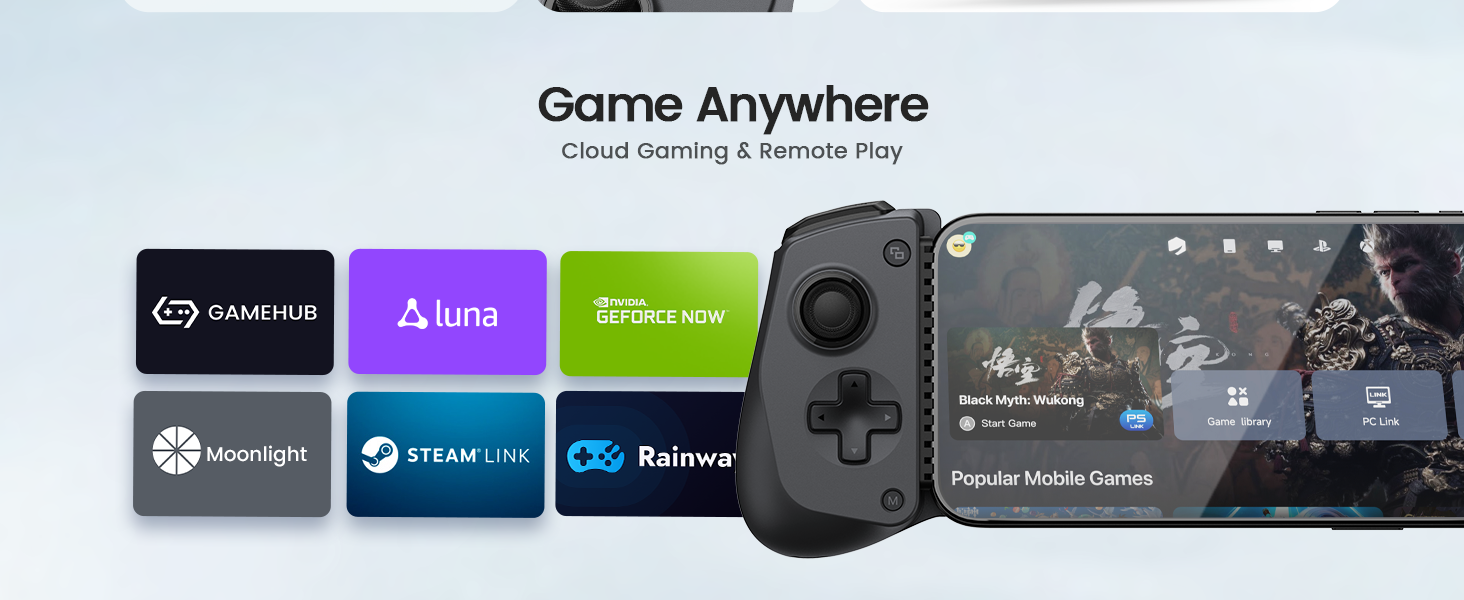
Image: The GameSir X5s controller shown alongside a Nintendo Switch 2, illustrating its compatibility.
3.2 Ukusetha Nokushaja Kokuqala
Before first use, fully charge the controller using the provided USB-A to USB-C cable. Connect the USB-C end to the controller and the USB-A end to a power source (e.g., computer USB port, USB wall adapter). The charging indicator will show the charging status.
3.3 Ukunamathisela Idivayisi Yakho
Gently extend the controller to fit your mobile device or Nintendo Switch. Ensure the device is securely seated within the controller's grips. Use the appropriate replaceable silicone pads to ensure a snug fit and prevent damage, especially for devices like the Nintendo Switch 2.

Image: A diagram illustrating the use of replaceable silicone pads to ensure a secure fit for various devices within the controller.

Image: The GameSir X5s controller shown extending to accommodate a smartphone, highlighting its universal compatibility up to 213mm.
3.4 Ukumatanisa kwe-Bluetooth
The X5s supports Bluetooth 5.3 connectivity. To pair, select the desired mode and follow the instructions below:
| Inkundla | Imodi | Inkomba | Ishintsha Indlela |
|---|---|---|---|
| Android | Imodi ye-Android | Okuphuzi | Hold M + A for 2s |
| iOS/PC/Android | DS4 Mode | Okuluhlaza okwesibhakabhaka | Hold M + B for 2s |
| Switch 2/iOS | Shintsha Imodi | Okubomvu | Hold M + X for 2s |
| Android | G-Touch Mode | Okuhlaza | Hold M + Y for 2s |

Image: The GameSir X5s controller highlighting its Bluetooth 5.3 connectivity and multi-platform support.
4. Iziqondiso Zokusebenza
4.1 Hall Effect Sticks and Triggers
The X5s features Hall Effect joysticks for precise 360° control and Hall Effect analog triggers for smooth, linear input. This technology provides superior anti-drift performance and a lifespan of up to 2 million cycles.

Isithombe: Ukuvala view of the GameSir Hall Effect sticks, emphasizing their precision and durability.
Additionally, you can activate a hair trigger mode for faster response by pressing M + LT/RT simultaneously. This is useful for competitive gaming scenarios.

Image: A visual representation of the two trigger modes: Hall Effect Analog Triggers for smooth control and Hair Trigger Mode for faster response.
4.2 Swappable ABXY Buttons
The X5s features physically swappable ABXY buttons, allowing you to easily switch between Xbox and Nintendo Switch layouts. Use the included button cap puller to remove and re-position the buttons as needed. Value remapping is supported by pressing M + A.

Image: A diagram illustrating how the ABXY buttons can be physically swapped to change between Xbox and Switch layouts.
4.3 HD Vibration and 6-Axis Gyro
Equipped with dual HD rumble motors in the grips, the X5s provides realistic and subtle vibration feedback. The controller also includes a built-in 6-axis gyroscope, enabling precise motion control for compatible games, particularly useful on Switch devices for aiming or racing.

Image: An illustration demonstrating the dual HD rumble motors and the 6-axis gyroscope for immersive and precise gameplay.
4.4 Umsebenzi weTurbo
The X5s Bluetooth controller supports Turbo functionality on A, B, X, Y, LB, RB, LT, and RT buttons. This feature allows for rapid, repeated input with a single press, providing a competitive advantage in fast-paced games. Refer to the GameSir App for specific Turbo setup instructions.
4.5 GameSir App Customization
Download the official GameSir App to unlock advanced customization options. Through the app, you can perform firmware upgrades, adjust stick and trigger dead zones, customize vibration intensity, test buttons, and more, tailoring the controller to your preferences.

Image: A smartphone displaying the GameSir App interface, showing various customization settings for the controller.
4.6 GameHub Integration
GameHub is a versatile gaming platform that supports PC emulators, cloud gaming, and game streaming. It allows users to play games using controllers or touch controls, providing flexibility for various gaming preferences. The X5s integrates seamlessly with GameHub for an enhanced gaming experience.

Image: The GameSir X5s controller attached to a smartphone displaying the GameHub interface, showcasing various game titles.
5. Isondlo
5.1 Ukuhlanza
Ukuze uhlanze isilawuli, sebenzisa indwangu ethambile neyomile. Uma ungcolile, susa ukungcola okuncaneamp cloth can be used, followed by immediate drying. Avoid using harsh chemicals, solvents, or abrasive materials, as these can damage the surface and internal components.
5.2 Isitoreji
When not in use, store the GameSir X5s in its provided durable PP storage case to protect it from dust, scratches, and accidental damage. Store in a cool, dry place away from direct sunlight and extreme temperatures.
6. Ukuxazulula izinkinga
6.1 Izinkinga zokuxhumana
- Controller not pairing: Ensure the controller is in the correct pairing mode for your device (refer to Section 3.4). Make sure Bluetooth is enabled on your device.
- Ukuxhumana okungapheli: Ensure the controller is fully charged. Reduce the distance between the controller and your device, and minimize potential interference from other wireless devices.
6.2 Button/Stick Malfunction
- Unresponsive buttons/sticks: Check for physical obstructions. Try resetting the controller (refer to the GameSir App or product support for specific reset procedures).
- Stick drift: The Hall Effect sticks are designed to prevent drift. If you experience drift, try calibrating the sticks via the GameSir App.
6.3 Izinkinga zokushaja
- Controller not charging: Ensure the charging cable is securely connected to both the controller and the power source. Try a different USB port or power adapter.
7. Imininingwane
| Isici | Imininingwane |
|---|---|
| Imodeli | GameSir X5s |
| Ukuxhumana | I-Bluetooth 5.3 |
| Ukuhambisana | Switch 2, Switch, Android, iPhone, iPad mini |
| Supported Device Length | 105mm – 213mm |
| Ama-Joystick | Umphumela Wehholo |
| Izicupha | Hall Effect Analog Triggers with Hair Trigger Mode |
| Ukudlidliza | Dual HD Rumble Motors (5 adjustable levels) |
| Ukulawula Ukunyakaza | I-6-Axis Gyroscope |
| Izinkinobho | Membrane ABXY (Physically Swappable) |
| Isisindo | 174g (approximately 6.14 ounces) |
| Ubukhulu (Iphakheji) | 8.11 x 4.02 x 2.4 amayintshi |
8. Iwaranti kanye Nokusekela
8.1 Ulwazi Lwewaranti
GameSir provides a 12-month replacement service for this product. If you encounter any issues with your GameSir X5s controller within this period, please contact customer support for assistance.
8.2 Ukwesekwa Kwamakhasimende
For technical support, warranty claims, or any product-related inquiries, please contact GameSir customer service. You can typically reach them via their official website or through the platform where you purchased the product. Please provide your product model and purchase details when contacting support for faster service.


