1. Umkhiqizo Uphelileview
The Thermaltake MAGFloe 360 Ultra is an all-in-one (AIO) liquid CPU cooler designed for efficient thermal management of your computer's processor. It features a 360mm radiator, three 120mm SWAFAN EX fans, and a 3.95-inch square LCD display on the pump block for system monitoring and personalization.
Izici ezibalulekile zifaka:
- 3.95-inch Square LCD Display: Customizable display for system information, images, and videos.
- SWAFAN EX Fans: Three 120mm fans with swappable blades for adjustable airflow direction and visible RGB lighting.
- MAGForce 2.0 Connection: Magnetic fan connections and daisy-chain cables for simplified installation and reduced cable clutter.
- Ukuhambisana Okubanzi: Supports Intel LGA 1851/1700/1200/1156/1155/1151/1150/2066/2011-3/2011 and AMD AM5/AM4/AM3+/AM3/AM2+/AM2/FM2/FM1 sockets.
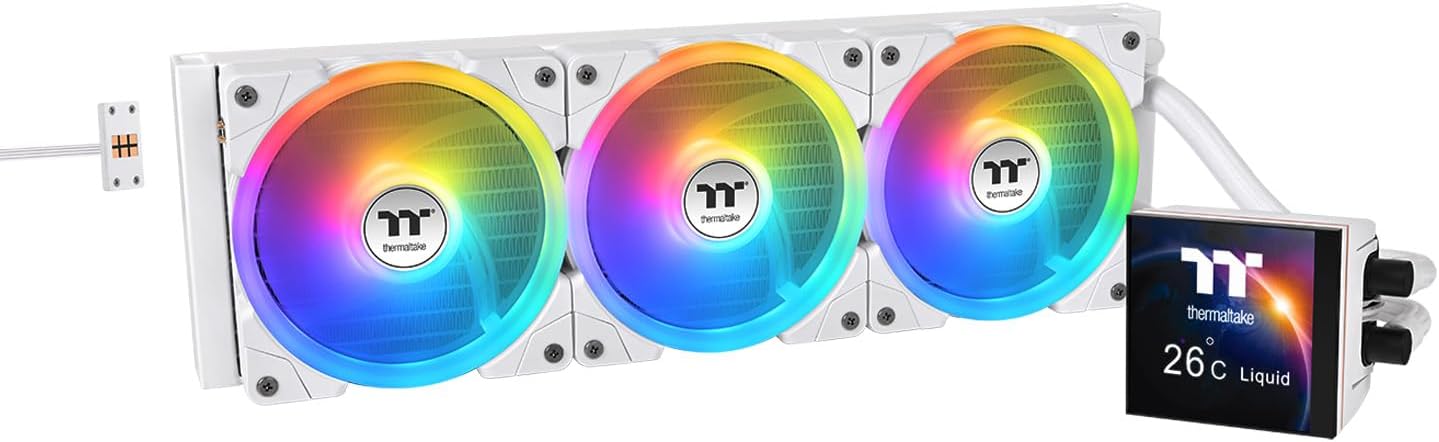
Image 1.1: The Thermaltake MAGFloe 360 Ultra CPU Liquid Cooler, showcasing its radiator, three RGB fans, and the LCD pump block.
2. Ukusetha nokufakwa
Before beginning installation, ensure your system is powered off and disconnected from the power source. Refer to your motherboard manual for specific CPU socket information.
2.1. Component Check
Verify all components are present in the package:
- 360mm Radiator with Pump/LCD Block
- 3x SWAFAN EX 120mm Fans
- Ukufaka Ihadiwe Yezikhonkwane Ze-Intel Ne-AMD
- Fan Controller/Cables
- I-Thermal Paste
- Additional Reverse Fan Blades
2.2. Ukufakwa kwe-Radiator kanye ne-Fan
- Determine the mounting location for the 360mm radiator within your PC case. Common locations include the top or front panel.
- Attach the SWAFAN EX fans to the radiator using the provided screws. Ensure the fan orientation aligns with your desired airflow (intake or exhaust).
- If you wish to change the airflow direction while maintaining the LED side visible, swap the fan blades. Gently pop out the installed blades and press in the reverse blades.

Image 2.1: Illustration of standard and reverse fan blade configurations, demonstrating how airflow direction can be altered.
2.3. Ukufakwa Kwebhulokhi Ye-CPU
- Prepare your CPU socket by installing the appropriate backplate and standoffs for your Intel or AMD motherboard.
- Faka inani elincane le-thermal paste enkabeni ye-integrated heat spreader (IHS) ye-CPU yakho.
- Carefully place the pump block onto the CPU, aligning the mounting holes. Secure it with the provided thumb screws or nuts, tightening in a diagonal pattern until snug.
2.4. Cable Management with MAGForce 2.0
The MAGForce 2.0 system simplifies fan connections:
- Connect the SWAFAN EX fans to each other using their magnetic daisy-chain connectors.
- Connect the final fan in the chain to the included fan controller.
- Connect the pump block's power and data cables to the motherboard and fan controller as instructed in the separate quick installation guide.

Image 2.2: Detail of the MAGForce 2.0 connector, highlighting the magnetic and pin-pad design for secure fan connections.
3. Iziqondiso Zokusebenza
3.1. Amandla Okuqala Avuliwe
After completing installation, power on your system. The LCD display on the pump block should initialize and show default information or animations.
3.2. LCD Display Customization
The 3.95-inch square LCD display can be customized to show various content:
- Ulwazi Lwesistimu: Monitor CPU temperature, pump speed, fan speed, and other relevant system metrics.
- Personalized Content: Upload custom images (JPG, GIF, PNG) or videos (MP4, MOV, AVI) to display on the screen.
To customize the display, download and install the TT PlayLink app on your smartphone. The app allows you to upload visuals, capture live moments, and manage display settings.

Isithombe 3.1: Eksamples of the customizable LCD display, showing system information and a personalized image.

Image 3.2: The TT PlayLink app interface on a smartphone, demonstrating the upload function for customizing the LCD display.
3.3. Ukulawula Isivinini Sabalandeli
Fan speeds can be adjusted via your motherboard's BIOS settings or compatible fan control software. The SWAFAN EX fans operate within a range of 500 to 2000 RPM.
4. Isondlo
4.1. Fan Cleaning
The SWAFAN EX fans feature swappable blades, making cleaning convenient:
- Power off your system and disconnect it from the power source.
- Gently pop out the fan blades from the fan frame.
- Clean the blades and fan frame using a soft cloth or compressed air to remove dust. For thorough cleaning, the blades can be rinsed with water. Ensure they are completely dry before reinstallation.
- If needed, apply the included bearing lubricant before reinserting the blades.
- Press the blades back into the fan frame until they click securely into place.

Image 4.1: A hand demonstrating the cleaning process by rinsing a detached fan blade under water.
4.2. Radiator Cleaning
Periodically inspect the radiator fins for dust buildup. Use compressed air to gently blow dust out of the fins. Avoid using liquids directly on the radiator.
4.3. Liquid Cooler System
The MAGFloe 360 Ultra is a closed-loop liquid cooling system. It does not require liquid refills or maintenance of the coolant level.
5. Ukuxazulula izinkinga
If you encounter issues with your MAGFloe 360 Ultra, refer to the following common problems and solutions:
| Inkinga | Imbangela Engenzeka | Isixazululo |
|---|---|---|
| Asikho isibonisi esikrinini se-LCD | Loose or incorrect data/power cable connection. | Check all cables connecting the pump block to the motherboard and fan controller. Ensure they are securely seated. |
| Fans not spinning or RGB not lighting up | Loose MAGForce 2.0 connection or incorrect fan controller wiring. | Verify all MAGForce 2.0 connections between fans and to the controller. Ensure the fan controller is properly powered and connected to the motherboard. |
| Amazinga okushisa aphezulu e-CPU | Insufficient thermal paste, improper pump block contact, or fan orientation issues. | Re-apply thermal paste. Ensure the pump block is securely mounted and making full contact with the CPU. Check fan airflow direction and ensure radiator is free of dust. |
| Unusual noises from pump or fans | Air bubbles in the loop (pump), or fan bearing issues. | Gently tilt your PC case to help dislodge air bubbles from the pump. If fan noise persists, inspect fan blades for obstructions or damage. |
6. Imininingwane Yezobuchwepheshe
| Isici | Ukucaciswa |
|---|---|
| Inombolo Yemodeli | I-CL-W433-PL12SW-A |
| Ubukhulu be-Radiator | 18"L x 8.1"W x 5.4"H (Overall Product Dimensions) |
| Indlela Yokupholisa | Ukupholisa Amanzi |
| Usayizi Wabalandeli | 3x 120mm SWAFAN EX |
| Isivinini saphephela | 500 - 2000 RPM |
| Amandla Okugeleza komoya | 57.11 CFM (Standard), 56.26 CFM (Reverse) |
| I-Static Pressure | 2.39mm H2O (Standard), 2.02mm H2O (Reverse) |
| Izinga Lomsindo | 25 Decibel |
| Uhlobo Lwesixhumi Samandla | 4-Phini |
| Voltage | 12 volts |
| Wattage | 16.18 watts |
| Okubalulekile | Aluminum, Copper, Plastic |
| Amadivayisi Ahambisanayo | Ideskithophu |
| I-CPU Socket Compatibility | Intel LGA 1851/1700/1200/1156/1155/1151/1150/2066/2011-3/2011, AMD AM5/AM4/AM3+/AM3/AM2+/AM2/FM2/FM1 |
| Usayizi Wokubonisa we-LCD | 3.95 inches (Square) |
| Isisindo sento | 5.96 amakhilogremu |
| I-UPC | 841163097823 |
7. Iwaranti kanye Nokusekela
Thermaltake products are covered by a manufacturer's warranty. For specific warranty terms, duration, and support procedures, please refer to the official Thermaltake webisayithi noma uxhumane nesevisi yabo yamakhasimende ngokuqondile. Gcina ubufakazi bakho bokuthenga ngezimangalo zewaranti.
For further assistance, visit the official Thermaltake support page or contact their technical support team.


