1. Umkhiqizo Uphelileview
The Xprinter XP-420B is a high-speed direct thermal label printer designed for various applications, including shipping labels. It offers a maximum print speed of 152 mm/s (6 inches/second) and a resolution of 203 DPI, ensuring clear and precise prints. Its robust double-walled clamshell design enhances durability, and the intelligent print head temperature control system ensures stable output. This printer is compatible with both Windows and Mac operating systems, making it a versatile solution for your labeling needs.
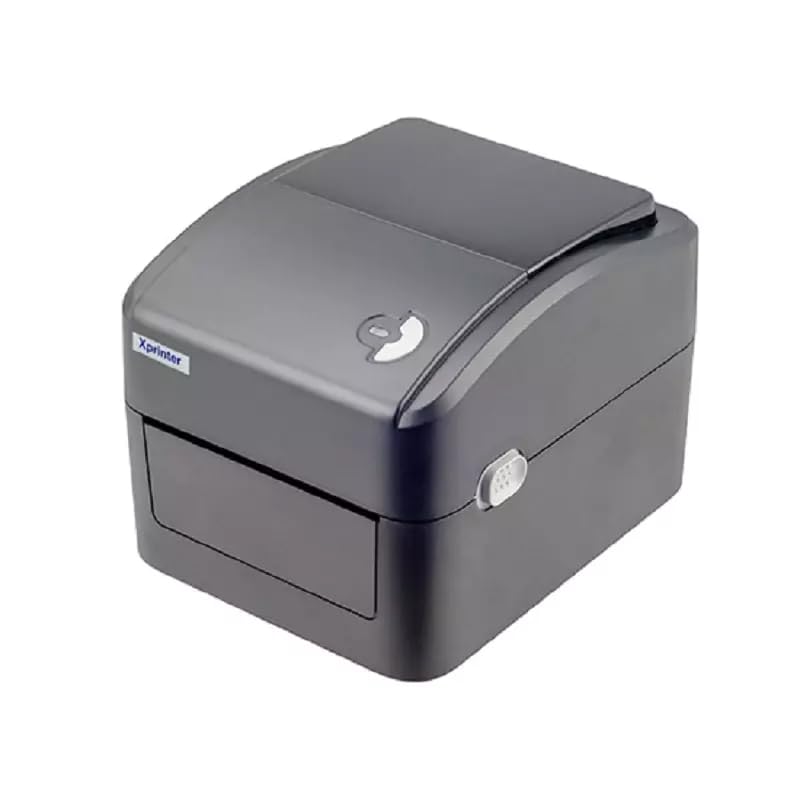
Umfanekiso 1: Ngaphambili view of the Xprinter XP-420B thermal label printer.
2. Umhlahlandlela wokusetha
2.1 Ukuqaqa kanye Nokuhlola Kokuqala
- Susa ngokucophelela iphrinta nazo zonke izesekeli ephaketheni.
- Verify that all components are present: printer unit, power adapter, USB cable, and user manual.
- Inspect the printer for any visible damage that may have occurred during transit.
2.2 Ukuxhuma Iphrinta
- Connect the power adapter to the printer's power port and then plug it into a power outlet.
- Connect one end of the provided USB cable to the printer's USB port and the other end to an available USB port on your computer.
- Power on the printer using the power switch, usually located on the side or rear.

Figure 2: Xprinter XP-420B showing USB connectivity.
2.3 Ukulayisha Amalebula
- Open the printer's top cover by pressing the release latches on both sides.
- Place the roll of thermal labels onto the label spindle, ensuring the labels feed from the bottom of the roll.
- Feed the leading edge of the labels through the label guide until it extends slightly past the print head.
- Adjust the movable label guides to fit the width of your labels snugly, without pinching them.
- Close the top cover firmly until it latches securely.
- The printer will automatically calibrate and detect the label size.
2.4 Ukufakwa komshayeli
Before printing, you must install the appropriate printer drivers on your computer. Drivers are typically provided on a CD included with the printer or can be downloaded from the official Xprinter website. The XP-420B supports both Windows and Mac operating systems.
- OkweWindows: Run the setup executable from the driver CD or downloaded file bese ulandela imiyalelo esesikrinini.
- Okwe-Mac: Download the Mac driver from the Xprinter website and follow the installation prompts.
3. Iziqondiso Zokusebenza
3.1 Ukuphrinta Okuyisisekelo
- Qinisekisa ukuthi iphrinta ivuliwe futhi ixhunywe kukhompuyutha yakho.
- Open the document or application from which you wish to print (e.g., shipping software, word processor).
- Khetha okuthi "Phrinta" kumenyu yohlelo lokusebenza.
- Choose "Xprinter XP-420B" as your printer.
- In the printer settings or preferences, ensure the correct label size is selected. The printer supports adjustable label sizes.
- Chofoza okuthi "Phrinta" ukuze uthumele umsebenzi kuphrinta.
3.2 Adjusting Label Size
The XP-420B allows for adjustable label sizes. This adjustment is primarily done through the printer driver settings on your computer and by physically adjusting the label guides within the printer.
- Software Adjustment: In your printing application or printer driver settings, navigate to the "Page Setup" or "Paper Size" options. Select or define the custom dimensions for your labels (e.g., 4x6 inches for shipping labels).
- Physical Adjustment: As described in Section 2.3, ensure the internal label guides are set correctly to the width of your loaded labels.
4. Isondlo
4.1 Ukuhlanza Ikhanda Lokuphrinta
Regular cleaning of the print head is crucial for maintaining print quality and extending the printer's lifespan. It is recommended to clean the print head after every roll of labels or if print quality degrades.
- Cima iphrinta bese unqamula intambo kagesi.
- Vula ikhava engaphezulu yephrinta.
- Wait a few minutes for the print head to cool down if the printer has been recently used.
- Sula ngobumnene ubuso bekhanda lokuphrinta nge-alcohol swab noma indwangu engenalo ulwelwesi kancane dampifakwe nge-isopropyl alcohol.
- Vumela ikhanda lokuphrinta lome ngokuphelele ngaphambi kokuvala isembozo nokuxhuma kabusha amandla.
4.2 Ukuhlanza Okujwayelekile
- Use a soft, dry cloth to wipe the exterior of the printer.
- Remove any dust or label debris from the inside of the printer using a soft brush or compressed air.
- Ungasebenzisi izinto zokuhlanza abrasive noma izincibilikisi.
5. Ukuxazulula izinkinga
| Inkinga | Imbangela Engenzeka | Isixazululo |
|---|---|---|
| Iphrinta ayiphenduli | Power off; USB cable disconnected; Driver issue. | Ensure power is on and connected. Check USB cable. Reinstall printer driver. |
| Ikhwalithi yokuphrinta ephansi (ifiphele, imigqa) | Dirty print head; Incorrect label type; Low print density setting. | Clean the print head (Section 4.1). Ensure you are using direct thermal labels. Adjust print density in driver settings. |
| Amalebula awondli ngendlela efanele | Labels improperly loaded; Label guides not adjusted; Sensor obstruction. | Reload labels correctly. Adjust label guides. Clean any dust or debris from sensors. |
| Printer prints blank labels | Labels loaded upside down; Not a direct thermal label. | Ensure labels are loaded with the printable side facing up. Verify labels are direct thermal. |
6. Imininingwane Yomkhiqizo
| Isici | Imininingwane |
|---|---|
| Ibhrendi | I-Xprinter |
| Igama Lemodeli | XP-420B |
| Ubuchwepheshe bokuxhumana | I-USB |
| Ubuchwepheshe bokuphrinta | I-Direct Thermal |
| Isixazululo | 203 DPI |
| Isivinini Sokuphrinta Esiphezulu | 152 mm/s (6 inches/second) |
| Inkumbulo | 8MB SDRAM, 8MB Flash |
| Okukhipha Iphrinta | I-Monochrome |
| Isisindo sento | 3 kg |
| Ubukhulu bomkhiqizo | 20D x 6W x 10H Amasentimitha |
| Ukuhambisana | Windows, Mac |
7. Iwaranti kanye Nokusekela
7.1 Ulwazi Lwewaranti
The Xprinter XP-420B comes with a Iwaranti Yonyaka ongu-1 kusukela ngedethi yokuthenga. Lesi siqinisekiso sifaka amaphutha okukhiqiza kanye nokungasebenzi kahle ngaphansi kokusetshenziswa okuvamile. Sicela ugcine ubufakazi bakho bokuthenga izimangalo zewaranti.
7.2 Ukwesekwa Kwamakhasimende
For technical assistance, troubleshooting beyond this manual, or warranty service, please contact Xprinter customer support. Refer to the contact information provided with your product packaging or visit the official Xprinter webisayithi ukuze uthole imininingwane yakamuva yosekelo.


