Isingeniso
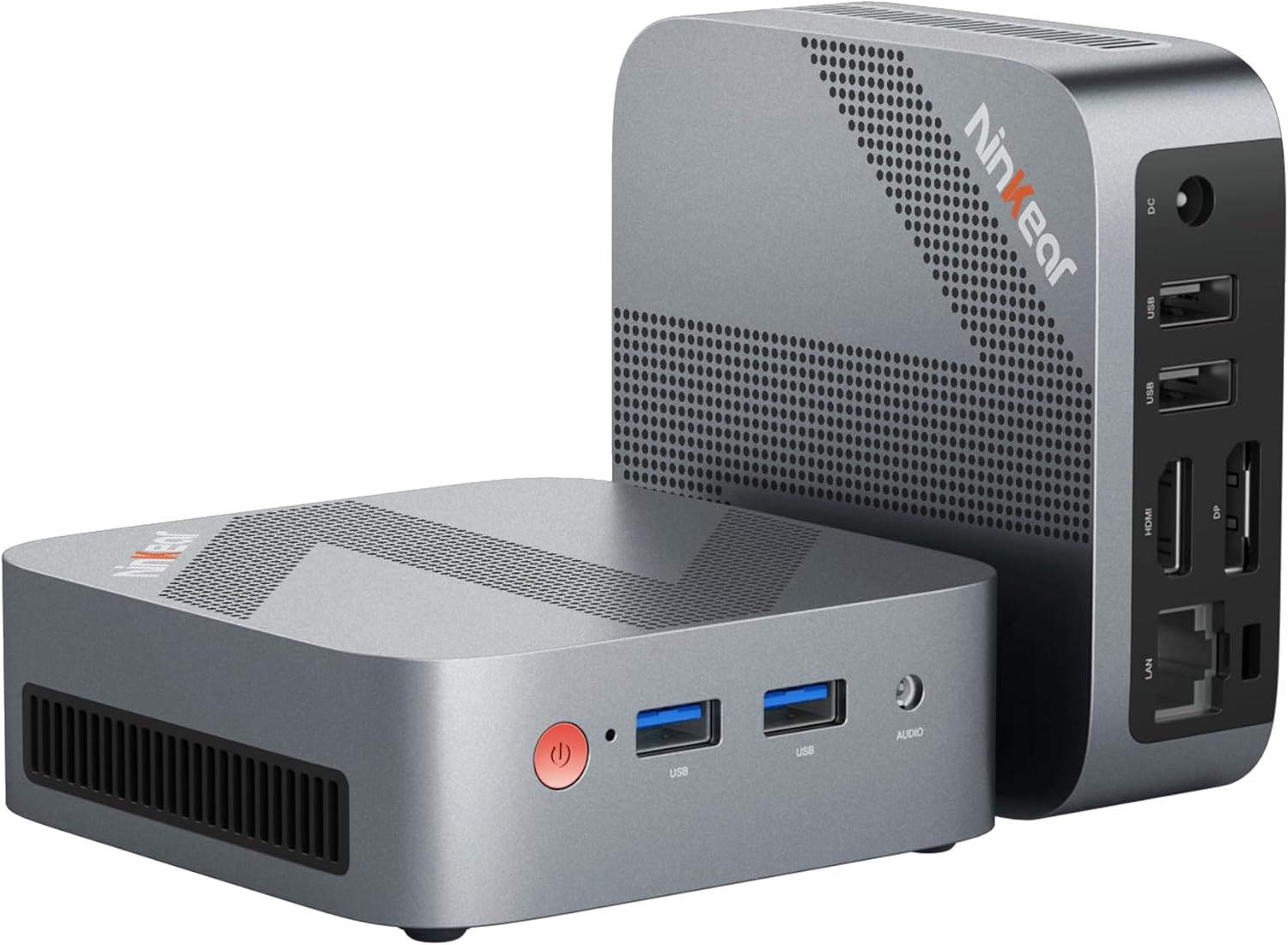
Figure 0.1: Ninkear Mini PC W-11. This compact and powerful mini PC is designed for various computing needs, from office work to multimedia entertainment.
This comprehensive user manual provides detailed instructions for the Ninkear Mini PC W-11 (MBOX 11 Mini PC). It covers initial setup, daily operation, maintenance, troubleshooting common issues, and full technical specifications. Please read this manual carefully to ensure proper use and to maximize the performance and longevity of your Ninkear Mini PC for office, home, and multimedia applications.
1. Setha
1.1 Ukukhipha ibhokisi kanye nokuqukethwe kwephakheji
Carefully unpack all components from the box. Ensure all items listed below are present. If any item is missing or damaged, please contact customer support.

Figure 1.1: Package Contents. The box includes the Ninkear Mini PC, a user manual, a charging cable, an HDMI cable, and a fixed bracket for mounting.
- Ninkear Mini PC (MBOX 11)
- Imaniwali yosebenzisayo
- I-adaptha yamandla/Ikhebuli yokushaja
- Ikhebula le-HDMI
- Fixed Bracket (for VESA mounting)
1.2 Ukuxhumana ngokomzimba
Before powering on, connect all necessary peripherals to the Mini PC. Refer to the diagrams below for port identification.

Figure 1.2: Front and Rear Ports of the Ninkear Mini PC. The front features USB 3.0 ports and an audio jack, while the rear includes LAN, HDMI, DisplayPort, USB 2.0, and DC power input.

Figure 1.3: Multi-purpose Port Diagram. This diagram illustrates the layout and function of each port on the Ninkear Mini PC, including power, USB 3.0, headphone/MIC jack on the front, and RJ45, DP, HDMI, USB 2.0, and DC on the back.
- Xhuma ku-Display: Use the provided HDMI cable to connect the Mini PC's HDMI port to your monitor or TV. The device also supports DisplayPort (DP) for alternative display connections.
- Xhuma Amapheripherals:
- Ikhibhodi negundane: Connect your USB keyboard and mouse to the available USB 3.0 ports on the front or USB 2.0 ports on the rear.
- Umsindo: Connect headphones or speakers to the 3.5mm audio jack on the front.
- Inethiwekhi: For a wired connection, connect an Ethernet cable to the RJ45 LAN port on the rear.
- Ukuxhuma kwamandla: Connect the power adapter to the DC input port on the rear of the Mini PC, then plug the adapter into a power outlet.
1.3 First Boot and Initial Configuration
Once all connections are secure, press the power button on the front of the Mini PC. The device comes with Windows 11 pre-installed and ready for immediate use. Follow the on-screen prompts to complete the initial Windows setup, including language, region, network connection, and user account creation.
2. Ukusebenza
2.1 Ukusebenza Okuyisisekelo
- Vula: Cindezela inkinobho yamandla ngaphambili kwedivayisi.
- Cisha ugesi: From the Windows operating system, click the Start button, then select Power > Shut down. Alternatively, you can press and hold the power button for a few seconds to force a shutdown (not recommended for regular use).
- Qala kabusha: From the Windows operating system, click the Start button, then select Power > Restart.
2.2 Dual Display Setup
The Ninkear Mini PC supports dual 4K@60Hz display output via its HDMI 2.0 and DisplayPort (DP) interfaces, allowing for enhanced multitasking and productivity.

Figure 2.1: 4K Dual Display Setup. The Mini PC can connect to two monitors simultaneously via HDMI and DisplayPort, supporting 4K resolution at 60Hz for an extended desktop experience.
- Connect your primary monitor to the HDMI port.
- Connect your secondary monitor to the DisplayPort (DP).
- Once both monitors are connected and powered on, Windows should automatically detect them.
- To configure display settings (extend, duplicate, or show only on one screen), right-click on the desktop, select "Display settings," and adjust as needed.
2.3 Connectivity (Wi-Fi, Bluetooth, Ethernet)
The Mini PC offers versatile connectivity options for your network and wireless devices.

Figure 2.2: Multiple Connection Options. The Mini PC supports high-speed Ethernet (RJ45-1000M), WiFi 2.4/5.0 GHz, and Bluetooth 5.0 for comprehensive connectivity.
- I-Wi-Fi: The Mini PC supports Wi-Fi 5 (802.11ac) for fast wireless internet access. To connect, click the Wi-Fi icon in the system tray, select your network, enter the password, and click Connect.
- I-Bluetooth: With Bluetooth 5.0, you can connect wireless peripherals suchs as keyboards, mice, headphones, and speakers. Go to Windows Settings > Bluetooth & devices to pair new devices.
- I-Ethernet: For a stable and high-speed wired network connection, plug an Ethernet cable into the RJ45 port. The Mini PC supports Gigabit Ethernet (1000M).
2.4 Storage Expansion
The Ninkear Mini PC comes with a 512 GB M.2 SSD. For additional storage, you can upgrade the M.2 NVMe PCIe3.0 SSD or M.2 SATA SSD up to 2 TB.

Figure 2.3: Efficient and High-Capacity Storage. The Mini PC features 16GB DDR4 RAM and a 512GB M.2 SSD, with the SSD being upgradeable up to 2TB.
Consult a qualified technician or refer to detailed upgrade guides if you plan to expand the internal storage to avoid damaging the device.
3. Isondlo
3.1 Ukuhlanza
To maintain optimal performance and extend the lifespan of your Mini PC, regular cleaning is recommended.
- Ingaphandle: Use a soft, dry, lint-free cloth to wipe the exterior surfaces. For stubborn smudges, slightly dampzu indwangu enamanzi noma isicoci esithambile esingaqhumi.
- Amachweba: Use compressed air to gently clear dust from the USB, HDMI, DP, and other ports. Avoid inserting any objects into the ports.
- Ukungenisa umoya: Ensure the ventilation holes are clear of dust and obstructions to allow for proper airflow and cooling.
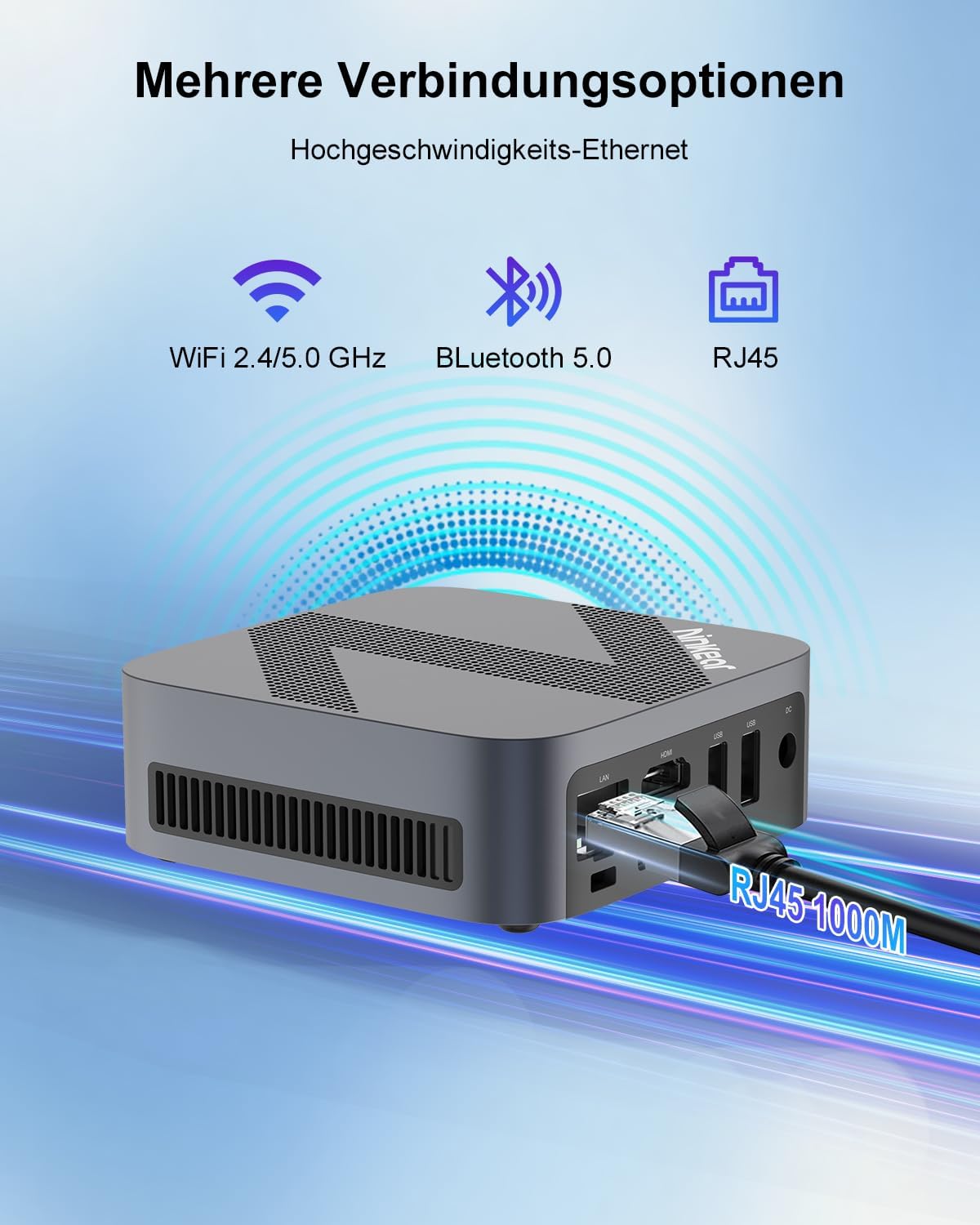
Figure 3.1: Powerful Cooling System. The Mini PC utilizes a copper pipe and aluminum heatsink design for efficient heat dissipation, ensuring quiet operation and low power consumption.
3.2 Ukuvuselelwa Kwesoftware
Regularly update your operating system and drivers to ensure system stability, security, and optimal performance.
- I-Windows Updates: Go to Windows Settings > Windows Update and check for available updates.
- Izibuyekezo Zomshayeli: While Windows Update often handles driver updates, you may occasionally need to check the Ninkear official website for the latest drivers for specific components if you encounter issues.
3.3 Ukuphathwa Kwesitoreji
To maintain the health and performance of your SSD, avoid filling it to full capacity. Periodically clean up unnecessary files kanye nezicelo.
- Ukuhlanza Idiski: Use the built-in Windows Disk Cleanup tool to remove temporary files and other non-essential data.
- Uninstall Programs: Remove programs you no longer use from Windows Settings > Apps > Installed apps.
4. Ukuxazulula izinkinga
This section addresses common issues you might encounter with your Ninkear Mini PC. If the problem persists, please refer to the Warranty and Support section.
4.1 Amandla Awekho
- Hlola Uxhumo Lwamandla: Qinisekisa ukuthi i-adaptha yamandla ixhunywe ngokuphephile kokubili kwi-Mini PC kanye ne-outlet yamandla esebenzayo.
- I-Outlet Yokuhlola: Try plugging another device into the same power outlet to confirm it is functional.
- Inkinobho yamandla: Ensure you are pressing the power button firmly.
4.2 Akukho Okukhiphayo Kokubonisa
- Uxhumano Lwekhebula: Verify that the HDMI or DisplayPort cable is securely connected to both the Mini PC and the monitor.
- Gada Okokufaka: Ensure your monitor is set to the correct input source (e.g., HDMI 1, DP).
- Test with Another Display/Cable: If possible, try connecting the Mini PC to a different monitor or using a different HDMI/DP cable to rule out display or cable issues.
- Qala kabusha: Power cycle the Mini PC and the monitor.
4.3 Izinkinga Zokuxhumana kwe-Wi-Fi noma i-Bluetooth
- Enable Wi-Fi/Bluetooth: Qinisekisa ukuthi i-Wi-Fi ne-Bluetooth zivuliwe kuzilungiselelo ze-Windows.
- Ukuhlola Komshayeli: Verify that the Wi-Fi and Bluetooth drivers are installed and up to date in Device Manager.
- Router/Device Proximity: Move closer to your Wi-Fi router or Bluetooth device.
- Restart Router/Mini PC: Restart your Wi-Fi router and the Mini PC.
4.4 System Performance Issues (Slowdown, Lag)
- Vala Izinhlelo Zokusebenza Ezingasetshenziswanga: Vala noma yiziphi izinhlelo zokusebenza ezisebenza ngemuva ezingasetshenziswa.
- Hlola Isiphathi Somsebenzi: Open Task Manager (Ctrl+Shift+Esc) to identify processes consuming high CPU, RAM, or disk resources.
- Isikhala Sediski: Qinisekisa ukuthi kunesikhala esanele samahhala ku-SSD.
- Ukuskena kwe-Malware: Sebenzisa ukuskena okugcwele kwesistimu ngesofthiwe ye-antivirus.
- Ukupholisa: Ensure the Mini PC has adequate ventilation and is not overheating.
5. Imininingwane
Below are the detailed technical specifications for the Ninkear Mini PC W-11 (MBOX 11 Mini PC).
| Isici | Ukucaciswa |
|---|---|
| Ibhrendi | Ninkear |
| Imodeli/Uchungechunge | MBOX 11 |
| Inombolo Yemodeli | MBOX 11 Mini PC |
| Umbala | Okumpunga |
| Ubukhulu bomkhiqizo | 9.9 x 9.9 x 3.3 cm |
| Isisindo sento | 240 g |
| Iphrosesa Brand | Intel |
| Uhlobo Lwephrosesa | Celeron N150 (4 Cores, 4 Threads) |
| Isivinini Sephrosesa | Kufika ku-3.6 GHz |
| Usayizi we-RAM | 16 GB |
| Ubuchwepheshe Benkumbulo | DDR4, SO-DIMM |
| Max Supported Storage | 2 TB (M.2 NVMe PCIe3.0 SSD or M.2 SATA SSD) |
| Hard Drive Size (Included) | 512 GB |
| Hard Drive Technology | I-SSD |
| I-Graphics Coprocessor | I-Intel UHD Graphics |
| Isixhumanisi Sezithombe | Kuhlanganisiwe |
| Uhlobo lokuxhumana | Bluetooth 5.0, Wi-Fi 5 (WLAN) |
| I-HDMI Interfaces | 1 (i-HDMI 2.0) |
| DisplayPort Interfaces | 1 |
| Izimbobo ze-USB | 2x USB 3.0 (ngaphambili), 2x USB 2.0 (ngemuva) |
| I-Ethernet | RJ45 (Gigabit) |
| I-Audio Jack | 1x 3.5mm Headphone/MIC Jack |
| Isistimu esebenzayo | Windows 11 (W11 OS) |
| Batteries (Internal) | 1 C Battery required (included) |
| Amandla ebhethri ye-Lithium | 6 Watt-amahora |
| Isisindo Sebhethri Lithium | awu 10g |
| Number of Lithium-Ion Cells | 1 |
Qaphela: Imininingwane ingashintsha ngaphandle kwesaziso sangaphambili.
6. Iwaranti kanye Nokusekela
Ninkear is committed to providing high-quality products and excellent customer service.
6.1 Ulwazi Lwewaranti
If you purchase the product and experience a failure due to product defects within 1 year, please contact Ninkear customer support. You will need to provide your order number, a video or photo of the defect, and a detailed description of the issue.
6.2 Ukwesekwa Kwamakhasimende
For any questions, technical assistance, or warranty claims, please contact the Ninkear Official Store or the designated customer service center. They will guide you through the repair process or provide further assistance.
Ukuze uthole olunye ulwazi, vakashela i- Ninkear Store on Amazon.


