1. Isingeniso
The Amazon Basics 4G LTE WiFi USB Dongle Stick provides fast and reliable internet access. This compact, plug-and-play data card is designed for both personal and professional use, offering seamless connectivity wherever you go. It supports all major SIM networks and can create a WiFi hotspot for multiple devices.
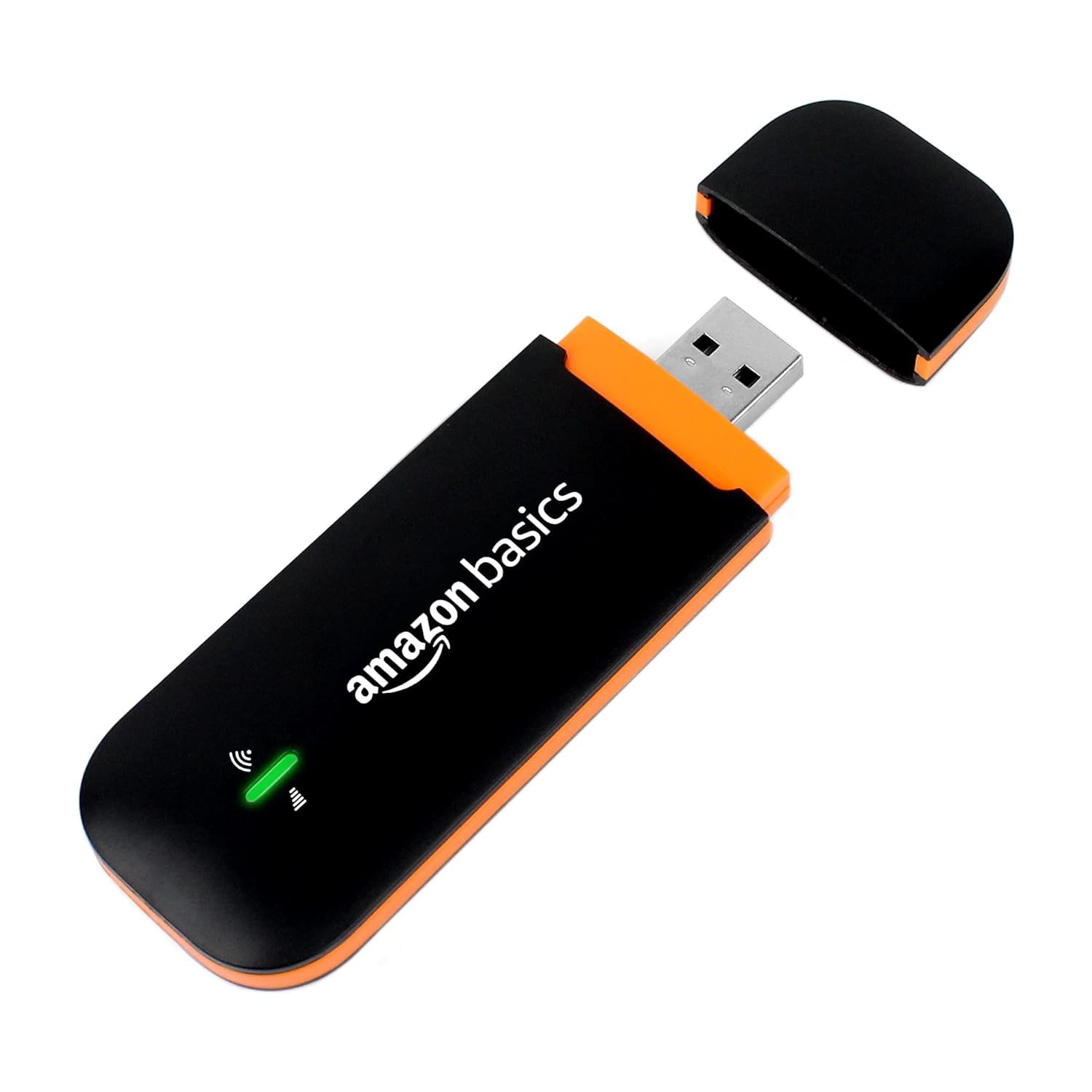
Figure 1: Amazon Basics 4G LTE WiFi USB Dongle Stick. The device is shown with its protective cap removed, revealing the USB connector. Status indicator lights are visible on the device body.
2. Izici zomkhiqizo
- Universal SIM Support: Compatible with all major 4G SIM cards.
- Ukuxhumana Okunesivinini esikhulu: Offers download speeds up to 150Mbps and upload speeds up to 50Mbps.
- I-WiFi Hotspot: Capable of creating a WiFi hotspot for up to 10 connected devices.
- Premium Qualcomm Chipset: Equipped with a Qualcomm MSM8916 chipset for enhanced performance and stability.
- Xhuma futhi udlale: Requires no complex driver installation; simply plug into a USB port to begin.
- Idizayini Ephathekayo: Lightweight and compact for easy transport and use on the go.
- Single-Band Operation: Operates on the 2.4GHz frequency band.
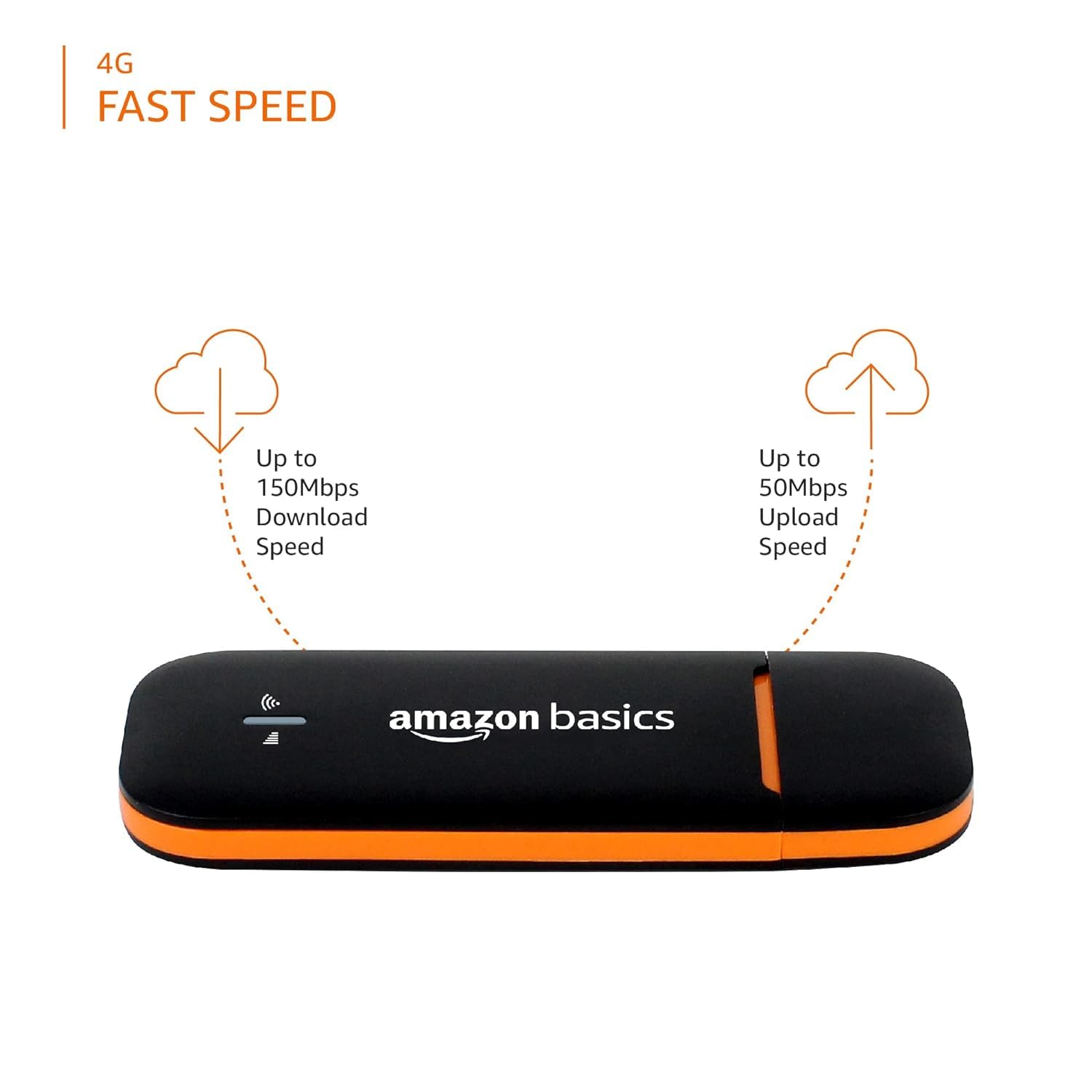
Figure 2: Speed capabilities of the dongle. This image illustrates the maximum download speed of up to 150Mbps and upload speed of up to 50Mbps.

Figure 3: Connectivity features. The image highlights that the device operates on a 2.4GHz frequency band, supports up to 10 WLAN devices, and provides high-speed internet.
3. Sethaphu Imiyalelo
- Faka Ikhadi le-SIM: Carefully open the dongle's cover to access the SIM card slot. Insert your activated 4G SIM card into the designated slot. Ensure it is correctly oriented and securely seated. The dongle supports standard, micro, and nano SIM cards (adapters may be required for smaller SIMs, often included with your SIM card).
- Xhuma Kumbobo ye-USB: Plug the dongle into an available USB port on your computer, laptop, or a compatible USB power adapter. The device will power on automatically.
- Ukufakwa Komshayeli (Okuzenzakalelayo): For most operating systems (Windows, macOS), the necessary drivers will install automatically upon first connection. If prompted, follow the on-screen instructions.
- Xhuma ku-WiFi: Once the dongle is powered on and recognized, it will broadcast a WiFi network. On your computer or mobile device, search for available WiFi networks. The network name (SSID) and password (WiFi Key) are typically printed on a sticker on the dongle itself (refer to Figure 5). Select the network and enter the password to connect.
- Ukufinyelela Web Interface (Optional): For advanced settings, open a web browser and navigate to the default login IP address (e.g., 192.168.8.1), also found on the dongle's sticker. Enter the default username and password (e.g., admin/admin) to access the device's configuration page.

Figure 4: Dongle components and SIM compatibility. This diagram illustrates the location of the SIM slot, reset button, and indicates where to find default login details. It also shows compatibility with various SIM providers like Jio, VI, Airtel, and BSNL.

Umfanekiso 5: Emuva view of the dongle. This image provides a detailed view of the SIM card slot and a sticker containing essential information such as SSID, WiFi Key, Login IP, Username, Password, MAC address, and Serial Number.

Figure 6: Dongle connected to a laptop. The image shows the USB dongle securely inserted into a laptop's USB port, demonstrating its direct connectivity.
4. Iziqondiso Zokusebenza
4.1 Ukuvula / Ukuvula
The dongle powers on automatically when plugged into a powered USB port. To turn it off, simply remove it from the USB port.
4.2 Connecting Devices to the WiFi Hotspot
Once the dongle is active and broadcasting its WiFi network:
- On your device (smartphone, tablet, laptop), go to WiFi settings.
- Select the SSID (network name) of your Amazon Basics dongle.
- Enter the WiFi Key (password) when prompted.
- Your device will now be connected to the internet via the dongle's hotspot.
4.3 Izinkomba Zesimo
The dongle features LED indicators to show its operational status:
- Green Light (Solid): Device is powered on and connected to the 4G network.
- Ukukhanya Okuluhlaza (Ukucwayiza): Device is powered on and searching for a 4G network.
- Ukukhanya Okubomvu: Indicates an error or no SIM card detected.

Figure 7: Multipurpose usage. This image depicts the dongle being used in various settings, including business meetings, working from home, online classes, and while traveling, highlighting its versatility.
5. Isondlo
- Ukuhlanza: Use a soft, dry cloth to clean the exterior of the dongle. Avoid using liquid cleaners or solvents.
- Isitoreji: Store the dongle in a cool, dry place away from direct sunlight and extreme temperatures. When not in use, keep the protective cap on the USB connector.
- Ukuphatha: Handle the device with care. Avoid dropping it or exposing it to excessive force, moisture, or dust.
- Setha kabusha Inkinobho: In case of persistent issues, a small reset button is located near the SIM slot (refer to Figure 4). Use a pin or a straightened paperclip to press and hold the reset button for approximately 5-10 seconds to restore factory default settings. This will erase any custom configurations.

Figure 8: Portable design. The dongle is shown held in a hand, illustrating its small size and ease of portability.
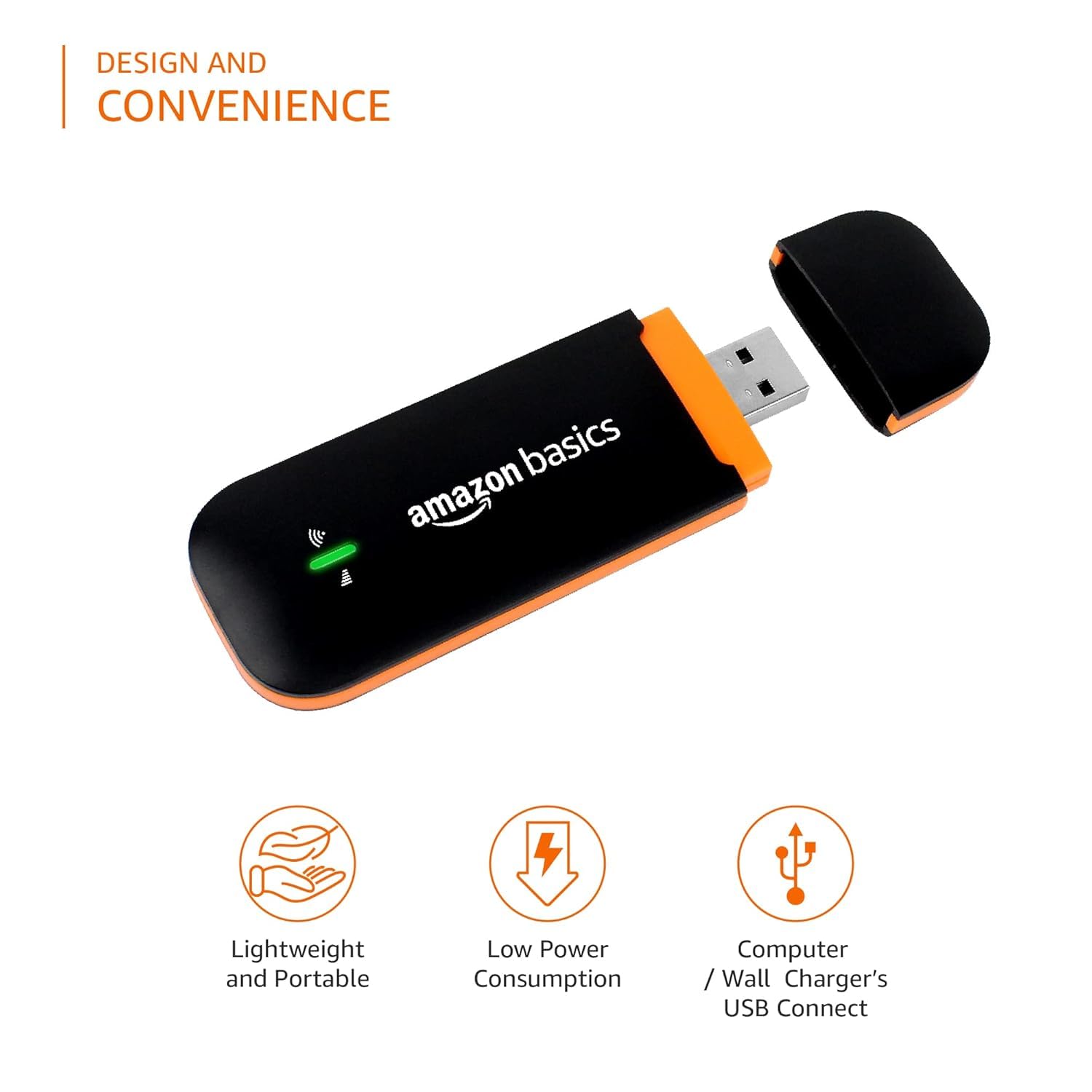
Figure 9: Design and convenience features. This image highlights the dongle's lightweight and portable nature, low power consumption, and its ability to connect via USB to computers or wall chargers.
6. Ukuxazulula izinkinga
| Inkinga | Imbangela Engenzeka | Isixazululo |
|---|---|---|
| Alukho uxhumano lwe-inthanethi | SIM card not activated or incorrectly inserted; no 4G signal; incorrect WiFi password. | Ensure SIM is active and correctly inserted. Check for 4G signal strength. Verify WiFi password. Try moving to an area with better signal. |
| Isivinini se-inthanethi esinensa | Weak 4G signal; too many devices connected; network congestion. | Relocate the dongle for better signal. Disconnect unnecessary devices. Contact your SIM provider for network status. |
| Cannot connect to WiFi hotspot | Incorrect WiFi password; dongle not powered on; WiFi disabled. | Double-check the WiFi password. Ensure the dongle is plugged into a powered USB port. Reset the dongle to factory defaults if necessary. |
| Dongle not recognized by computer | Faulty USB port; driver issue. | Try a different USB port. Restart your computer. If drivers don't install automatically, check the manufacturer's website for manual driver installation. |
| Inkomba ye-LED ebomvu | No SIM card; SIM card error; device malfunction. | Ensure SIM card is properly inserted. Try a different SIM card if available. Perform a factory reset. If the issue persists, contact customer support. |
7. Imininingwane Yezobuchwepheshe
| Isici | Ukucaciswa |
|---|---|
| Ibhrendi | amazon eziyisisekelo |
| Imodeli | Design_3 |
| Uhlobo Olungenantambo | 802.11ac |
| Izinga Lokuxhumana Okungenantambo | 802.11ac |
| I-Frequency Band Class | Ibhendi Eyodwa (2.4GHz) |
| Max Data Speed | Up to 150Mbps (Download) |
| Hotspot Capacity | Kufikela kumadivayisi angu-10 |
| I-chipset | Premium Qualcomm MSM8916 |
| Amadivayisi Ahambisanayo | Ikhompyutha yomuntu siqu |
| Voltage | 5 volts |
| Isisindo sento | 60 g |
| Ubukhulu bephakheji | 13.2 x 7.7 x 2.9 cm |
| Isici Esikhethekile | All SIM Support |
8. Ulwazi Lwewaranti
This Amazon Basics product is covered by a limited warranty. Please refer to the warranty card included in your product packaging or visit the official Amazon Basics website for detailed warranty terms and conditions. Keep your purchase receipt as proof of purchase for any warranty claims.
9. Ukwesekwa Kwamakhasimende
For further assistance, technical support, or to report any issues with your Amazon Basics 4G LTE WiFi USB Dongle Stick, please contact Amazon Basics customer service. Contact details can typically be found on the Amazon webisayithi ngaphansi kwezingxenye ezithi 'Usizo' noma 'Isevisi Yamakhasimende'.


