Isingeniso
This manual provides comprehensive instructions for the ASHATA 12 Key Programmable Mechanical Gaming Keyboard. This compact, one-handed keypad is designed for versatility, featuring programmable keys, customizable RGB lighting, and hot-swappable mechanical switches. It connects via a Type-C USB interface, ensuring broad compatibility with various operating systems. Please read this manual thoroughly before using the product to ensure proper operation and longevity.

Isithombe: Phezulu phansi view of the ASHATA 12 Key Mechanical Gaming Keyboard, showcasing its compact design and 12 black keycaps.
Okuqukethwe Kwephakheji
Verify that all items listed below are present in your package. If any items are missing or damaged, please contact customer support.
- 1 x ASHATA 12 Key Mechanical Gaming Keyboard
- 1 x Ikhebuli ye-USB yohlobo C
- 1 x Umdobi wekepisi

Image: The included Type-C USB cable and a green keycap puller, essential tools for keyboard maintenance and customization.
Imininingwane
| Isici | Imininingwane |
|---|---|
| Ibhrendi | ASHATA |
| Inombolo Yemodeli | ASHATA8hggapme4i-12 |
| Inombolo engukhiye | 12 okhiye |
| Shintsha Uhlobo | Red Mechanical Switch (Hot-Swappable) |
| Ukuxhumana | Type-C Wired USB |
| Okubalulekile | I-Acrylic + ABS |
| I-OS ehambisanayo | Linux, OS X, Windows, Raspberry Pi |
| Izici ezikhethekile | Programmable, RGB Lighting, Hot-Swappable |
Setha Imiyalelo
Follow these steps to set up your ASHATA 12 Key Mechanical Gaming Keyboard:
- Xhuma Ikhebuli: Insert the Type-C end of the provided USB cable into the port on the side of the keyboard.
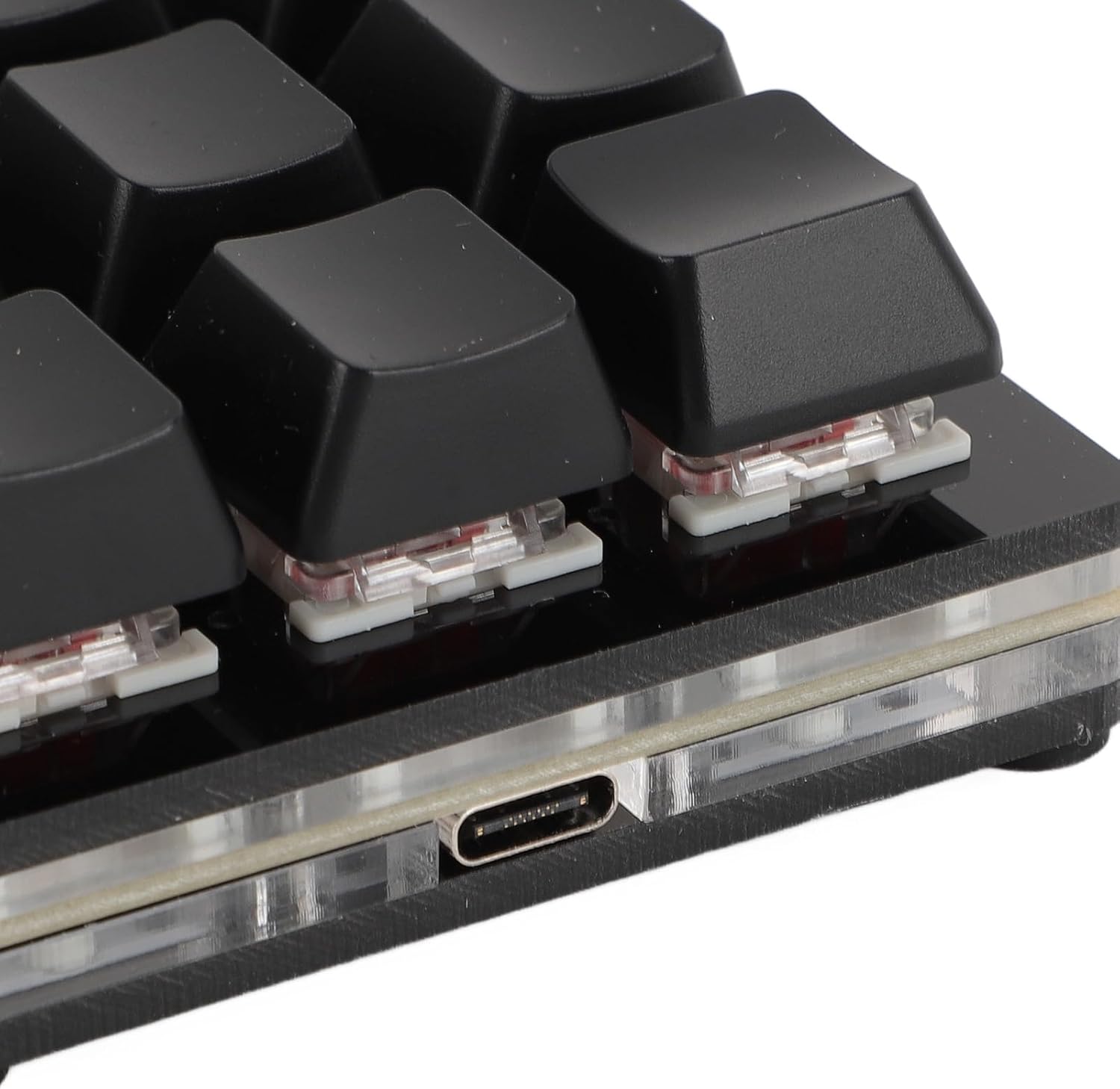
Isithombe: Eduze view of the Type-C USB port located on the side of the keyboard for connection.
- Xhuma Kukhompyutha: Xhuma ingxenye ejwayelekile yekhebula le-USB-A echwebeni le-USB elitholakalayo kukhompyutha yakho.

Image: The ASHATA 12 Key Mechanical Gaming Keyboard connected to a laptop, demonstrating its plug-and-play functionality.
- Ukufakwa komshayeli: The keyboard is plug-and-play and typically does not require specific driver installations. Your operating system should automatically recognize the device.
- Ukuhlolwa Kwasekuqaleni: Open a text editor or a program that accepts keyboard input and press a few keys to confirm basic functionality.
Imiyalelo yokusebenza
The ASHATA 12 Key Mechanical Gaming Keyboard is designed for customizable input.
Imisebenzi Esemqoka Iphelileview
This keyboard supports various programmable functions, including:
- Keyboard Function (standard key presses)
- Mouse Function (e.g., click, scroll)
- Multimedia Function (e.g., play/pause, volume)
- String Function (inputting predefined text strings)
- Game Function (specific game commands)
- Macro Definition Function (complex sequences of actions)

Image: An illustrative diagram highlighting the six main programmable functions: Keyboard, Mouse, Multimedia, String, Game, and Macro Definition.
Ukukhanyisa kwe-RGB
The keyboard features customizable RGB lighting. Specific instructions for adjusting lighting modes and turning it off will be available through the programming software.
Ukushintsha Okushisayo Okushintshwayo
The hot-swappable design allows you to change mechanical switches without soldering.
- Susa i-keycap: Sebenzisa i-keycap puller enikeziwe ukuze ususe ngobumnene ikhephu yokhiye oyifunayo.
- Susa Iswishi: Use a switch puller (not included, but often comes with replacement switches) to carefully extract the mechanical switch from its socket.
- Faka Iswishi Entsha: Align the pins of the new mechanical switch with the holes on the PCB and press firmly until it clicks into place. Ensure pins are not bent.

Isithombe: Ukuvala view showing a mechanical switch with a red stem and a detached black keycap, illustrating the hot-swappable feature.
- Shintshanisa amasheya Keycap: Place the keycap onto the new switch.
Ukuhlela nokwenza ngokwezifiso
To fully utilize the programmable features of your ASHATA keyboard, you will need to use the dedicated programming software. This software allows you to:
- Assign custom functions to each of the 12 keys.
- Create and assign macros for complex command sequences.
- Lungisa imiphumela yokukhanya kwe-RGB nemibala.
- Save and load different key layouts/profiles.
Qaphela: The specific software and download instructions are typically provided by the manufacturer or seller. Please refer to the product listing or manufacturer's website for the download link and detailed software usage guide. The keyboard has a memory function, so settings are saved directly to the device and do not require reconfiguration after initial setup.
Isondlo Nokunakekela
Ukunakekelwa okufanele kuqinisekisa ukuphila isikhathi eside nokusebenza kahle kwekhibhodi yakho.
- Ukuhlanza: Use a soft, dry cloth to wipe the surface of the keyboard. For deeper cleaning, remove keycaps using the provided puller and use compressed air to clear debris from between switches. Avoid using harsh chemicals or abrasive materials.
- Isitoreji: Gcina ikhibhodi endaweni epholile, neyomile ekude nelanga eliqondile namazinga okushisa aphezulu.
- Ukuphatha: Avoid dropping the keyboard or exposing it to liquids. Do not attempt to disassemble the keyboard beyond removing keycaps and switches, as this may void the warranty.
Ukuxazulula inkinga
Uma uhlangabezana nezinkinga ngekhibhodi yakho, bheka izinkinga nezixazululo ezilandelayo ezivamile:
- Ikhibhodi ayibonwa yikhompyutha:
- Qinisekisa ukuthi ikhebula le-USB lixhumeke ngokuphephile kukho kokubili ikhibhodi nekhompyutha.
- Zama ukuxhuma ikhibhodi embobeni ehlukile ye-USB kukhompuyutha yakho.
- Hlola ikhibhodi kwenye ikhompuyutha ukuze ukhiphe inkinga eqondene nekhompyutha.
- Qala kabusha ikhompuyutha yakho.
- Keys are not responding or typing incorrectly:
- Check for physical obstructions under the keycaps.
- If using custom key assignments, verify your settings in the programming software.
- For hot-swapped switches, ensure the switch is fully seated and its pins are not bent.
- RGB lighting is not working:
- Ensure the keyboard is properly connected and powered.
- Check the RGB settings within the programming software.
Umkhiqizo Uphelileview Ividiyo
Bukela le vidiyo emfushane ukuze uthole umbono opheleleview of the ASHATA 12 Key Mechanical Gaming Keyboard.
Video: A brief demonstration of the ASHATA 12 Key Mechanical Gaming Keyboard's features and functionality.
Iwaranti kanye Nokusekela
This product comes with a standard manufacturer's warranty. For detailed warranty information, including terms and conditions, please refer to the documentation included with your purchase or contact the seller directly.
For technical support, troubleshooting assistance, or inquiries about replacement parts, please contact ASHATA customer service through the platform where you purchased the product or visit the official ASHATA webindawo.