1. Isingeniso
This manual provides detailed instructions for the setup, operation, maintenance, and troubleshooting of your Phomemo D520BT Bluetooth Thermal Label Printer. Please read this manual thoroughly before using the device to ensure proper functionality and to extend the product's lifespan.

Figure 1: Phomemo D520BT printer in purple, printing a shipping label, with a smartphone displaying a label design connected via Bluetooth. This image illustrates the printer's compact design and wireless printing capability.
2. Okuqukethwe Kwephakheji
Qinisekisa ukuthi zonke izinto ezibalwe ngezansi zifakiwe kuphakheji yakho. Uma kukhona izinto ezingekho noma ezilimele, sicela uxhumane nokwesekwa kwamakhasimende.
- Phomemo D520BT Thermal Printer
- Roll Label (sample)
- Quick Start Guide
- Umhlahlandlela Womsebenzisi (le dokhumenti)
- Intambo Yamandla
- Ikhebula le-USB
- I-adaptha yohlobo C
- I-adaptha yamandla

Figure 2: All components included in the Phomemo D520BT product package.
3. Umhlahlandlela wokusetha
3.1 Ukuqaqa
- Susa ngokucophelela iphrinta nazo zonke izesekeli ephaketheni.
- Remove any protective films or packing materials from the printer.
3.2 Ukulayisha Amalebula
The Phomemo D520BT supports both roll paper and folding paper labels.
- Open the printer cover by gently lifting it.
- For Roll Paper: Place the label roll into the internal paper holder, ensuring the labels feed from the bottom and the printing side faces upwards. Guide the first label through the output slot until it is slightly visible.
- For Folding Paper: Place the stack of folding labels behind the printer, ensuring the labels feed smoothly into the rear input slot and the printing side faces upwards. Guide the first label through the output slot until it is slightly visible.
- Vala ikhava yephrinta ngokuphephile.

Figure 3: The Phomemo D520BT printer supports both folding paper and roll paper labels.
3.3 Ukuxhuma Iphrinta
The D520BT offers both USB and Bluetooth connectivity.
3.3.1 USB Connection (Windows, Mac, Chrome OS, Linux)
- Xhuma uhlangothi olulodwa lwekhebula le-USB kuphrinta kanye nolunye uhlangothi kukhompyutha yakho.
- Xhuma i-adaptha yamandla kuphrinta bese uyixhume endaweni yamandla.
- Vula iphrinta.
- Install the necessary printer drivers for your operating system. Drivers can typically be found on the official Phomemo webindawo.
3.3.2 Bluetooth Connection (Android, iOS, iPad)
- Xhuma i-adaptha yamandla kuphrinta bese uyixhume endaweni yamandla.
- Vula iphrinta.
- Landa futhi ufake ifayela le- “Labelife” uhlelo lokusebenza oluvela esitolo sohlelo lokusebenza ledivayisi yakho.
- Open the Labelife app and follow the in-app instructions to pair your device with the D520BT printer via Bluetooth.

Figure 4: The Phomemo D520BT supports both Bluetooth and USB connectivity for various devices and operating systems.
4. Iziqondiso Zokusebenza
4.1 Vula/Vala amandla
- Vula: Press the power button located on the printer. The indicator light will illuminate.
- Cisha ugesi: Cindezela bese ubamba inkinobho yamandla kuze kucishwe isibani senkomba.
4.2 Printing a Label
- Ensure the printer is powered on and connected to your device (computer via USB or mobile device via Bluetooth).
- Vula idokhumenti noma uhlelo lokusebenza ofuna ukuphrinta ngalo.
- Select the Phomemo D520BT as your printer.
- Adjust print settings as needed (e.g., label size, orientation). The printer supports a width range of 1 to 4.6 inches.
- Qalisa umyalo wokuphrinta.
The Labelife app provides various free templates for customizing shipping labels, address labels, barcode labels, and thank-you stickers.
4.3 Izici ezibalulekile
- High Speed Printing: The D520BT can print up to 72 labels per minute (150mm/s), suitable for high-volume printing tasks.
- Ukulungiswa Okuphezulu: Prints at 203 DPI, ensuring sharp and precise details on each label.
- Wide Printing Range: Supports label widths from 1 inch to 4.6 inches, accommodating various label types including 4x6 inch shipping labels.
- Ink-Free Thermal Technology: Utilizes direct thermal printing, eliminating the need for ink or toner cartridges.
- Idizayini yokonga isikhala: Features a built-in paper holder, reducing the need for external label racks and optimizing desktop space.
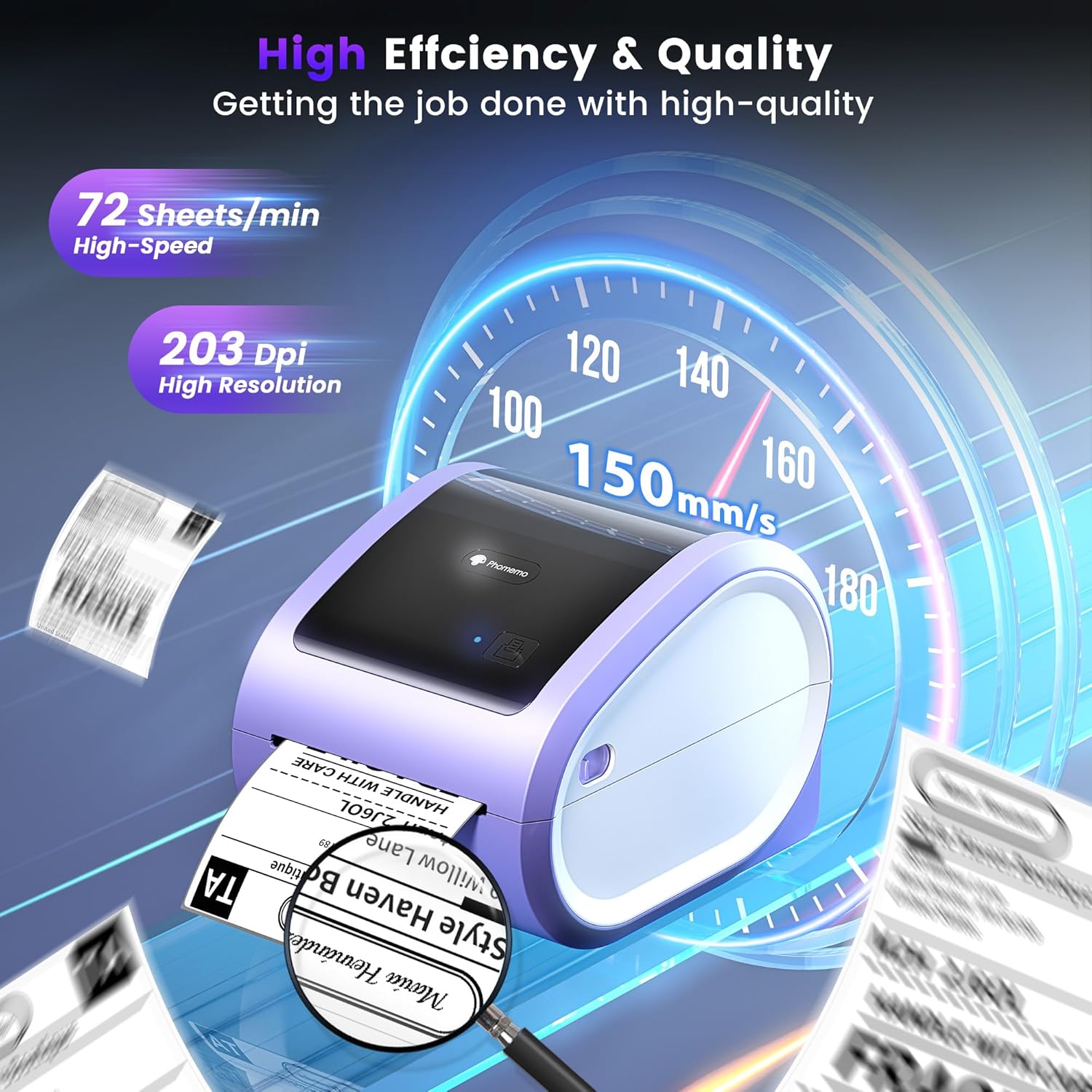
Figure 5: The Phomemo D520BT offers high efficiency and quality with a print speed of 150mm/s and 203 DPI resolution.

Figure 6: The Phomemo D520BT is compatible with various label sizes, from 1 inch to 4.6 inches wide.

Figure 7: The Phomemo D520BT supports multi-scenario applications for various labeling needs.

Figure 8: The Phomemo D520BT is compatible with all major shipping and sales platforms.
5. Isondlo
5.1 Ukuhlanza Ikhanda Lokuphrinta
Regular cleaning of the print head ensures optimal print quality and extends the printer's life.
- Vala iphrinta bese ukhipha intambo yamandla.
- Vula ikhava yephrinta.
- Gently wipe the print head with an alcohol swab or a soft, lint-free cloth lightly dampifakwe nge-isopropyl alcohol.
- Vumela ikhanda lokuphrinta ukuthi lome ngokuphelele ngaphambi kokuvala ikhava bese unika amandla iphrinta.
5.2 Isitoreji
Store the printer in a cool, dry place away from direct sunlight and extreme temperatures. Avoid exposing the printer to dust or moisture.
6. Ukuxazulula izinkinga
If you encounter issues with your Phomemo D520BT printer, refer to the following common problems and solutions:
- Printer not powering on:
- Ensure the power adapter is securely connected to both the printer and a working power outlet.
- Check if the power button has been pressed firmly.
- Labels not printing or feeding incorrectly:
- Verify that labels are loaded correctly with the printing side facing up.
- Ensure there are no obstructions in the label path.
- Check if the label roll or stack is depleted.
- Poor print quality (faded, streaky, or blank labels):
- Hlanza ikhanda lokuphrinta njengoba kuchaziwe kuSigaba 5.1.
- Qinisekisa ukuthi usebenzisa amalebula okushisa asezingeni eliphezulu.
- Check print density settings in your printer preferences.
- Izinkinga zokuxhumeka kwe-Bluetooth:
- Ensure Bluetooth is enabled on your mobile device and the printer.
- Restart both the printer and your mobile device.
- Ensure you are within the Bluetooth range.
- Re-pair the printer through the Labelife app.
- Izinkinga zokuxhuma kwe-USB:
- Verify the USB cable is securely connected to both the printer and the computer.
- Ensure the correct printer drivers are installed.
- Zama imbobo ye-USB ehlukile noma ikhebuli.
For further assistance, refer to the detailed video tutorials and user manuals available online, or contact Phomemo customer support.
7. Imininingwane
| Isici | Ukucaciswa |
|---|---|
| Ibhrendi | Phomemo |
| Igama Lemodeli | I-D520BT |
| Ubuchwepheshe bokuxhumana | I-Bluetooth, i-USB |
| Ubuchwepheshe bokuphrinta | Okushisayo |
| Isici Esikhethekile | Portable, Built-in Holder |
| Okukhipha Iphrinta | I-Monochrome |
| Isivinini Sokuphrinta Esiphezulu | 150 mm/s (72 labels/min) |
| Ukulungiswa kokuphrinta | 203 DPI |
| Ububanzi Bokuphrinta Okuphezulu | 4.6 amayintshi |
| Isisindo sento | 2.4 Amakhilogremu |
| Ubukhulu bomkhiqizo | 10.31"D x 10.31"W x 7.87"H |
8. Iwaranti kanye Nokusekela
Phomemo provides customer support to assist with any questions or issues you may encounter. For detailed warranty information, please refer to the warranty card included with your product or visit the official Phomemo website. Our customer support team is available via phone, email, or remote support.
For additional resources, including video tutorials and updated user manuals, please visit the Phomemo support page.


