Isingeniso
This user manual provides comprehensive instructions for setting up, operating, and maintaining your IFYOO G18 Tri-Mode 8K Wireless Gaming Mouse. Designed for competitive gaming, this mouse features a PAW3395 sensor, 8K polling rate, and tri-mode connectivity for a versatile and high-performance experience.
Yini EseBhokisini
Upon unboxing your IFYOO G18 Gaming Mouse, you should find the following items:
- IFYOO G18 Tri-Mode Wireless Gaming Mouse
- USB-A to USB-C Charging/Data Cable
- 8K Nano Wireless Receiver (USB-A Dongle)
- I-USB-A kuya ku-USB-C Adaptha
- Replacement Mouse Skates/Slides
- Anti-slip Grip Tapes
- Incwadi Yomsebenzisi (le dokhumenti)

Image: All components included in the IFYOO G18 Gaming Mouse package, laid out on a dark surface. This includes the white gaming mouse, a black braided USB-C cable, a small black USB-A adapter, a user manual, a sheet of black grip tapes, and a small packet of blue replacement mouse skates.
Setha
Izinketho Zokuxhuma
The IFYOO G18 mouse offers three versatile connectivity modes:
- Imodi engenantambo ye-2.4G: For optimal gaming performance with an 8K polling rate.
- Locate the 8K Nano Wireless Receiver (USB-A dongle) stored in the compartment on the underside of the mouse.
- Plug the receiver into an available USB-A port on your computer.
- Turn on the mouse using the switch on the bottom. The mouse will automatically connect.
- Imodi ye-Bluetooth 5.0: For general use and compatibility with various devices.
- Switch the mode selector on the bottom of the mouse to BT.
- On your device, search for Bluetooth devices and select "IFYOO G18" to pair.
- Imodi enentambo: For a stable connection and charging.
- Connect the provided USB-A to USB-C cable to the front of the mouse and an available USB-A port on your computer.
- Igundane lizosebenza njengegundane elinentambo futhi lishaje kanyekanye.

Image: A white IFYOO G18 gaming mouse connected via its USB-C cable to a laptop, with a 2.4GHz wireless receiver shown next to another laptop, and a Bluetooth symbol indicating wireless connectivity to a tablet. This illustrates the tri-mode connectivity options.
Ukulungiswa kwe-DPI
The G18 mouse features a dedicated DPI button on its underside, allowing for quick adjustments to sensitivity. The PAW3395 sensor supports up to 26,000 DPI. Default settings include 6-level DPI adjustment. For precise customization and to achieve the maximum 26,000 DPI, utilize the official driver software.

Image: A graphic illustrating the ultra-high DPI capabilities of the IFYOO G18 mouse with its PAW3395 sensor. It shows a range of DPI settings from 400 to 5200, with a note indicating that 26000 DPI can be achieved through driver customization.
Software/Driver Installation
To unlock the full customization potential of your IFYOO G18 mouse, including macro programming, button remapping, polling rate adjustment, and advanced DPI settings, download and install the official driver software from the IFYOO website. A beta web driver is also available for certain functionalities.
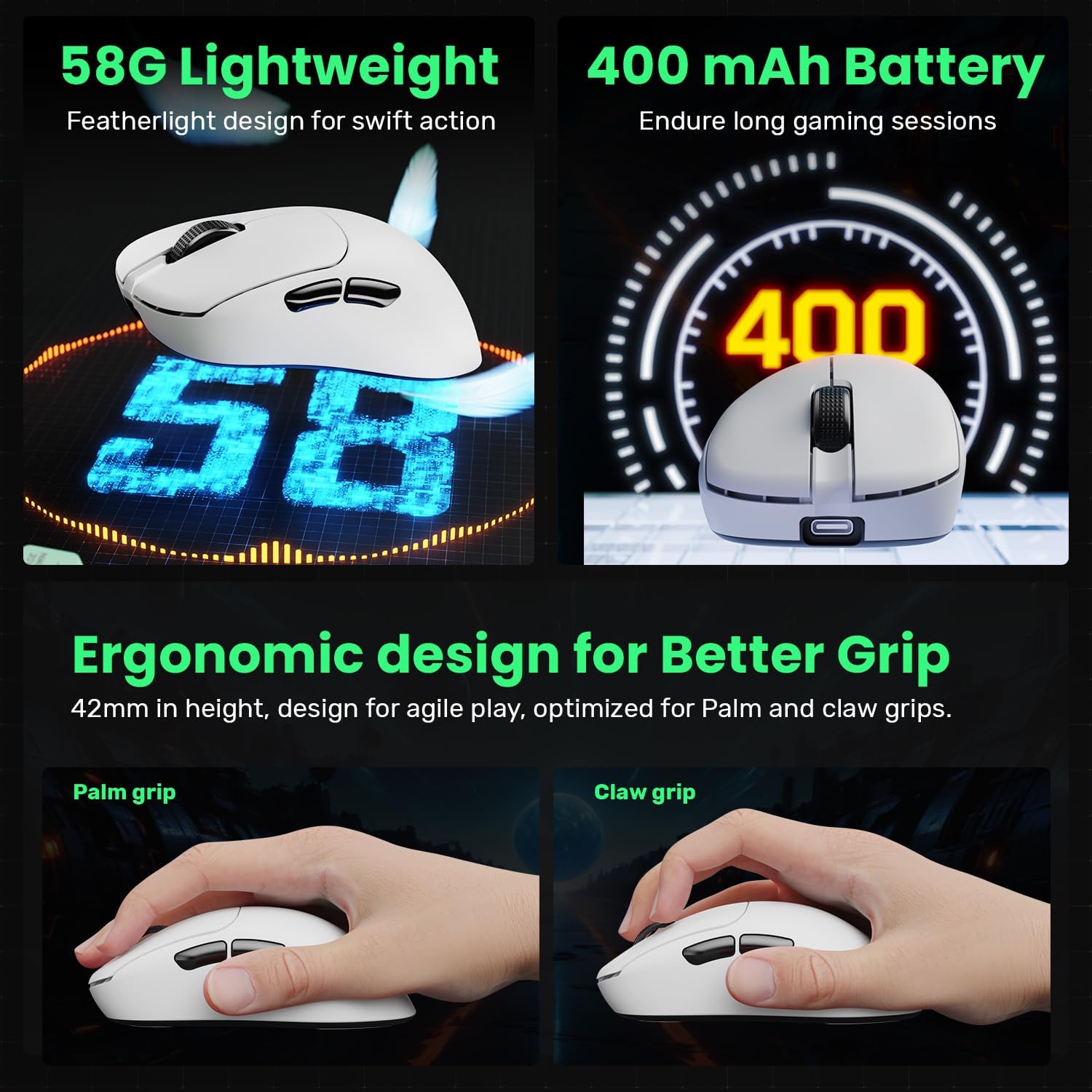
Image: A screenshot of the IFYOO G18 mouse customization driver interface, showing options for key mapping, macros, shake elimination, and DPI settings. The software allows users to tailor their gaming experience by adjusting various mouse parameters.
Imiyalelo yokusebenza
Basic Mouse Functions
The IFYOO G18 features standard mouse buttons and a scroll wheel for intuitive control:
- Chofoza kwesokunxele: Inkinobho yesenzo esiyinhloko.
- Chofoza kwesokudla: Inkinobho yesenzo sesibili, ngokuvamile samamenyu wokuqukethwe.
- Isondo Lokuskrola: Scrolls content vertically. Also functions as a clickable middle button.
- Izinkinobho Eziseceleni: Two programmable buttons on the left side, typically for forward/backward navigation in browsers or custom in-game actions.
Ergonomics and Grip
The G18 mouse is designed with a right-handed ergonomic shape, weighing only 58g for swift and agile movements. Its smaller size is optimized for both palm grip and claw grip styles, ensuring comfort during extended gaming sessions. Included grip tapes can be applied for enhanced control and feel.

Isithombe: Umbukiso wesithombe esihlanganisiweasing the IFYOO G18 mouse's features: its 58g lightweight design, 400mAh battery capacity, and ergonomic design optimized for both palm grip and claw grip, with illustrations of hands demonstrating each grip style.
Impilo Yebhethri
The mouse is equipped with a 400mAh battery, providing long-lasting power for your gaming sessions. When the battery is low, the indicator light will signal, and you can charge it using the provided USB-C cable. Charging typically takes 3-4 hours.
Isondlo
Ukuhlanza
Ukuze ugcine ukusebenza kahle kanye nokuhlanzeka, hlanza igundane lakho njalo. Sebenzisa indwangu ethambile, eyomile ukusula indawo. Uma ungcolile, susa ukungcola okuncane.amp indwangu ingasetshenziswa, ukuqinisekisa ukuthi akukho umswakama ongena ezingxenyeni zangaphakathi. Gwema amakhemikhali anokhahlo noma izinto ezilumayo.
Replacing Mouse Skates
Over time, the mouse skates (also known as mouse feet or glide pads) on the underside of your mouse may wear out, affecting its glide performance. Your IFYOO G18 comes with replacement skates. To replace them:
- Carefully peel off the old mouse skates.
- Clean the surface where the skates were attached to ensure it's free of residue.
- Peel the backing from the new replacement skates and carefully align them with the designated areas on the mouse's underside.
- Cindezela ngokuqinile ukuze uqinisekise ukunamathela okufanele.
Ukuxazulula inkinga
| Inkinga | Isixazululo Esingenzeka |
|---|---|
| Mouse not responding in 2.4G Wireless Mode. | Ensure the 8K Nano Wireless Receiver is securely plugged into a USB-A port. Check if the mouse is switched to 2.4G mode. Try a different USB port. |
| Izinkinga zokuxhumeka kwe-Bluetooth. | Ensure the mouse is in Bluetooth mode and discoverable. Remove previous pairings on your device and re-pair. Ensure your device's Bluetooth is enabled. |
| Ikhesa yegundane iyashintshashintsha noma ayiphenduli. | Clean the optical sensor on the underside of the mouse. Ensure the mouse is used on a suitable surface (not highly reflective or transparent). Check battery level. |
| DPI settings not changing. | Ensure you are pressing the correct DPI button. If using custom settings, verify the driver software is running and configured correctly. |
| Mouse not charging. | Verify the USB-C cable is properly connected to both the mouse and a power source/USB port. Try a different cable or USB port. |
Imininingwane
| Isici | Imininingwane |
|---|---|
| Ibhrendi | IFYOO |
| Inombolo Yemodeli | IFYOO-G18-3395-WhiteBlack |
| Ubuchwepheshe bokuxhumana | Tri-Mode: 2.4G Wireless, Bluetooth 5.0, Wired (USB-C) |
| Inzwa | PAW3395 Optical Sensor |
| Ibanga le-DPI | 50-26000 DPI (Iyalungiseka ngomshayeli) |
| Izinga Lokuvota | 2.4G Wireless: Max 8K Hz; Wired: Max 1K Hz |
| Izinkinobho | 5 Izinkinobho Ezihlelekayo |
| Micro-Switches | 100 Million Clicks Lifespan |
| Amandla ebhethri | 400 mAh (Lithium Polymer) |
| Isikhathi sokushaja | Approx. 3-4 Hours (Input: 5V / 0.5A) |
| Isisindo | Cishe. 58g |
| Ubukhulu (L x W x H) | 118 x 66 x 42 mm |
| Ukuhambisana | Windows, Mac, Linux, Android, iOS |
Iwaranti kanye Nokusekela
For warranty information, technical support, or further assistance with your IFYOO G18 Gaming Mouse, please refer to the official IFYOO webisayithi noma uxhumane nesevisi yabo yamakhasimende ngokuqondile. Gcina irisidi yakho yokuthenga ukuze uthole izimangalo zewaranti.


