1. Isingeniso
The MiBOXER WL-SW1 Smart Switch is designed to integrate traditional lighting and electrical appliances into a smart home system. It offers control via WiFi and 2.4G wireless technologies, enabling remote operation through a smartphone application, voice commands, and traditional manual switches. This manual provides essential information for the safe installation, setup, and operation of your WL-SW1 Smart Switch.
2. Ulwazi Lokuphepha
- Ukuphepha Kagesi: Installation must be performed by a qualified electrician or service personnel in accordance with all local and national electrical codes.
- Ukunqanyulwa kwamandla: Nqamula njalo ugesi ku-circuit breaker ngaphambi kokufaka noma ukulungisa idivayisi.
- Voltage Ukuhambisana: Qinisekisa ivolumu yokufakatage (100-240V AC, 50/60Hz) and maximum load (10A) are compatible with your electrical system and connected appliances.
- Ukusetshenziswa Kwangaphakathi Kuphela: This device is intended for indoor use in dry environments. Avoid exposure to moisture or extreme temperatures.
- Vikela Ukuxhumana: Qinisekisa ukuthi zonke izintambo zixhumekile futhi zifakwe kahle ukuze kuvinjelwe ama-short circuits.
3. Okuqukethwe Kwephakheji
Qinisekisa ukuthi zonke izinto zikhona kuphakheji:
- MiBOXER WL-SW1 Smart Switch
- Incwadi Yomsebenzisi (le dokhumenti)

Figure 3.1: The MiBOXER WL-SW1 Smart Switch alongside its retail packaging and a small instruction leaflet, indicating typical package contents.
4. Umkhiqizo Uphelileview
The WL-SW1 Smart Switch is a compact device designed for seamless integration into your electrical system. It features multiple connection points for input power, output to appliances, and connections for external manual switches.

Umfanekiso 4.1: Ngaphambili view of the MiBOXER WL-SW1 Smart Switch, showing input and output terminals, model number, and basic electrical specifications.
Izici Eziyinhloko:
- Ukuxhumana Okukabili: Supports both WiFi and 2.4G wireless protocols for flexible control.
- Ukulawula Uhlelo Lokusebenza Oluhlakaniphile: Compatible with the 'Tuya Smart' app for remote management.
- Ukuhlanganiswa Komsizi Wezwi: Works with third-party voice control systems like Alexa and Google Assistant.
- Multi-Timer Function: Allows scheduling of operations.
- Ukusebenza Mathupha: Retains compatibility with traditional push or rocker switches.
- Umsebenzi Wenkumbulo: Remembers the last state after a power interruption.
- Ukuhambisana Okubanzi: Suitable for various electrical equipment.

Figure 4.2: Detailed diagram highlighting the various interfaces of the WL-SW1 Smart Switch, including input/output terminals, wire preparation guidelines, and construction features like screw lock terminals and a fire-resistant PC shell.
5. Imininingwane
| Isibaluli | Inani |
|---|---|
| Inombolo Yemodeli | WL-SW1 |
| Okokufaka Voltage | 100-240V~, 50/60Hz |
| Okukhipha Umqtage | 100-240V~, 50/60Hz |
| UMax Wamanje | 10A |
| Izinga Lokushisa Lokusebenza | -10 ~ 40°C |
| Ukuxhumana Okungenantambo | WiFi + 2.4G |
| Ubukhulu bephakheji | 3 x 3 x 1.5 amayintshi |
| Isisindo sento | 2.24 amakhilogremu |
6. Ukufakwa
Okubalulekile: Ensure power is disconnected at the circuit breaker before beginning installation.
- Prepare the Installation Location: The WL-SW1 Smart Switch is designed to fit into standard bottom boxes with a depth greater than 50mm.
- Ukulungiswa Kwezintambo: Strip approximately 7mm of insulation from the ends of your wires.
- Xhuma Amandla Okufaka: Connect the Live (L) and Neutral (N) wires from your power supply to the 'L' and 'N' terminals under the 'INPUT' section of the switch.
- Connect Output to Appliance: Connect the Live (L1) and Neutral (N) wires leading to your electrical appliance (e.g., light, fan) to the 'L1' and 'N' terminals under the 'OUTPUT' section.
- Connect Manual Switch (Optional): If using a traditional push or rocker switch, connect its terminals to 'S1' and 'S2' on the WL-SW1. This allows for manual control in addition to smart control.
- Vikela Idivayisi: Carefully place the WL-SW1 into the electrical box, ensuring no wires are pinched. Secure it in place.
- Buyisela Amandla: Once all connections are secure and the device is properly installed, restore power at the circuit breaker.

Figure 6.1: Step-by-step installation diagram for the WL-SW1 Smart Switch, detailing how it fits into standard electrical boxes (depth > 50mm) and connects to a push or rocker switch.
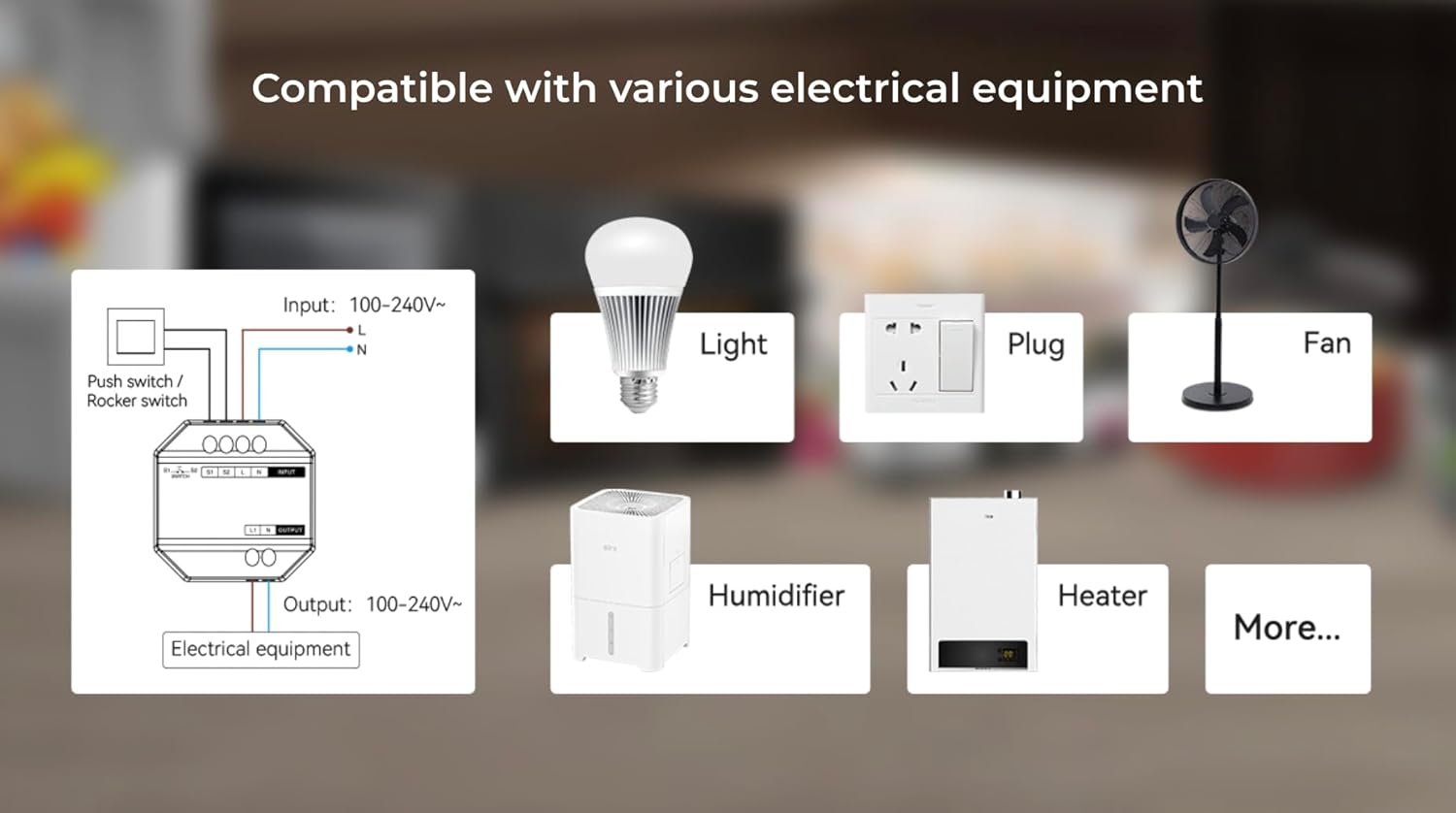
Figure 6.2: An illustrative diagram demonstrating the broad compatibility of the WL-SW1 Smart Switch with diverse electrical appliances, including lighting, fans, and heating devices.
7. Setha
7.1. App Pairing (Tuya Smart)
- Landa uhlelo lokusebenza: Download the 'Tuya Smart' app from your smartphone's app store (iOS or Android).
- Bhalisa/Ngena: Vula uhlelo lokusebenza bese ubhalisela i-akhawunti entsha noma ungene ngemvume nge-akhawunti ekhona.
- Engeza Idivayisi: Follow the in-app instructions to add a new device. The WL-SW1 typically enters pairing mode automatically upon first power-up or after a reset.
- Xhuma ku-WiFi: Select your 2.4GHz WiFi network and enter the password. The app will guide you through the connection process.
- Ukuqamba Kabusha Idivayisi: Once connected, you can rename the switch for easier identification.

Figure 7.1: An illustration of the MiBOXER WL-SW1 Smart Switch being controlled via a smartphone application, demonstrating remote operation.

Umfanekiso 7.2: I-overview of the 'Tuya Smart' application features compatible with the WL-SW1 Smart Switch, such as timing settings, device sharing, automation, and child lock functionality.
7.2. Ukuhlanganisa Umsizi Wezwi
To enable voice control with platforms like Amazon Alexa or Google Assistant:
- Ensure your WL-SW1 is successfully paired with the 'Tuya Smart' app.
- Open your Alexa or Google Home app.
- Navigate to the 'Skills' or 'Works with Google' section.
- Cinga and enable the 'Tuya Smart' skill/service.
- Xhuma i-akhawunti yakho ye-Tuya Smart uma ucelwa.
- Discover devices. Your WL-SW1 Smart Switch should now appear and be controllable via voice commands.
8. Iziqondiso Zokusebenza
8.1. Ukulawulwa kohlelo lokusebenza
Once paired, you can control your WL-SW1 Smart Switch from the 'Tuya Smart' app:
- Khanyisa cisha: Tap the switch icon in the app to toggle the connected appliance on or off.
- Izilungiselelo Zesikhathi: Use the app's timing function to set schedules for automatic on/off operations.
- Ukwabelana Kwedivayisi: Share control of the switch with other family members through the app.
- Okuzenzakalelayo: Create smart scenes and automations based on conditions like time, weather, or other device states.
8.2. Ukulawulwa Kwezandla
If an external push or rocker switch is connected to the 'S1' and 'S2' terminals, you can operate the connected appliance manually by pressing the physical switch. This functionality works independently of the smart control system.

Figure 8.1: The MiBOXER WL-SW1 Smart Switch shown installed behind a conventional wall switch, illustrating its compatibility with existing manual controls.
8.3. Umsebenzi Wememori
The WL-SW1 Smart Switch features a memory function. In the event of a power outage, the switch will return to its last known state (on or off) once power is restored.
9. Isondlo
- Ukuhlanza: Disconnect power before cleaning. Wipe the device with a soft, dry cloth. Do not use liquid cleaners or aerosols.
- Ukuvuselelwa kwe-Firmware: Periodically check the 'Tuya Smart' app for available firmware updates to ensure optimal performance and security.
- Izimo Zemvelo: Ensure the device is kept within its specified working temperature range (-10~40°C) and away from excessive moisture.
10. Ukuxazulula izinkinga
- Idivayisi Ayiphenduli: Check if the power supply is connected correctly. Verify the WiFi connection in the 'Tuya Smart' app. Ensure the device is within range of your WiFi router.
- Cannot Pair with App: Ensure your smartphone is connected to a 2.4GHz WiFi network (5GHz networks are not supported for initial pairing). Reset the device (refer to app instructions for reset procedure, typically involves holding a button or cycling power).
- Ukulawulwa Kwezwi Akusebenzi: Confirm that the 'Tuya Smart' skill/service is enabled and linked in your Alexa or Google Home app. Ensure the device is discovered and named appropriately.
- Manual Switch Not Working: Verify that the 'S1' and 'S2' terminals are correctly wired to your physical switch.
11. Iwaranti kanye Nokusekela
For warranty information and technical support, please refer to the documentation provided with your purchase or visit the official MiBOXER webindawo. Gcina ubufakazi bakho bokuthenga ngezimangalo zewaranti.


