1. Isingeniso
This manual provides detailed instructions for setting up, operating, and maintaining your YOOSEE KAP X330 Wireless WiFi Repeater Router. Please read this manual carefully before using the device to ensure optimal performance, extended network coverage, and safety. This device is designed to easily expand the range of your existing WLAN network or create a new access point.
2. Umkhiqizo Uphelileview
2.1 Izici ezibalulekile
- Extends the range of your WLAN network easily.
- Provides Internet access for computers located at the edge or outside the range of your main access point.
- Supports both Wireless Repeater Mode and standard Access Point (AP) Mode.
- Utilizes WLAN 802.11N for high-speed wireless access.
- Compatible with 802.11G (54 Mbps) and 802.11B (11 Mbps) standards.
- Operates on the 2.4GHz WLAN frequency.
- Ensures maximum WLAN network security with WPA2, WPA, and WEP (64/128-bit) encryptions.
- Features integrated antennas for compact design.
- Bivolt (110V / 220V) power input for versatile use.
- Supports WPS (Wi-Fi Protected Setup) for easy connection.
2.2 Okuqukethwe Kwephakheji
- 1x YOOSEE KAP X330 Wireless WiFi Repeater Router
- 1x Incwadi Yomsebenzisi
2.3 Incazelo Yomzimba
The KAP X330 is a compact, white device designed to plug directly into a wall outlet. It features indicator lights on the front panel and an Ethernet port on the side for wired connections.
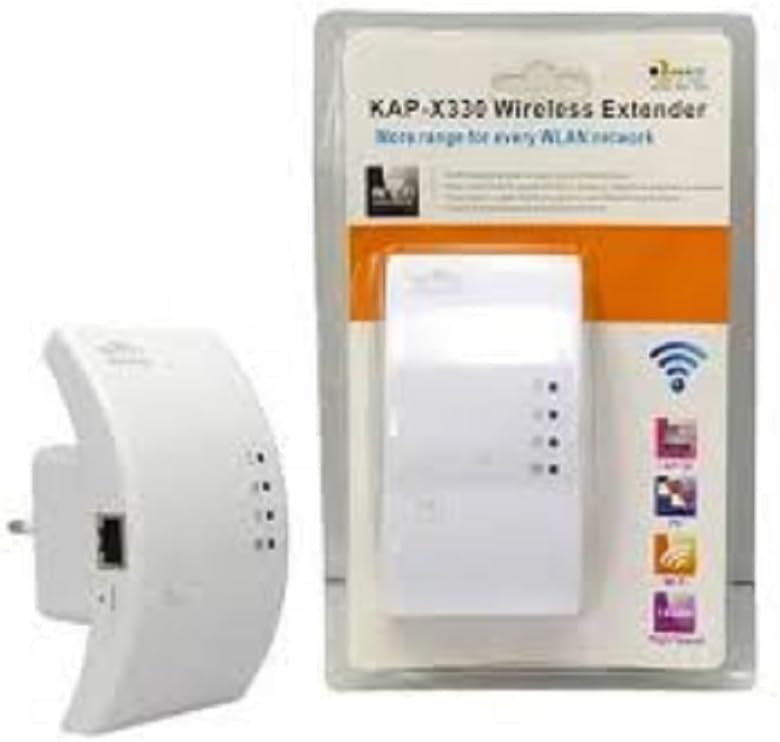
Figure 2.1: YOOSEE KAP X330 Wireless Repeater in its retail packaging and as a standalone unit. The packaging highlights its 'KAP-X330 Wireless Extender' name and 'More range for every WLAN network' slogan. The device itself is white with indicator lights and an Ethernet port visible.
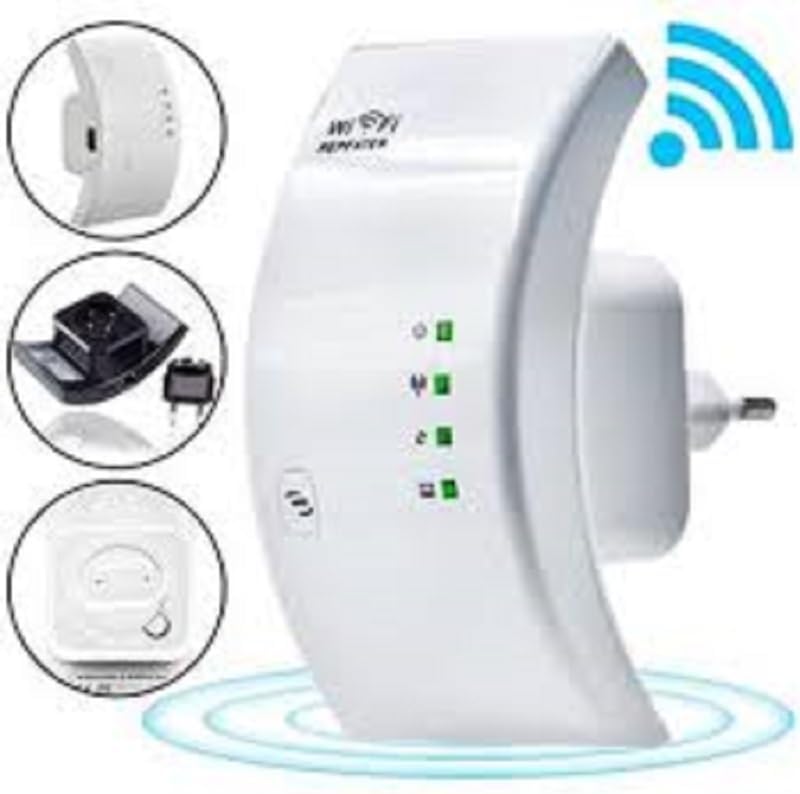
Figure 2.2: A closer look at the YOOSEE KAP X330 Wireless Repeater, emphasizing its design and features. It shows the device plugged into an outlet, with indicator lights illuminated. Insets highlight the side view with an Ethernet port, the power plug, and a reset button, along with a prominent WiFi signal icon.
3. Umhlahlandlela wokusetha
3.1 Iyavula
- Plug the KAP X330 into a standard electrical outlet within the range of your existing WiFi network (for Repeater Mode) or near your wired internet source (for AP Mode).
- Wait for the power indicator light to turn on, indicating the device is ready.
3.2 Izindlela zokuxhuma
The KAP X330 supports two main operational modes:
- Imodi Yokuphinda: Yandisa ukumbozwa kwenethiwekhi engenantambo ekhona.
- Imodi ye-AP (Iphoyinti Lokufinyelela): Creates a new wireless network from a wired Ethernet connection.
3.3 Configuration Steps (Repeater Mode)
- Connect to the Repeater: On your computer or smartphone, connect to the repeater's default WiFi network (SSID usually starts with 'Wireless-N' or similar, without a password).
- Ukufinyelela Web Isixhumi esibonakalayo: Vula a web bese ufaka ikheli le-IP elizenzakalelayo (isb.
192.168.1.1or192.168.10.1) or the default domain name (e.g.,repeater.net). Refer to the label on the device or the quick start guide for the exact address. - Ngena ngemvume: Enter the default username and password (commonly 'admin' for both).
- Select Repeater Mode: On the setup page, select 'Repeater Mode'.
- Skena Amanethiwekhi: The device will scan for available wireless networks. Select your home WiFi network from the list.
- Faka Iphasiwedi: Enter the password for your home WiFi network.
- Configure Extended SSID (Optional): You can choose to keep the same SSID as your main network or create a new one (e.g., 'YourNetwork_EXT').
- Londoloza Izilungiselelo: Click 'Apply' or 'Save'. The repeater will restart.
- Xhuma kabusha: After the restart, connect your devices to the extended WiFi network.
3.4 Configuration Steps (AP Mode)
- Xhuma Ikhebuli ye-Ethernet: Connect an Ethernet cable from your router or modem to the LAN/WAN port on the KAP X330.
- Connect to the Repeater: On your computer or smartphone, connect to the repeater's default WiFi network (SSID usually starts with 'Wireless-N' or similar, without a password).
- Ukufinyelela Web Isixhumi esibonakalayo: Vula a web bese ufaka ikheli le-IP elizenzakalelayo (isb.
192.168.1.1or192.168.10.1) or the default domain name (e.g.,repeater.net). - Ngena ngemvume: Enter the default username and password (commonly 'admin' for both).
- Khetha Imodi ye-AP: On the setup page, select 'AP Mode'.
- Configure New Network: Set a new SSID (network name) and a strong password for your new wireless network.
- Londoloza Izilungiselelo: Click 'Apply' or 'Save'. The device will restart.
- Xhuma kabusha: After the restart, connect your devices to the newly created WiFi network.
3.5 WPS Setup (Wi-Fi Protected Setup)
WPS allows for a quick and easy connection to your main router without needing to enter the password manually.
- Plug in the KAP X330 and wait for it to power on.
- Press the WPS button on your main router.
- Within two minutes, press the WPS button on the KAP X330.
- The devices will automatically connect and configure the repeater. The signal indicator lights on the repeater should show a strong connection.
4. Ukusebenza
4.1 Izibani Ezikhombisayo
The KAP X330 features several indicator lights on its front panel to provide status information:
- I-LED yamandla: Indicates if the device is powered on.
- WLAN/WiFi LED: Shows wireless activity and connection status.
- LAN/WAN LED: Indicates activity on the Ethernet port.
- Ama-LED Amandla Esiginali: (If present) Indicate the strength of the signal received from the main router in Repeater Mode. More lights usually mean a stronger signal.
4.2 Ukubekwa Okufanelekile
For best performance in Repeater Mode, place the KAP X330 halfway between your main router and the area where you need extended WiFi coverage. Avoid placing it near large metal objects, concrete walls, or other devices that emit radio frequency interference (e.g., microwaves, cordless phones).
5. Isondlo
5.1 Ukuhlanza
To clean the device, unplug it from the power outlet. Use a soft, dry cloth to wipe the exterior. Do not use liquid cleaners or aerosol sprays.
5.2 Ukuvuselelwa kweFirmware
Periodically check the YOOSEE official website for firmware updates. Firmware updates can improve performance, add new features, or fix bugs. Follow the instructions provided with the firmware update package carefully.
6. Ukuxazulula izinkinga
6.1 Akukho Ukufinyelela I-inthanethi Ngemva Kokusetha
- Ensure the repeater is receiving a strong signal from your main router (check signal strength LEDs).
- Verify that you entered the correct WiFi password for your main network during setup.
- Try restarting both your main router and the KAP X330.
- If in AP Mode, ensure the Ethernet cable is securely connected and your main router is providing internet.
6.2 Weak Signal or Slow Speed
- Relocate the KAP X330 closer to your main router, ensuring it's still within the desired coverage area.
- Gwema izinto ezivimbayo ezifana nezindonga ezijiyile noma izinto ezinkulu zensimbi.
- Hlola ukuphazamiseka kwamanye amadivaysi kagesi.
6.3 Ayikwazi Ukufinyelela Web Isixhumi esibonakalayo
- Ensure your device is connected to the repeater's WiFi network (or via Ethernet if in AP mode).
- Verify the IP address or domain name entered in the browser is correct.
- Sula inqolobane yesiphequluli sakho noma zama isiphequluli esihlukile.
- Khubaza okwesikhashana noma iyiphi i-VPN noma isofthiwe yomlilo kukhompyutha yakho.
6.4 Ukusetha kabusha kwasefekthri
If you encounter persistent issues or forget your login credentials, you can perform a factory reset:
- With the device powered on, use a paperclip or a thin object to press and hold the reset button (usually located in a small pinhole) for about 5-10 seconds.
- Release the button when the indicator lights flash or the device restarts.
- The device will revert to its factory default settings, and you will need to reconfigure it.
7. Imininingwane
| Isici | Ukucaciswa |
|---|---|
| Umkhiqizi | YOOSEE |
| Imodeli | KAP-X330 |
| Izinga elingenantambo | 802.11n (compatible with 802.11g/b) |
| Imvamisa | 2.4GHz |
| Amaphrothokholi Okuphepha | WPA2, WPA, WEP (64/128-bit) |
| Izici ezikhethekile | WPS, Standard AP Mode |
| Okokufaka Amandla | Bivolt 110V / 220V |
| Ubukhulu (L x W x H) | 15 x 12 x 8 cm |
| Isisindo | 200 amagremu |
| Amadivayisi Ahambisanayo | Laptop, Smartphone, Tablet, Smart TV |
8. Iwaranti kanye Nokusekela
For warranty information and technical support, please refer to the contact details provided by your retailer or visit the official YOOSEE webindawo. Gcina irisidi lakho lokuthenga njengobufakazi bokuthenga izimangalo zewaranti.


