1. Isingeniso
This manual provides detailed instructions for the installation, operation, and maintenance of your PNI House WiFi800 NVR and PNI IP840 Outdoor Camera Wireless Surveillance Kit. Please read this manual thoroughly before using the product to ensure proper setup and functionality. Keep this manual for future reference.
2. Ulwazi Lokuphepha
- Ensure all power connections are secure and meet the specified voltage (12V DC).
- Do not expose the NVR to moisture or extreme temperatures.
- The PNI IP840 cameras are IP65 rated for outdoor use; however, avoid submerging them in water.
- Ukufakwa kufanele kwenziwe ngabasebenzi abafanelekayo uma ungaqiniseki ngokuxhumeka kukagesi noma izinqubo zokufaka.
- Gcina umkhiqizo kude nezindawo eziqinile kazibuthe.
- Use only original or certified replacement parts and accessories.
3. Okuqukethwe Kwephakheji
Qinisekisa ukuthi zonke izinto ezibalwe ngezansi zikhona ephaketheni lakho:
- PNI House WiFi800 NVR (1 unit)
- PNI IP840 Outdoor Cameras (2 units)
- Power Adapters (for NVR and cameras)
- USB Mouse (for NVR)
- Fixing Screws and Wall Plugs (for cameras)
- User Manuals (for NVR and cameras)

Image: PNI House WiFi800 NVR with included USB mouse and power adapter.

Image: PNI IP840 Outdoor Camera with its power adapter and mounting hardware.
4. Umkhiqizo Uphelileview
4.1 PNI IP840 Outdoor Camera
The PNI IP840 camera is a high-resolution wireless outdoor surveillance camera featuring 8MP 4K video, pan/tilt functionality, and advanced night vision. It is designed for robust performance in various weather conditions.
- Inzwa: 1/2.7" CMOS, 8MP
- Isixazululo: 3840x2160 (4K)
- Ilensi: 3.6mm, 90° viewi-angle
- Phena/Nyakazisa: Evundlile 355°, mpo 90°
- Umbono Wasebusuku: 4 IR LEDs and 4 White LEDs, up to 15m
- Isitoreji: MicroSD card slot (up to 256GB, card not included)
- Ukuxhumana: WiFi 2.4GHz, ONVIF support
- Izici: Motion Detection, Human Shape Detection, Rotation after movement, ICSee app support
- Ukumelana Nesimo Sezulu: Isilinganiso se-IP65

Isithombe: Ngaphambili view of the PNI IP840 outdoor camera, showing the lens, LEDs, and antennas.

Image: Close-up of the PNI IP840 camera's connection cables for power and wired network.
4.2 PNI House WiFi800 NVR
The PNI House WiFi800 NVR (Network Video Recorder) is the central unit for managing and recording video from your surveillance cameras. It supports up to 8 channels at 5MP or 4 channels at 4K (8MP) resolution.
- Video Channels: 8 channels (5MP) / 4 channels (4K/8MP)
- Ukucindezelwa kwevidiyo: H.265AI/H.265+
- Ukulungiswa kokudlala: 1080P (HDMI output)
- Isitoreji: Supports 1x 2.5" HDD (up to 14TB) or 1x MicroSD card (up to 128GB)
- I-Network Interface: RJ45 10/100/1000 Mbit/s
- I-Wireless Frequency: 2.4 GHz (for NVR-camera communication)
- Okuphumayo: 1x HDMI, 1x USB 2.0
- Izici: Mobile/PC viewing (Android, iOS, Windows), ICSee/XMEye app support, Integrated voice prompt speaker

Image: Rear panel of the PNI House WiFi800 NVR, displaying its various ports including power, HDMI, Ethernet, USB, and reset button.

Isithombe: Side view of the PNI House WiFi800 NVR, showing its antennas and port layout.
5. Setha
5.1 NVR Initial Setup
- Xhuma Amandla: Connect the NVR to its power adapter and plug it into an electrical outlet.
- Xhuma Isibonisi: Connect the NVR to a monitor or TV using an HDMI cable.
- Xhuma Igundane: Plug the USB mouse into the NVR's USB port for navigation.
- Uxhumano Lwenethiwekhi (Ongakukhetha): For remote access and firmware updates, connect the NVR to your router using an Ethernet cable.
- Storage Installation (Optional): If using an HDD, open the NVR casing and install a 2.5" SATA HDD. Alternatively, insert a MicroSD card into the designated slot.
5.2 Ukufaka Ikhamera
- Khetha Indawo: Select a suitable outdoor location for each camera, ensuring good Wi-Fi signal strength and an unobstructed view. The IP65 rating allows for outdoor exposure.
- Mount Camera: Sebenzisa izikulufo namapulagi odonga anikeziwe ukuze ufake ikhamera odongeni noma ophahleni ngokuphephile.
- Xhuma Amandla: Connect the camera to its power adapter and plug it into an electrical outlet. Ensure the power cable is protected from the elements.
5.3 Pairing Cameras with NVR
The cameras are typically pre-paired with the NVR in the kit. If not, or if adding new cameras:
- Ensure both the NVR and cameras are powered on.
- On the NVR interface (connected to a monitor), navigate to the camera management or channel settings.
- Select the option to add or search for wireless cameras. The NVR will scan for available PNI IP840 cameras.
- Landela imiyalo esesikrinini ukuze uqedele inqubo yokumatanisa.
5.4 Mobile App Configuration (ICSee / XMEye)
- Landa uhlelo lokusebenza: Download the ICSee or XMEye app from your smartphone's app store (Android or iOS).
- Bhalisa i-akhawunti: Dala i-akhawunti entsha yomsebenzisi noma ungene ngemvume uma usuvele unayo.
- Engeza Idivayisi: In the app, select "Add Device" or scan the QR code displayed on the NVR's monitor (if available) or the NVR itself.
- Landela imiyalo: Follow the in-app instructions to connect your NVR and cameras to your mobile device for remote viewing nokulawula.
6. Iziqondiso Zokusebenza
6.1 Bukhoma View
Access live video feeds from your cameras via the NVR's connected monitor or through the ICSee/XMEye mobile application. The NVR interface allows for multi-channel display.
6.2 Ukuqopha
- Ukuqopha Okuqhubekayo: Configure the NVR to record continuously to the installed HDD or MicroSD card.
- Ukuqopha Okusebenza Ngokunyakaza: Set up recording to trigger only when motion is detected by the cameras.
- Ukuqopha Okuhleliwe: Define specific time periods for recording.
6.3 Ukudlala
Ukwenza kabushaview i-foo eqoshiwetage:
- On the NVR interface, select the "Playback" option.
- Choose the desired camera, date, and time range.
- Use the controls to play, pause, fast forward, or rewind footage.
- Mobile app playback functions similarly, allowing remote access to recorded video.
6.4 Motion Detection and AI Functions
The PNI IP840 cameras feature advanced detection capabilities:
- Ukutholwa kokunyakaza: Configurable sensitivity to detect movement within the camera's field of view.
- Human Shape Detection: Intelligent analysis to differentiate human figures from other moving objects, reducing false alarms.
- Rotation After Movement: The camera can be set to automatically track detected movement within its pan/tilt range.
- Izaziso ze-alamu: Enable push notifications to your mobile phone when an alarm event (e.g., motion detection) occurs.
Access these settings through the NVR menu or the mobile application to customize detection zones, sensitivity, and notification preferences.
6.5 Pan/Tilt/Zoom (PTZ) Control
For PNI IP840 cameras, you can remotely control the camera's orientation:
- Use the PTZ controls available in the NVR interface or the ICSee/XMEye mobile app.
- Drag your finger on the live view screen in the app to pan (horizontal 355°) and tilt (vertical 90°) the camera.
- Digital zoom functionality may be available through the app.
7. Isondlo
- Ukuhlanza: Regularly clean the camera lenses with a soft, dry cloth to ensure clear image quality. Do not use harsh chemicals.
- Ukuvuselelwa kwe-Firmware: Periodically check for firmware updates for both the NVR and cameras through the mobile app or NVR interface. Updates can improve performance and add new features.
- Hlola Ukuxhumana: Ensure all power and network cables are securely connected and free from damage.
- Ukuphathwa Kwesitoreji: Regularly back up important recordings and manage storage space on your HDD or MicroSD card.
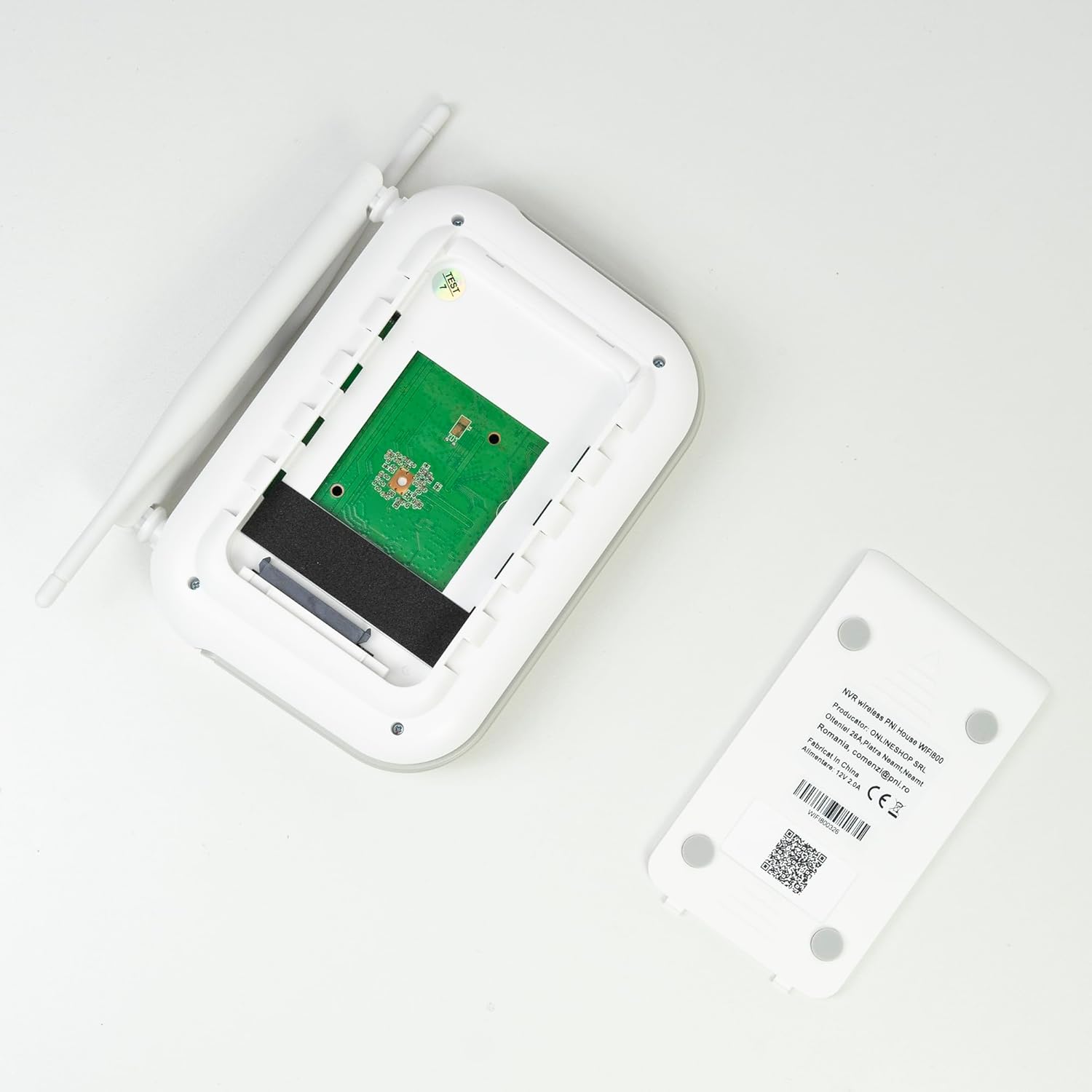
Isithombe: Ngaphakathi view of the PNI House WiFi800 NVR, illustrating the circuit board and the bay for HDD installation.
8. Ukuxazulula izinkinga
- Asikho Isithombe Esiqashweni:
- Check NVR power supply and HDMI cable connection to the monitor.
- Ensure the monitor is set to the correct input source.
- Amakhamera Angaxhumi:
- Verify cameras are powered on.
- Check Wi-Fi signal strength at camera locations.
- Re-pair cameras with the NVR if necessary (refer to Section 5.3).
- No Remote Access via App:
- Ensure the NVR is connected to the internet via Ethernet.
- Hlola ukuxhumeka kwe-inthanethi kwe-smartphone yakho.
- Verify NVR is correctly added to the ICSee/XMEye app.
- Ikhwalithi Yesithombe Engalungile:
- Clean camera lenses.
- Hlola izithiyo emkhakheni wekhamera view.
- Ensure adequate lighting for night vision.
- Izinkinga Zokurekhoda:
- Check if an HDD or MicroSD card is properly installed and formatted.
- Verify recording schedules and motion detection settings.
- Qinisekisa ukuthi indawo yokugcina eyanele iyatholakala.
9. Imininingwane
9.1 PNI IP840 Outdoor Camera Specifications
| Isici | Imininingwane |
|---|---|
| Inzwa yesithombe | 1/2.7" i-CMOS |
| Isixazululo Sensor | 8MP |
| Ukulungiswa kwevidiyo | 3840x2160 (4K) |
| Uhlobo Lwelensi | 3.6 mm |
| Viewing engela | 90° |
| Phena/Nyakazisa | Okuvundlile: 355°, mpo: 90° |
| Ukukhanya kwe-infrared | 4x IR LEDs, 4x White LEDs |
| Ibanga le-IR | Kufika ku-15m |
| Ukucindezelwa kwevidiyo | H.265X (compatible with H.264+/H.264) |
| Umsindo | Imakrofoni Ehlanganisiwe Nesipikha |
| Wireless Frequency | 2.4 GHz |
| Amaphrothokholi Asekelwe | I-ONVIF |
| Isitoreji | Isikhala sekhadi le-MicroSD (ubukhulu obungu-256GB) |
| Ukunikezwa kwamandla kagesi | 12V/1A |
| Ikilasi Lokuvikela | IP65 |
| Izinga Lokushisa Lokusebenza | -26°C ~ +80°C |
| Ubukhulu | 86x135x146mm |
| Isisindo | awu 371g |
9.2 PNI House WiFi800 NVR Specifications
| Isici | Imininingwane |
|---|---|
| Video Channels | 8 iziteshi 5MP / 4 iziteshi 4K (8MP) |
| Ukucindezelwa kwevidiyo | H.265AI/H.265+ |
| Ukulungiswa kokudlala | 1080P (HDMI) |
| Umthamo Wesitoreji | 1x 2.5" HDD (max 14TB) / 1x MicroSD card (max 128GB) |
| Isizinda Senethiwekhi | RJ45 - 10/100/1000 Mbit/s |
| Okukhipha ividiyo | 1x HDMI |
| Isixhumi esibonakalayo se-USB | 1x USB 2.0 |
| Iphrosesa | I-MSR621Q |
| Ukunikezwa kwamandla kagesi | 12V/2A |
| Ubukhulu | 170x120x35mm |
| Isisindo | awu 245g |
| Wi-Fi Frequency (NVR-Camera) | 2.4 GHz |
| Ukwaziswa Kwezwi | Yes, integrated speaker |
10. Iwaranti kanye Nokusekela
For warranty information, please refer to the documentation provided at the time of purchase or contact your retailer. For technical support, product inquiries, or assistance with troubleshooting, please visit the official PNI website or contact PNI customer service directly. Keep your purchase receipt as proof of purchase.
Umkhiqizi: ONLINESHOP SRL
Inombolo Yemodeli: PNI-WF8-840-2


