1. Isingeniso
Thank you for choosing the IOOIOO A80 Portable Printer. This compact, inkless thermal printer is designed for convenience and efficiency, allowing you to print documents, photos, and more from various devices, including smartphones, tablets, and computers. Its portable design makes it ideal for home, office, or travel use.


2. Yini EseBhokisini
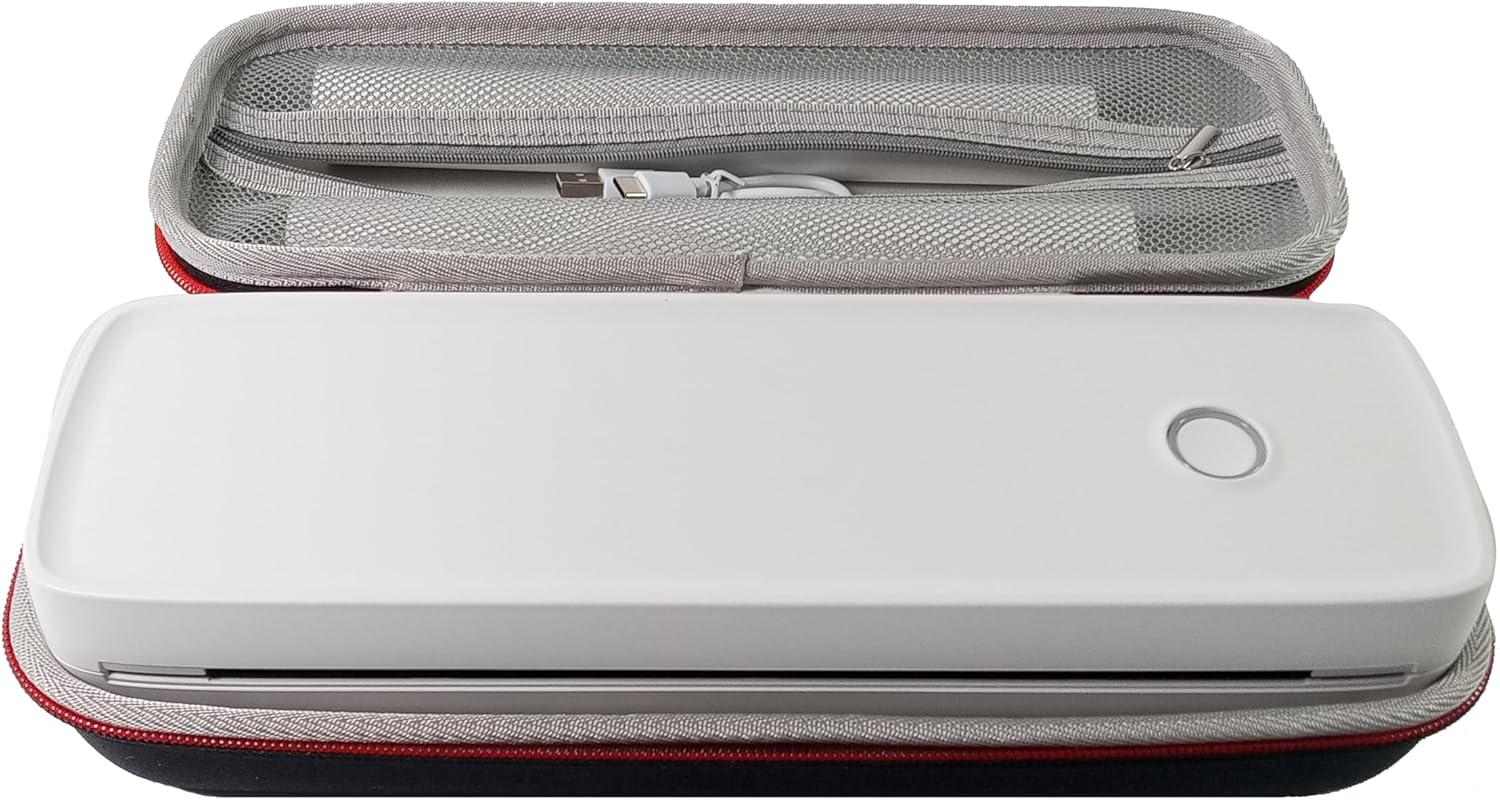
Sicela uhlole okuqukethwe kwephakheji ukuze uqinisekise ukuthi zonke izinto zikhona:
- I-IOOIOO A80 Iphrinta Ephathekayo
- Ukuthwala Ikesi
- 3 Rolls of A4 or Letter Thermal Paper
- 3 Pages of Continuous Folded Thermal Paper
- Ikhebula le-USB
- QR Code for Manual Download (Digital Manual)

3. Setha
3.1 Ukushaja Kwasekuqaleni
Before first use, fully charge the printer using the provided USB cable. The LED indicator will show charging status.
3.2 Software/Driver Installation
To use the printer with your devices, appropriate software or drivers are required:
- For Mobile Phones (iPhone/Android): Download the "SharpFox" application from your device's app store.
- For Desktop PCs (Windows/Mac/Linux/Raspberry Pi): Download the necessary drivers from the official IOOIOO website. A QR code is provided in the box for quick access to the manual and driver download links.
3.3 Ukulayisha Iphepha Elishisayo
The IOOIOO A80 uses inkless thermal paper. To load paper:
- Vula ikhava yengxenye yephepha.
- Insert the thermal paper roll or folded stack, ensuring the printable side is facing the print head.
- Vala ikhava ngokuphepha.

4. Iziqondiso Zokusebenza
4.1 Ukuvula / Ukuvula
- Ukuvula: Cindezela futhi ubambe inkinobho yamandla kuze kube yilapho inkomba ye-LED ikhanya.
- Ukucisha: Cindezela futhi ubambe inkinobho yamandla kuze kube yilapho inkomba ye-LED icima.
4.2 Ukuxhumana
The IOOIOO A80 offers both Bluetooth wireless and USB wired connectivity options.
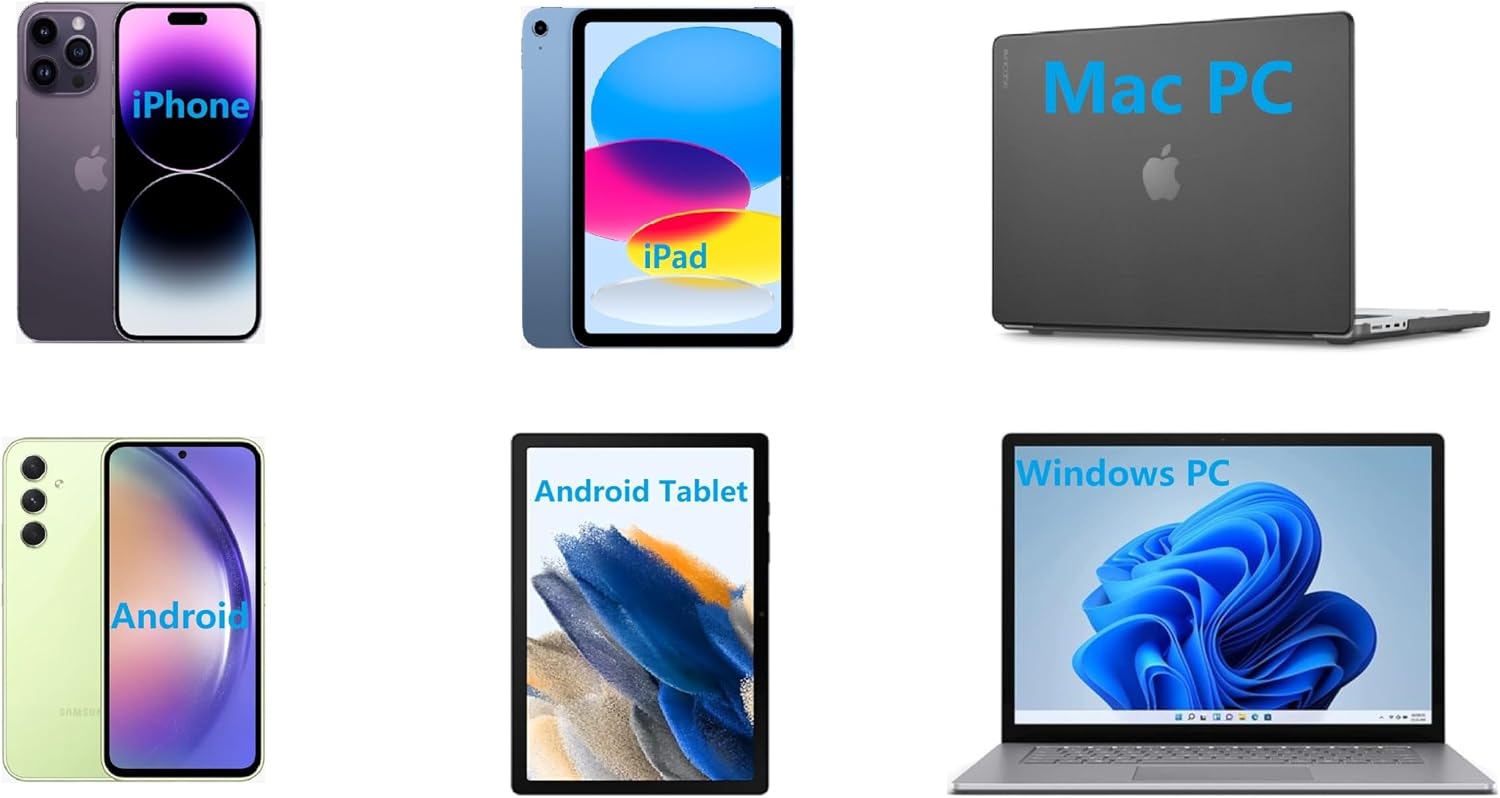
4.2.1 Bluetooth Connection (for Phones and Windows PC)
- Ensure the printer is powered on and the LED is green.
- On your phone, open the "SharpFox" app. On your Windows PC, ensure Bluetooth is enabled.
- Within the app or PC Bluetooth settings, search for and select the "IOOIOO A80" printer to pair.
- Landela noma yikuphi ukwaziswa okusesikrinini ukuze uqedele inqubo yokumatanisa.
4.2.2 USB Connection (for Windows PC, Mac PC, Linux, Raspberry Pi)
- Ensure the printer is powered on and the LED is green. If the LED is not green, the printer will not print via USB.
- Xhuma iphrinta kukhompuyutha yakho usebenzisa ikhebula le-USB elihlinzekiwe.
- Install the appropriate drivers as described in Section 3.2.
- Once drivers are installed, the printer should be recognized by your computer.
4.3 Ukuphrinta
After connecting your printer, you can initiate printing from your chosen application (e.g., SharpFox app, word processor, PDF viewer).
- Select the print option within your application.
- Choose "IOOIOO A80" from the list of available printers.
- Adjust print settings (e.g., paper size: US letter/legal/A4/A5, 2", 3", 4" sticky/non-sticky, flat folded/rolled thermal paper, tattoo stencil transfer paper) as needed.
- Click "Print" to begin printing.
Note on Tattoo Stencil Printing: This printer is suitable for normal tattoo lines only. It is not recommended for sharp lines, large blocks, gradients, or color patterns.
5. Isondlo
Proper maintenance ensures the longevity and optimal performance of your IOOIOO A80 printer.
5.1 Ukuhlanza Ikhanda Lokuphrinta
Regularly clean the print head to maintain print quality.
- Turn off the printer and disconnect it from power.
- Vula ingxenye yephepha.
- Sula ikhanda lokuphrinta ngobumnene ngendwangu engenalo uboya kancaneampifakwe nge-isopropyl alcohol.
- Vumela ikhanda lokuphrinta ukuthi lome ngokuphelele ngaphambi kokuvala ikhava bese unika amandla iphrinta.
5.2 Paper Storage
Store thermal paper in a cool, dry place away from direct sunlight and heat to preserve its quality and ensure prints last for the expected duration (2 to 15 years depending on paper type).
6. Ukuxazulula izinkinga
If you encounter issues with your IOOIOO A80 printer, please refer to the official Troubleshooting Guide for detailed solutions.
Landa umhlahlandlela wokuxazulula izinkinga (PDF)
Common issues and quick checks:
- Printer not powering on: Qinisekisa ukuthi ibhethri ishajiwe.
- Akukho okuphumayo kokuphrinta: Check paper loading, ensure the LED is green (for USB connection), and verify connectivity (Bluetooth/USB).
- Ikhwalithi yokuphrinta ephansi: Clean the print head, ensure you are using compatible thermal paper.
- Izinkinga zokuxhuma: Restart both the printer and the device you are trying to connect from. Re-pair Bluetooth or re-plug the USB cable.
7. Imininingwane
| Isici | Imininingwane |
|---|---|
| Ibhrendi | IOOOO |
| Igama Lemodeli | A80 |
| Ubukhulu bomkhiqizo | 3.6"D x 11.4"W x 2.4"H |
| Isisindo sento | 1.8 amakhilogremu |
| Ubuchwepheshe bokuphrinta | Okushisayo |
| Ubukhulu bokulungiswa kokuphrinta okumnyama nokumhlophe | 200dpi |
| Isivinini Sokuphrinta Esiphezulu (Monochrome) | 4 ppm (approx. 10mm/s) |
| Ubukhulu Bosayizi Wemidiya | A4 (supports US Letter/Legal/A4/A5) |
| Ubuchwepheshe bokuxhumana | Bluetooth for Phone, USB for PC |
| Umbala kayinki | Black (Monochrome) |
| Phrinta Impilo Yekhanda | Approx. 170,000 letter pages |
| Ibhethri | Ibhethri ye-Lithium Ion engu-1 (ifakiwe) |
8. Iwaranti kanye Nokusekela
For any questions, technical assistance, or warranty inquiries, please contact IOOIOO customer service.
- Usekelo Lwefoni Yase-US: Available for direct assistance.
- Ukusekelwa kwe-WhatsApp: Available for convenient messaging support.
Please refer to your product packaging or the official IOOIOO webindawo yolwazi lokuxhumana lwamanje kakhulu.


