1. Isingeniso
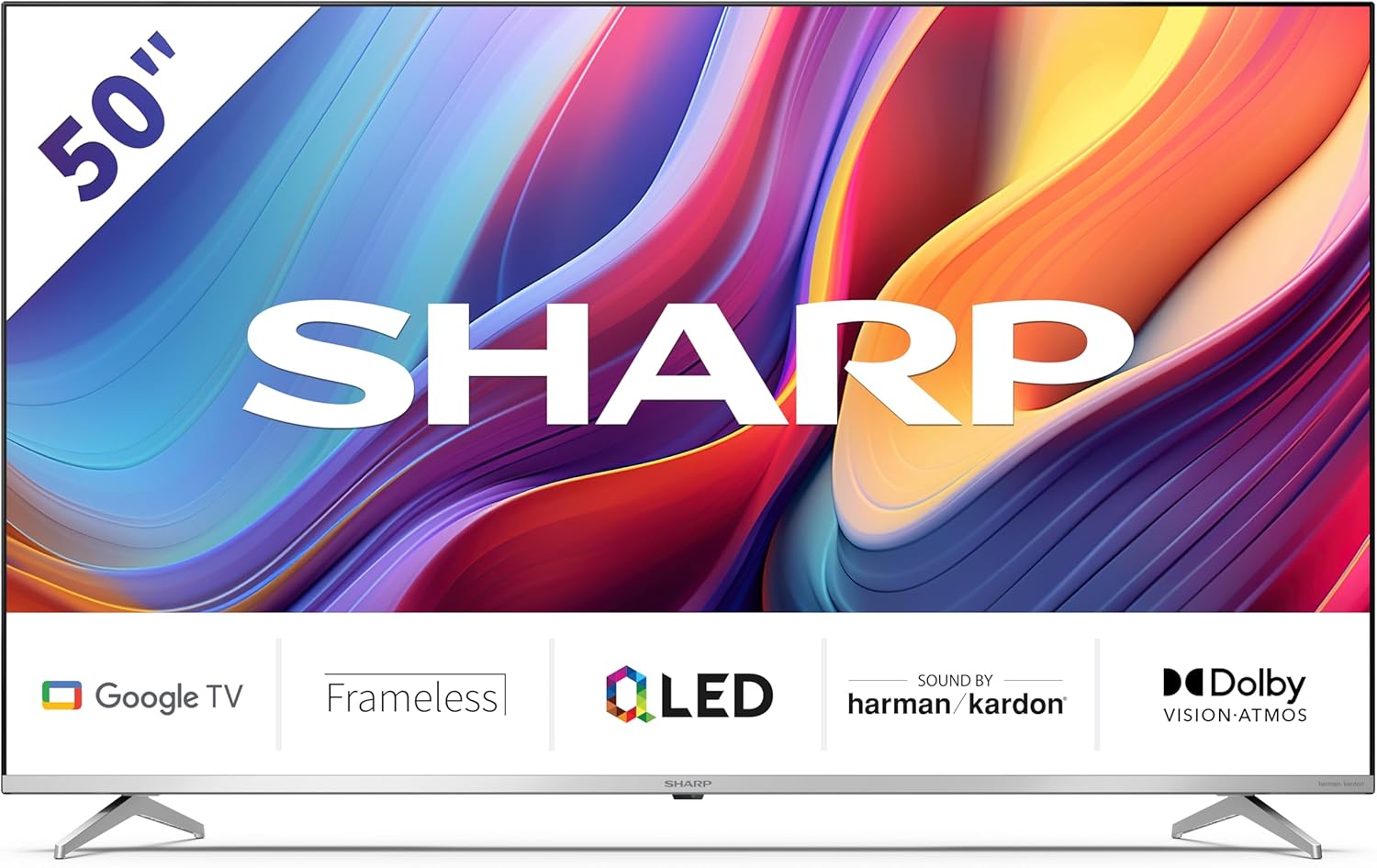
Welcome to the user manual for your new Sharp 50GP6265E 50-inch QLED 4K Ultra HD Google TV. This manual provides essential information for the safe and efficient use of your television. Please read it thoroughly before operating the device and retain it for future reference.
Ulwazi Lokuphepha Olubalulekile
- Ensure the television is placed on a stable surface to prevent it from falling.
- Ungavali izikhala zokungenisa umoya. Ukuhamba komoya ngendlela efanele kubalulekile ukuvimbela ukushisa ngokweqile.
- Vikela intambo yamandla ekuhanjweni ngayo noma ekuncishweni.
- Do not expose the TV to rain or moisture to reduce the risk of fire or electric shock.
- Thumela zonke izinsiza kubasebenzi benkonzo abaqeqeshiwe.
2. Yini EseBhokisini
Lapho ukhipha, sicela uqinisekise ukuthi zonke izingxenye ezilandelayo zifakiwe:
- Sharp 50GP6265E 50-inch QLED 4K Ultra HD Google TV
- Isilawuli kude
- 2 x AAA amabhethri (okulawula kude)
- Umhlahlandlela wokuqalisa osheshayo
- TV stands (if not wall-mounted)
- Ikhebula lamandla
3. Setha
3.1 Ukuqaqa
Carefully remove the television from its packaging. It is recommended to keep the original packaging for potential future transport or servicing.
3.2 Ukufakwa kwesitendi
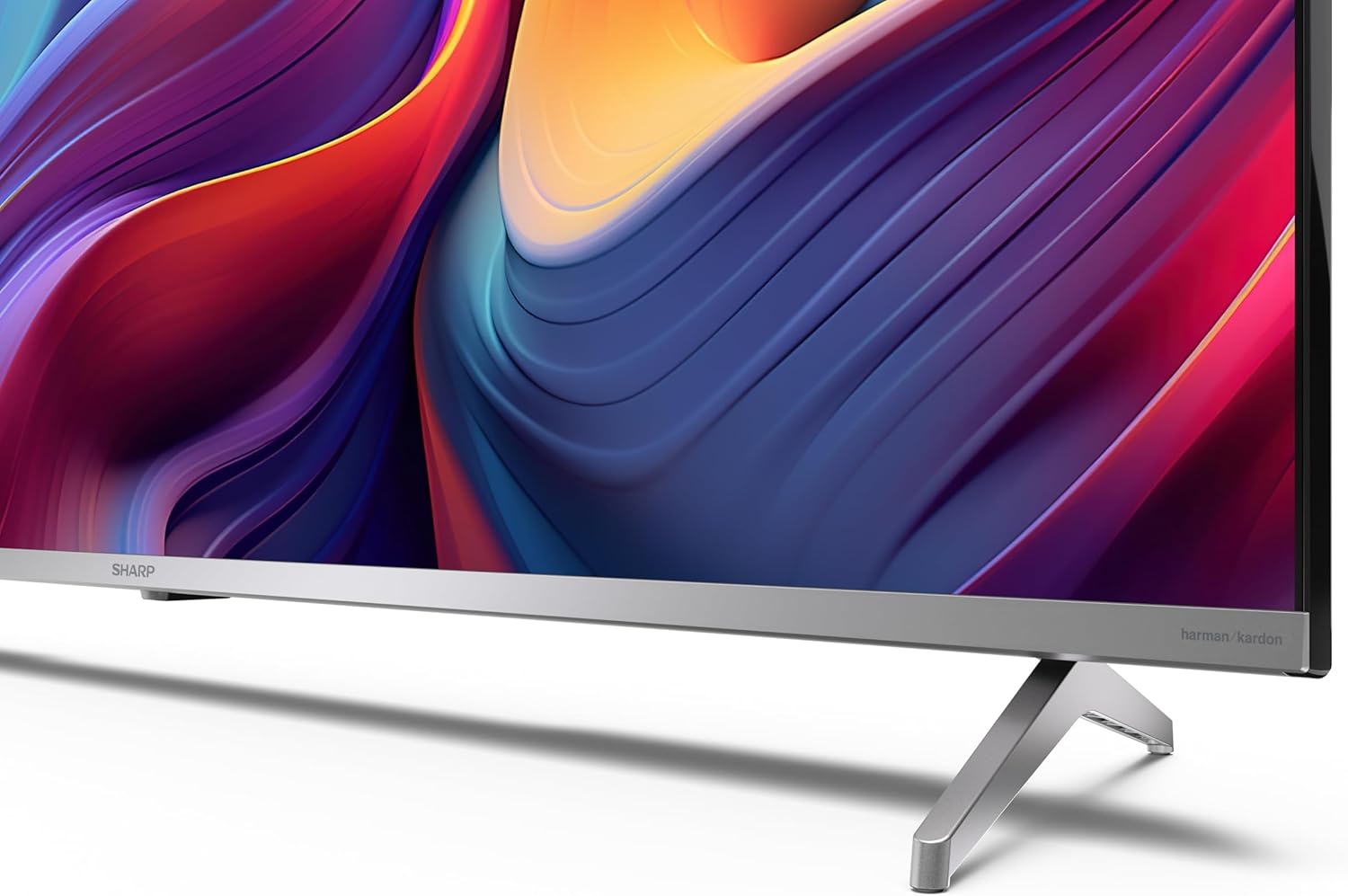
If you are not wall-mounting the television, attach the included stands to the bottom of the TV. Ensure the screws are securely fastened. Refer to the quick start guide for detailed diagrams.
3.3 Ukukhweza Udonga
For wall mounting, the VESA dimensions required are 400 x 300 mm. Use a compatible wall mount bracket (sold separately) and follow the instructions provided with the bracket. Ensure the wall can support the weight of the television (9.7 kg net weight).

3.4 Ukuxhumanisa amaPheripheral
Your Sharp TV offers various connectivity options:
- I-HDMI: Connect external devices such as Blu-ray players, gaming consoles, or set-top boxes using the 4 HDMI 2.1 ports. One port supports eARC for enhanced audio return channel functionality.
- I-USB: Use the 2 USB ports for connecting external storage devices to play media or for service updates.
- I-Ethernet: Ukuze uthole uxhumano lwe-inthanethi olunentambo oluzinzile.
- I-Wi-Fi: Okokuxhuma ku-inthanethi okungenantambo.
- I-Bluetooth: Xhuma ama-headphone angenantambo, ama-soundbar, noma ezinye izesekeli ezisebenzisa i-Bluetooth.

3.5 Ukusetha Kokuqala
After connecting the power cable and turning on the TV, follow the on-screen instructions to complete the initial setup. This typically includes language selection, network connection, and Google account sign-in for Google TV features.
4. Ukusebenzisa i-TV yakho
4.1 Ukulawula okukude
The included remote control allows you to navigate the TV's interface, adjust volume, change channels, and access smart features. Insert the 2 AAA batteries into the remote control, ensuring correct polarity.
4.2 I-Google TV Interface
Your Sharp TV runs on Google TV, which organizes movies, shows, and live TV from all your apps and subscriptions. The home screen provides personalized recommendations and quick access to your favorite content.

Supported internet services include Netflix, Amazon Prime Video, HBO, Disney+, Movistar+, DAZN, Atresmedia, KODI, IPTV, Steamlink, Twitch, VLC, YouTube, Puffin TV Browser, Spotify, Deezer, TuneIn Radio, and many more available on Google Play for Google TV.
4.3 Amasethingi Esithombe
Experience stunning visuals with 4K Ultra HD resolution and Quantum Dot technology for vibrant colors. The TV supports Dolby Vision and HDR10 for enhanced contrast and brightness. Access picture settings through the TV menu to customize brightness, contrast, color, and sharpness to your preference. AQUOS Smooth Motion technology provides image interpolation for smoother motion.
4.4 Izilungiselelo zomsindo
The integrated Harman/Kardon speaker system (2 x 12 W) delivers immersive audio. With Dolby Atmos support, you can enjoy a rich, multi-dimensional sound experience. Adjust sound modes and equalizer settings in the audio menu.
4.5 Izici ezihlakaniphile
- Umsizi we-Google: Sebenzisa imiyalo yezwi ukuze useshele okuqukethwe, ulawule amadivayisi ahlakaniphile asekhaya, futhi uthole ulwazi.
- I-Chromecast eyakhelwe ngaphakathi: Cast content from your smartphone, tablet, or computer directly to your TV screen.
5. Isondlo
5.1 Ukuhlanza i-TV
- Njalo khipha i-TV ngaphambi kokuhlanza.
- Sebenzisa indwangu ethambile neyomile ukusula isikrini kanye nekhabethe. Uma unezimpawu eziqinile, susa kancaneampzu indwangu enamanzi noma isicoci sesikrini esikhethekile.
- Gwema ukusebenzisa izinto zokuhlanza abrasive, wax, noma izincibilikisi.
5.2 Ukuvuselelwa Kwesoftware
I-TV yakho ingase ithole izibuyekezo zesofthiwe ukuze ithuthukise ukusebenza futhi ingeze izici ezintsha. Qinisekisa ukuthi i-TV yakho ixhunywe kwi-inthanethi ukuze ithole lezi zibuyekezo ngokuzenzakalelayo noma uzihlole ngesandla kumenyu yezilungiselelo.
6. Ukuxazulula izinkinga
Uma uhlangabezana nezinkinga nge-TV yakho, bheka izinkinga ezilandelayo nezisombululo:
| Inkinga | Isixazululo Esingenzeka |
|---|---|
| Awekho amandla | Hlola ukuthi ikhebula lamandla lixhumeke ngokuvikelekile yini ku-TV kanye nesiphuma samandla. Qinisekisa ukuthi i-outlet iyasebenza. |
| Asikho isithombe, kodwa umsindo ukhona | Qinisekisa ukuthi umthombo wokufaka ofanele ukhethiwe. Hlola uxhumano lwedivayisi yangaphandle. |
| Awukho umsindo, kodwa isithombe sikhona | Check the volume level and mute status. Ensure audio cables are correctly connected for external devices. |
| Isilawuli kude asisebenzi | Shintshanisa amabhethri AAA. Qinisekisa ukuthi azikho izithiyo phakathi kwesilawuli kude kanye nenzwa ye-IR ye-TV. |
| Izinkinga zokuxhumeka kwe-Wi-Fi | Restart your router and the TV. Re-enter the Wi-Fi password. Ensure the TV is within range of your Wi-Fi network. |
7. Imininingwane
| Isici | Imininingwane |
|---|---|
| Ibhrendi | Ibukhali |
| Inombolo Yemodeli | 50GP6265E |
| Usayizi Wesikrini | 50 amayintshi |
| Bonisa Ubuchwepheshe | QLED, Quantum Dot |
| Isixazululo | I-4K Ultra HD (3840 x 2160 pixels) |
| Isilinganiso Sokuvuselela | 60 Hz |
| Isistimu esebenzayo | I-Google TV |
| Ukusekelwa kwe-HDR | I-Dolby Vision, i-HDR10 |
| Uhlelo Lomsindo | Harman/Kardon (2 x 12 W), Dolby Atmos |
| Ukuxhumana | 4x HDMI 2.1 (with eARC), 2x USB, Wi-Fi, Bluetooth, Ethernet |
| Izici ezikhethekile | Google Assistant, Chromecast built-in, AQUOS Smooth Motion |
| I-VESA Wall Mount | 400 x 300 mm |
| Ubukhulu (ngesitendi) | 111.6P x 26.5l x 69.3H cm (1116.4 x 692.9 x 264.7 mm) |
| Ubukhulu (ngaphandle kokuma) | 111.6P x 9.2l x 65.1H cm (1116.4 x 651.3 x 91.5 mm) |
| Isisindo sengqikithi | 9.7 kg |
| Ikilasi Lokusebenzisa Amandla (SDR) | G (69 kWh/1000h) |
| Ikilasi Lokusebenzisa Amandla (HDR) | G (98 kWh/1000h) |

Ukuze uthole ulwazi oluningiliziwe lomkhiqizo kanye nedatha yokusebenzisa kahle amandla, sicela ubheke isizindalwazi se-EPREL: https://eprel.ec.europa.eu/qr/1942440
8. Iwaranti kanye Nokusekela
Information regarding spare parts availability and software updates is not explicitly provided for a guaranteed period. Please refer to the manufacturer's official website for the most up-to-date warranty terms and support information.
Umkhiqizi: SHARP
Esemthethweni Webindawo: www.sharpconsumer.com
For customer service inquiries, please visit the Sharp consumer website or contact their support channels as listed on their official site.


