1. Isingeniso
Welcome to the Ninkear A15 Laptop user manual. This guide provides essential information for setting up, operating, maintaining, and troubleshooting your new Ninkear A15 laptop. Please read this manual thoroughly to ensure proper use and to maximize the performance and longevity of your device.
The Ninkear A15 is a high-performance laptop featuring an AMD Ryzen 5 5500U Hexa-core Processor, 16GB RAM, and a 512GB PCIe SSD, designed for a variety of computing tasks from daily productivity to graphic design and entertainment.
2. Yini EseBhokisini
Upon opening your Ninkear A15 Laptop package, please verify that all the following items are included:
- A15 laptop x 1
- Igundane x 1
- Iphedi legundane x 1
- Ishaja x 1
3. Umkhiqizo Uphelileview
The Ninkear A15 laptop is engineered for efficiency and user comfort. Below are key features and components:
3.1 Izici ezibalulekile
- Iphrosesa Enamandla: Equipped with an AMD Ryzen 5 5500U processor, AMD Radeon graphics, 6 cores and 12 threads, with a frequency up to 4.0Ghz, suitable for various applications.
- Isibonisi Esigxilile: Features a 15.6-inch FHD IPS display with 1920x1080 resolution, offering a 90.3% screen-to-body ratio and a 180-degree viewing angle for clear and natural picture quality.
- Impilo Yebhethri Enwetshiwe: A 4350mAh battery provides up to 6 hours of daily use, making it ideal for mobile work. It supports full-function Type-C charging.
- Ample Isitoreji Nenkumbulo: Comes with 16GB DDR4 RAM (3200Mhz) and a 512GB PCIe SSD, ensuring fast performance for professional software and multitasking.
- Idizayini Elungele Umsebenzisi: Includes a full digital backlit keyboard with three adjustable monochrome backlight levels (FN+F9) and a 0.5-second fingerprint unlocking feature for enhanced security and convenience.
3.2 Okubonakalayoview

Ngaphambili view of the Ninkear A15 Laptop, showcasing idizayini yayo eshelelayo nesibonisi.

Kuphelileview of the Ninkear A15 Laptop highlighting key specifications like 15.6" IPS FHD display, AMD Ryzen 5 5500U processor, 16GB DDR4 RAM, 512GB PCIe SSD, 4350mAh battery, backlit keyboard, and Type-C full function port.

Okuningiliziwe view of the AMD Ryzen 5 5500U processor, emphasizing its 6 cores, 12 threads, 7nm process, and 4.0GHz max turbo frequency.
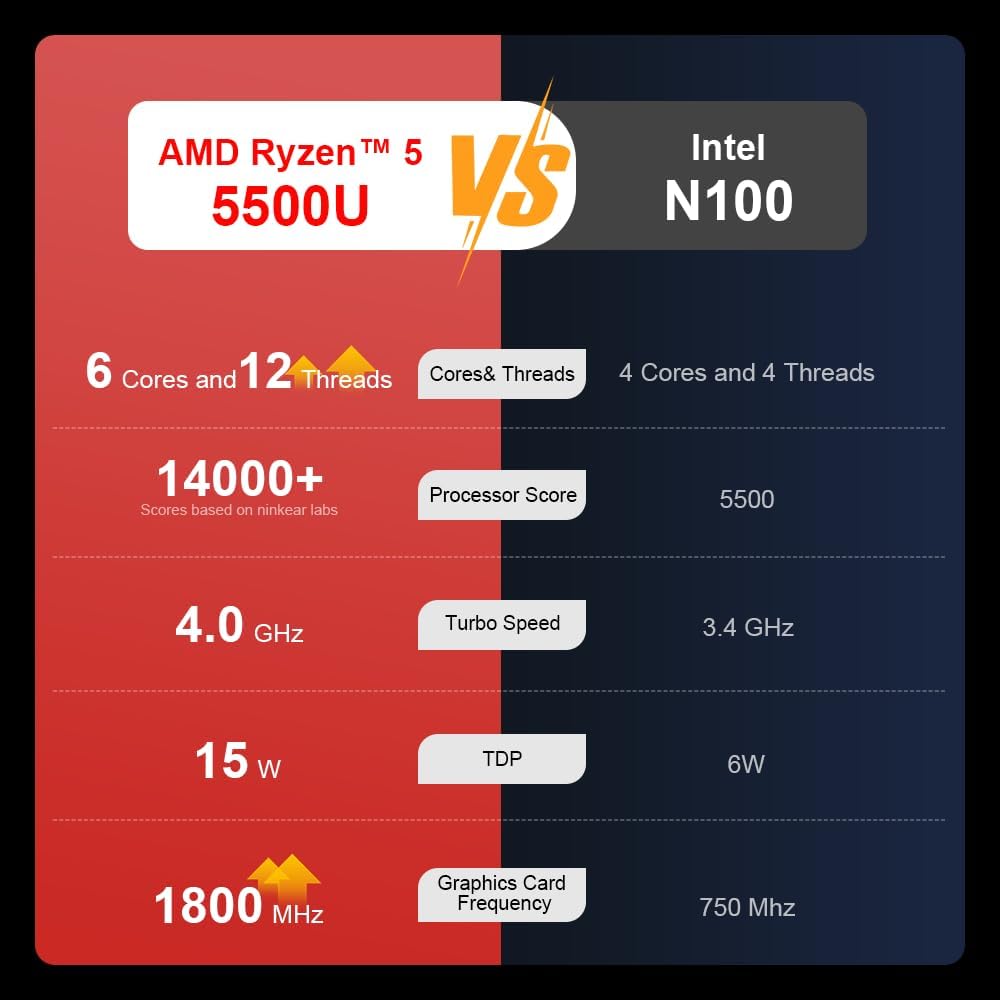
A comparison chart illustrating the performance differences between the AMD Ryzen 5 5500U and Intel N100 processors, including core/thread count, processor score, turbo speed, TDP, and graphics card frequency.

Image showing the 512GB M.2 PCIe SSD and highlighting the 3200MHz DDR4 running frequency, indicating a 20% speed improvement over 2666MHz DDR4.

The 15.6-inch IPS FHD screen of the A15, designed to deliver vibrant and accurate colors while reducing eye strain during long work hours.

Illustration of the A15 laptop's suitability for various 'recreational office' tasks, including graphic design (Ae, Ps, Ai) and gaming/entertainment.

Information about the laptop's 50.5WH high-capacity lithium-ion battery, providing up to 8 hours of local video playback and 72 hours of standby time.

A visual guide to the rich interfaces of the Ninkear A15 Laptop, including USB 3.0, USB 2.0, Headphone Jack, Charging Port, HDMI, and full-function Type-C ports.
3.3 Ividiyo Yomkhiqizo
Umbukiso osemthethweni wevidiyo yomkhiqizoasing the Ninkear A15 Laptop's features, including its design, display, backlit keyboard, and various ports. This video provides a dynamic overview of the laptop's capabilities and physical attributes.
4. Setha
Follow these steps to set up your Ninkear A15 Laptop for the first time:
- Khipha i-laptop: Khipha ngokucophelela ikhompuyutha ephathekayo nazo zonke izesekeli ephaketheni.
- Xhuma Amandla: Plug the charger into the laptop's charging port (DC-in or Type-C) and then into a power outlet.
- Ukuqala kokuqala: Open the laptop lid and press the power button (integrated with fingerprint sensor). The laptop will power on and begin the initial Windows 11 setup process.
- Ukusethwa kwe-Windows 11: Follow the on-screen instructions to complete the Windows 11 setup, including selecting your region, language, connecting to Wi-Fi, and creating a user account.
- Ukusethwa Kwezigxivizo Zeminwe: During or after Windows setup, you can configure the fingerprint reader for quick and secure login.
5. Iziqondiso Zokusebenza
This section covers basic operation of your Ninkear A15 Laptop.
5.1 Power On/Off and Sleep
- Vula: Cindezela inkinobho yamandla.
- Cisha ugesi: Chofoza inkinobho ethi Qala ku-Windows, bese ukhetha Amandla > Vala shaqa.
- Imodi Yokulala: Vala isivalo noma uchofoze inkinobho ethi Qala, bese ukhetha Amandla > Lala.
5.2 Ikhibhodi nephedi yokuthinta
- Ikhibhodi Ekhanyisiwe: Cindezela Fn + F9 to cycle through the three levels of monochrome backlight brightness or turn it off.
- Iphedi yokuthinta: Use the integrated touchpad for cursor control and gestures. Refer to Windows settings for touchpad customization.
- Ikhiphedi Yezinombolo: The laptop features a full digital numeric keypad for convenient data entry.
5.3 Ukuxhumanisa amaPheripheral
Utilize the various ports for external devices:
- Izimbobo ze-USB: Connect USB devices like external hard drives, mice, or keyboards to the USB 2.0 or USB 3.0 ports.
- I-HDMI: Connect to external monitors or projectors using the HDMI port.
- Uhlobo C: The full-function Type-C port supports data transfer, video output, and power delivery.
- I-Audio Jack: Xhuma ama-headphone noma izipikha zangaphandle ku-jack yomsindo engu-3.5mm.
5.4 Izilungiselelo zokubonisa
Adjust display settings via Windows Settings > System > Display to optimize resolution, scaling, and multiple monitor setups.
6. Isondlo
Proper maintenance ensures the longevity and optimal performance of your Ninkear A15 Laptop.
- Ukuhlanza: Sebenzisa indwangu ethambile, engena-lint ukuhlanza isikrini ne-chassis. Ukuze uthole amamaki anenkani, kancane dampfaka indwangu ngamanzi noma isihlanzi sesibuko. Gwema amakhemikhali anamandla.
- Izibuyekezo zesofthiwe: Regularly update Windows and device drivers to ensure system stability, security, and performance.
- Ukunakekelwa kwebhethri: Ukuze welule isikhathi sokuphila kwebhethri, gwema ukukhipha ibhethri ngokugcwele njalo. Gcina i-laptop endaweni epholile, eyomile uma ingasetshenziswa isikhathi eside.
- Ukungenisa umoya: Qinisekisa ukuthi imigodi yomoya ye-laptop ayivalekile ukuze kuvinjelwe ukushisa ngokweqile. Sebenzisa i-laptop endaweni eqinile, eyisicaba.
- Isipele Sedatha: Yenza isipele sedatha yakho ebalulekile njalo kudrayivu yangaphandle noma isitoreji samafu ukuze uvimbele ukulahleka kwedatha.
7. Ukuxazulula izinkinga
This section addresses common issues you might encounter with your Ninkear A15 Laptop.
| Inkinga | Imbangela Engenzeka | Isixazululo |
|---|---|---|
| Ikhompyutha ephathekayo ayivuli amandla | Inkinga yebhethri eliphansi noma i-adaptha yamandla | Ensure the charger is properly connected and the power outlet is working. Allow the laptop to charge for at least 30 minutes before attempting to power on again. |
| Isikrini asinalutho noma simnyama | Display driver issue, external display connected, or sleep mode | Press any key or move the mouse to wake from sleep. Disconnect any external monitors. Try pressing Fn + F7 (or the key with a display icon) to switch display modes. If still blank, force shut down by holding the power button for 10 seconds, then restart. |
| I-Wi-Fi ayixhumeki | Wi-Fi adapter off, incorrect password, or router issue | Check if Wi-Fi is enabled in Windows settings. Verify the Wi-Fi password. Restart your router and modem. Update Wi-Fi drivers if necessary. |
| Keyboard backlight not working | Backlight turned off or low brightness setting | Cindezela Fn + F9 repeatedly to adjust brightness or turn on the backlight. |
| Ukusebenza okunensayo | Too many programs running, low disk space, or outdated drivers | Close unnecessary applications. Free up disk space. Run Windows Update and update drivers. Consider running a virus scan. |
8. Imininingwane
Detailed technical specifications for the Ninkear A15 Laptop:
| Isici | Ukucaciswa |
|---|---|
| Ibhrendi | Ninkear |
| Igama Lemodeli | A15 |
| Usayizi Wesikrini | 15.6 amayintshi |
| Ukulungiswa Kwesikrini | 1920 x 1080 amaphikseli (FHD IPS) |
| Iphrosesa | AMD Ryzen 5 5500U (2.1 GHz, 6 Cores, 12 Threads) |
| RAM | 16 GB DDR4 (3200 MHz) |
| I-Hard Drive | 512 GB PCIe SSD |
| Ikhadi Lezithombe | Ihluzo ze-Radeon ze-AMD ezihlanganisiwe |
| Isistimu esebenzayo | Windows 11 |
| Umbala | Isiliva |
| Isisindo sento | 5 amakhilogremu |
| Ubukhulu bomkhiqizo | 14 x 9 x 0.15 amayintshi |
| Izimbobo ze-USB 3.0 | 2 |
| Isilinganiso Sempilo Yebhethri | Up to 6-8 hours (daily use) |
| Izici ezikhethekile | Backlit Keyboard, Numeric Keypad, Fingerprint Unlock, Full-function Type-C |
9. Iwaranti & Ukusekela
Ninkear provides a standard warranty for the A15 Laptop. Please refer to the warranty card included in your product packaging for specific terms and conditions, including warranty duration and coverage details.
For technical support, troubleshooting assistance, or warranty claims, please contact Ninkear customer service through the official website or the contact information provided with your purchase. Ensure you have your product model (A15) and purchase details ready when contacting support.
You can also visit the official Ninkear store on Amazon for additional product information and support resources: Ninkear Amazon Store


