1. Isingeniso
This manual provides detailed instructions for the setup, operation, maintenance, and troubleshooting of your 8BitDo Retro Mechanical Keyboard, C64 Edition. This keyboard is designed for compatibility with Windows 10 (1903) or above and Android 9.0 or above, offering versatile connectivity options and customizable features.
Key features include 87 keys, a top-mount design with Kailh Box White Switches, double-shot ABS keycaps with SA profile, and a hot-swappable PCB. It also features programmable keys, Dual Super Buttons, and a Super Stick with an independent control panel, all supported by 8BitDo Ultimate Software V2 for custom mapping.

Image 1.1: The 8BitDo Retro Mechanical Keyboard C64 Edition, including the main keyboard unit, Dual Super Buttons, and Super Stick.
2. Setha
2.1 Okuqukethwe Kwephakheji
Qinisekisa ukuthi zonke izinto zikhona kuphakheji:
- 8BitDo Retro Mechanical Keyboard (C64 Edition)
- I-adaptha engenantambo ye-2.4G
- Dual Super Buttons
- Super Stick
- Ikhebula le-USB-C
- Incwadi Yeziqondiso

Image 2.1: The 8BitDo Retro Mechanical Keyboard C64 Edition shown in its product box, indicating included accessories.
2.2 Ukushaja Kwasekuqaleni
Before first use, connect the keyboard to a power source using the provided USB-C cable. The keyboard contains a Lithium Polymer battery. A full charge ensures optimal wireless performance.
2.3 Izinketho zokuxhuma
The keyboard supports three connection modes: Bluetooth, 2.4G Wireless, and USB-C Wired.
- Ukuxhumeka kwe-Bluetooth:
- Toggle the connection switch on the keyboard to 'BT'.
- On your device (Windows PC or Android), navigate to Bluetooth settings.
- Select '8BitDo Retro Mechanical Keyboard' from the list of available devices to pair.
- 2.4G Uxhumano Okungenantambo:
- Insert the 2.4G wireless adapter into an available USB port on your device.
- Toggle the connection switch on the keyboard to '2.4G'.
- The keyboard should automatically connect to the adapter.
- Uxhumano Lwezintambo Lwe-USB-C:
- Connect the USB-C cable to the keyboard's USB-C port and the other end to your device.
- The keyboard will function as a wired device and charge simultaneously.

Image 2.2: The rear of the keyboard, highlighting the USB-C port for wired connection and charging, and the connection mode switch.
3. Iziqondiso Zokusebenza
3.1 Imisebenzi Yekhibhodi Eyisisekelo
The 87-key layout provides standard alphanumeric and function keys. The keyboard supports N-key rollover, ensuring all key presses are registered accurately, even during rapid input.
3.2 Independent Control Panel
The keyboard features an independent control panel with dedicated knobs and buttons for quick adjustments.
- Ivolumu Knob: Adjusts system volume.
- Ukushintsha Imodi Yokuxhuma: Toggles between Bluetooth, 2.4G, and Off.
- Izinkinobho Ezihlelekayo: Dedicated buttons (e.g., star icon, Wi-Fi icon) can be customized via software.

Isithombe 3.1: A enemininingwane view of the keyboard's independent control panel, showing the volume knob and other function buttons.
3.3 Dual Super Buttons and Super Stick
The included Dual Super Buttons and Super Stick provide additional programmable input options, enhancing gaming and productivity. Connect these accessories to the dedicated ports on the rear of the keyboard.

Image 3.2: A user's hands interacting with the Dual Super Buttons and Super Stick, demonstrating their use alongside the keyboard.
3.4 8BitDo Ultimate Software V2
Customize your keyboard experience using the 8BitDo Ultimate Software V2 (available for PC). This software allows you to:
- Imephu engukhiye: Reassign functions to any key, including the programmable buttons and Super Buttons.
- Macro Creation: Record and assign complex sequences of key presses to a single button.
- UProfile Ukuphatha: Create and switch between multiple custom profiles yezinhlelo zokusebenza ezahlukene noma imidlalo.
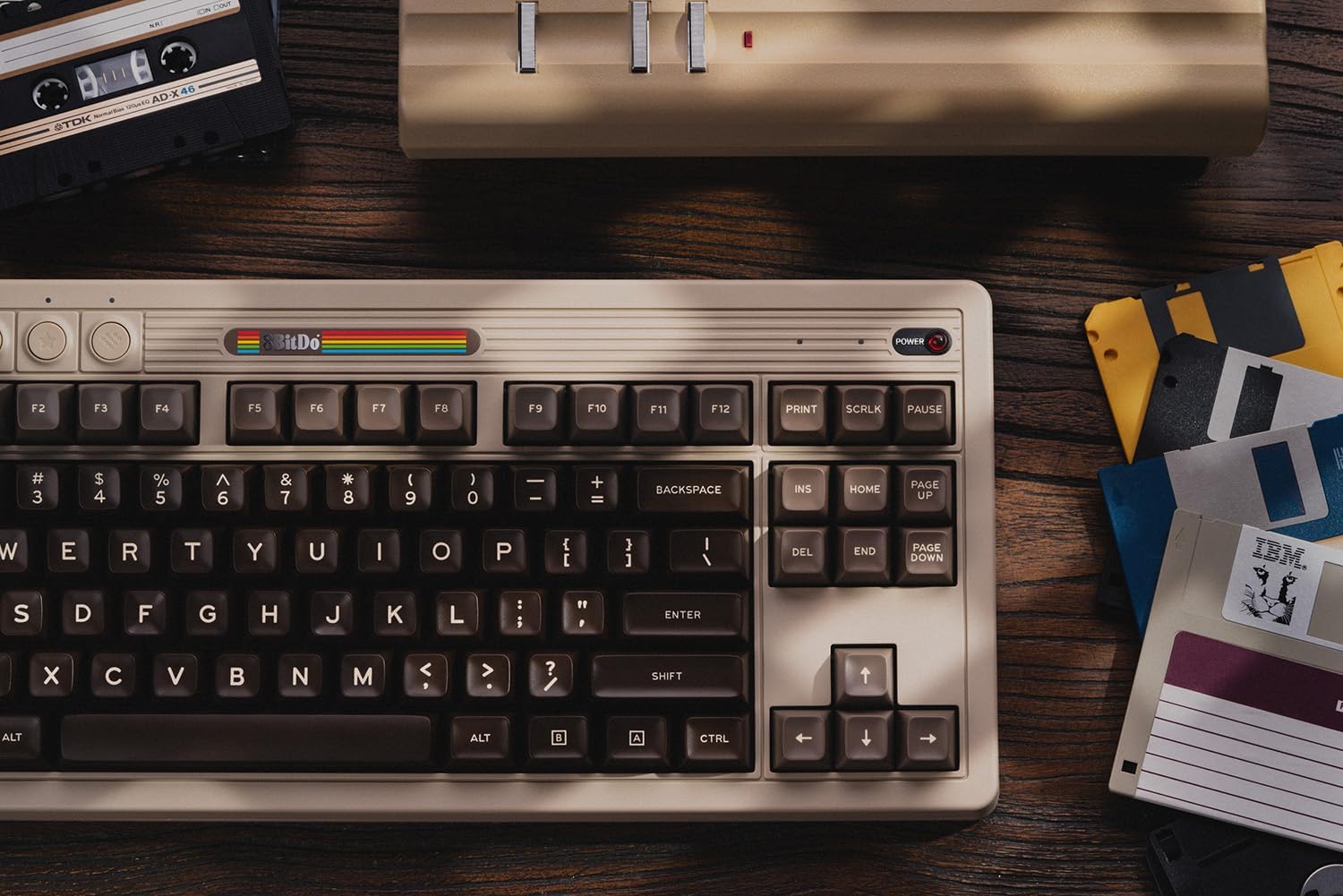
Image 3.3: A visual representation of the 8BitDo Ultimate Software V2, showing options for key mapping and macro recording.
4. Isondlo
4.1 Ukuhlanza
To clean the keyboard, use a soft, dry cloth. For stubborn dirt, a slightly damp cloth with mild soap can be used, ensuring no liquid enters the keyboard. Avoid abrasive cleaners or solvents.
4.2 Keycap kanye nokushintshwa kokushintsha
The keyboard features a hot-swappable PCB, allowing for easy replacement of switches without soldering. Use a keycap puller to remove keycaps and a switch puller to remove switches. Ensure replacement switches are compatible with the PCB.

Isithombe 4.1: A enemininingwane view illustrating the hot-swappable PCB feature, the magnetic compartment for the 2.4G adapter, and the classic power status LED.
4.3 Ukunakekelwa Kwebhethri
To prolong battery life, avoid exposing the keyboard to extreme temperatures. If storing for an extended period, charge the battery to approximately 50% and store in a cool, dry place.
5. Ukuxazulula izinkinga
- Ikhibhodi ayiphenduli:
Ensure the keyboard is charged and the connection mode switch is set correctly (BT, 2.4G, or wired). For wireless connections, verify the adapter is properly inserted or Bluetooth is paired.
- Okhiye abangabhalisi:
Check for debris under the keycaps. If a specific key is not working, the switch may need to be replaced due to the hot-swappable design.
- Connectivity issues (lag/disconnections):
Ensure the keyboard is within range of the receiver/device. Minimize interference from other wireless devices. For 2.4G, try a different USB port. For Bluetooth, try re-pairing the device.
- Isoftware ayiboni ikhibhodi:
Ensure the keyboard is connected via USB-C or 2.4G wireless. Bluetooth connection may not be fully supported by the software for all features. Update the software to the latest version.
For further assistance, please refer to the official 8BitDo support webisayithi noma xhumana nesevisi yamakhasimende.
6. Imininingwane
| Isici | Imininingwane |
|---|---|
| Ibhrendi | 8BitDo |
| Inombolo Yemodeli | 6922621505266 |
| Ubuchwepheshe bokuxhumana | I-Bluetooth, i-2.4G Wireless, i-USB-C Wired |
| Incazelo Yekhibhodi | Omakhenikha |
| Inombolo Yokhiye | 87 |
| Ukushintsha | Kailh Box White Switches (Hot-swappable) |
| Izikhiye | Double-Shot ABS with SA profile |
| Ukuhambisana | Windows 10 (1903) or above, Android 9.0 or above |
| Izici ezikhethekile | Hot-Swappable, Programmable Keys, Rechargeable, Dual Super Buttons, Super Stick |
| Umthombo wamandla | Isebenza Ibhethri (1 Lithium Polymer ibhethri lifakiwe) |
| Isisindo sento | 4.56 amakhilogremu |
| Okubalulekile | I-Acrylonitrile Butadiene Styrene |
| Izingxenye Ezihlanganisiwe | Keyboard, 2.4G Adapter, Dual Super Buttons, Super Stick, USB Cable |
7. Iwaranti kanye Nokusekela
8BitDo products are covered by a manufacturer's warranty. For specific warranty terms and conditions, please refer to the warranty card included with your product or visit the official 8BitDo webindawo.
For technical support, frequently asked questions, and software downloads, please visit the official 8BitDo support page: www.8bitdo.com/support/. You may also contact customer service directly through the website ukuze uthole olunye usizo.


