Isingeniso
This manual provides comprehensive instructions for the setup, operation, and maintenance of your Blaupunkt 43QD7050 43-inch 4K Ultra HD QLED Google TV. Please read this manual thoroughly before using the television to ensure proper functionality and safety.

Isithombe: Ngaphambili view of the Blaupunkt 43QD7050 QLED Google TV, highlighting its display and features.
Ulwazi Lokuphepha Olubalulekile
Always follow basic safety precautions when using this television to reduce the risk of fire, electric shock, and injury. Keep this manual for future reference.
- Ungabeki ithelevishini emvuleni noma emswakama.
- Ungavimbeli ukuvuleka komoya.
- Qinisekisa ukuthi intambo kagesi iqinile kahle.
- Khipha ithelevishini uma kuneziphepho zombani noma uma ingasetshenziswa isikhathi eside.
- Thumela zonke izinsiza kubasebenzi benkonzo abaqeqeshiwe.
Yini EseBhokisini
Qinisekisa ukuthi zonke izingxenye zikhona lapho uvula ithelevishini yakho.
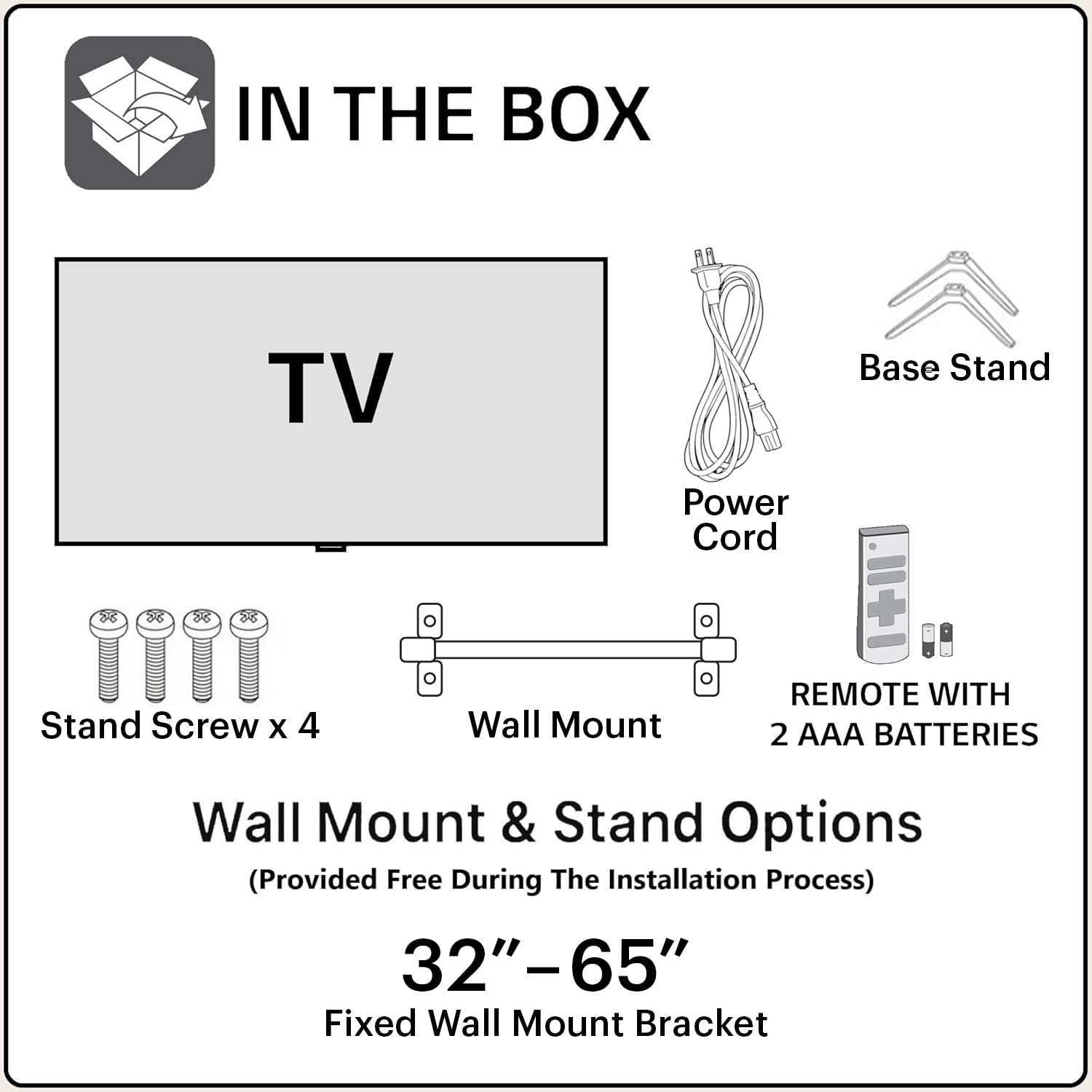
Image: Diagram showing the items included in the product packaging: TV, remote control, wall mount, stand screws, power cord, and AAA batteries.
- 1 x Blaupunkt 43QD7050 LED TV
- 1 x Isilawuli kude
- 1 x Wall Mount Bracket (for 32"-65" models)
- Amabhethri e-AAA angu-2 (okulawula kude)
- 1 x I-Power Cord
- 1 x Base Stand Set (with 4 stand screws)
- Incwadi Yomsebenzisi (le dokhumenti)
Physical Overview
Ngaphambili View

Isithombe: Ngaphambili view wethelevishini, umbukisoasing the screen and minimal bezels.
Side View

Isithombe: Side profile of the television, illustrating its slim design.
Ngemuva View kanye namachweba

Isithombe: Emuva view of the television, detailing the location of various input and output ports.
The rear panel of the TV includes various ports for connectivity:
- Izimbobo ze-HDMI (x3): For connecting devices like gaming consoles, set-top boxes, and Blu-ray players. One port supports eARC.
- Izimbobo ze-USB (x2): Okokuxhuma isitoreji se-USB.
- Imbobo ye-Ethernet: Ukuze uthole uxhumano lwe-inthanethi olunezintambo.
- Okokufaka kwe-Antenna/Ikhebula: Okokuxhuma uthi, noma ikhebula le-TV.
- Ukuphuma komsindo: Okokuxhuma amasistimu omsindo angaphandle.
- Okokufaka kwamandla: Okokuxhuma intambo yamandla.
Umhlahlandlela Wokusetha
1. Ukufakwa Kwesitendi (Ongakukhetha)
If you choose to place the TV on a stand, follow these steps:
- Beka i-TV ngokucophelela ibheke phansi endaweni ethambile, eyisicaba ukuze uvimbele umonakalo esikrinini.
- Hlanganisa izitendi eziyisisekelo nezimbobo zezikulufo phansi kwe-TV.
- Vikela isitendi ngasinye ngezikulufo ezinikeziwe.
2. Ukukhweza Udonga (Ongakukhetha)
The TV comes with a wall mount bracket. Professional installation is recommended for wall mounting. Ensure the wall can support the weight of the TV.
- Refer to the wall mount bracket's instructions for specific installation details.
- Ensure adequate ventilation around the mounted TV.
3. Ukuxhumanisa amaPheripheral
Connect your external devices to the appropriate ports on the TV's rear panel.
- I-HDMI: Use HDMI cables to connect devices like set-top boxes, gaming consoles, or Blu-ray players.
- I-USB: Faka amadrayivu e-USB ukuze udlale imidiya.
- I-Ethernet: Xhuma ikhebula le-Ethernet ukuze uthole uxhumano lwe-inthanethi oluzinzile.
- Amandla: Xhuma intambo yamandla kokokufaka kwamandla e-TV bese uxhume endaweni ophuma kuyo odongeni.

Image: Visual representation of the TV's connectivity options including HDMI, Bluetooth, Dual Band Wi-Fi, and USB.
4. Ukuvula Kokuqala Kokuvula kanye Nokusethwa kwe-Google TV
- Xhuma i-TV endaweni yokuxhuma ugesi.
- Cindezela inkinobho yamandla kusilawuli kude noma ku-TV.
- Landela imiyalelo esesikrinini ukuze uqedele ukusetha kokuqala, okuhlanganisa ukukhetha ulimi, uxhumano lwenethiwekhi (i-Wi-Fi noma i-Ethernet), kanye nokungena ngemvume kwi-akhawunti ye-Google.
Imiyalelo yokusebenza
Imisebenzi yesilawuli kude

Image: Layout of the Blaupunkt TV remote control, showing buttons for power, navigation, volume, and quick access to streaming services.
The remote control allows you to navigate the TV's features:
- Inkinobho yamandla: Ivula noma ivale i-TV.
- Iphedi Yokuzulazula (Phezulu/Phansi/Kwesobunxele/Kwesokudla/Kulungile): Ngokuhamba kwemenyu nokukhetha.
- Inkinobho Emuva: Ibuyela esikrinini sangaphambilini.
- Inkinobho Yasekhaya: Ifinyelela isikrini sasekhaya se-Google TV.
- Ivolumu phezulu/Phansi: Ilungisa izinga levolumu.
- Inkinobho yokuthulisa: Ithulisa noma ithulisa umsindo.
- Izinkinobho Zokufinyelela Ngokushesha: Izinkinobho ezinikezelwe ze-Netflix, i-Prime Video, i-YouTube, nezinye izinsizakalo.
- Inkinobho Yomsizi we-Google: Yenza kusebenze isilawuli sezwi.
Ukuzulazula kwe-Google TV Interface
Google TV organizes your content from various streaming services into a personalized home screen.

Image: Screenshot of the Google TV interface, displaying personalized movie and show recommendations and a unified watchlist.
- Use the navigation pad to browse through recommended content, apps, and settings.
- Select an item by pressing the OK inkinobho.
- Access the full list of installed apps from the "Apps" tab.
Izici Ezihlakaniphile
- Voice Control (Google Assistant): Press the Google Assistant button on your remote and speak commands to search for content, control smart home devices, or get information.
- I-Screen Mirroring: Cast content from your compatible smartphone or tablet to the TV using the built-in casting feature.
- Izinhlelo zokusebenza namageyimu: Access a wide range of applications and games from the Google Play Store.

Image: Display of the TV screen showcasing a selection of over 10,000 available apps and games, including popular streaming services.
Isondlo
- Ukuhlanza isikrini: Gently wipe the screen with a soft, lint-free cloth. For stubborn marks, use a screen cleaner specifically designed for televisions, applied to the cloth, not directly to the screen.
- Ukuhlanza iKhabhinethi: Sebenzisa indwangu ethambile, eyomile ukuze usule ikhabhinethi ye-TV. Ungasebenzisi izinto zokuhlanza abrasive noma izincibilikisi.
- Izibuyekezo zesofthiwe: The TV may receive automatic software updates. Ensure your TV is connected to the internet to receive these updates, which improve performance and add new features.
Ukuxazulula inkinga
Bheka lesi sigaba ukuze uthole izixazululo zezinkinga ezivamile.
| Inkinga | Isixazululo Esingenzeka |
|---|---|
| Awekho amandla | Ensure the power cord is securely plugged into both the TV and a working electrical outlet. Check the power indicator light on the TV. |
| Asikho isithombe, kodwa umsindo ukhona | Check the input source. Press the "Input" button on the remote to cycle through sources. Ensure external devices are powered on and connected correctly. |
| Awukho umsindo, kodwa isithombe sikhona | Check the volume level and ensure the TV is not muted. Verify audio settings in the TV menu. If using external speakers, check their connections and power. |
| Isilawuli kude asisebenzi | Shintsha amabhethri kusilawuli kude. Qinisekisa ukuthi azikho izithiyo phakathi kwesilawuli kude kanye nenzwa ye-IR ye-TV. |
| Ikhwalithi yesithombe esibi | Check the cable connections. Adjust picture settings (brightness, contrast, sharpness) in the TV menu. For external devices, ensure they are outputting at the correct resolution. |
| Izinkinga zokuxhumeka kwe-Wi-Fi | Restart your router and modem. Go to the TV's network settings and reconnect to your Wi-Fi network. Ensure the TV is within range of your router. |
Imininingwane
Detailed technical specifications for the Blaupunkt 43QD7050 QLED Google TV.

Image: Diagram illustrating the physical dimensions of the Blaupunkt 43QD7050 TV, including screen size, width, height, and depth.
| Isici | Imininingwane |
|---|---|
| Imodeli | 43QD7050 |
| Usayizi Wesikrini | Amasentimitha amane (43 cm) |
| Bonisa Ubuchwepheshe | QLED |
| Isixazululo | I-4K Ultra HD (3840 x 2160) |
| Isilinganiso Sokuvuselela | 60 Hz |
| Isistimu esebenzayo | I-Google TV |
| Okukhipha Umsindo | 60 Watts |
| Izici Zomsindo | Dolby Digital Plus, DTS TruSurround, CyberSound Gen2 Technology |
| Ukuxhumana | Dual Band Wi-Fi, 3 HDMI ports (eARC support), 2 USB ports, Ethernet, Bluetooth |
| Izici ezikhethekile | 4K HDR, Google Assistant, Screen Mirroring, HDR 10+ |
| Imemori (RAM/Isitoreji) | 2 GB RAM / 16 GB Storage |
| Ubukhulu bomkhiqizo (LxWxH) | 97 x 10 x 55 cm (ngaphandle kokuma) |
| Isisindo sento | 5.9 kg |
| Unyaka Wemodeli | 2024 |

Image: Representation of the MediaTek MT9602 processor, highlighting its quad-core ARM Cortex A53 CPU and Mali-G52MC1 GPU for performance.
Iwaranti kanye Nokusekela
Your Blaupunkt 43QD7050 television comes with a manufacturer's warranty.
- Iwaranti Yomkhiqizo: Unyaka ongu-1 kusukela ngedethi yokuthenga.
- Remote Accessories Warranty: Izinyanga eziyi-6 kusukela ngosuku lokuthenga.
- Isimangalo sewaranti: The brand warranty can be availed using the purchase invoice.
- Izinto Ezingakhaviwe: Light bleeding and dot issues (Mura issues) occurring within acceptable Mura Inspection standards (2% guideline) are not considered panel defects and are not covered.
For customer support, service requests, or further inquiries, please contact:
- Othintana Naye Wamahhala: 1800-274-4342
- I-ID ye-imeyili: consumercare@blaupunkttv.in
- Ikheli Lomkhiqizi: B-29,30,31, Phase-II, Noida, Gautam Buddha Nagar, Uttar Pradesh, 201301, India.
Please have your product model number (43QD7050) and purchase invoice ready when contacting support.


