Isingeniso
The Amazon Basics Thunderbolt 4 / USB4 Docking Station is designed to expand your laptop's connectivity and enhance your workspace. It provides multiple ports for monitors, peripherals, and network access, all while delivering power to your connected laptop through a single Thunderbolt 4 cable.
Yini Okufakiwe
- I-Thunderbolt 4 Docking Station
- Ikhebula le-Thunderbolt 4
- I-adaptha yamandla
- Intambo Yamandla
- Umhlahlandlela wokusetha osheshayo

Image: All components included with the docking station.
Umkhiqizo Uphelileview
The docking station features a compact design with various ports for versatile connectivity. Below is a detailed look at the ports and indicators.

Isithombe: Ngaphambili view yesiteshi sokumisa imikhumbi.
Iphaneli yangaphambili
- Isifundi Sekhadi le-SD: For reading and writing to SD memory cards.
- Imbobo ye-USB-A 3.1: Connect USB-A peripherals.
- 3.5mm Audio Jack: Okwama-headphone noma izipikha.
- I-Thunderbolt 4 Imbobo yomfula ephezulu: Connects to your laptop. Supports up to 85W Power Delivery.
- Izinkomba ze-LED: Power and Thunderbolt connection status.
- Inkinobho yamandla: To turn the docking station on or off.
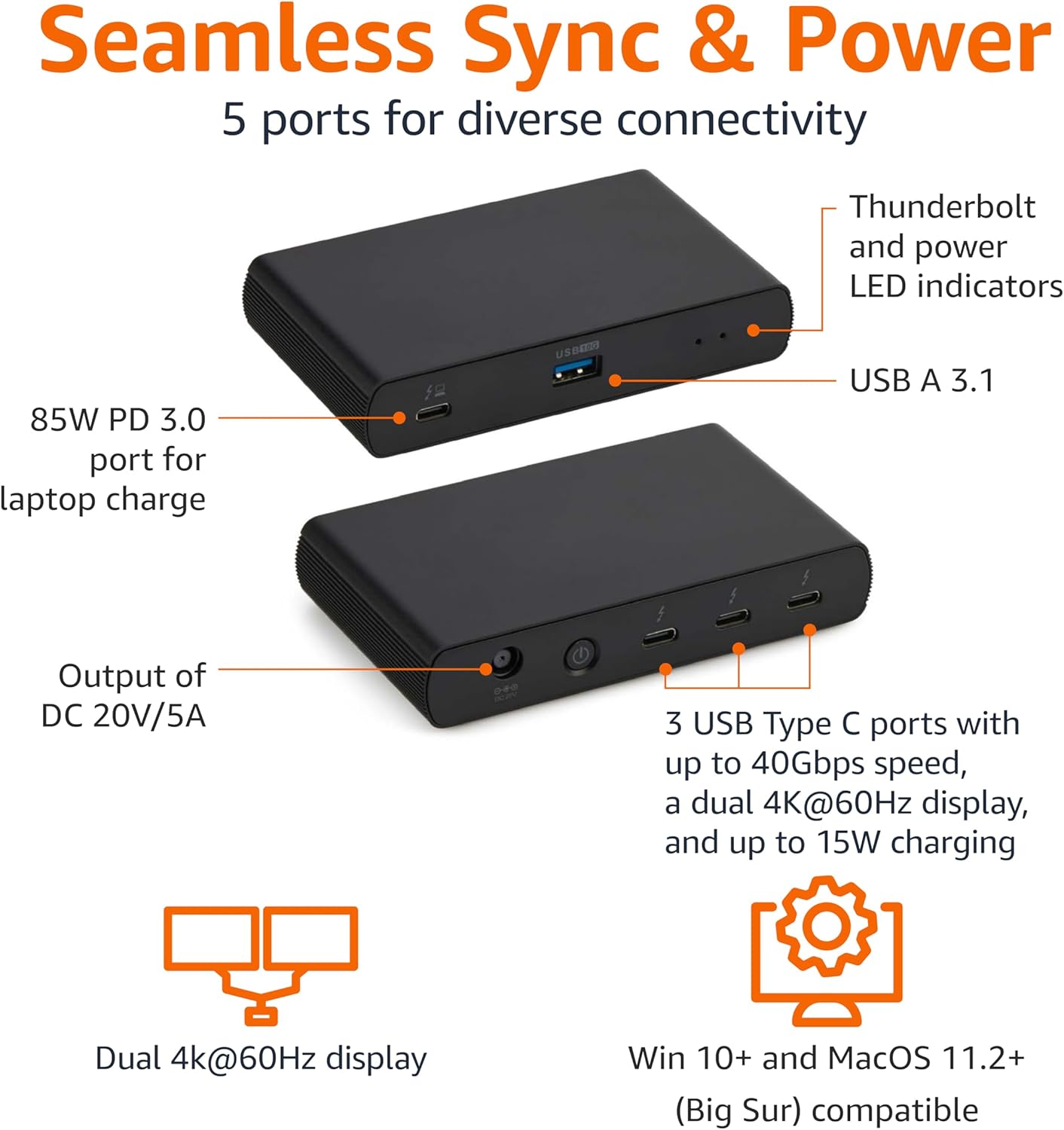
Image: Labeled ports on the docking station.
Iphaneli yangemuva
- DC In Port: Connect the provided power adapter.
- Imbobo ye-HDMI 2.1: Xhuma isibonisi sangaphandle.
- 2x Thunderbolt 4 Downstream Ports: Connect additional Thunderbolt devices or external displays. Each supports up to 15W charging.
- Imbobo ye-Ethernet ye-2.5G: Okokuxhunywa kwenethiwekhi enezintambo.
- 2x USB-A 3.1 Ports: Connect additional USB-A peripherals.
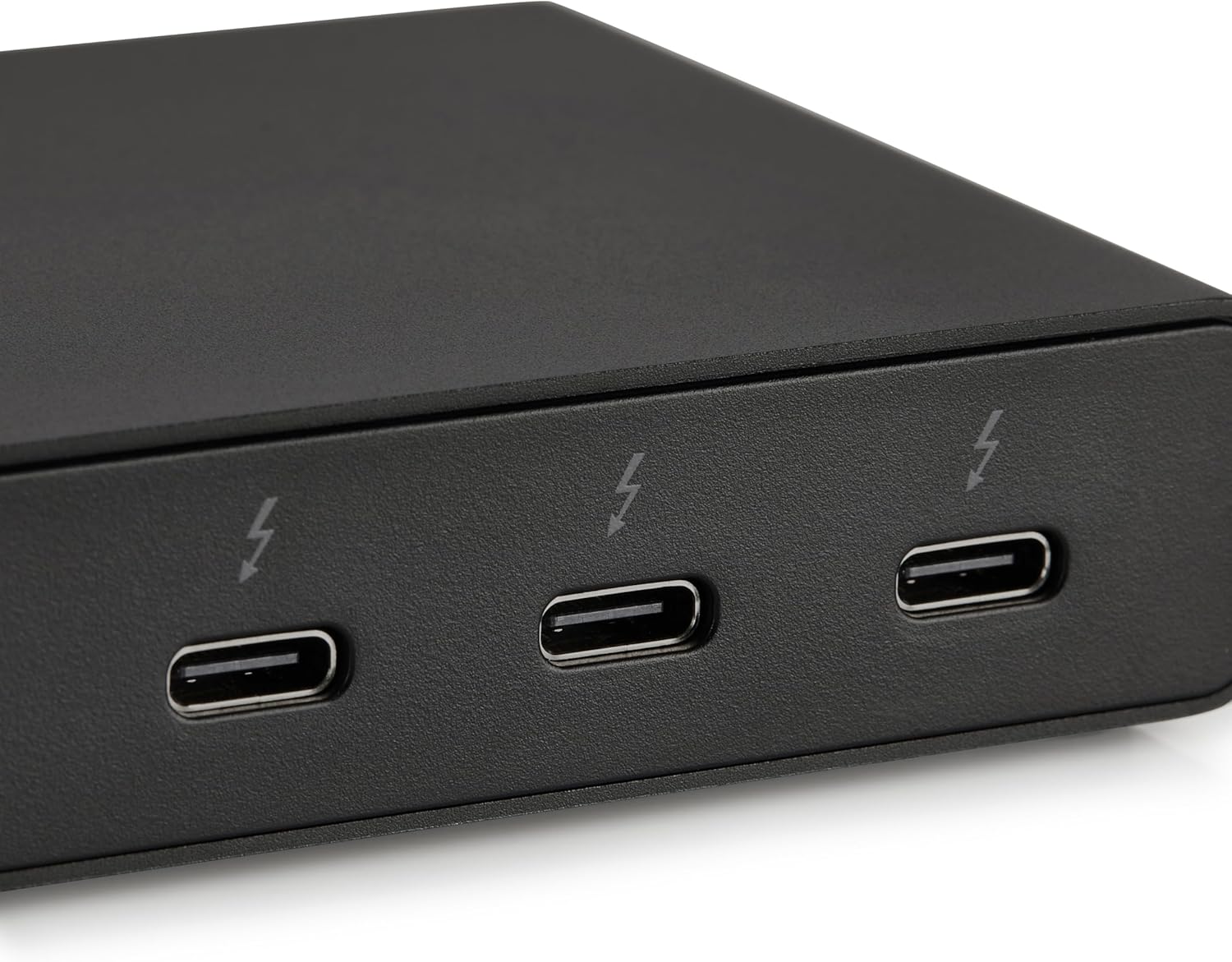
Image: Close-up of Thunderbolt 4 ports.
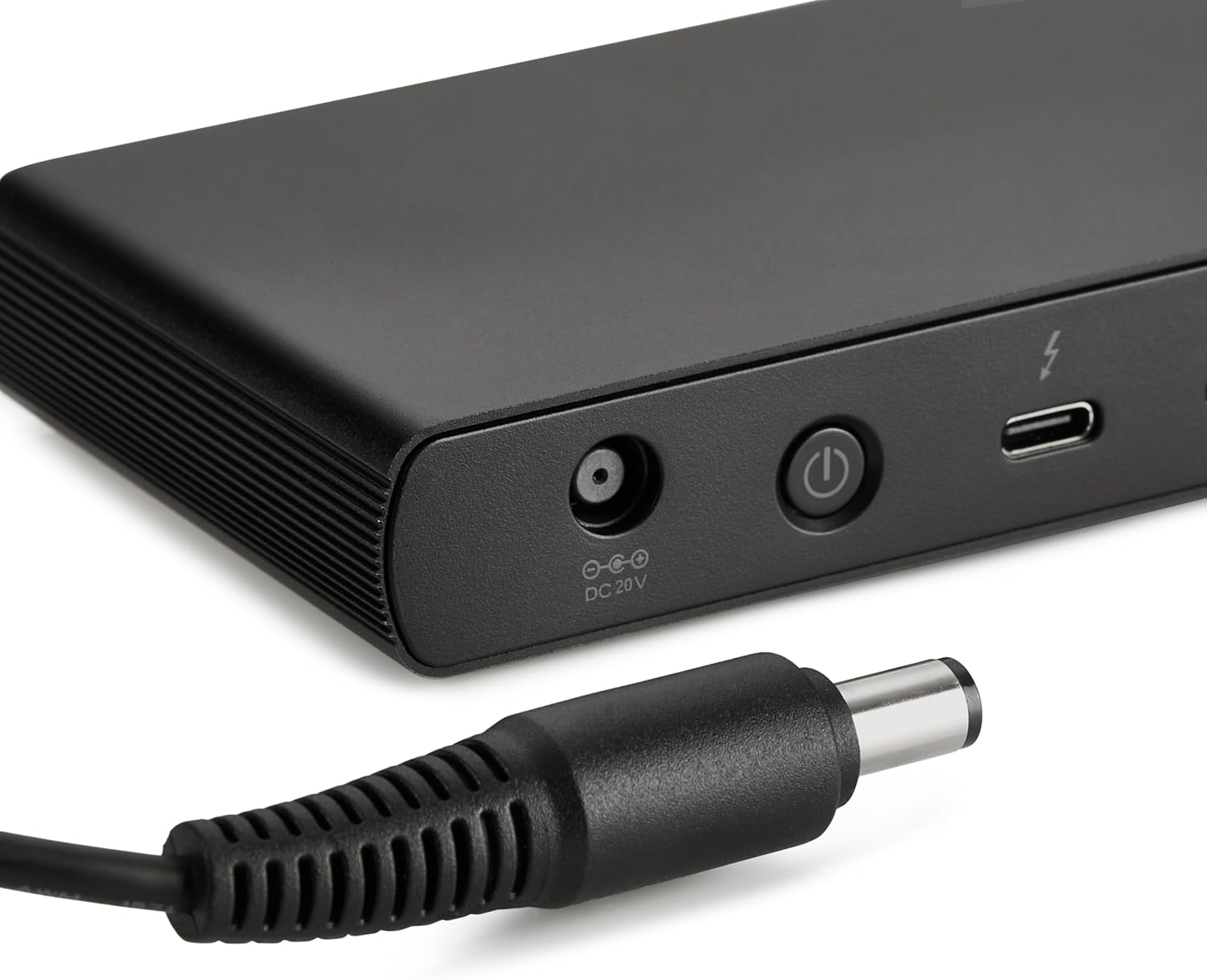
Image: Close-up of the DC power input.
Setha Imiyalelo
- Xhuma Amandla: Plug the provided power adapter into the DC In port on the rear of the docking station, then connect the power cord to a wall outlet.
- Xhuma kukhompyutha ephathekayo: Use the provided black Thunderbolt 4 cable to connect the Thunderbolt 4 upstream port on the ngaphambili of the docking station to a Thunderbolt 4 port on your laptop.
- Vula: Press the power button on the front panel of the docking station. The green power LED and blue Thunderbolt LED should illuminate.
- Xhuma Amapheripherals: Connect your monitors, Ethernet cable, USB devices, and audio devices to the appropriate ports on the docking station.
Video: This video demonstrates the basic setup and connectivity of the Amazon Basics Thunderbolt 4 / USB4 Docking Station, including connecting to a laptop, external displays, and peripherals.
Note: If your laptop does not immediately detect the dock, ensure the Thunderbolt 4 cable is securely connected. Wait approximately 60 seconds for the system to complete the setup process.
Imiyalelo yokusebenza
Ukusekelwa Kwezibonisi Ezikabili
The docking station supports up to dual 4K@60Hz displays. You can connect one display via the HDMI 2.1 port and another via one of the Thunderbolt 4 downstream ports (using an appropriate adapter/cable, not included).
- Verify your laptop's Thunderbolt ports support dual 4K@60Hz output.
- Ensure your graphics card has the latest drivers installed.
- Confirm your monitors support 4K@60Hz display.
- Use high-quality Thunderbolt 4 or USB4 cables for display connections (not included).

Image: Dual display setup with the docking station.
Ukulethwa kwamandla (PD)
The docking station provides dynamic power delivery up to 85W to charge your connected laptop. This eliminates the need for a separate laptop charger.
- Check your laptop manufacturer's power supply specifications.
- If laptop power requirements exceed 85W, the docking station may activate an overload protection feature, causing disconnection or improper port function.
- The Thunderbolt 4 downstream ports also provide up to 15W charging for connected devices.
Ukudluliswa Kwedatha Okushesha Kakhulu
Leverage Thunderbolt 4 and USB4 technology for lightning-fast data transfers up to 40Gbps across the Thunderbolt ports, ensuring seamless workflows for large files and demanding applications.
Ukuhambisana
- Amasistimu Okusebenza Asekelwe: Windows 10 OS or later (with Thunderbolt 4 port), non-M1/M2 chip MacBooks running macOS 11 (Big Sur) or later.
- Ukuhambisana Kwemuva: Thunderbolt 3 laptops may work with limited functionality (e.g., not supporting dual display).
- Akuhambisani Ne: Linux or Chrome OS laptops, and M1/M2 chip MacBooks running macOS 10.16 or earlier.
Imininingwane
| Isici | Imininingwane |
|---|---|
| Ibhrendi | Amazon Basics |
| Inombolo Yemodeli | I-DBD1010 |
| Ubukhulu bomkhiqizo | 4.76 x 2.84 x 0.86 amayintshi |
| Isisindo sento | 1.76 amakhilogremu |
| Isikhombimsebenzisi se-Hardware | Thunderbolt, USB |
| Isamba samachweba we-USB | 4 (1x USB-A 3.1 front, 2x USB-A 3.1 rear, 1x Thunderbolt 4 upstream front) |
| I-Thunderbolt Ports | 3 (1x upstream, 2x downstream) |
| Imbobo ye-HDMI | I-1x HDMI 2.1 |
| Imbobo ye-Ethernet | 1x 2.5G RJ45 |
| Ukulethwa Amandla | Up to 85W to host laptop |
| Okukhipha ividiyo | Dual 4K@60Hz displays |
| I-UPC | 840324412260 |
Ukuxazulula inkinga
- Akukho okukhiphayo kokubonisa:
- Ensure all display cables are securely connected.
- Verify your laptop's Thunderbolt ports support dual 4K@60Hz output.
- Buyekeza izishayeli zekhadi lakho lezithombe zibe yinguqulo yakamuva.
- Confirm your monitors support 4K@60Hz.
- Try using different high-quality Thunderbolt 4 or USB4 cables for display connections.
- Laptop Not Charging / Intermittent Charging:
- Ensure the provided Thunderbolt 4 cable is used for the upstream connection to your laptop.
- Confirm the power adapter is correctly plugged into the dock and a working wall outlet.
- Check your laptop's power requirements. If they exceed 85W, the dock's overload protection may activate.
- Ama-peripherals awatholwanga:
- Ensure the Thunderbolt 4 cable connecting the dock to your laptop is firmly seated.
- Try connecting the peripheral directly to your laptop to rule out device issues.
- Qala kabusha ikhompuyutha ephathekayo yakho kanye nesiteshi sokudokha.
- Ukudlulisa Idatha Okuhamba Kancane:
- Ensure you are using Thunderbolt 4 or USB4 compatible devices and cables for optimal speeds.
- Check that your laptop's ports support the expected data transfer rates.
Isondlo
- Ukuhlanza: Use a soft, dry cloth to clean the exterior of the docking station. Avoid liquid cleaners or solvents.
- Isitoreji: Gcina isiteshi sedokodo endaweni epholile, eyomile ekude nelanga eliqondile namazinga okushisa aphezulu.
- Ukunakekelwa Kwekhebula: Avoid bending or crimping cables excessively to prevent damage.
Iwaranti kanye Nokusekela
Ukuze uthole ulwazi lwewaranti kanye nokusekelwa kwamakhasimende, sicela ubheke i-Amazon Basics esemthethweni website or contact Amazon customer service. Protection plans are also available for extended coverage.
For additional assistance, visit: amazon.com/AmazonBasics


