1. Isingeniso
The JADENS Bluetooth Thermal Printer is a portable, inkless printing solution designed for convenience and efficiency. This device supports 8.5" x 11" US Letter size thermal paper and offers versatile connectivity options, including Bluetooth for iOS and Android devices, and USB for laptops. This manual provides essential information for setting up, operating, maintaining, and troubleshooting your printer to ensure optimal performance.

Image: The JADENS Bluetooth Thermal Printer in black, shown with a smartphone connected via Bluetooth, illustrating its portable nature and ease of use for printing documents.
2. Yini EseBhokisini
Sicela uqinisekise ukuthi zonke izinto zikhona kuphakheji:
- Portable Printer x 1
- Incwadi yomsebenzisi x 1
- I-adaptha yamandla x 1
- US Letter Thermal Paper Roll x 1
- Ikhebuli ye-USB yohlobo C x 1
3. Umhlahlandlela wokusetha
3.1. Initial Setup and Charging
Before first use, ensure the printer is fully charged using the provided power adapter and Type-C USB cable. The printer features 2 built-in 2600mAh batteries, offering extended use.
3.2. Ukulayisha Iphepha Elishisayo
This printer exclusively uses thermal paper. Open the paper compartment, insert the thermal paper roll or fan-fold paper, ensuring the printable side faces the print head. Close the compartment securely.

Image: Illustration of the JADENS portable printer demonstrating the two methods for loading thermal paper: using the built-in paper bin for rolls or fan-fold paper.
3.3. Ixhuma kumadivayisi
The printer offers both Bluetooth and USB connectivity.
3.3.1. Bluetooth Connection (for iOS & Android)
- Landa uhlelo lokusebenza: Scan the QR code below or search for "Jadens Printer" in your device's app store (App Store for iOS, Google Play for Android).
- Enable Bluetooth & Location: On your smartphone, turn on Bluetooth and location services.
- Nikeza Izimvume: Allow the "Jadens Printer" app to access location, position, and Bluetooth for device discovery.
- Turn on Printer: Power on your JADENS printer.
- Xhuma nge-App: Open the "Jadens Printer" app, tap "+" to add a printer. Your printer should appear; tap "Connect". Alternatively, double-click the printer's power button to print a QR code, then scan it within the app.
- Izilungiselelo zephepha: After connecting, tap "More settings" to configure paper type and size.

Image: A step-by-step visual guide demonstrating how to connect the JADENS printer to a smartphone using the dedicated mobile application, including scanning a QR code for app download and Bluetooth pairing instructions. The QR code links to https://u.shengcai.net/bnl7/H666G_ayKEG.

Image: The JADENS printer illustrating its Bluetooth pairing capability with both iOS and Android smartphones through a dedicated application.
3.3.2. USB Cable Connection (for Windows & Mac)
For laptop and computer printing, install the appropriate driver first. Connect the printer to your computer using the provided Type-C USB cable.

Image: A user operating the JADENS portable printer, which is connected to a laptop via a USB cable, demonstrating its compatibility with desktop and laptop computers.
4. Iziqondiso Zokusebenza
4.1. Ukuphrinta Imibhalo
Once connected, you can print various documents such as recipes, forms, letters, assignments, study materials, and travel documents. Ensure your document is formatted for the thermal paper size (up to 8.5" x 11").
- From Mobile App: Select the document or image within the "Jadens Printer" app and initiate the print command.
- Kusuka kukhompyutha: Use your computer's standard print function, selecting the JADENS printer from the available options.

Image: A visual representation of the JADENS printer's versatility, showing its application in various settings such as business, travel, and educational environments.
4.2. Izici Eziyinhloko
- Ink-Free Thermal Technology: The printer uses advanced thermal technology, eliminating the need for ink, toner, or ribbons. This provides a cost-effective and mess-free printing experience.
- High Definition Printing: Enjoy crisp and clear monochrome prints with a resolution of 203 dpi.
- Ukuphatheka: Its compact and lightweight design makes it ideal for travel and on-the-go printing.
- Impilo ende yebhethri: Equipped with two 2600mAh batteries, the printer can continuously print up to 360 sheets or operate for 3 hours on a single charge, with a standby time of up to 90 days.
- Adjustable Paper Sizes: Supports documents ranging from 2 to 8.5 inches in width.
- Secure Local Storage: The printer allows direct printing from your device without transferring files to the cloud, ensuring data privacy.

Isithombe: Okukhulisiwe view highlighting the high-definition output of the JADENS thermal printer, emphasizing its inkless technology and the low cost per sheet.
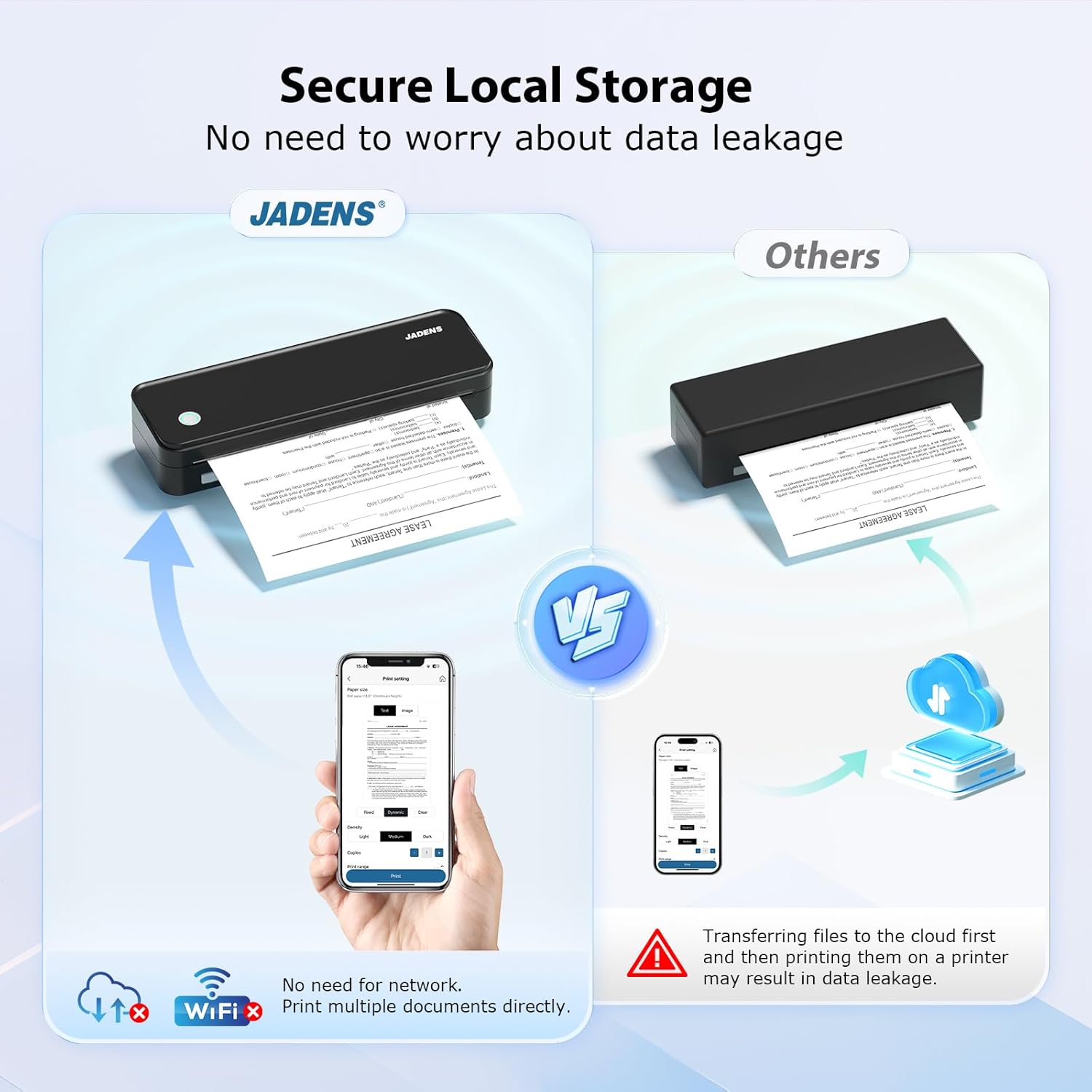
Image: A comparison graphic illustrating the JADENS printer's secure local storage printing method against other printers that may require cloud transfer, emphasizing data privacy.

Image: A person demonstrating the compact size of the JADENS printer by easily placing it into a backpack, highlighting its portability for travel.

Image: The JADENS printer displaying its 2600mAh battery capacity and indicating its readiness to print, emphasizing its long-lasting power.
5. Isondlo
5.1. Ukuhlanza Ikhanda Lokuphrinta
To maintain print quality, periodically clean the thermal print head. Turn off the printer and allow it to cool. Gently wipe the print head with a lint-free cloth lightly dampixutshwe ne-isopropyl alcohol. Yivumele yome ngokuphelele ngaphambi kokusebenzisa.
5.2. Thermal Paper Care
Thermal paper is sensitive to heat, light, and certain chemicals. Store thermal paper in a cool, dark, and dry place. Avoid prolonged exposure of printed documents to direct sunlight, high temperatures, or contact with plastics containing plasticizers, as this can cause the print to fade over time.
6. Ukuxazulula izinkinga
- Printer Not Connecting via Bluetooth:
Ensure Bluetooth is enabled on your mobile device and the printer. Verify that the "Jadens Printer" app has necessary location and Bluetooth permissions. Try restarting both the printer and your mobile device. If issues persist, refer to the app's connection guide or the printer's indicator lights for status.
- Printer Not Connecting via USB:
Confirm that the correct driver for your operating system (Windows/Mac) is installed. Try a different USB port or cable. Ensure the printer is powered on.
- Poor Print Quality or Fading:
Check if you are using thermal paper. Regular paper will not work. Ensure the thermal paper is loaded correctly with the printable side facing the print head. Clean the print head as described in the Maintenance section. If prints are fading quickly after printing, ensure the thermal paper is not old or improperly stored.
- Iphrinta Ayiphrinti:
Check if the printer is powered on and has sufficient battery charge. Ensure there is thermal paper loaded correctly. Verify the printer is properly connected to your device (Bluetooth or USB) and selected as the active printer in your application.
- Ukuqonda Izibani Zezinkomba:
The printer features indicator lights that convey its status (e.g., power, battery, error). Refer to the quick start guide included with your printer for a detailed explanation of specific light patterns and their meanings.
7. Imininingwane
| Ibhrendi | EJADENS |
| Igama Lemodeli | A4black |
| Ubuchwepheshe bokuphrinta | Okushisayo |
| Okukhipha Iphrinta | I-Monochrome |
| Ubukhulu bokulungiswa kokuphrinta okumnyama nokumhlophe | 203dpi |
| I-Max Print Speed Monochrome | 20 ppm (amakhasi ngomzuzu) |
| Ubuchwepheshe bokuxhumana | Bluetooth, USB (Type-C) |
| Amadivayisi Ahambisanayo | Smartphones (iOS, Android), Laptops (Windows, Mac) |
| Ubukhulu Bosayizi Wemidiya | 8.5 x 11 inch (US Letter) |
| Ukusekelwa Kosayizi Weshidi | 8.5×11, 8.2×11.6 inches |
| Amandla Eshidi Lokufaka Okuphezulu | 50 amashidi |
| Amabhethri | 2 Amabhethri e-Lithium Ion (afakiwe) |
| Ubukhulu bomkhiqizo | 10 x 1.8 x 3.1 amayintshi (25.4 x 4.57 x 7.87 cm) |
| Isisindo sento | 2.29 pounds (1.04 kg) |
| Amandla Okugcina Inkumbulo | 64 MB |
8. Iwaranti kanye Nokusekela
8.1. Iwaranti enomkhawulo
The JADENS Bluetooth Thermal Printer comes with a limited warranty. Please refer to the warranty card included in your package or contact customer support for detailed terms and conditions.
8.2. Ukwesekwa Kwamakhasimende
JADENS is committed to providing exceptional after-sale service. For technical assistance, inquiries, or support, please contact our dedicated team via phone or email. Contact information can be found on the JADENS official webisayithi noma kumadokhumenti anikezwe nomkhiqizo wakho.


