1. Isingeniso
This manual provides detailed instructions for the installation, operation, and maintenance of your JOOAN 2K Outdoor Security Camera W8-U X. Please read this manual thoroughly before using the product to ensure proper functionality and safety. This camera is designed to provide comprehensive surveillance with its dual-lens system, offering both a fixed wide-angle view and a pan-tilt-zoom (PTZ) view ngokuqapha okuthuthukisiwe.
2. Ulwazi Lokuphepha
- Ensure the power supply meets the camera's requirements (5V DC). Using an incorrect power adapter may damage the device.
- Ungabeki ikhamera endaweni eshisa kakhulu, emswakama, noma ezindaweni ezigqwalisayo.
- Gwema ukubeka ikhamera eduze kwezinkundla ezinamandla kagesi.
- Gcina ikhamera kanye nezingxenye zayo kude nezingane.
- For outdoor installation, ensure all connections are waterproofed to prevent water ingress.
- Ungazami ukuqaqa noma ukulungisa ikhamera ngokwakho. Xhumana nosekelo lwamakhasimende ukuze uthole usizo.
3. Okuqukethwe Kwephakheji
- JOOAN 2K Outdoor Security Camera W8-U X
- Ikhebula Lamandla (i-USB-C)
- Izikulufo zokukhweza kanye nama-Wall plug
- Incwadi Yomsebenzisi (le dokhumenti)
Note: A 5V power adapter is required but not included in the package. Your smartphone adapter (5V 1.5A, 2A, or 3A) can be used.
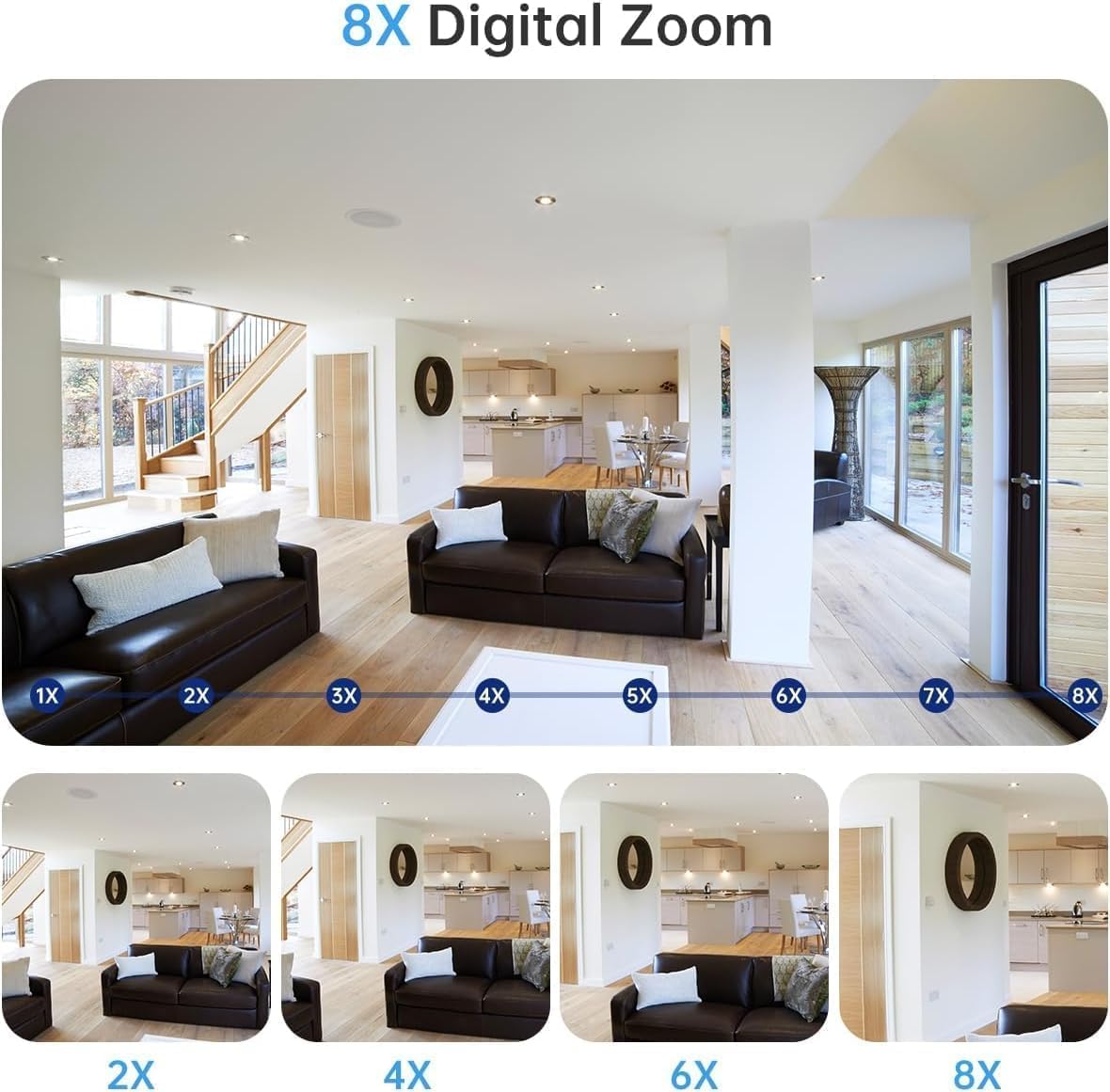
Image: Contents of the camera package, showing the camera, power cable, and mounting accessories. A power adapter is explicitly marked as not included.
4. Umkhiqizo Uphelileview
4.1 Izici ezibalulekile
- Dual-Lens System: Features one fixed lens for a wide overview and one rotatable (PTZ) lens for detailed monitoring.
- 2K Ukulungiswa: Inikeza ividiyo ecacile necacile footage.
- 360-Degree View: The PTZ lens offers 355° horizontal pan and 90° vertical tilt for comprehensive coverage.
- Motion Detection & Auto-Tracking: Automatically detects movement and tracks subjects, sending instant alerts.
- Umsindo Wendlela Embili: Imakrofoni kanye nesipikha esakhelwe ngaphakathi kuvumela ukuxhumana kwesikhathi sangempela.
- Izindlela Ezintathu Zokubona Ebusuku: Black & White, Full-Color, and Intelligent (auto-switching) night vision.
- I-IP66 I-Weatherproof: Designed to withstand various weather conditions for outdoor use.
- Isitoreji Esivumelana nezimo: Supports Micro SD card (up to 256GB, not included) and optional cloud storage.
- I-Dual-Band Wi-Fi: Compatible with both 2.4GHz and 5GHz Wi-Fi networks for stable connection.
4.2 Izingxenye Zekhamera

Image: The JOOAN 2K Outdoor Security Camera, highlighting its dual-lens design.
- Ilensi Engaphezulu: Fixed wide-angle lens.
- Ilensi Ephansi: PTZ (Pan-Tilt-Zoom) rotatable lens with LED lights.
- I-Antennas: Ukuze uthole uxhumano lwe-Wi-Fi.
- Imakrofoni: Okokufaka komsindo.
- Isipikha: For two-way audio output and alerts.
- Setha kabusha Inkinobho: Isetshenziselwa ukusetha kabusha ikhamera ibe yizilungiselelo zasefekthri.
- Isikhala sekhadi le-Micro SD: Okokugcina amavidiyo endawo.
- Imbobo yamandla: For connecting the 5V power cable.
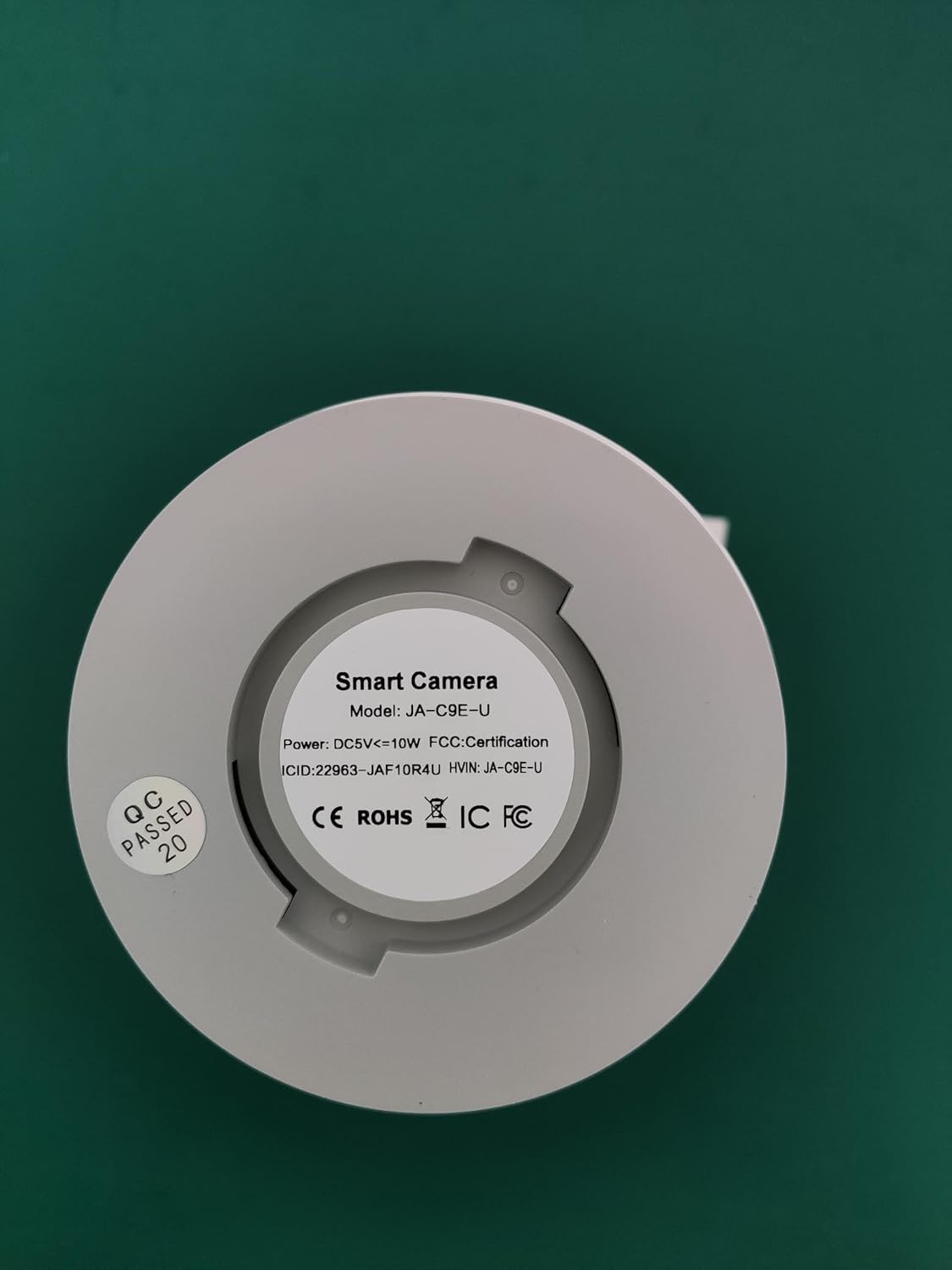
Image: The base of the camera, displaying the model number W8-U X and other product details.
5. Setha
5.1 Download and Register the App
- Download the "cam720" app from the App Store (iOS) or Google Play (Android).
- Register a new account using your email address. A verification code will be sent to your email.
5.2 Power On and Reset the Camera
- Connect the camera to a 5V power adapter (not included) using the provided power cable.
- Linda ikhamera ivule.
- Locate the reset button (usually a small pinhole) on the camera. Use a pin or paperclip to press and hold the reset button for approximately 3-5 seconds until you hear a "Di-Di" sound, indicating the camera has reset.
5.3 Xhuma ku-Wi-Fi
- Open the "cam720" app and tap "Add a device" or the "+" icon.
- Select "Wi-Fi connection" and follow the on-screen prompts.
- When prompted, connect your phone to the camera's Wi-Fi hotspot, which typically starts with "JAA-**".
- Return to the app and enter the password for your home Wi-Fi network (2.4GHz or 5GHz).
- Ensure your phone and the camera are close to the Wi-Fi router during the initial setup.
Video: A step-by-step guide on connecting the camera to your Wi-Fi network using the mobile application.
5.4 Ukufakwa ngokomzimba
The camera can be installed in various locations, including wall-mounted, ceiling-mounted, or placed on a flat surface. Choose a location that provides optimal viewing angles and is within Wi-Fi range.
- I-Wall/Ceiling Mount: Use the provided mounting screws and wall plugs to securely attach the camera bracket to the desired surface. Then, attach the camera to the bracket.
- Indawo Ephansi: Beka ikhamera endaweni ezinzile, eyisicaba.

Image: Illustration of different installation methods for the camera, including flat placement, wall mounting, and ceiling mounting.
6. Ukusebenza
6.1 Bukhoma View kanye Nokudlala
- Once connected, open the "cam720" app to access the live video feed from your camera.
- Kuya view i-foo eqoshiwetage, navigate to the playback section within the app. Ensure you have either a Micro SD card installed or cloud storage enabled.
6.2 PTZ Control and Digital Zoom
The app allows you to remotely control the pan (horizontal) and tilt (vertical) movements of the lower lens to adjust the viewing angle. You can also use digital zoom to get a closer look at specific areas.
Image: Mobile application interface demonstrating the pan, tilt, and digital zoom controls for the camera.
Video: Demonstrates the 360-degree view and auto-tracking capabilities of the camera, along with two-way audio and floodlight features.
6.3 Umsindo Wendlela Embili
Use the two-way audio feature to listen to the environment around the camera and speak through its built-in speaker. This is useful for communicating with visitors or deterring intruders.
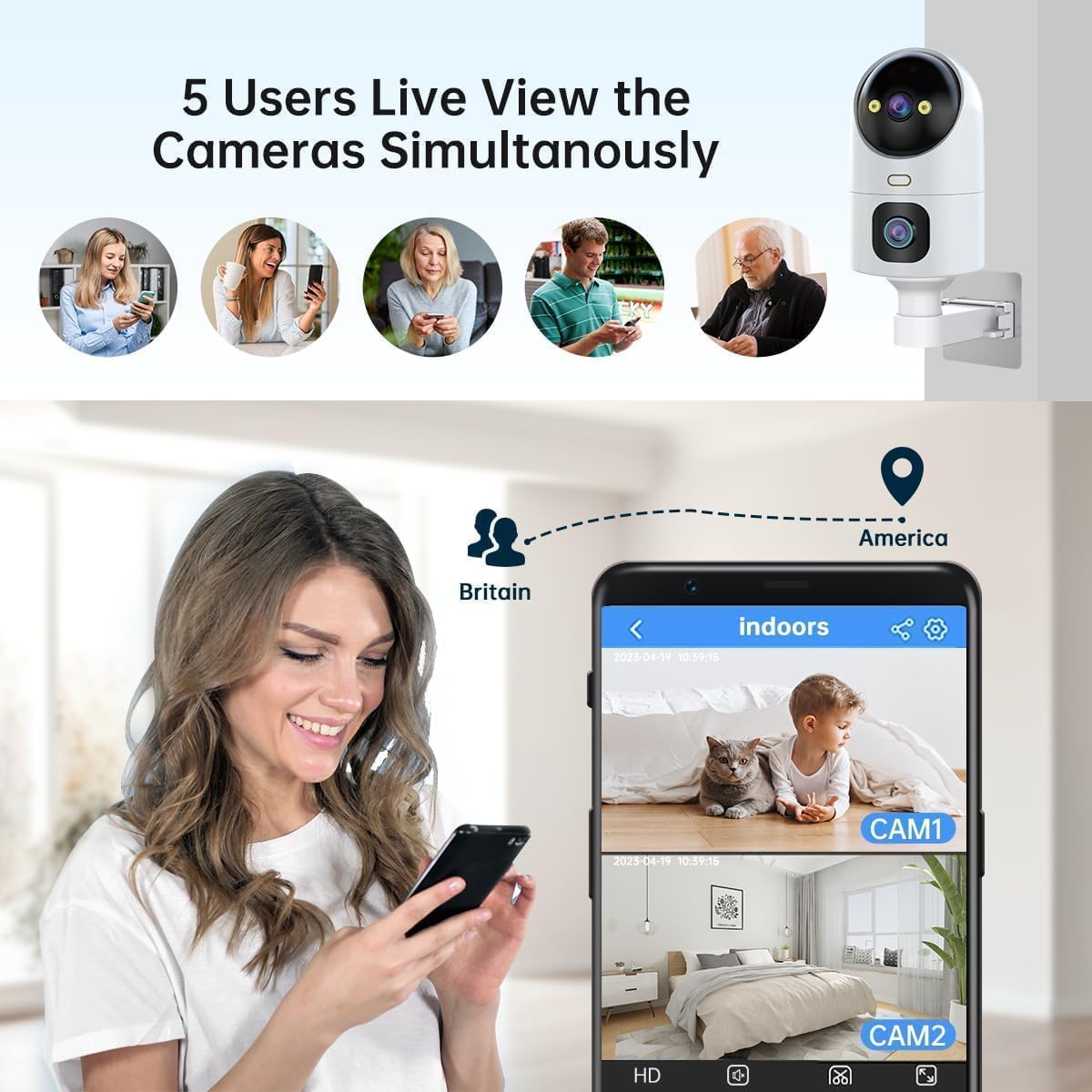
Image: Visual representation of the two-way audio function, allowing communication through the camera.
6.4 Ukutholwa kokunyakaza kanye Nezaziso
Configure motion detection settings in the app:
- Indlela Yokuthola: Choose between sound and motion detection.
- Indawo yokutholwa: Define specific zones for motion detection to avoid false alarms.
- Ukuzwela: Lungisa izinga lokuzwela kokutholwa kokunyakaza.
- Umsindo we-alamu: Set custom alarm sounds and adjust volume.
- Izexwayiso: Receive instant notifications on your mobile device when motion is detected.

Image: Motion detection feature with light and sound alerts, showing a person triggering an alarm and a mobile notification.

Image: Visualizing the detection and alert system, including sound and motion detection with customizable setup options.
6.5 Izindlela Zokubona Ebusuku
Ikhamera inezindlela ezintathu zokubona ebusuku:
- Black & White Night: Standard infrared night vision.
- Full-Color Night: Utilizes built-in spotlights to provide color images in low-light conditions.
- Umbono Ohlakaniphile Wasebusuku: Automatically switches between B/W and color night vision based on detected motion or light conditions.

Image: Comparison of the three night vision modes available on the camera.
6.6 Ukuphathwa Kwesitoreji
- Ikhadi le-Micro SD: Insert a Micro SD card (8GB-256GB) into the designated slot for continuous local recording. The camera supports 24/7 loop recording.
- Isitoreji Samafu: The camera offers a free 30-day trial of cloud storage. After the trial, subscription options are available for continued cloud recording.

Image: Storage options including Micro SD card and cloud storage, with details on capacity and features.
Image: Illustrates the process of inserting a Micro SD card into the camera.
6.7 Sharing and Remote Access
- Share Camera: Share live view access with up to 6 users simultaneously. The main account holder can manage settings and permissions.
- Transfer Account: You can transfer the main account ownership to another user within the app.

Image: Demonstrates the family sharing feature, allowing multiple users to view okuphakelayo kwekhamera.
Video: Highlights the dual-lens functionality and 360-degree view of the 2K outdoor security camera.
7. Isondlo
7.1 Ukuhlanza
To maintain optimal image quality, regularly clean the camera lens with a soft, dry cloth. Avoid using harsh chemicals or abrasive materials that could scratch the lens.
7.2 Ukuvuselelwa kweFirmware
Periodically check the "cam720" app for available firmware updates. Keeping your camera's firmware up-to-date ensures you have the latest features, security patches, and performance improvements.
8. Ukuxazulula izinkinga
- Ikhamera ayivuli: Ensure the 5V power adapter is correctly connected and functioning. Check the power cable for any damage.
- Ayikwazi ukuxhuma ku-Wi-Fi:
- Qinisekisa ukuthi inethiwekhi yakho ye-Wi-Fi ingu-2.4GHz noma i-5GHz.
- Qinisekisa ukuthi iphasiwedi ye-Wi-Fi ilungile.
- Place the camera closer to the router during setup.
- Reset the camera and try the connection process again.
- No recording or playback:
- Check if a Micro SD card is properly inserted and formatted.
- Ensure cloud storage is active if you are relying on it.
- Verify recording settings in the app.
- Ikhwalithi yesithombe engeyinhle:
- Hlanza ilensi yekhamera.
- Ensure sufficient lighting, especially for color night vision.
- Hlola isivinini sakho sokuxhuma ku-inthanethi.
- Ukutholwa kokunyakaza akusebenzi:
- Verify motion detection is enabled in the app.
- Adjust detection sensitivity and area settings.
9. Imininingwane
| Isici | Imininingwane |
|---|---|
| Inombolo Yemodeli | W8-U X |
| Isixazululo | 2K (2304*1296) |
| Ukuxhumana | Wireless (2.4GHz & 5GHz Wi-Fi) |
| I-Pan/Tilt Range | 355° Pan, 90° Tilt |
| Umbono Wasebusuku | Black & White, Full-Color, Intelligent |
| Umsindo | Umsindo Wendlela Embili |
| Izinketho Zesitoreji | Ikhadi le-Micro SD (kufika ku-256GB), Isitoreji Samafu |
| Ukumelana Nesimo Sezulu | IP66 |
| Okokufaka Amandla | 5V DC (Adapter not included) |
| Ubukhulu | 18.1 x 9.6 x 9.3 cm |
| Isisindo sento | 460 g |

Image: The camera's IP66 weather-resistant design, suitable for various outdoor conditions.
10. Iwaranti kanye Nokusekela
Your JOOAN 2K Outdoor Security Camera W8-U X comes with a 1-year manufacturer's warranty. For technical support, warranty claims, or any questions regarding your product, please refer to the contact information provided on the product packaging or the official JOOAN webindawo.


