Isingeniso
This manual provides comprehensive instructions for setting up, operating, and maintaining your FANTECH MAXFIT81 Mechanical Keyboard. Please read this manual thoroughly before use to ensure optimal performance and longevity of your device.
Yini EseBhokisini
- Ikhibhodi ye-FANTECH MAXFIT81 Mechanical
- I-Rotary Encoder Knob
- Dual Stabilizer Mounts
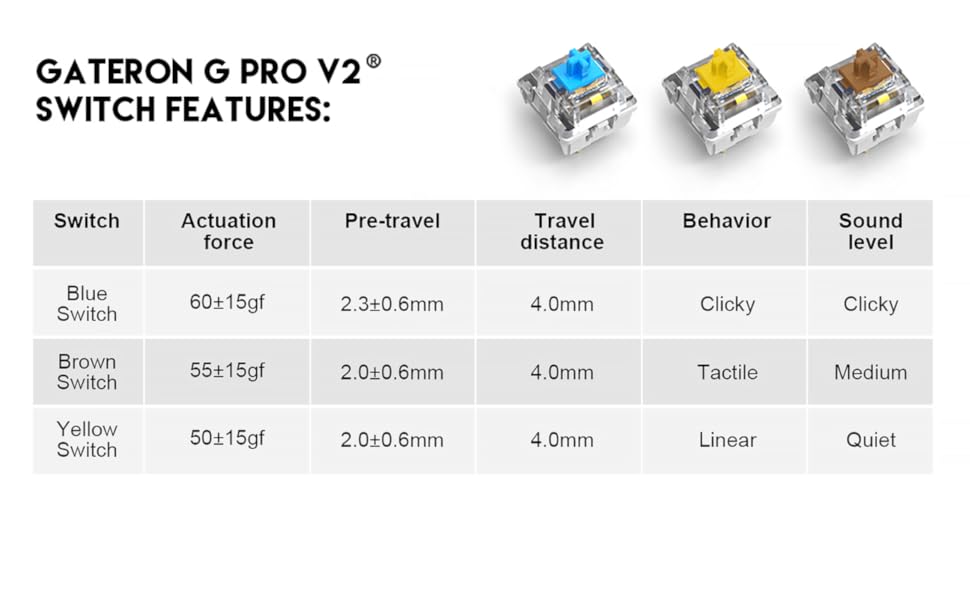
- Gateron Yellow Switches (pre-installed)
- PBT Keycaps (pre-installed)
- Ikhebula le-USB (USB-C)
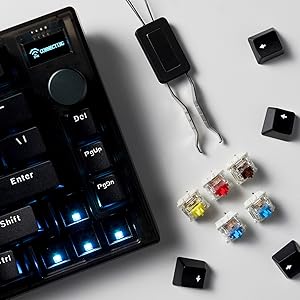
- I-Keycap Puller
- South-facing PCB (integrated)
- Transparent Retro Case (integrated)

Umkhiqizo Uphelileview
Izici Eziyinhloko:
- I-75% Yesici Sefomu: Compact design retaining essential keys.
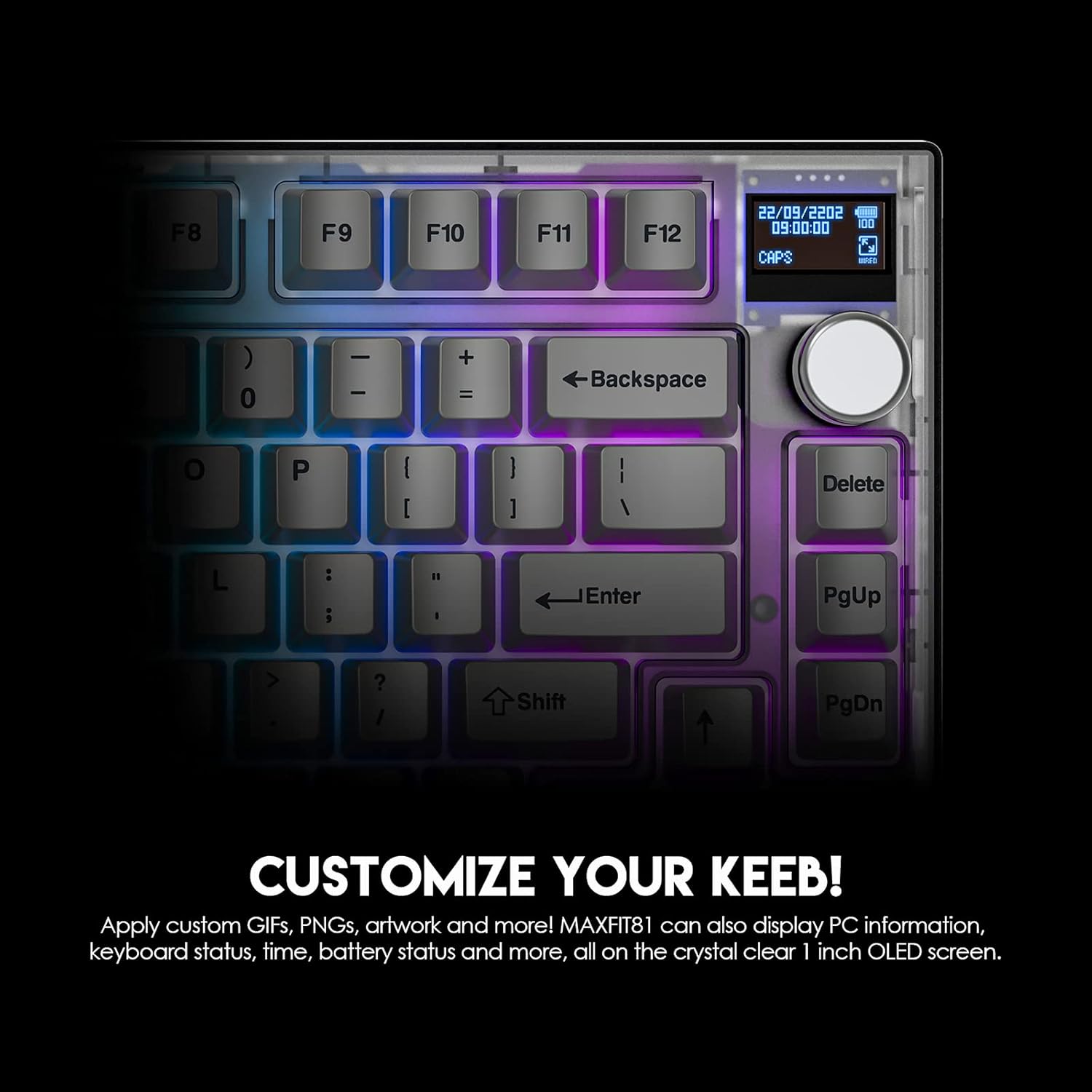
- Multi-Function Customizable OLED Display: Real-time information and personalization.
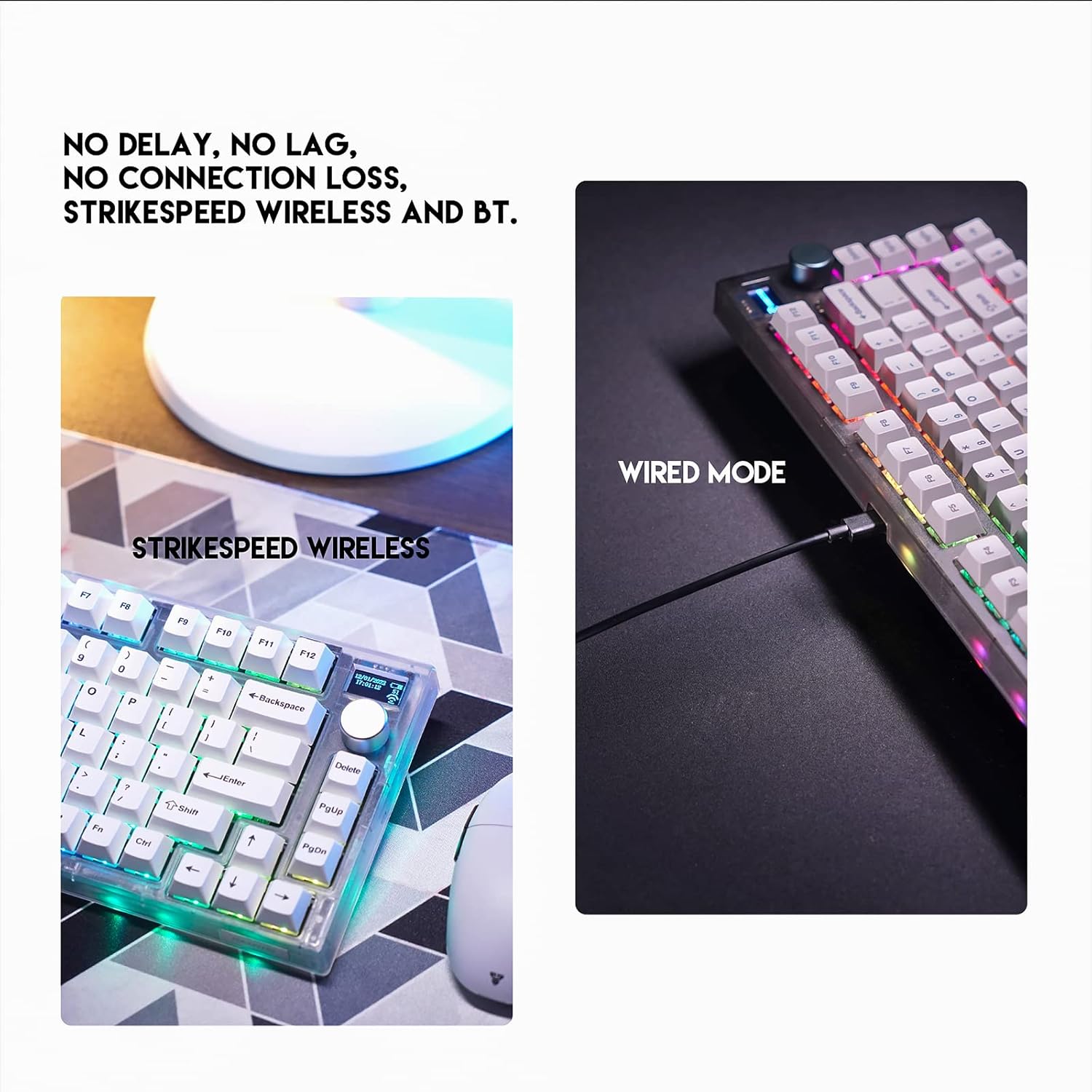
- Wireless (Bluetooth + Strikespeed Wireless) & Wired Connectivity: Versatile connection options.
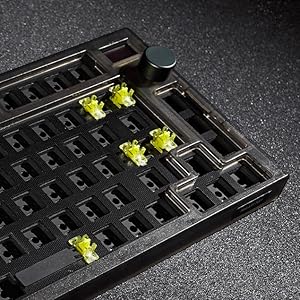
- Amaswishi Ashintshwayo Ashisayo: Easy replacement of mechanical switches.
- South Facing PCB: Enhanced compatibility with various keycap profiles.
- Rotary Encoder Knob: Programmable for various functions.
- Retro Frosted Transparent Case: Unique aesthetic design.


Setha
Ukuxhumana Kwasekuqaleni:
- Imodi enentambo: Connect the provided USB-C cable to the keyboard and the other end to an available USB port on your computer. The keyboard will be automatically recognized.
- Strikespeed Wireless (2.4GHz): Insert the 2.4GHz USB receiver into an available USB port on your computer. Ensure the keyboard's mode switch is set to 2.4GHz. The keyboard should connect automatically.
- Imodi ye-Bluetooth: Set the keyboard's mode switch to Bluetooth. On your device, search for Bluetooth devices and select "MAXFIT81". Follow any on-screen prompts to complete pairing. The keyboard can connect to up to 5 devices via Bluetooth.
Ukufakwa Kwesofthiwe:
For full customization of RGB lighting, key assignments, macro scripts, and OLED display settings, download the FANTECH MAXFIT81 FROST Wireless software from the official FANTECH webisiza (www.fantechworld.com). The software is compatible with Windows 7 or newer operating systems.

Imiyalelo yokusebenza
OLED Display Functions:
The 1-inch OLED screen can display various information including PC system data, keyboard status, time, and battery status. It also supports custom GIFs, PNGs, and artwork. Use the FANTECH software to configure display content.
Rotary Encoder Knob:
The programmable knob can be assigned to control volume, media playback, scrolling, or custom macros. Default function is volume control (rotate) and mute/unmute (press).
Ukulawula Ukukhanyisa kwe-RGB:
The keyboard features customizable RGB backlighting. Lighting modes and effects can be adjusted via the FANTECH software or using keyboard shortcuts (refer to the software for specific key combinations).
Isondlo
Ukuhlanza:
Regularly clean the keyboard with a soft, dry cloth. For deeper cleaning, use the provided keycap puller to remove keycaps and clean underneath with compressed air or a small brush. Avoid using harsh chemicals or abrasive materials.
Ukushintsha Iswishi:
The MAXFIT81 features hot-swappable switches. To replace a switch, gently pull the keycap off using the keycap puller. Then, use a switch puller (not included, but commonly available) to carefully remove the switch. Align the pins of the new switch with the holes on the PCB and press firmly until it clicks into place. Ensure the switch is fully seated to avoid bent pins.
Ukuxazulula inkinga
| Inkinga | Imbangela Engenzeka | Isixazululo |
|---|---|---|
| Ikhibhodi ayiphenduli (Intambo) | Ukuxhumeka kwekhebula okuxekethile, imbobo ye-USB enephutha. | Ensure USB-C cable is securely connected. Try a different USB port or cable. |
| Ikhibhodi ayiphenduli (Ayinantambo/i-Bluetooth) | Low battery, incorrect mode, pairing issue, receiver interference. | Charge the keyboard. Ensure mode switch is correct (2.4GHz or BT). Re-pair the device. Move closer to the receiver or device. |
| Okhiye abathile abasebenzi | Faulty switch, bent switch pin, debris under keycap. | Remove keycap and inspect for debris. If hot-swappable, remove and re-insert switch, checking for bent pins. Replace faulty switch if necessary. |
| OLED display not working or showing incorrect info | Software issue, incorrect settings. | Ensure FANTECH software is installed and updated. Check display settings within the software. Restart the keyboard and software. |
| Ukukhanyisa kwe-RGB akusebenzi | Software settings, keyboard shortcut conflict. | Adjust RGB settings in the FANTECH software. Check for any conflicting keyboard shortcuts. |
Imininingwane
- Igama Lomkhiqizo: MAXFIT81 MK910
- Inombolo Yokhiye: 81 Keys + 1 Encoder
- Shintsha Uhlobo: Mechanical (Gateron Pro V2 Yellow Switch - Linear)
- I-Anti-Ghosting: Zonke Okhiye
- Uxhumano: Wired (USB-C), StrikeSpeed Wireless (2.4GHz), Bluetooth (Connect up to 5 Devices)
- Amandla ebhethri: 4000mAh
- Ibanga elingenantambo: Kufika ku-10m
- Isisindo: 1018g (approx. 2.24 lbs)
- Ubukhulu: 303.2(L) x 104.3(W) x 45(H) mm (approx. 11.94 x 4.1 x 1.77 inches)
- Impilo Yebhethri: Up to 70 hours (RGB OFF), Up to 15 hours (RGB ON)
- Amadivayisi Ahambisanayo: PC
- Ukukhanya Kwasemuva Kwekhibhodi: I-RGB
- Isitayela: Retro Frosted Transparent Case
Iwaranti kanye Nokusekela
For warranty information and technical support, please visit the official FANTECH webisayithi noma uxhumane nesevisi yabo yamakhasimende. Gcina irisidi lakho lokuthenga njengobufakazi bokuthenga izimangalo zewaranti.
Ulwazi Lokuphepha: The software only supports Windows 7 or newer.


