Isingeniso
Siyabonga ngokuthengaasing the Nedis Alarm Clock with Wireless Charger. This device combines a digital alarm clock with a Qi-certified wireless charging pad, a USB-A charging port, a dimmable display, dual alarm settings, and a color-changing night light. This manual provides essential information for safe and efficient use of your new device.
Ulwazi Lokuphepha
- Funda yonke imiyalelo ngokucophelela ngaphambi kokusetshenziswa.
- Gcina idivayisi ikude namanzi, umswakama, namazinga okushisa aphezulu.
- Ungazami ukuqaqa noma ukulungisa idivayisi ngokwakho. Thumela zonke izinsiza kubasebenzi abaqeqeshiwe.
- Ensure the power adapter used is compatible with the device's power requirements. For fast charging, a QC3.0 power adapter (not included) is recommended.
- Avoid placing metal objects on the wireless charging pad, as this may interfere with charging or cause overheating.
Okuqukethwe Kwephakheji
- Nedis Alarm Clock with Wireless Charger (Model WCACQ30WT)
- Power Adapter (if included, otherwise sold separately)
- Imaniwali yosebenzisayo
Umkhiqizo Uphelileview
Familiarize yourself with the various components of your alarm clock:

Isithombe 1: Ngaphambili View. This image displays the front of the alarm clock, featuring the large digital time display and the touch-sensitive control buttons located above it. The buttons include controls for display brightness, time setting, and alarm adjustments.
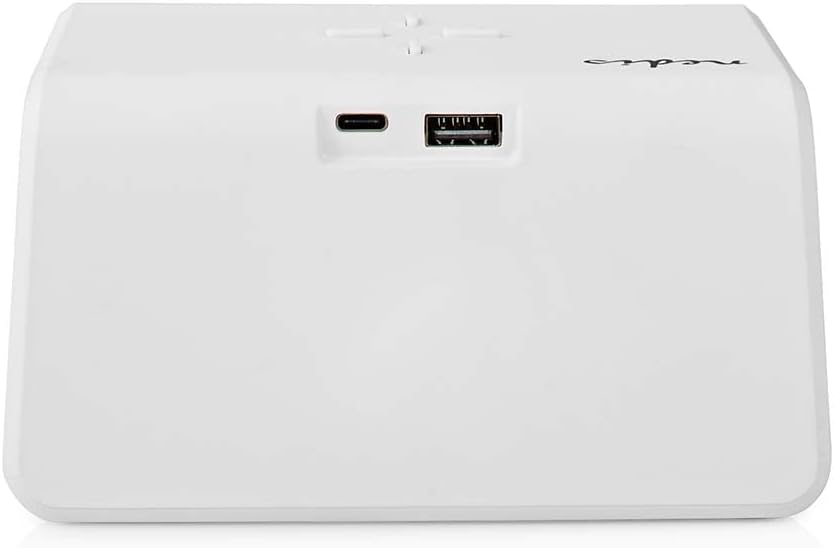
Isithombe 2: Emuva View. The back of the alarm clock is shown, highlighting the USB-C port for power input and a standard USB-A port for charging external devices.
- Ukuboniswa Kwedijithali: Shows time, alarm status, and other indicators.
- Izinkinobho Zokulawula: (Located on top)
- Light Button: Controls night light.
- Time/Alarm Set Button: For setting time and alarms.
- +/- Buttons: Adjust values.
- Iphedi yokushaja engenantambo: (Top surface) For Qi-compatible devices.
- Okokufaka kwe-USB-C: (Rear) For connecting the power adapter.
- Okukhipha i-USB: (Rear) For charging other devices via cable.
- Night Light Panel: (Side/Rear) Emits ambient light.
Setha
- Xhuma Amandla: Plug the provided power adapter into the USB-C input port on the back of the alarm clock. Connect the other end to a wall outlet. The display will light up.
- Isilungiselelo Sesikhathi Sokuqala: The clock may display a default time. Proceed to the 'Operating Instructions' section to set the correct time.
Imiyalelo yokusebenza
Ukubeka Isikhathi
- Cindezela bese ubamba i Time/Alarm Set button (usually marked with a clock icon) until the hour digits start flashing.
- Sebenzisa i- + or - izinkinobho ukulungisa ihora.
- Cindezela inkinobho Time/Alarm Set button again to switch to minute adjustment. The minute digits will flash.
- Sebenzisa i- + or - izinkinobho ukulungisa amaminithi.
- Cindezela inkinobho Time/Alarm Set inkinobho futhi ukuqinisekisa nokuphuma kwimodi yokusetha isikhathi.
2. Ukusetha ama-alamu (I-alamu 1 ne-alamu 2)
This device supports two independent alarm times.
- Cindezela inkinobho Time/Alarm Set button once to enter Alarm 1 setting mode. The alarm icon and hour digits for Alarm 1 will flash.
- Sebenzisa i- + or - buttons to adjust the hour for Alarm 1.
- Cindezela inkinobho Time/Alarm Set button again to switch to minute adjustment for Alarm 1.
- Sebenzisa i- + or - buttons to adjust the minutes for Alarm 1.
- Cindezela inkinobho Time/Alarm Set button again to confirm Alarm 1 and move to Alarm 2 setting mode (if applicable). Repeat steps 2-4 for Alarm 2.
- After setting Alarm 2, press the Time/Alarm Set inkinobho yokuqinisekisa nokuphuma kumodi yokusetha i-alamu.
- To activate/deactivate an alarm, short press the Time/Alarm Set button until the desired alarm icon (e.g., 'AL1' or 'AL2') appears or disappears on the display.
3. Snuza Umsebenzi
When an alarm sounds, press any button (except the alarm off button, if present) to activate the snooze function. The alarm will temporarily stop and sound again after a few minutes (typically 5-10 minutes, refer to specific model details if available). To turn off the alarm completely, press the designated alarm off button or follow the instructions for deactivating the alarm.
4. Wireless Charging (Qi)
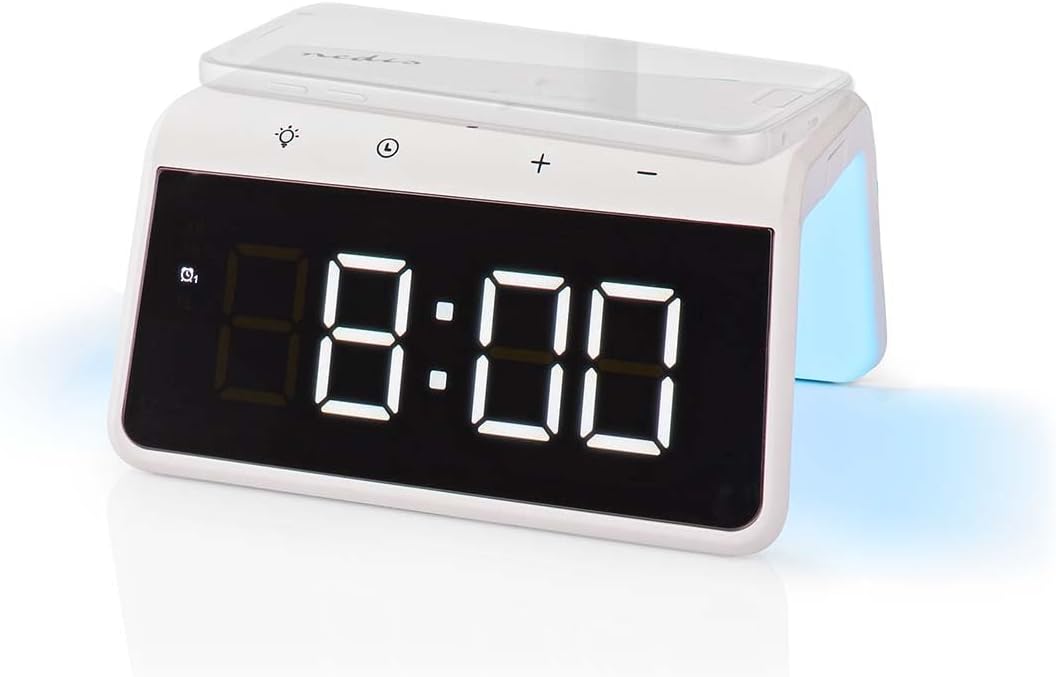
Image 3: Wireless Charging. A smartphone is shown resting on the top surface of the alarm clock, which functions as a Qi wireless charging pad.
- Place your Qi-compatible smartphone or device directly onto the wireless charging pad located on the top surface of the alarm clock.
- Ensure the device is centered on the charging pad for optimal performance.
- A charging indicator (e.g., an icon on the display or an LED light) will typically illuminate to confirm that charging has begun.
- The charger supports 5W, 7.5W, 10W, and 15W output, automatically adjusting to your device's requirements. For 15W fast charging, a QC3.0 power adapter (not included) is required.
5. USB-A Charging Output
The alarm clock features an additional USB-A port for charging devices that are not Qi-compatible or for simultaneous charging.
- Connect your device's USB charging cable to the USB-A output port on the back of the alarm clock.
- Xhuma omunye umkhawulo wekhebula kudivayisi yakho.
- Ukushaja kuzoqala ngokuzenzakalelayo.
6. Umsebenzi Wokukhanya Kwasebusuku

Image 4: Night Light. This image shows the side of the alarm clock with its integrated night light emitting a soft glow.
- Cindezela inkinobho Ukukhanya button (usually marked with a light bulb icon) to turn the night light on or off.
- Cindezela ngokuphindaphindiwe inkinobho Ukukhanya button to cycle through different color modes or to set a specific color. The night light can display a diverse changing color palette.
- The night light can be set to remain on or to be manually activated as needed.
7. Bonisa Ukulungiswa Kokukhanya
The digital display features dimmable backlighting for comfortable viewukukhanya ezimeni ezihlukahlukene.
- Look for a dedicated brightness button or a combination of buttons (e.g., a short press of the Light button or +/- buttons when not in setting mode) to adjust the display brightness.
- Cycle through available brightness levels (e.g., high, medium, low, off).
Isondlo
- Ukuhlanza: Wipe the device with a soft, dry, or slightly damp indwangu. Ungasebenzisi izinto zokuhlanza abrasive noma izincibilikisi.
- Isitoreji: Uma ingasetshenziswa isikhathi eside, khipha idivayisi bese uyigcina endaweni epholile, neyomile.
Ukuxazulula inkinga
- Idivayisi ayivuliwe: Ensure the power adapter is securely connected to both the alarm clock and a working power outlet.
- Ukushaja okungenantambo akusebenzi:
- Qinisekisa ukuthi idivayisi yakho iyahambisana ne-Qi.
- Qinisekisa ukuthi idivayisi yakho iphakathi nendawo yokushaja.
- Remove any thick phone cases or metal objects between the phone and the charging pad.
- USB-A charging not working: Check the USB cable for damage and ensure it is properly connected to both the alarm clock and your device.
- I-alamu ayikhali: Ensure the alarm is activated (check for the alarm icon on the display) and the volume is not set to zero (if adjustable).
- Display too dim/bright: Adjust the display brightness using the dedicated controls.
Imininingwane
| Isici | Ukucaciswa |
|---|---|
| Inombolo Yemodeli | Idatha ye-WCACQ30WT |
| Ibhrendi | I-NEDIS |
| Ubukhulu bomkhiqizo | 14 x 3.81 x 7 cm |
| Isisindo sento | 242 amagremu |
| Okuphuma kokushaja okungenantambo | 5W / 7.5W / 10W / 15W (Qi Certified) |
| Ukukhishwa kwe-USB-A | Yebo |
| Uhlobo lokubonisa | Idijithali |
| Izici ezikhethekile | Alarm, Charging Port, Dimmable Display, Night Light (Color Changing) |
| Umthombo wamandla | I-Corded Electric |
| Umbala | Emhlophe |
Iwaranti kanye Nokusekela
Nedis products are manufactured to high quality standards. In the unlikely event of a defect during the warranty period, please contact your retailer for support. The warranty period is subject to the terms and conditions of the retailer and local consumer laws.
For further assistance or technical support, please refer to the official Nedis webisayithi noma uxhumane nesevisi yabo yamakhasimende ngokuqondile. Gcina irisidi lakho lokuthenga njengobufakazi bokuthenga.


