1. Isingeniso
This manual provides detailed instructions for the safe and efficient use of your PeriPage A40 Portable Thermal Printer. The PeriPage A40 is an inkless, portable printer designed for various printing needs, including documents, web pages, photos, and specialized papers like tattoo transfer paper. It offers wireless connectivity via Bluetooth and is compatible with Android, iOS, Windows, and Mac OS devices.
Sicela ufunde le ncwadi ngokucophelela ngaphambi kokusebenzisa idivayisi ukuqinisekisa ukusebenza kahle nokuvimbela umonakalo.
2. Ulwazi Lokuphepha
- Ungabeki iphrinta emanzini noma emanzini amaningi.
- Gwema amazinga okushisa aphezulu, ukukhanya kwelanga okuqondile, noma izindawo ezinothuli.
- Use only the specified thermal paper for optimal performance and to prevent damage to the print head.
- Gcina idivayisi ikude nezingane.
- Ungazami ukuqaqa noma ukulungisa iphrinta ngokwakho. Xhumana nokwesekwa kwamakhasimende ukuze uthole usizo.
- Ensure the printer is charged using a compatible power adapter.
3. Okuqukethwe Kwephakheji
Upon unpacking, please verify that all items listed below are present:
- PeriPage A40 Portable Thermal Printer
- Ikhebula lokushaja le-USB Type-C
- Incwadi Yomsebenzisi (le dokhumenti)
- Thermal Paper Roll (1 additional roll included)
- Paper Width Adjustment Clips (2 clips)

Image: The PeriPage A40 printer shown with a sample document being printed. This illustrates the compact design and printing capability of the device.
4. Umkhiqizo Uphelileview
The PeriPage A40 is a versatile, inkless thermal printer designed for portability and convenience. It utilizes thermal transfer technology to produce crisp, monochrome prints without the need for ink cartridges, toner, or ribbons.
Izici Eziyinhloko:
- Ukuphrinta kwe-Inkless Thermal: Environmentally friendly and cost-effective, requiring only thermal paper.
- Ukulungiswa Okuphezulu: Delivers clear black and white prints at 300 x 300 dpi.
- Multi-Size Paper Support: Accommodates thermal paper widths of 210mm (A4/US Letter), 107mm, 77mm, and 56mm, supporting both roll and folded paper.
- Ukuxhumana okungenantambo: Connects via Bluetooth to Android and iOS smartphones/tablets.
- Ukuhambisana Okubanzi: Supports printing from Windows and Mac OS computers via USB.
- Idizayini Ephathekayo: Compact and lightweight (1.45 pounds) for easy travel.
- Impilo ende yebhethri: Equipped with two 2600mAh lithium batteries, capable of printing up to 360 A4 sheets on a full charge.
- Ukusebenza okwengeziwe: Includes basic scanning capabilities.
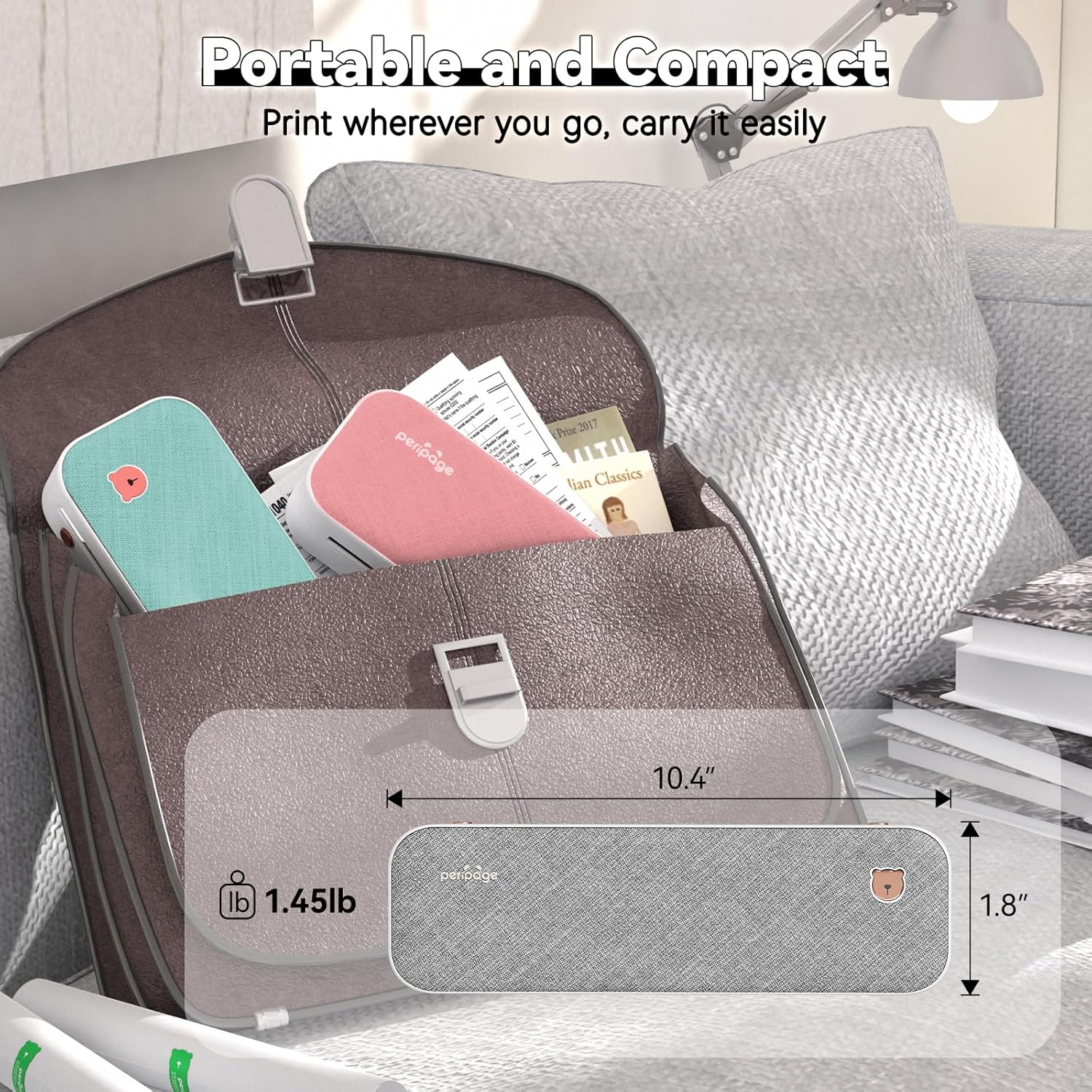
Image: The PeriPage A40 printer shown inside a bag, demonstrating its compact size and portability for travel or mobile use.
5. Setha
5.1 Ukushaja Iphrinta
Before first use, fully charge the printer. Connect the included USB Type-C cable to the printer's charging port and the other end to a compatible USB power adapter (not included) or a computer's USB port. The indicator light will show charging status.
5.2 Ukuvula / Ukuvula
To power on the printer, press and hold the power button for approximately 2 seconds until the indicator light illuminates. To power off, press and hold the power button again until the indicator light turns off.

Isithombe: Ukuvala view of the PeriPage A40 printer's power button, indicating the action required to turn the device on.
5.3 App Download (for Mobile Devices)
For mobile printing, you must download the official "PeriPage" application. Cinga "PeriPage" in your device's app store (Google Play Store for Android or Apple App Store for iOS) or scan the QR code provided in the physical instruction manual.

Image: A smartphone displaying the PeriPage application download page, illustrating where to find the app for mobile printing.
5.4 Ukuxhuma Kumadivayisi Eselula (i-Bluetooth)
- Ensure the PeriPage A40 printer is powered on.
- Open the "PeriPage" app on your smartphone or tablet.
- Within the app, navigate to the device connection section (usually indicated by a Bluetooth icon or "Connect Device").
- The app will search for available PeriPage printers. Select "PeriPage A40" from the list to establish a Bluetooth connection.
- A successful connection will be indicated within the app.

Image: A smartphone screen displaying the Bluetooth connection process to the PeriPage A40 printer within the application.
5.5 Connecting to Computers (Windows/Mac OS)
- Ensure the PeriPage A40 printer is powered on.
- Xhuma iphrinta kwikhompyutha yakho usebenzisa ikhebula le-USB Type-C elinikeziwe.
- For Windows and Mac OS, you may need to install the printer driver. Visit the official PeriPage webisiza (www.ileadtek.com) to download the appropriate driver for your operating system.
- Landela imiyalelo esesikrinini ukuze uqedele ukufaka umshayeli.
- Once the driver is installed, the printer will be recognized by your computer and ready for use.

Image: The PeriPage A40 printer connected to a laptop using a USB-C cable, demonstrating the wired connection method for computer printing.
6. Iziqondiso Zokusebenza
6.1 Ukulayisha Iphepha
The PeriPage A40 supports both thermal roll paper and folded thermal paper. It can accommodate various widths (210mm, 107mm, 77mm, 56mm).
- Vula ikhava yephrinta.
- If using roll paper, place the roll into the paper compartment. Ensure the paper feeds smoothly from the bottom and extends slightly out of the printer's paper exit slot.
- If using folded paper, stack the sheets neatly and insert them into the paper compartment. Ensure the leading edge is straight and aligned.
- Use the two included paper width adjustment clips to secure the paper in place, matching the width of your thermal paper.
- Vala isembozo sephrinta ngokuqinile.

Image: An illustration demonstrating the two methods of loading thermal paper into the PeriPage A40: using a roll of paper or folded sheets, with clips for width adjustment.
6.2 Ukuphrinta kusuka kumadivayisi eselula
- Ensure your PeriPage A40 is powered on and connected via Bluetooth to the PeriPage app.
- Vula uhlelo lokusebenza lwe-PeriPage.
- Select the document, image, web page, or other content you wish to print from within the app. The app supports various formats including PDF, JPG, PNG, Word, Excel, and PowerPoint.
- Adjust print settings such as density, size, and orientation as needed.
- Tap the "Print" button in the app to initiate printing.

Image: A smartphone screen showing a document open in the PeriPage app, ready to be sent to the printer for mobile printing.
6.3 Ukuphrinta kusuka kumakhompyutha
- Ensure your PeriPage A40 is powered on and connected to your computer via USB, with the necessary drivers installed.
- Vula idokhumenti noma isithombe ofuna ukusiphrinta kukhompyutha yakho.
- Iya ku "File" > "Print" (or use the print shortcut, e.g., Ctrl+P on Windows, Command+P on Mac).
- Select "PeriPage A40" as your printer.
- Adjust print settings as required (e.g., paper size, orientation).
- Chofoza okuthi "Phrinta" ukuze uthumele umsebenzi kuphrinta.

Image: A laptop displaying an image being printed, with the PeriPage A40 printer actively producing the output, illustrating computer printing functionality.
6.4 Supported Paper Sizes
The PeriPage A40 is designed to be versatile with paper sizes. It supports the following thermal paper widths:
- 210mm: Equivalent to A4 or US Letter/Legal length.
- 107 mm
- 77 mm
- 56 mm
Ensure you use thermal paper specifically designed for thermal printers. The maximum diameter for thermal roll paper is 30mm.

Image: Two PeriPage A40 printers illustrating the use of different thermal paper sizes (A4, 4-inch, 3-inch, 2-inch) and types (folding paper and thermal roll paper).
7. Isondlo
7.1 Ukuhlanza Iphrinta
- Ensure the printer is powered off and disconnected from any power source before cleaning.
- Wipe the exterior of the printer with a soft, dry cloth.
- To clean the thermal print head, gently wipe it with a cotton swab lightly dampixutshwe ne-isopropyl alcohol. Yivumele yome ngokuphelele ngaphambi kokusebenzisa.
- Ungasebenzisi izinto zokuhlanza abrasive noma izincibilikisi.
7.2 Indawo Yokugcina Iphepha
Store thermal paper in a cool, dry place away from direct sunlight and heat to preserve its quality and print longevity.
7.3 Ukunakekelwa Kwebhethri
- Gwema ukukhipha ibhethri ngokugcwele njalo.
- If storing the printer for an extended period, charge it to about 50% and recharge every few months to maintain battery health.
8. Ukuxazulula izinkinga
8.1 Printer Not Powering On
- Ensure the battery is charged. Connect the printer to a power source and allow it to charge for at least 30 minutes before attempting to power on again.
- Verify that the power button is pressed and held for the required duration (approx. 2 seconds).
8.2 Unable to Connect via Bluetooth
- Make sure the printer is powered on and within range of your mobile device.
- Qinisekisa ukuthi i-Bluetooth ivuliwe kudivayisi yakho yeselula.
- Close and reopen the PeriPage app.
- Qala kabusha kokubili iphrinta kanye nedivayisi yakho yeselula.
- Check if the PeriPage app has Bluetooth permissions enabled in your device settings.
8.3 No Print Output or Blank Pages
- Verify that thermal paper is loaded correctly and not upside down. Thermal paper has a specific side that reacts to heat.
- Check if the paper compartment cover is fully closed.
- Ensure the printer is connected and selected as the active printer in your app or computer settings.
- The print head might be dirty. Refer to the "Cleaning the Printer" section.
8.4 Ikhwalithi Yokuphrinta Embi
- Qinisekisa ukuthi usebenzisa iphepha lokushisa elisezingeni eliphezulu.
- Clean the print head as described in the "Maintenance" section.
- Adjust the print density settings within the PeriPage app or printer driver.
- Check if the thermal paper is old or has been exposed to heat/light, which can degrade its printing capability.

Image: A visual comparison demonstrating the clear and crisp print quality achievable with the PeriPage A40 printer, highlighting its "Excellent Printing Ability".
9. Imininingwane
| Isici | Ukucaciswa |
|---|---|
| Imodeli | A40 |
| Ubuchwepheshe bokuphrinta | Okushisayo |
| Ukulungiswa kokuphrinta | 300 x 300 dpi (Monochrome) |
| Ukuxhumana | I-Bluetooth, i-USB Type-C |
| Amadivayisi Ahambisanayo | I-Android, iOS, Windows, Mac OS |
| Supported Paper Widths | 210mm (A4/US Letter), 107mm, 77mm, 56mm |
| Amandla Eshidi Lokufaka Okuphezulu | 360 sheets (A4 equivalent, with full battery) |
| Ibhethri | 2 x 2600mAh Lithium Batteries |
| Ubukhulu bomkhiqizo | 2.5"D x 10.9"W x 4.09"H |
| Isisindo sento | 1.45 pounds (658 grams) |
| Okukhipha Iphrinta | I-Monochrome |
| Imisebenzi Eyengeziwe | Scan (basic) |
10. Iwaranti kanye Nokusekela
The PeriPage A40 Portable Thermal Printer comes with a limited warranty. For specific warranty terms and conditions, please refer to the warranty card included in your package or visit the official PeriPage webindawo.
For technical support, troubleshooting assistance, or inquiries regarding your product, please contact PeriPage customer service through their official website or the contact information provided in your product documentation. When contacting support, please have your model number (A40) and purchase details ready.
Esemthethweni Webindawo: www.ileadtek.com


