Isingeniso
This manual provides comprehensive instructions for setting up, operating, and maintaining your BEEPRT BY-480BT Bluetooth Shipping Label Printer. Designed for efficiency and ease of use, this thermal label printer is compatible with various e-commerce platforms and operating systems, making it an ideal solution for shipping packages and managing labels for small businesses.
Yini EseBhokisini
Upon unboxing your BEEPRT BY-480BT printer, please ensure all the following components are present:
- I-BEEPRT BY-480BT Iphrinta Yelebula Eshisayo
- Ikhebula le-USB
- I-adaptha yamandla
- Umnikazi Welebula
- Umhlahlandlela Wokuqala Osheshayo / Incwadi Yomsebenzisi
- Sample Thermal Labels
- USB-A to USB-C Adapter (for Mac users)
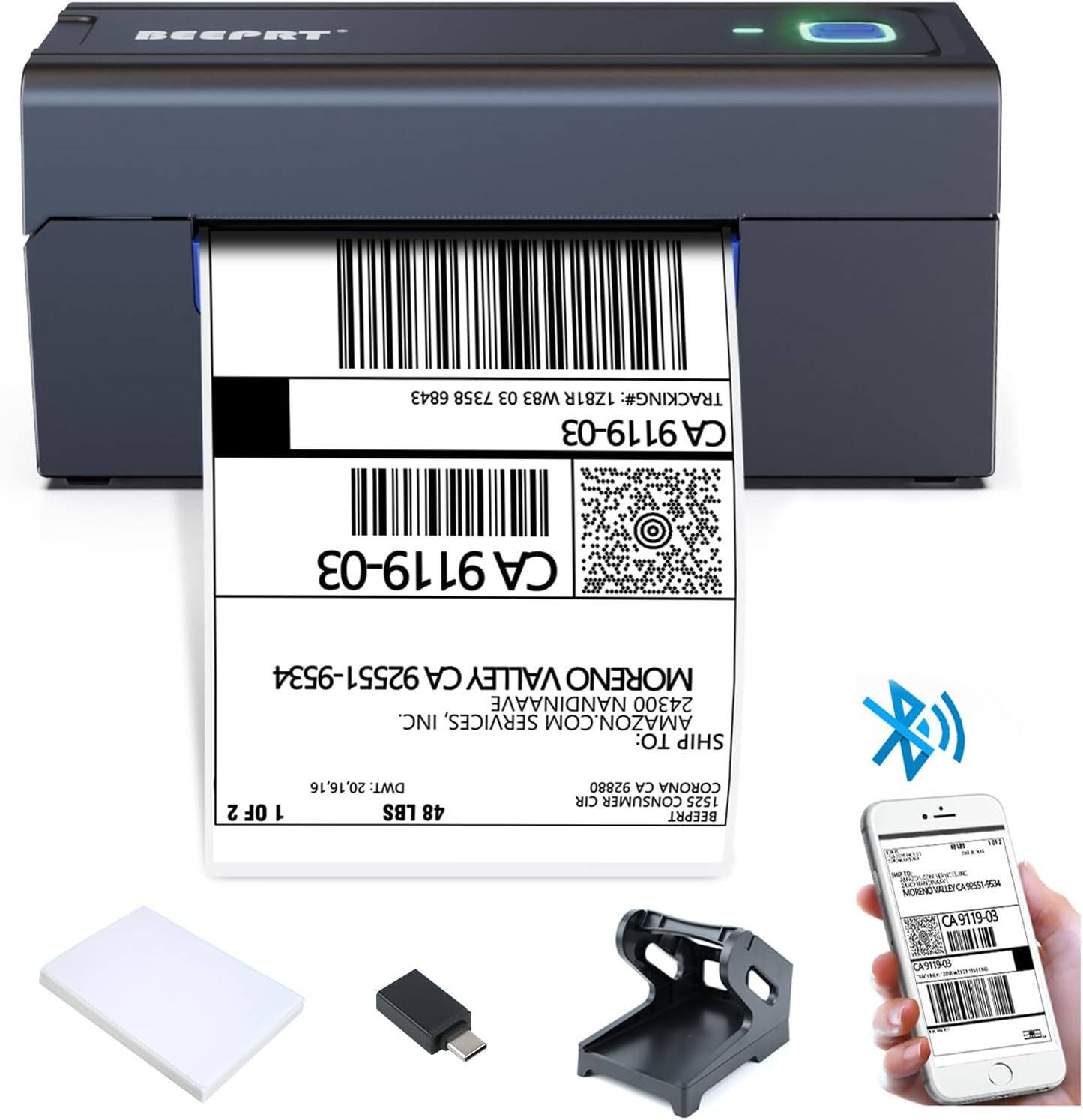
The BEEPRT BY-480BT printer shown with its essential accessories, including the label holder, USB cable, and sample amalebula.

Isiphetho esipheleleview of all items included in the BEEPRT BY-480BT printer package, neatly arranged.
Umhlahlandlela Wokusetha
1. Ilayisha Amalebula
The BEEPRT BY-480BT printer supports various thermal label sizes, from 1.57" to 4.3" wide. Ensure you are using direct thermal labels, as this printer does not require ink.
- Open the printer lid by pressing the release latches on the sides.
- Place the thermal labels into the label compartment. Ensure the print side (usually the smoother, brighter side) is facing upwards.
- Adjust the movable guides to fit the width of your labels snugly, without creasing labo.
- Close the printer lid securely. The printer will automatically detect the label size and calibrate.

Properly loading thermal labels into the BEEPRT BY-480BT printer for optimal printing.
This video demonstrates the process of loading labels into the BEEPRT BY-480BT printer, showing how the paper feeds and aligns automatically.
2. Ukuxhuma Iphrinta
Your BEEPRT BY-480BT printer offers multiple connectivity options:
USB Connection (Windows, Mac OS, Chrome OS)
- Xhuma iphrinta kukhompuyutha yakho usebenzisa ikhebula le-USB elihlinzekiwe.
- Turn on the printer using the power switch located at the back.
- Install the printer driver from the included USB drive or download it from the official BEEPRT webindawo.
- Landela imiyalelo esesikrinini ukuze uqedele ukufaka umshayeli.

The printer connected to a laptop via USB, highlighting its broad operating system compatibility.
This video provides a step-by-step guide on how to set up the BEEPRT BY-480BT printer for Chromebook via USB connection, including extension installation.
This video demonstrates the installation process for the BEEPRT printer driver on Mac OS, guiding users through the necessary steps for successful setup.
Bluetooth Connection (Windows, iOS, Android)
For wireless printing, ensure your device has Bluetooth enabled.
- Turn on the printer. The Bluetooth indicator light should be blinking or solid blue.
- On your device (smartphone or PC), go to Bluetooth settings and search for available devices.
- Select "BY-480BT" or a similar name from the list. You may be prompted to enter a PIN (usually "0000").
- For iOS/Android, download the "Shipping Printer Pro" app from your app store. This app is required for printing via Bluetooth on mobile devices.
- For Windows, after pairing, you may need to check the COM port settings in Printer Properties to ensure it matches the Bluetooth port.

The printer connected wirelessly to both a laptop and a smartphone, demonstrating Bluetooth printing capabilities.
This video illustrates how to connect the BEEPRT BY-480BT printer via Bluetooth on a Windows computer, including pairing and port configuration.
Le vidiyo ihlinzeka ngokujwayelekileview of the BEEPRT Bluetooth label printer, showcasing its features and ease of use for various label printing needs.
Imiyalelo yokusebenza
Ukuphrinta Amalebula
Once your printer is connected and labels are loaded, you can begin printing:
- Open the document or label file you wish to print (e.g., PDF, image).
- Khetha okuthi "Phrinta" kumenyu yohlelo lwakho lokusebenza.
- Choose "BEEPRT BY-480BT" as your printer.
- In the print settings, ensure the paper size is set to match your labels (e.g., 4x6 inches). For optimal quality, select "Actual Size" or "100% Scale" to prevent scaling issues.
- Adjust print density and speed if necessary (higher density for darker prints, lower speed for better quality).
- Click "Print". The label will feed out automatically.

Examples of different label sizes and types compatible with the BEEPRT BY-480BT printer, showcasing ukuguquguquka kwayo.
This video demonstrates the printer in action, showing how it feeds and prints labels quickly and efficiently.
Isondlo
Regular maintenance ensures optimal performance and extends the lifespan of your printer:
- Ukuhlanza Ikhanda Lokuphrinta: Use an alcohol wipe or a specialized print head cleaning pen to gently wipe the print head surface. Do this regularly to prevent residue buildup and ensure clear prints.
- Cleaning the Rollers: Periodically clean the rubber rollers with a damp, lint-free cloth to remove dust or adhesive residue that might affect paper feeding.
- Ukususa Uthuli: Keep the printer free from dust and debris. Use compressed air to clean hard-to-reach areas.
- Isitoreji Esifanelekile: When not in use, store the printer in a clean, dry environment away from direct sunlight and extreme temperatures.
Ukuxazulula inkinga
Nazi izixazululo zezinkinga ezijwayelekile ongahlangabezana nazo:
| Inkinga | Imbangela Engenzeka | Isixazululo |
|---|---|---|
| Iphrinta ayiphenduli | Power off, loose cable, driver issue, Bluetooth not connected. | Ensure printer is on and connected. Reinstall driver. Re-pair Bluetooth. |
| Blank labels / Faint prints | Labels loaded incorrectly, low print density, dirty print head. | Reload labels with print side up. Increase print density in settings. Clean print head. |
| Ujamu wephepha | Misaligned labels, foreign object. | Open lid, remove jammed labels carefully. Ensure guides are properly set. |
| Amalebula awondli ngendlela efanele | Labels not thermal, misaligned guides, dirty rollers. | Use direct thermal labels. Adjust guides. Clean rollers. |
| Bluetooth connection issues on Mac/iPhone | Incorrect app usage, security settings. | Ensure "Shipping Printer Pro" app is used for mobile. Check System Preferences > Security & Privacy for driver installation. |
For more detailed troubleshooting, refer to the official user manual PDF available on the product page or contact BEEPRT support.
Imininingwane
| Isici | Imininingwane |
|---|---|
| Ibhrendi | beeprt |
| Igama Lemodeli | BY-480BT |
| Ubuchwepheshe bokuxhumana | I-USB, i-Bluetooth |
| Ubuchwepheshe bokuphrinta | Okushisayo |
| Imidiya yokuphrinta | Amalebula |
| Amandla Eshidi Lokufaka Okuphezulu | 72 |
| Amadivayisi Ahambisanayo | Smartphones, PC |
| Usayizi Weshidi | 4x6 inches (supports 1.57" - 4.3" wide) |
| Ubukhulu bokulungiswa kokuphrinta okumnyama nokumhlophe | 203dpi |
| Isisindo sento | 4 Amakhilogremu |
| Ubukhulu bomkhiqizo | 6 x 9 x 6.5 amayintshi |
| Izingxenye Ezihlanganisiwe | Iphrinta, Ikhebula le-USB |
Iwaranti kanye Nokusekela
The BEEPRT BY-480BT printer comes with a limited warranty. For specific warranty terms and conditions, please refer to the documentation included with your product or contact the manufacturer directly.
Ukwesekwa Kwamakhasimende
If you encounter any issues or have questions not covered in this manual, please reach out to BEEPRT customer support. You can often find support contact information on the manufacturer's official website or through the seller's contact details on the platform where you purchased the product.
- Umkhiqizi: I-BEEPRT
- Umdayisi: BEEPRT-US
- Incwadi Yomsebenzisi (PDF): Landa i-PDF Manual


