1. Isingeniso kanye Phezuview
This manual provides detailed instructions for setting up and operating your BroadLink Smart Home Starter Kit. The kit includes three smart bulbs, one scene switch, and one mini hub, designed to integrate seamlessly into your smart home ecosystem using FastCon and Bluetooth Low Energy technology. It is compatible with voice assistants like Amazon Alexa and Google Home.
The BroadLink FastCon system offers a simplified smart home experience with zero-setup device discovery and mesh networking capabilities.
2. Yini EseBhokisini
Your BroadLink Smart Home Starter Kit package should contain the following items:
- 3 x BroadLink Smart Bulbs (E27 base)
- 1 x BroadLink Smart Scene Switch
- 1 x BroadLink Mini Hub (supports 2.4GHz Wi-Fi)
- 1 x CR2430 battery (for the scene switch)

Image: Contents of the BroadLink Smart Home Starter Kit packaging.
3. Umhlahlandlela wokusetha
3.1. Initial Device Installation
-
Install Smart Bulbs: Screw the BroadLink Smart Bulbs into standard E27 light sockets. Ensure the power is off before installation.

Image: A BroadLink Smart Bulb installed in a lamp lwemidlalo.
-
Power Up the Mini Hub: Connect the BroadLink Mini Hub to a power source. The hub requires a 2.4GHz Wi-Fi connection for remote control and voice assistant integration.

Image: The BroadLink Mini Hub.
-
Insert Battery into Scene Switch: Open the BroadLink Smart Scene Switch and insert the provided CR2430 battery.
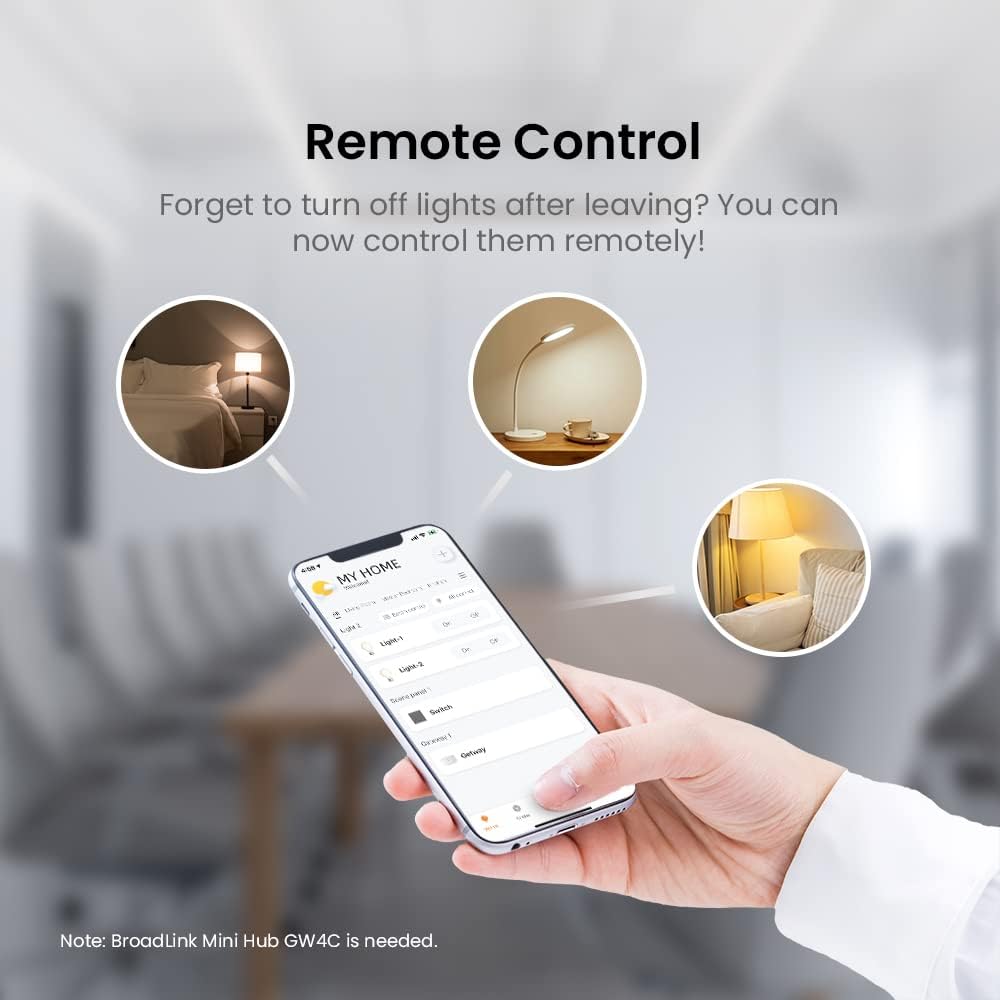
Image: The BroadLink Smart Scene Switch.
3.2. Ukufakwa kohlelo lokusebenza nokumataniswa kwedivayisi
- Download the BroadLink FastCon App: Cinga "BroadLink FastCon" in your mobile device's app store and install the application.
- Power Up Devices: Ensure all smart bulbs are powered on and the Mini Hub is connected.
-
Automatic Discovery: Open the BroadLink FastCon app. The app will automatically discover nearby BroadLink FastCon devices. You can add up to 90 devices simultaneously. No account creation is required for initial setup.

Image: The BroadLink FastCon app displaying discovered devices for pairing.
- Assign to Rooms: Once devices are discovered, assign them to specific rooms within the app for organized control.
Video: Official BroadLink FastCon Starter Kit setup and usage demonstration.
4. Iziqondiso Zokusebenza
4.1. Ukulawulwa kohlelo lokusebenza
The BroadLink FastCon app provides comprehensive control over your smart devices:
- Khanyisa cisha: Toggle lights on or off.
- Ukucwilisa: Lungisa amaleveli okukhanya.
- Color/Temperature: Change light color (multicolor bulbs) or color temperature (warm to cool white).
- Ukuphathwa kwesigcawu: Activate preset scenes or create custom scenes. To save a custom scene, adjust lights to your desired settings and select "Save current status" in the app.
- Ukuvumelanisa Umculo: Smart Bulbs support color changing in sync with music.

Image: The BroadLink FastCon app interface for adjusting light color and brightness.
4.2. Scene Switch Control
The Smart Scene Switch allows for quick activation of pre-configured scenes:
- Each button on the scene switch is associated with a preset scene.
- Press a button to activate the corresponding scene, such as "Sleep," "Reading," or "Party."
- The scene switch can control lights even if your network is down, provided the devices are within Bluetooth range.

Image: Illustration of mesh networking for BroadLink devices, ensuring wide coverage.
4.3. Voice Control (via Mini Hub)
After the Mini Hub is added to the BroadLink FastCon app, all smart bulbs and scene switches can be controlled via voice commands using Amazon Alexa or Google Home.
- Ensure your Mini Hub is connected to your 2.4GHz Wi-Fi network.
- Link your BroadLink FastCon account with Alexa or Google Home through their respective apps.
- Use commands such as "Alexa, set lights to pink" or "Hey Google, turn on the living room lights."

Isithombe: Example of voice control with Amazon Alexa and Google Home devices controlling BroadLink lights.
4.4. Remote Control (via Mini Hub)
With the Mini Hub connected, you can control your lights remotely from anywhere using the BroadLink FastCon app, even when you are away from home.

Image: A smartphone screen showing remote control of home lighting through the BroadLink FastCon app.
5. Isondlo
To ensure optimal performance and longevity of your BroadLink Smart Home Starter Kit components, follow these general maintenance guidelines:
- Ukuhlanza: Use a soft, dry cloth to clean the surfaces of the hub, switch, and bulbs. Avoid using liquid cleaners or abrasive materials.
- Ukuvuselelwa kwe-Firmware: Periodically check the BroadLink FastCon app for available firmware updates for your devices. Keeping firmware updated ensures the latest features and security patches.
- Ukushintshwa Kwebhethri: Replace the CR2430 battery in the Smart Scene Switch when its performance degrades.
- Izimo Zemvelo: Ensure devices are used within their specified operating temperature and humidity ranges. Avoid exposure to extreme conditions or moisture.
6. Ukuxazulula izinkinga
If you encounter issues with your BroadLink Smart Home Starter Kit, refer to the following troubleshooting steps:
6.1. Device Not Discovering/Pairing
- Hlola Amandla: Ensure the device (bulb, hub) is properly powered on.
- Inguqulo yohlelo lokusebenza: Make sure you are using the latest version of the "BroadLink FastCon" app.
- Ukusondela: Bring your mobile device closer to the BroadLink devices during the discovery process.
- Setha kabusha idivayisi: Refer to individual device manuals for specific reset procedures if a device fails to appear.
6.2. Mini Hub Connection Issues
- Ibhendi ye-Wi-Fi: The Mini Hub only supports 2.4GHz Wi-Fi networks. Ensure your router is configured for 2.4GHz or that your phone is connected to the 2.4GHz band during setup.
- Amandla Esignali: Place the Mini Hub within good range of your Wi-Fi router.
- Izilungiselelo Zerutha: Check your router's settings for any restrictions that might prevent new devices from connecting.
6.3. Voice Control Not Working (Alexa/Google Home)
- Ukuxhumeka Kwehabhu: Verify that the BroadLink Mini Hub is successfully connected to the BroadLink FastCon app and your Wi-Fi network.
- Ukuxhumanisa i-akhawunti: Confirm that your BroadLink FastCon account is correctly linked within the Alexa or Google Home app.
- Ukuvumelanisa Kwedivayisi: Try re-syncing devices in the Alexa or Google Home app (e.g., "Alexa, discover devices").
- Command Phrasing: Ensure you are using correct and clear voice commands.
6.4. Bulbs Flickering or Failing
- Ukunikezwa kwamandla kagesi: Ensure the bulb is receiving stable power.
- Ukuhambisana Nesokhethi: Verify the bulb is securely screwed into a compatible E27 socket.
- Izici Zemvelo: Extreme temperatures or humidity can affect bulb performance.
7. Imininingwane
| Isici | Ukucaciswa |
|---|---|
| Ibhrendi | Isixhumanisi esibanzi |
| Igama Lemodeli | KIT-S-EU |
| Uhlobo Olukhanyayo | I-LED |
| Isici Esikhethekile | Ukushintsha Umbala |
| Wattage | 9 watts |
| Usayizi Womumo Webhalbhu | A19 |
| I-Bulb Base | E27 |
| I-Incandescent Equivalent Wattage | 9 Watts |
| Umbala Okhanyayo | I-Multicolor |
| Voltage | 220 Volts (AC) |
| Ukushisa Kombala | 6500 Kelvin |
| Ukukhanya | 800 Lumen |
| Indlela Yokulawula | Izwi |
| Umthombo wamandla | AC |
| Ukusetshenziswa Kwangaphakathi/Kwangaphandle | Ngasendlini |
| Okubalulekile | Ipulasitiki |
| Isisindo sento | 13.7 ounces (Kit) |
| Batteries (Scene Switch) | 1 CR2430 ibhethri liyadingeka |
Ukuze uthole ulwazi oluningiliziwe mayelana nokusebenza kahle kwamandla, sicela ubheke isizindalwazi se-EU EPREL: https://eprel.ec.europa.eu/qr/1154353

Image: EU Energy Label for BroadLink LB4E27 Smart Bulb, showing energy efficiency class F.
8. Iwaranti kanye Nokusekela
For warranty information and technical support, please refer to the documentation included with your product or visit the official BroadLink webindawo. Gcina irisidi yakho yokuthenga ukuze uthole izimangalo zewaranti.
You can also visit the BroadLink store on Amazon for additional product information and support: BroadLink Amazon Store.