1. Isingeniso
This manual provides detailed instructions for the installation, operation, and maintenance of your PANTUM P3018DW Wireless Duplex Laser Printer. Please read this manual thoroughly before using the printer to ensure proper and safe operation. Keep this manual for future reference.
2. Ulwazi Lokuphepha
Ngaso sonke isikhathi landela izinyathelo zokuphepha eziyisisekelo lapho usebenzisa lo mkhiqizo ukunciphisa ingozi yomlilo, ukushaqeka kukagesi, nokulimala kwabantu.
- Ungabeki iphrinta enqoleni engazinzile, esitendini, noma etafuleni.
- Do not block or cover the slots and openings in the printer.
- Use only the type of power source indicated on the printer's label.
- Unplug the printer from the wall outlet before cleaning.
- Ungazami ukusevisa iphrinta ngokwakho. Thumela zonke izinsiza kubasebenzi benkonzo abaqeqeshiwe.
3. Okuqukethwe Kwephakheji
Qinisekisa ukuthi zonke izinto zifakiwe kuphakheji:
- PANTUM P3018DW Laser Printer
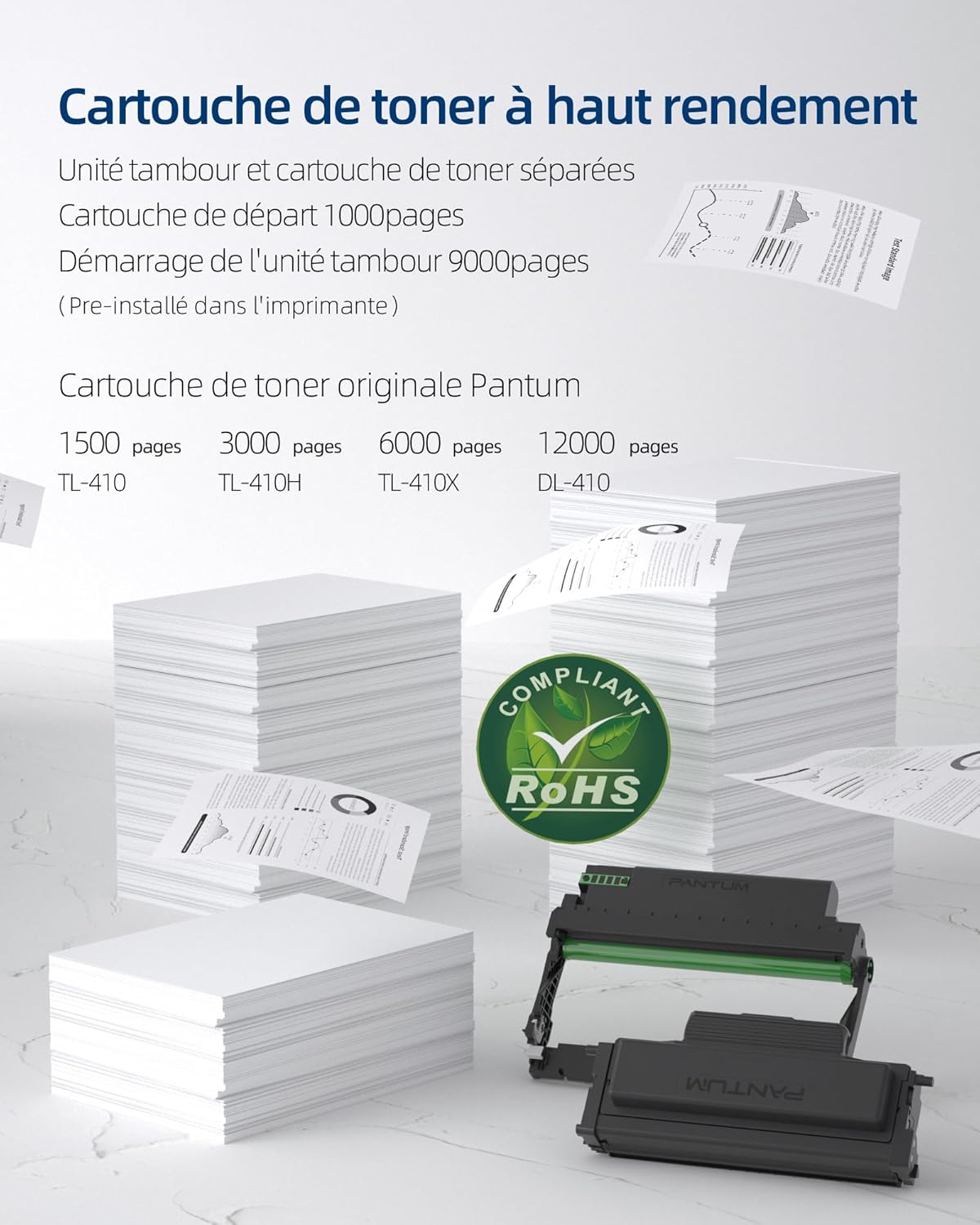
- Starter Toner Cartridge (1000 pages yield)
- Starter Drum Unit (9000 pages yield)
- Ikhebula le-USB
- Intambo Yamandla
- Incwadi Yomsebenzisi (le dokhumenti)
4. Umkhiqizo Uphelileview
The PANTUM P3018DW is a monochrome laser printer designed for efficient printing with automatic duplex capability and wireless connectivity.


5. Setha
5.1 Ukuqaqa
- Khipha iphrinta ephaketheni layo.
- Susa wonke amateyipu okuvikela nezinto zokupakisha ngaphandle nangaphakathi kwephrinta.
5.2 Toner Cartridge and Drum Unit Installation
The PANTUM P3018DW uses a separate toner cartridge and drum unit system.
- Vula ikhava yangaphambili yephrinta.
- Carefully insert the drum unit into the printer until it clicks into place.
- Unpack the toner cartridge and gently shake it horizontally several times.
- Insert the toner cartridge into the drum unit until it locks securely.
- Vala ikhava yangaphambili.
5.3 Ukuxhuma Amandla
- Xhuma intambo kagesi kuphrinta bese uxhuma endaweni yokukhipha ugesi engasebenzi.
- Cindezela inkinobho yamandla ukuze uvule iphrinta.
5.4 Ukufakwa komshayeli
The PANTUM P3018DW features a one-step driver installation process.
- Xhuma iphrinta kukhompuyutha yakho usebenzisa ikhebula le-USB elihlinzekiwe.
- The operating system should automatically detect the printer and initiate driver installation. Follow the on-screen prompts.
- Alternatively, download the latest drivers from the official PANTUM webindawo.
5.5 Ukusethwa kwe-Wi-Fi
The printer supports easy Wi-Fi configuration for convenient wireless printing.

- Qinisekisa ukuthi iphrinta yakho ivuliwe.
- Access the printer's control panel or use the PANTUM mobile application for Wi-Fi setup.
- Follow the instructions to connect the printer to your wireless network.
- For Wi-Fi Direct printing, connect your device directly to the printer's Wi-Fi hotspot (SSID and password typically found on a label or the printer's display).
6. Iziqondiso Zokusebenza
6.1 Ukulayisha Iphepha
- Vula ithreyi lephepha.
- Adjust the paper guides to the size of the paper you are loading.
- Load paper into the tray, ensuring it is flat and not exceeding the maximum fill line. The maximum sheet capacity is 250 sheets.
- Vala ithreyi lephepha.
6.2 Ukuphrinta
The PANTUM P3018DW offers fast monochrome printing at up to 30 pages per minute (A4) or 32 pages per minute (Letter), with a first print out time of less than 7.8 seconds.

Standard Printing
- From your computer or mobile device, open the document you wish to print.
- Khetha okuthi 'Phrinta' kumenyu yohlelo lokusebenza.
- Choose the PANTUM P3018DW from the list of available printers.
- Adjust print settings as needed (e.g., number of copies, paper size).
- Chofoza okuthi 'Phrinta'.
Ukuphrinta kwe-Duplex okuzenzakalelayo
The printer supports automatic two-sided printing.

- When printing, select the 'Print on both sides' or 'Duplex Printing' option in your printer settings.
- The printer will automatically flip the paper to print on both sides.
Mobile Printing (PANTUM APP)
Print directly from your smartphone or tablet using the PANTUM APP.


- Download and install the PANTUM APP from your device's app store.
- Ensure your mobile device is connected to the same Wi-Fi network as the printer, or directly to the printer's Wi-Fi hotspot.
- Open the PANTUM APP and select the document or image you wish to print.
- Follow the app's instructions to send the print job to the printer.
7. Isondlo
7.1 Replacing Toner Cartridge and Drum Unit
When the toner is low or the drum unit reaches its end of life, the printer will indicate a replacement is needed. Refer to section 5.2 for installation steps.
Compatible Toner Cartridges:
- TL-410 (1,500 pages)
- TL-410H (3,000 pages)
- TL-410X (6,000 pages)
Compatible Drum Unit:
- DL-410 (12,000 pages)
7.2 Ukuhlanza Iphrinta
Ukuhlanza okuvamile kusiza ukugcina ikhwalithi yokuphrinta futhi kunwebe isikhathi sempilo yephrinta.
- Cima iphrinta bese uyikhipha ku-socket kagesi.
- Sebenzisa indwangu ethambile, engenantambo dampened with water to wipe the exterior of the printer.
- Ungasebenzisi izinto zokuhlanza abrasive noma izincibilikisi.
- For internal cleaning, consult the detailed cleaning instructions on the PANTUM webisayithi noma xhumana nabosekelo.
8. Ukuxazulula izinkinga
This section provides solutions to common printer issues.
8.1 Iphrinta Ayiphenduli
- Ensure the printer is powered on and properly connected to the power outlet.
- Check the USB cable connection to the computer or verify Wi-Fi connectivity.
- Qala kabusha iphrinta kanye nekhompyutha/idivayisi yakho yeselula.
- Check the printer's control panel for any error messages.
8.2 Ikhwalithi Yokuphrinta Embi
- Check the toner cartridge level and replace if low.
- Ensure the drum unit is properly installed and not damaged.
- Hlanza izingxenye zangaphakathi zephrinta ngokweziqondiso zokulungisa.
- Use recommended paper types and ensure they are not damp noma curled.
8.3 AmaJam Amaphepha
- Vala iphrinta bese uyikhipha.
- Carefully open all covers and remove any jammed paper, pulling in the direction of the paper path.
- Ensure paper is loaded correctly in the tray and not overfilled.
- Sebenzisa iphepha elihlangabezana nezimfuneko zephrinta.
9. Imininingwane
| Isici | Ukucaciswa |
|---|---|
| Igama Lemodeli | P3018DW |
| Phrinta Technology | I-Laser |
| Okuphumayo kokuphrinta | I-Monochrome |
| Isivinini Sokuphrinta Esiphezulu (Monochrome) | 30 PPM (A4) / 32 PPM (Letter) |
| Isikhathi Sokuphrinta Sokuqala | < 7.8 isekhondi |
| Ukulungiswa Okukhulu kokuphrinta | 1200dpi |
| Ukuphrinta kwe-Duplex | Okuzenzakalelayo |
| Ukuxhumana | I-USB, i-Wi-Fi |
| Amadivayisi Ahambisanayo | I-laptop, i-PC, i-smartphone, i-Tablet |
| Amasistimu Okusebenza Ahambisanayo | Android, Chrome OS (and others via driver) |
| Ubukhulu beMedia Size | 8.5 x 11 inches (A4) |
| Usayizi Weshidi | A4 |
| Max Sheet Capacity | 250 amashidi |
| Ubukhulu (D x W x H) | 40.8 cm x 43.3 cm x 29.5 cm |
| Isisindo sento | 6.8 kg |
| Izici ezikhethekile | Automatic Duplexing, Automatic Sleep Mode, Two-line LCD Control Panel, NFC Touch Print, Silent Printing, Ethernet Network, Optional High-Capacity Cartridges, Low Paper Jam Design |
10. Iwaranti kanye Nokusekela
10.1 Ulwazi Lwewaranti
The PANTUM P3018DW printer comes with a standard one-year warranty against manufacturing defects from the date of purchase. Please retain your proof of purchase for warranty claims.
10.2 Ukwesekwa Kwamakhasimende
For technical assistance, troubleshooting, or warranty inquiries, please visit the official PANTUM website or contact PANTUM Online Customer Service. Support resources, including driver downloads and FAQs, are available online.


