1. Isingeniso
This manual provides essential information for the proper setup, operation, and maintenance of your HP Wireless Mouse S1500. Please read these instructions carefully before using the product to ensure optimal performance and longevity.

Image 1.1: The HP Wireless Mouse S1500, showcasing its ergonomic and lightweight design.
2. Setha
2.1 Okuqukethwe Kwephakheji
Qinisekisa ukuthi iphakheji yakho iqukethe izinto ezilandelayo:
- HP Wireless Mouse S1500
- USB 2.4GHz Receiver
- Ibhethri le-AA (lifakwe kusengaphambili noma lifakiwe ngokwehlukana)
2.2 Ukufakwa kwebhethri
- Thola ikhava yengxenye yebhethri ngaphansi kwegundane.
- Shelelezisa noma uphakamise ikhava ukuze uvule ikhompathimenti.
- Faka ibhethri elilodwa le-AA, uqinisekise ukuthi amatheminali aphozithivu (+) kanye nenegethivu (-) aqondana kahle nezinkomba ngaphakathi kwekhompathimenti.
- Shintshanisa ikhava yengxenye yebhethri.
2.3 Ukuxhuma Isamukeli se-USB

Image 2.1: The HP Wireless Mouse S1500 and its accompanying 2.4GHz USB receiver.
- Remove the USB 2.4GHz receiver from its storage slot, usually located within the battery compartment or on the underside of the mouse.
- Xhuma isamukeli se-USB embotsheni ye-USB etholakalayo kukhompuyutha yakho.
- Ikhompyutha yakho kufanele ibone futhi ifake ngokuzenzakalelayo abashayeli abadingekayo. Le nqubo ingathatha isikhashana.

Image 2.2: The mouse utilizes 2.4GHz wireless technology for a stable connection up to approximately 10 meters.
3. Iziqondiso Zokusebenza
3.1 Imisebenzi Eyisisekelo
The HP Wireless Mouse S1500 features three standard buttons and a scroll wheel:
- Inkinobho Yesokunxele: Primary click function, used for selecting items, opening files, kanye nokusebenzisana nesofthiwe.
- Inkinobho Yesokudla: Umsebenzi wokuchofoza wesibili, ovame ukusetshenziswa ukuvula amamenyu womongo.
- Isondo Lokuskrola: Isetshenziselwa ukupheqa amadokhumenti kanye web pages. It can also function as a middle button when pressed.

Image 3.1: The HP Wireless Mouse S1500 in use, demonstrating its comfortable fit for daily tasks.
3.2 Ergonomics and Portability
The S1500 mouse is designed for comfort and ease of use. Its ergonomic shape fits naturally in the hand, and its lightweight construction makes it suitable for extended use and portability.
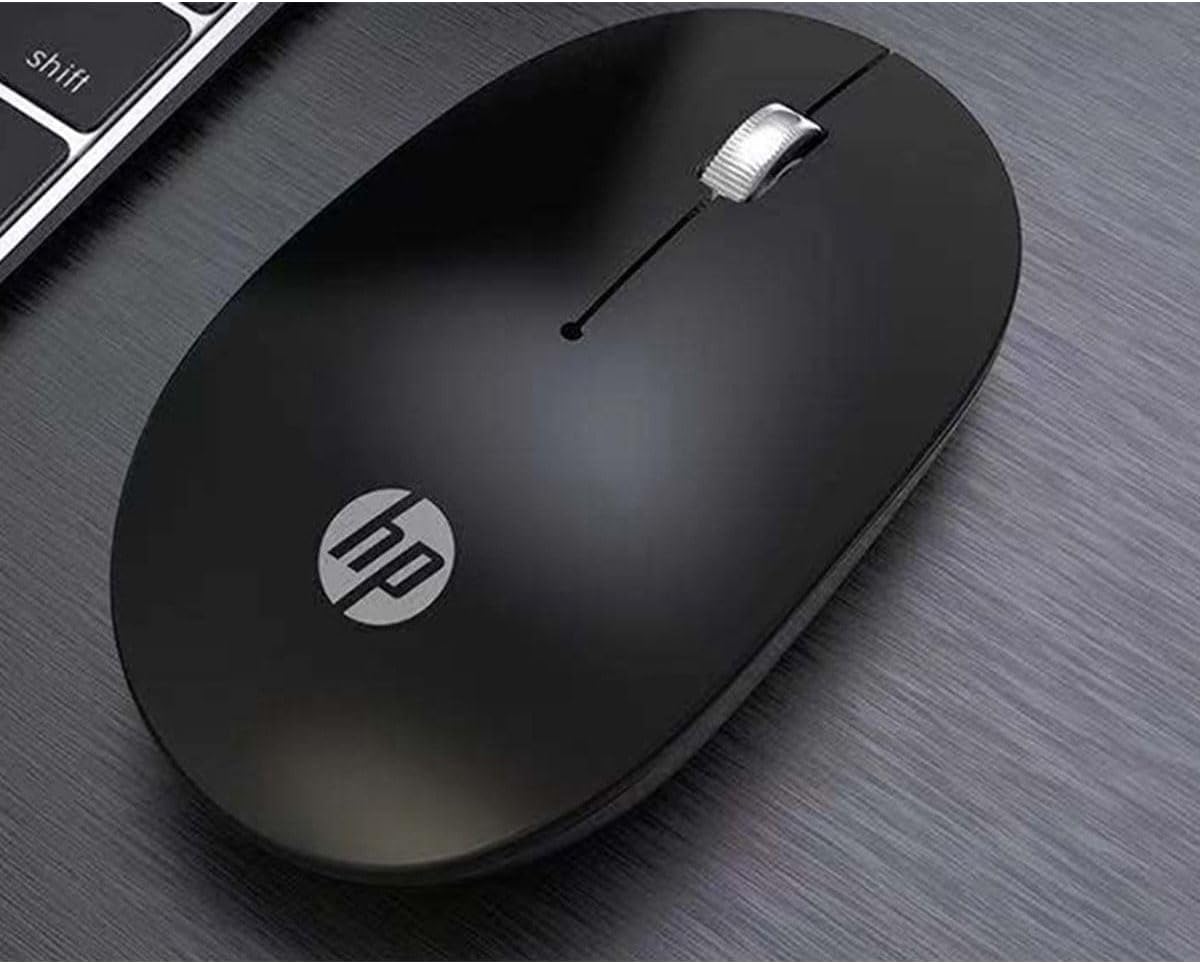
Image 3.2: The HP Wireless Mouse S1500 positioned for use on a typical workspace.
3.3 Ukuphathwa kwamandla
The mouse features a smart sleep function combined with energy-saving optimization to extend battery life. If the mouse is inactive for a period, it will enter a low-power sleep mode. To wake it up, simply move the mouse or click any button.

Image 3.3: The HP Wireless Mouse S1500's power management features contribute to long battery life.
4. Isondlo
4.1 Ukuhlanza
To clean your mouse, use a soft, dry, lint-free cloth. For stubborn dirt, slightly dampen the cloth with water. Avoid using harsh chemicals, solvents, or abrasive cleaners, as these can damage the mouse's surface.
4.2 Ukushintshwa Kwebhethri
When the mouse's performance degrades or it stops responding, it may be time to replace the battery. Follow the steps in Section 2.2 to replace the AA battery.
5. Ukuxazulula izinkinga
5.1 Igundane Lingaphenduli
- Hlola Ibhethri: Ensure the AA battery is correctly installed and has sufficient charge. Replace if necessary.
- Hlola Isamukeli se-USB: Qiniseka ukuthi umamukeli we-USB uxhumeke ngokuphephile embobeni ye-USB esebenzayo kukhompyutha yakho. Zama imbobo ye-USB ehlukile.
- Ibanga: Ensure the mouse is within the effective operating range (approximately 10 meters) of the USB receiver.
- Ukuphazamisa: Move the mouse and receiver away from other wireless devices or large metal objects that might cause interference.
- Misa kabusha Uxhumo: Some mice have a connect button on the underside. If available, press it and then press the connect button on the receiver (if applicable) to re-establish the connection.
5.2 Erratic Cursor Movement
- Inzwa ehlanzekile: Ensure the optical sensor on the underside of the mouse is clean and free from dust or debris.
- Ubuso: Use the mouse on a clean, non-reflective, and uniform surface. Avoid highly reflective or transparent surfaces like glass. A mouse pad is recommended.
6. Imininingwane
| Isici | Imininingwane |
|---|---|
| Igama Lemodeli | S1500 |
| Ibhrendi | HP |
| Ubuchwepheshe bokuxhumana | I-2.4GHz Wireless (I-USB Receiver) |
| Ukutholwa Kokuhamba | I-Optical |
| Button Quantity | 3 (Left, Right, Scroll Wheel/Middle) |
| Ukuma kwezandla | Kulungile |
| Izici ezikhethekile | Ergonomic Design, Lightweight, Portable, Soundless, Wireless |
| Umthombo wamandla | 1 x AA Ibhethri |
| Amadivayisi Ahambisanayo | Ikhompyutha yomuntu siqu |
| Ubukhulu bephakheji | 12 x 8.2 x 4.6 cm |
| Isisindo | 250 g (including packaging) |
7. Iwaranti kanye Nokusekela
7.1 Ulwazi Lwewaranti
This HP product is covered by a limited warranty. For specific warranty terms and conditions, please refer to the warranty card included with your product or visit the official HP support webindawo. Gcina ubufakazi bakho bokuthenga ngezimangalo zewaranti.
7.2 Ukwesekwa Kwezobuchwepheshe
Ukuze uthole usizo lobuchwepheshe, ukulanda abashayeli, noma ulwazi olwengeziwe, sicela uvakashele usekelo olusemthethweni lwe-HP website or contact HP customer service. Contact details can typically be found on the HP webindawo noma emaphaketheni omkhiqizo.
HP Official Webindawo: www.hp.com