1. Isingeniso
This manual provides detailed instructions for the setup, operation, maintenance, and troubleshooting of your UPERFECT 15.6-inch Portable Monitor. This monitor is designed to enhance your productivity and entertainment experience by providing a versatile, high-definition display solution for various devices.
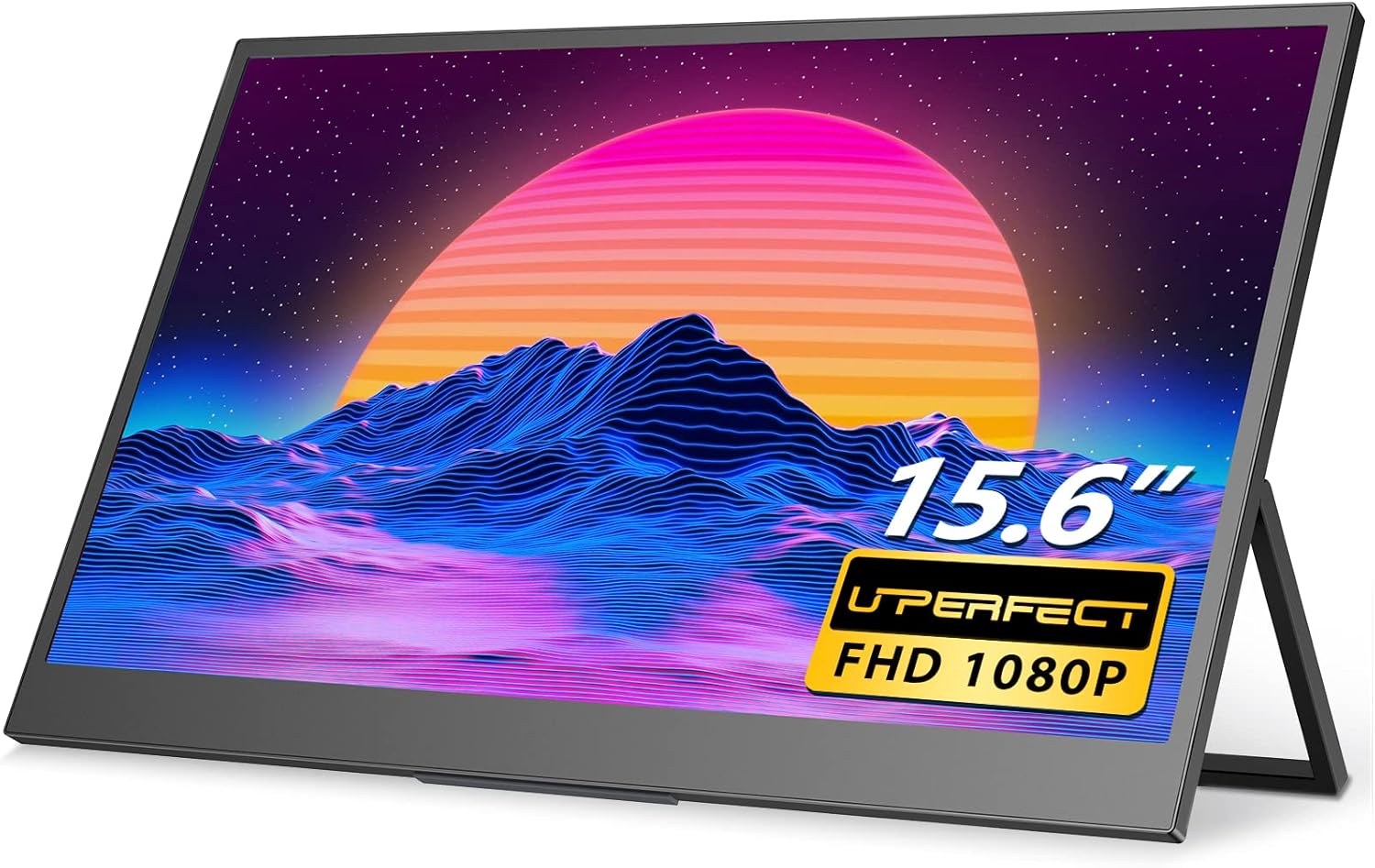
Figure 1.1: UPERFECT 15.6-inch Portable Monitor.
2. Izici Eziyinhloko
The UPERFECT Portable Monitor offers a range of features designed for optimal performance and portability:
- 15.6-inch Full HD (1080P) Display: Provides crisp and clear visuals.
- Ukusekelwa kwe-HDR: Kuthuthukisa ukunemba kombala kanye nokugqama ukuze kube nokuguquguquka okwengeziwe viewisipiliyoni.
- 350 cd/m² Brightness: Offers improved visibility in various lighting conditions.
- Ultra-Slim and Lightweight Design: Weighing approximately 2 pounds, it is highly portable for travel and on-the-go use.
- Integrated Foldable Kickstand: Ivumela ukuguquguquka viewing angles and stable placement.
- Ukuhambisana kwe-VESA Mount: Supports 75x75 VESA mounting for alternative setup options.
- Ukuxhumana Okuhlukahlukene: Equipped with two USB-C ports (one on each side) and one Mini HDMI port for broad device compatibility.
- Izipikha ze-Dual Stereo ezakhelwe ngaphakathi: Provides audio output without external speakers.
- 3 Milliseconds Response Time: Ensures smooth visuals, particularly beneficial for gaming.

Figure 2.1: Brightness comparison, highlighting the UPERFECT monitor's superior luminance.

Figure 2.2: The monitor features an integrated kickstand with 180-degree adjustability.

Figure 2.3: The monitor's lightweight and thin design for enhanced portability.
3. Okuqukethwe Kwephakheji
Sicela uqinisekise ukuthi zonke izinto zikhona kuphakheji:
- UPERFECT 15.6-inch Portable Monitor
- USB-A Power Adapter (15W)
- Ikhebula le-USB-C kuya ku-USB-C
- Mini HDMI ku-HDMI Cable
- Ikhebula le-USB-A kuya ku-USB-C
4. Isethaphu kanye Nokuxhumana
This section details how to connect your portable monitor to various devices.
4.1. Echwebeniview
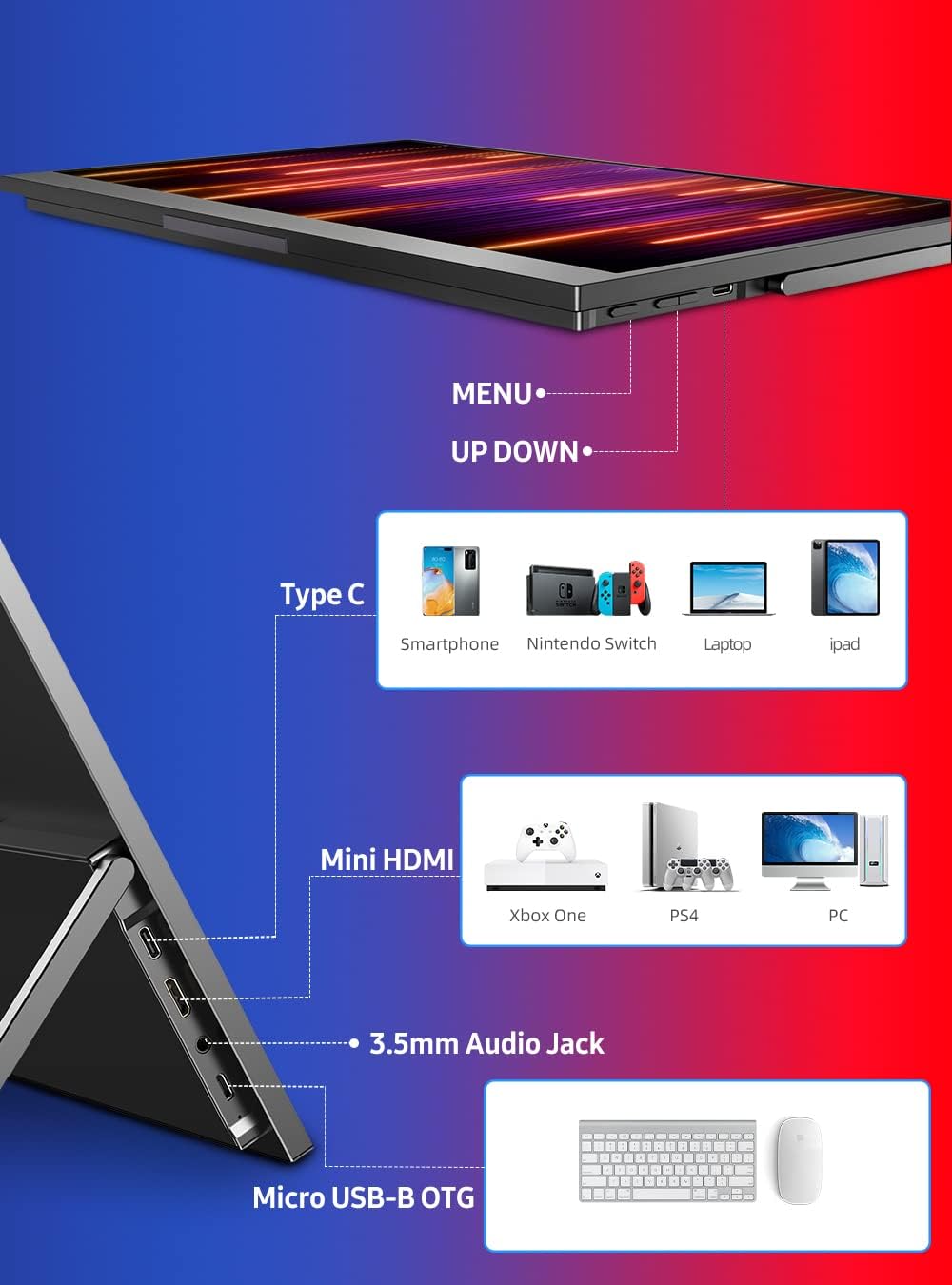
Umdwebo 4.1: Ngaphezuluview yezimbobo zokuqapha kanye nezinkinobho zokulawula.
- Amachweba e-USB-C (x2): For power, video, and audio transmission with compatible devices.
- Imbobo encane ye-HDMI: For video and audio input from devices with HDMI output.
- 3.5mm Audio Jack: Ukuxhuma ama-headphone noma izipikha zangaphandle.
- Micro USB-B OTG: For connecting a keyboard or mouse.
4.2. Ixhuma kumadivayisi
Ensure the monitor receives sufficient power for optimal performance. Power can be supplied via a USB-C port from a compatible device or an external power adapter.
- Laptop/PC (USB-C with DisplayPort Alt Mode):
- Connect one end of the USB-C to USB-C cable to your laptop's USB-C port (ensure it supports DisplayPort Alt Mode).
- Connect the other end to either USB-C port on the monitor.
- If the laptop cannot provide enough power, connect the monitor to the 15W USB-A power adapter using the USB-A to USB-C cable.

Figure 4.2: Powering the monitor via a power bank for extended use.
- Laptop/PC (HDMI):
- Connect one end of the Mini HDMI to HDMI cable to your laptop's HDMI port.
- Connect the Mini HDMI end to the monitor's Mini HDMI port.
- Connect the monitor to the 15W USB-A power adapter using the USB-A to USB-C cable for power.
- Gaming Consoles (Nintendo Switch, PS4, Xbox):
- For Nintendo Switch, connect via USB-C to USB-C cable. Ensure the Switch is powered.
- For PS4/Xbox, connect via Mini HDMI to HDMI cable.
- Always connect the monitor to the 15W USB-A power adapter using the USB-A to USB-C cable for power when connecting to gaming consoles.

Figure 4.3: Connecting the monitor to a Nintendo Switch for portable gaming.
- Ama-Smartphones:
- For phones supporting DisplayPort Alt Mode over USB-C, connect directly with a USB-C to USB-C cable.
- For other phones, an adapter (not included) may be required to convert to HDMI or USB-C video output.
- Ensure the monitor receives power from an external source if the phone cannot supply sufficient power.
5. Ukusebenzisa i-Monitor
This section covers basic operation and OSD (On-Screen Display) menu navigation.
5.1. Vula/Vala
- To power on, ensure the monitor is connected to a power source and a video input. The monitor will typically power on automatically.
- Ukuze ucime, nqamula umthombo wamandla.
5.2. OSD Menu Navigation
The monitor features physical buttons for navigating the OSD menu, typically labeled MENU, UP, and DOWN (refer to Figure 4.1 for button locations).
- Cindezela inkinobho IMENU inkinobho yokuvula imenyu ye-OSD.
- Sebenzisa i- UP futhi PHANSI izinkinobho zokuzulazula phakathi kwezinketho zemenyu.
- Cindezela inkinobho IMENU button again to select an option or confirm a setting.
- To exit the OSD menu, navigate to the 'Exit' option or wait for the menu to time out.
5.3. Ukulungisa Izilungiselelo
Ngaphakathi kwemenyu ye-OSD, ungalungisa izilungiselelo zokubonisa ezahlukahlukene:
- Ukukhanya/Ukugqama: Lungisa isilinganiso sokukhanya nokungafani.
- Izilungiselelo zombala: Shintsha izinga lokushisa lombala, umbala, kanye nokugcwala.
- Umthombo Wokufaka: Manually select the video input (USB-C 1, USB-C 2, Mini HDMI).
- I-Aspect ratio: Change between 16:9, 4:3, or other available ratios.
- Ivolumu: Adjust the volume of the built-in speakers or connected headphones.
5.4. Screen Orientation
The monitor supports both horizontal (landscape) and vertical (portrait) orientations. This can be adjusted via your connected device's display settings.

Figure 5.1: Monitor used in both horizontal and vertical modes, showcasing VESA mount compatibility.
6. Isondlo Nokunakekela
Ukunakekelwa okufanele kuqinisekisa impilo ende nokusebenza kokuqapha kwakho.
- Ukuhlanza isikrini: Sebenzisa indwangu ethambile, engenalinti kancane dampkufakwe amanzi noma isihlanzi sesibuko esingagugi. Gwema amakhemikhali anamandla noma izinto ezigugikayo.
- Ukuhlanza i-Casing: Sula ingaphandle ngendwangu ethambile, eyomile.
- Isitoreji: Uma ingasetshenziswa, gcina i-monitor endaweni epholile, eyomile, kude nokukhanya kwelanga okuqondile kanye namazinga okushisa aphezulu.
- Ukuphatha: Gwema ukuwisa i-monitor noma ukuyibeka engcupheni enamandla. Ungabeki izinto ezisindayo phezu kwayo.
7. Ukuxazulula izinkinga
Uma uhlangabezana nezinkinga ngemonitha yakho, bheka izinkinga ezilandelayo nezisombululo:
| Inkinga | Imbangela Engenzeka | Isixazululo |
|---|---|---|
| No display/No signal | Incorrect input source selected; Loose cable connection; Insufficient power. | Check cable connections; Select correct input source via OSD; Ensure monitor receives adequate power. |
| Isikrini esicwayizayo | Cable interference; Power fluctuations; Graphics driver issues. | Try a different cable; Ensure stable power supply; Update graphics drivers on connected device. |
| Awukho umsindo ovela kuzipikha | Volume too low; Muted; Incorrect audio output selected on device. | Increase monitor volume via OSD; Check device's audio settings; Ensure monitor is selected as audio output. |
| Isikrini asivuli | No power supply; Faulty cable. | Verify power connection; Try a different USB-C cable and power adapter. |
| Isithombe sifiphele noma sihlanekezelwe | Incorrect resolution setting; Cable quality. | Set display resolution to 1920x1080 on your device; Use high-quality cables. |
If the problem persists after attempting these solutions, please contact UPERFECT customer support.
8. Imininingwane
Detailed technical specifications for the UPERFECT Portable Monitor:
| Ukucaciswa | Inani |
|---|---|
| Inombolo Yemodeli | 156H02SG |
| Usayizi Wesikrini | 15.6 amayintshi |
| Isixazululo | I-FHD 1080p (1920x1080) |
| I-Aspect ratio | 16:9 |
| Ukugqama Kwesithombe | 350 cd/m² |
| Isikhathi sokuphendula | 3 amasekhondi |
| Ukuxhumana | 2 x USB-C, 1 x Mini HDMI, 1 x 3.5mm Audio Jack, 1 x Micro USB-B OTG |
| Ubukhulu bomkhiqizo | 14.33 x 0.63 x 8.98 amayintshi |
| Isisindo sento | 2 amakhilogremu |
| Ukuhambisana kwe-VESA | 75x75mm |
9. Iwaranti kanye Nokusekela
UPERFECT is committed to providing excellent customer service and product support.
- Isiqinisekiso: Lo mkhiqizo uza ne-a 3-year worry-free service. Sicela ugcine ubufakazi bakho bokuthenga izimangalo zewaranti.
- Ukwesekwa Kwamakhasimende: For any inquiries, technical assistance, or warranty claims, please contact UPERFECT customer service. We offer 24/7 timely customer service.

Figure 9.1: UPERFECT customer support information.


