Isingeniso
The Microsoft Modern USB-C Headphones are designed to provide high-quality audio for calls, meetings, and general use, particularly optimized for Microsoft Teams. They offer clear sound, a noise-reducing microphone, and intuitive controls for enhanced productivity and communication.
Okuqukethwe Kwephakheji
- Microsoft Modern USB-C Headset
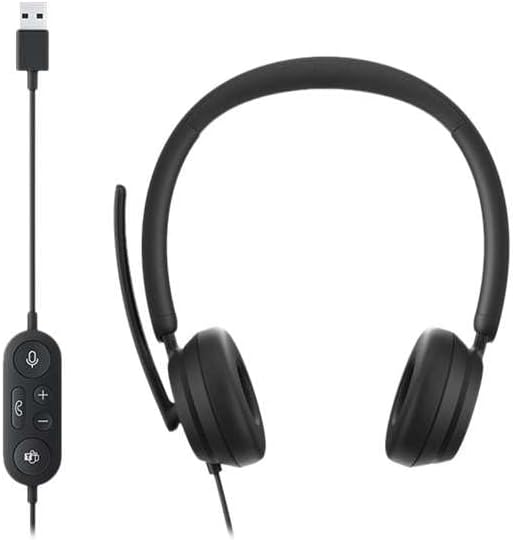
Image: The Microsoft Modern USB-C Headphones, featuring the headset with its attached USB-C cable and inline control unit. The control unit has buttons for mute, volume up/down, call answer/end, and a Microsoft Teams button.
Setha
Ixhuma ihedisethi
- Locate an available USB-C port on your computer or compatible device.
- Plug the USB-C connector of the headset into the USB-C port.
- Your operating system (Windows 11/10/8.1/8 or Mac OS 11.0/10.15) should automatically detect and install the necessary drivers.
Ukulungiswa Kwemakrofoni
- The microphone boom is flexible. Position it approximately one inch from your mouth for optimal voice pickup.
- The microphone features noise reduction to minimize background distractions during calls.

Isithombe: Ukuvala view of the earcups and the adjustable microphone boom of the Microsoft Modern USB-C Headphones.
Isebenzisa i-Headset
Izilawuli zangaphakathi
The inline control unit provides convenient access to essential functions:
- Inkinobho yokuthulisa: Press to mute or unmute your microphone. An indicator light on the control unit may show mute status.
- Izinkinobho ze-Volume Up / Down: Lungisa ivolumu yokulalela.
- Inkinobho Yokushaya: Cindezela ukuphendula noma ukuvala ucingo.
- Inkinobho Yamaqembu E-Microsoft: Quickly launch or bring Microsoft Teams to the foreground.

Isithombe: A enemininingwane view of the inline control unit, showing the microphone mute, volume up/down, call, and Microsoft Teams buttons.
Induduzo kanye Nomklamo
The headset features padded and lightweight earcups designed for extended wear, ensuring comfort during long calls or work sessions.

Image: A close-up showing the soft, padded earcup of the Microsoft Modern USB-C Headphones, highlighting its comfortable design.
Isondlo
- Ukuhlanza: Sebenzisa indwangu ethambile neyomile ukuhlanza i-headset. Gwema ukusebenzisa amakhemikhali anamandla noma izinto ezihudulayo.
- Isitoreji: Gcina ihedisethi endaweni epholile, neyomile uma ingasetshenziswa. Gwema amazinga okushisa aphezulu.
- Ukunakekelwa Kwekhebula: Do not excessively bend or pull the USB-C cable to prevent damage.
Ukuxazulula inkinga
| Inkinga | Isixazululo |
|---|---|
| Awukho umsindo ovela kumahedisethi |
|
| Imakrofoni ayisebenzi |
|
| I-Headset ayibonwa yikhompyutha |
|
Imininingwane
| Ibhrendi | Microsoft |
| Igama Lemodeli | I6N-00009 |
| Inombolo Yemodeli Yento | 2026 |
| Ubuchwepheshe bokuxhumana | Intambo (USB-C) |
| Ukubekwa Kwendlebe | Ngendlebe |
| I-Form Factor | Endlebeni |
| Okubalulekile | Isikhumba se-Faux |
| Uhlobo Lokulawula | Call Control |
| Amadivayisi Ahambisanayo | Amadivayisi ahambisana ne-USB-C |
| Ukuhambisana Kwesistimu Esebenzayo | Windows 11 / 10 / 8.1 / 8, Mac OS 11.0/10.15 |
| Ubukhulu bomkhiqizo | 16 x 3.99 x 24.99 cm |
| Isisindo sento | 390 g |
| Izinga Lokumelana Namanzi | Ukumelana Namanzi |
Iwaranti kanye Nokusekela
For warranty information and technical support, please refer to the official Microsoft support website or contact Microsoft customer service. Details regarding specific warranty periods and terms are typically provided with your purchase documentation or available online.
You can find support resources at the official Microsoft support page: support.microsoft.com


