Isingeniso
This manual provides essential information for the installation, operation, and maintenance of your HP 8GB DDR4 SDRAM Memory Module, model 286H8UT#ABA. This module is designed to enhance your computer's performance by providing additional memory for efficient multitasking and application execution.
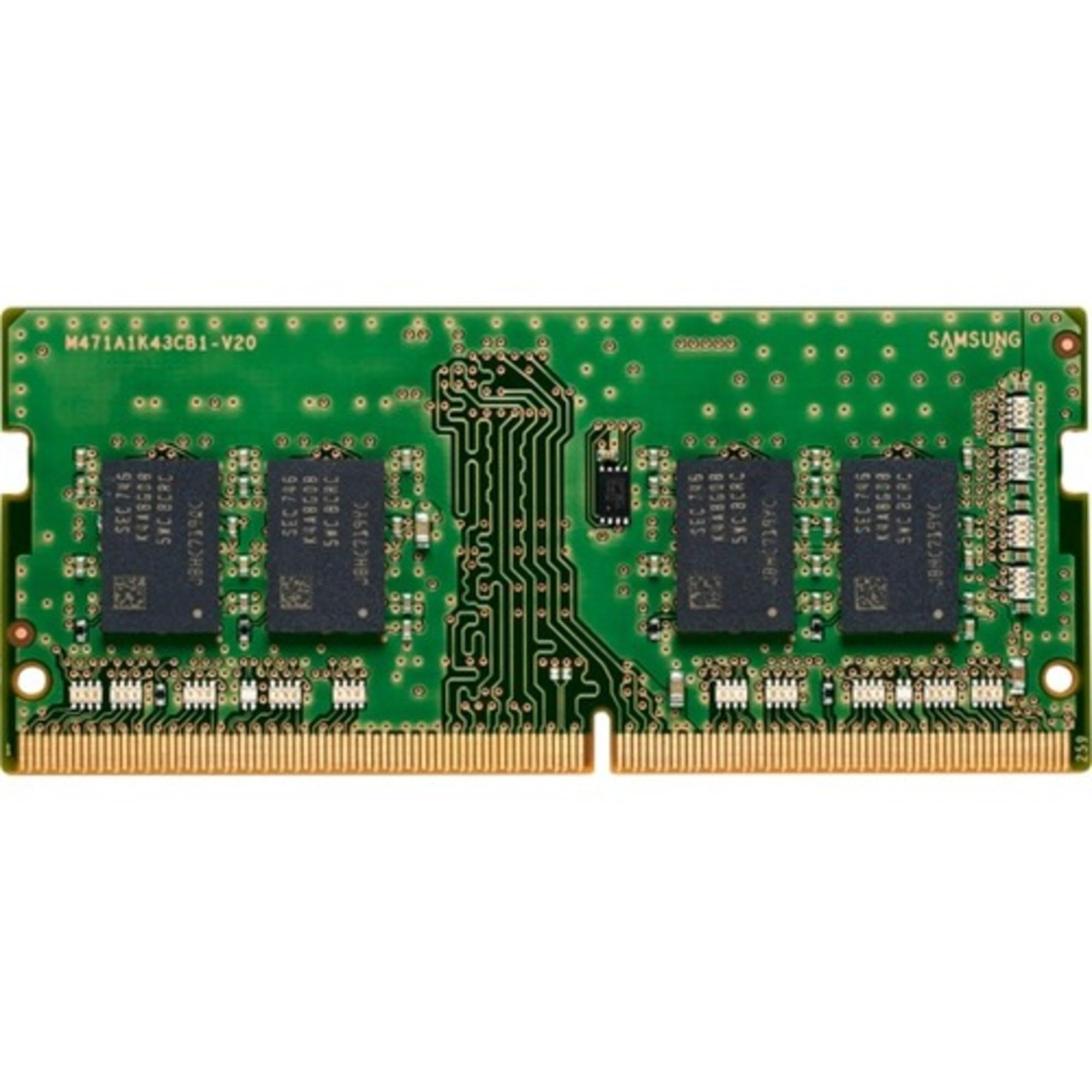
Image: The HP 8GB DDR4 SDRAM Memory Module. This image displays the physical appearance of the memory module, which is a DIMM (desktop memory module).
Ulwazi Lokuphepha
Please read and follow these safety guidelines to prevent damage to the memory module or your computer, and to ensure personal safety:
- Cisha ugesi: Always ensure your computer is completely powered off and unplugged from the wall outlet before installing or removing any internal components.
- I-Static Electricity: Electronic components are sensitive to electrostatic discharge (ESD). Wear an anti-static wrist strap or frequently touch a grounded metal object (like the computer chassis) to discharge static electricity before handling the memory module.
- Phatha Ngokunakekela: Hold the memory module by its edges, avoiding contact with the gold connectors or the chips.
- Ukungenisa umoya: Ensure proper ventilation around your computer to prevent overheating, which can affect component lifespan.
- Ukufakwa Kochwepheshe: Uma ungaqiniseki nganoma yisiphi isinyathelo, thintana nochwepheshe oqeqeshiwe.
Okuqukethwe Kwephakheji
Qinisekisa ukuthi iphakheji yakho iqukethe into elandelayo:
- One (1) HP 8GB DDR4 SDRAM Memory Module (Model: 286H8UT#ABA)
Ukusetha nokufaka
Follow these steps to install the HP 8GB DDR4 SDRAM Memory Module into your computer. The process may vary slightly depending on your computer's make and model (desktop or laptop). The product image indicates a DIMM (desktop memory module). Please verify your system's memory form factor (DIMM for desktops, SO-DIMM for laptops) before proceeding.
Uhlu Lokuhlola Ngaphambi Kokufaka:
- Ensure your computer supports DDR4 SDRAM memory.
- Check your computer's motherboard manual for available RAM slots and maximum supported memory capacity.
- Gather necessary tools: typically a Phillips head screwdriver.
Izinyathelo Zokufaka (Okuvamile):
- Lungiselela Ikhompyutha Yakho:
Shut down your computer completely. Disconnect the power cable and any other peripherals (monitor, keyboard, mouse, etc.). For laptops, remove the battery if possible.
- Vula Ikesi Lekhompyutha:
For desktops, remove the side panel. For laptops, locate and open the memory access panel, usually on the bottom.
- Thola Izikhala Zenkumbulo:
Identify the DDR4 memory slots on your motherboard. They are typically long slots with clips on each end. Consult your motherboard manual for exact locations and preferred slot configurations.
- Install the Memory Module:
Align the notch on the memory module with the key in the memory slot. Gently push the module straight down into the slot until the clips on both sides snap into place, securing the module. Do not force it, as improper alignment can cause damage.
- Vala Ikesi Lekhompyutha:
Replace the computer's side panel or memory access panel and secure it.
- Reconnect and Power On:
Reconnect all cables and power on your computer. The system should automatically detect the new memory.
Operating and Verification
After installation, verify that the new memory module is recognized by your system:
- Ukuhlolwa kwe-BIOS/UEFI: During startup, enter your computer's BIOS/UEFI settings (usually by pressing Del, F2, F10, or F12). Look for a system information or memory section to confirm the total installed RAM.
- Operating System Check:
- IWindows: Right-click "This PC" or "My Computer," select "Properties." The installed RAM will be displayed.
- i-macOS: Click the Apple menu, then "About This Mac." The memory information will be listed.
- I-Linux: Open a terminal and type
free -horcat /proc/meminfo.
If the memory is not recognized, refer to the Troubleshooting section.
Isondlo
Memory modules generally require minimal maintenance. Follow these guidelines for optimal performance and longevity:
- Gcina Uhlanzekile: Periodically clean the interior of your computer case to prevent dust buildup, which can impede airflow and cause overheating. Use compressed air to gently remove dust from around the memory modules and slots.
- Ukuphatha okufanele: When handling the module, always hold it by the edges to avoid touching the gold contacts or integrated circuits.
- Izimo Zemvelo: Operate your computer in a cool, dry environment to prevent damage from extreme temperatures or humidity.
Ukuxazulula inkinga
If you encounter issues after installing your HP 8GB DDR4 SDRAM Memory Module, consider the following:
- System Does Not Boot or Beeps:
- Ensure the memory module is fully seated in its slot. Re-seat the module firmly until the clips lock.
- Verify that the module is installed in the correct slot according to your motherboard manual (some motherboards require specific slot configurations for dual-channel memory).
- If you have multiple modules, try installing only the new module to isolate the issue.
- Incorrect Amount of RAM Detected:
- Check BIOS/UEFI settings to confirm the detected memory.
- Ensure your operating system is 64-bit to fully utilize more than 4GB of RAM.
- Verify that your motherboard supports the full capacity of the installed memory.
- Ukungazinzi Kwesistimu Noma Ukuphahlazeka:
- Run a memory diagnostic tool (e.g., Windows Memory Diagnostic, MemTest86) to check for errors.
- Qinisekisa ukuthi i-BIOS/UEFI yebhodi lakho lomama ivuselelwe yaba inguqulo yakamuva, njengoba lokhu kungathuthukisa ukuhambisana kwememori.
If problems persist, contact HP support or a qualified technician.
Imininingwane
| Ibhrendi | HP |
| Inombolo Yemodeli | 286H8UT#ABA |
| Umthamo we-RAM | 8 GB |
| Ubuchwepheshe be-RAM | I-DDR4 SDRAM |
| Isivinini Senkumbulo | 1600 MHz (DDR4-3200 MT/s) |
| Voltage | 1.2 volts |
| I-Form Factor | DIMM (Desktop) - The product image indicates a DIMM form factor. Please verify compatibility with your system. |
| Amadivayisi Ahambisanayo | Desktop Computers (Based on visual inspection of the product image. While "Laptop" is listed in some specifications, the physical appearance and typical dimensions suggest a desktop DIMM. Always confirm with your system's requirements.) |
| Isisindo sento | 0.15 amakhilogremu |
| Ubukhulu bomkhiqizo (Ukupakishwa) | 7.4 x 5.6 x 0.7 amayintshi |
| Umkhiqizi | Ibhizinisi le-HP |
| Usuku Lokuqala Olutholakalayo | Januwari 29, 2021 |
Note: Specifications are subject to change without notice. Please refer to HP's official webindawo yemininingwane yamanje.
Iwaranti kanye Nokusekela
Your HP 8GB DDR4 SDRAM Memory Module comes with a Iwaranti Yonyaka ongu-1 kusukela ngedethi yokuthenga. Lesi siqinisekiso sihlanganisa amaphutha ezintweni zokwakha kanye nokusebenza ngaphansi kokusetshenziswa okuvamile.
For warranty claims, technical support, or further assistance, please contact HP Customer Support through their official webindawo:
Usekelo Olusemthethweni lwe-HP Webindawo
Please have your product model number (286H8UT#ABA) and proof of purchase ready when contacting support.
Ukugaywa kabusha kanye Nokuchithwa
Electronic waste (e-waste) should not be disposed of with general household waste. Please follow local regulations for the proper disposal and recycling of electronic components. Many regions offer collection points for e-waste. Recycling helps conserve natural resources and prevents potential environmental and health hazards.
For more information on recycling, visit your local government's waste management website or an authorized e-waste recycling facility.