1. Isingeniso
This manual provides comprehensive instructions for the setup, operation, and maintenance of your LG 27UK670-B 27-inch UHD (3840 x 2160) IPS Display. This monitor is designed to deliver a high-quality visual experience with its sRGB 99% Color Gamut, HDR10 support, and a 3-Side Virtually Borderless Design. It also offers flexible connectivity including USB Type-C with 40W Power Delivery and an adjustable stand for ergonomic comfort.

Umfanekiso 1: Ngaphambili view of the LG 27UK670-B monitor.
2. Okuqukethwe Kwephakheji
Verify that all items are present in the package before proceeding with the setup.
- Monitor Display Panel
- I-Monitor Stand (Isisekelo nentamo)
- Intambo Yamandla
- Cable Type-C Cable
- Ikhebula le-HDMI
- Ikhebula le-DisplayPort
- Incwadi Yomsebenzisi (le dokhumenti)
3. Setha
3.1 Ukuhlanganisa Isitendi
- Carefully place the monitor display panel face down on a soft, clean surface to prevent scratches.
- Namathisela intamo yokuma ngemuva kwephaneli yokuqapha. Qinisekisa ukuthi icindezela kahle endaweni yayo.
- Xhuma isisekelo sokuma entanyeni. Qinisa isikulufu ngezansi kwesisekelo ukuze usivikele.
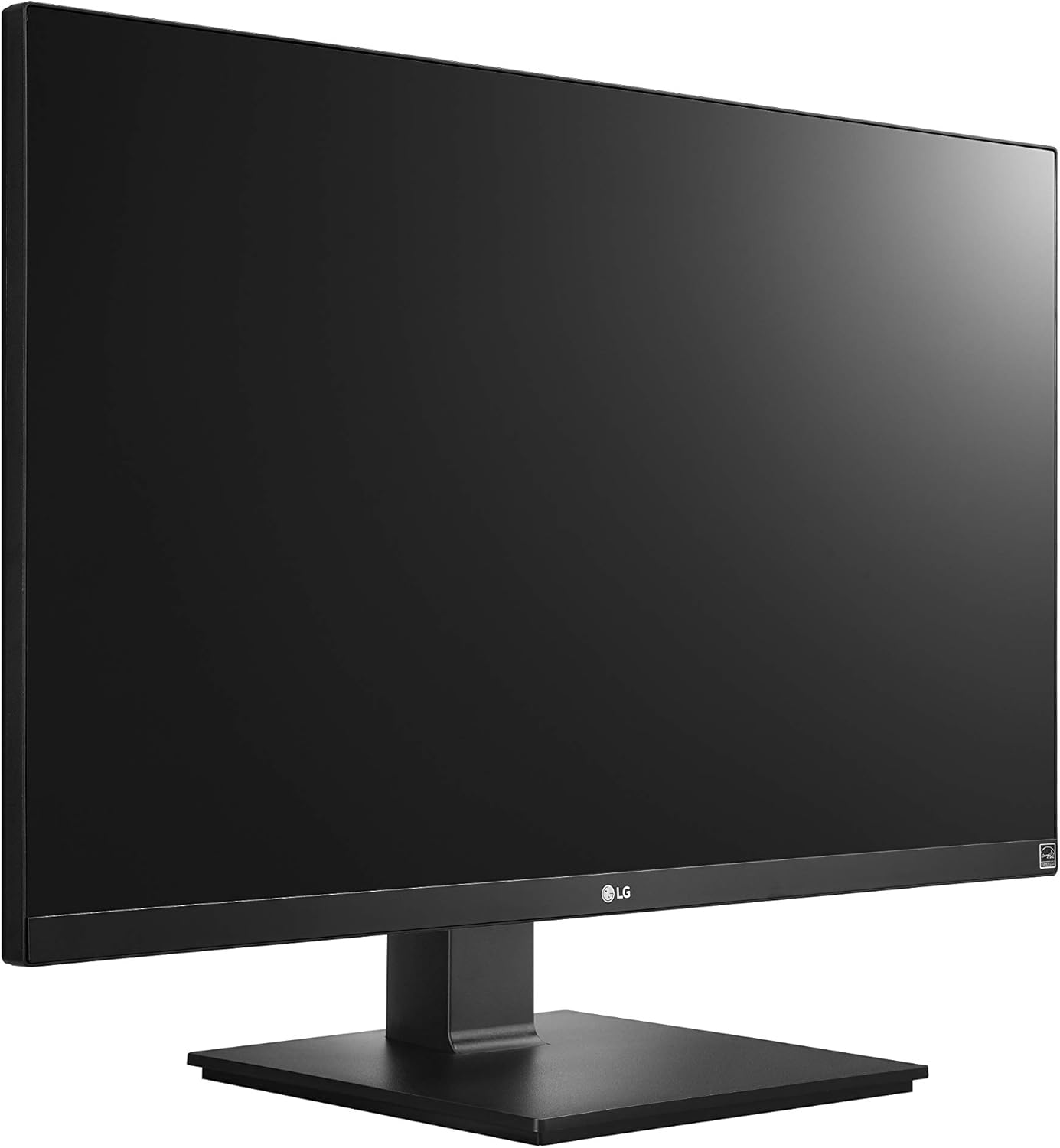
Figure 2: Assembled LG 27UK670-B monitor.
Ukuxhuma kwiKhompyutha
The LG 27UK670-B monitor offers multiple connectivity options.
- Uxhumano lwe-USB Type-C: Connect one end of the USB Type-C cable to the USB-C port on the monitor and the other end to your computer's USB-C port. This connection supports video, data transfer, and power delivery (up to 40W) to your connected device.
- Uxhumano lwe-HDMI: Use an HDMI cable to connect the monitor to your computer's HDMI output.
- I-DisplayPort Connection: Use a DisplayPort cable to connect the monitor to your computer's DisplayPort output.
- Ukuxhuma kwamandla: Xhuma intambo yamandla kokokufaka kwamandla kwemonitha bese uxhume endaweni yokukhipha odongeni.

Umfanekiso 3: Ngemuva view of the monitor with port connections.
3.3 Ukulungisa Isitendi
The monitor stand allows for various ergonomic adjustments:
- Ukulungiswa kobude: Gently push or pull the monitor up or down to achieve your desired viewukuphakama.
- Ukulungiswa Kwe-Tilt: Tilt the monitor screen forward or backward to optimize your viewi-angle.
- Ukulungiswa Kwe-Pivot: Jikelezisa imonitha ngamadigri angu-90 ukuze ushintshe phakathi kokuma kwendawo kanye nokuma kwesithombe.
- Ukulungiswa Kwe-Swivel: Rotate the monitor left or right on its base to share your screen or adjust your viewisikhundla.
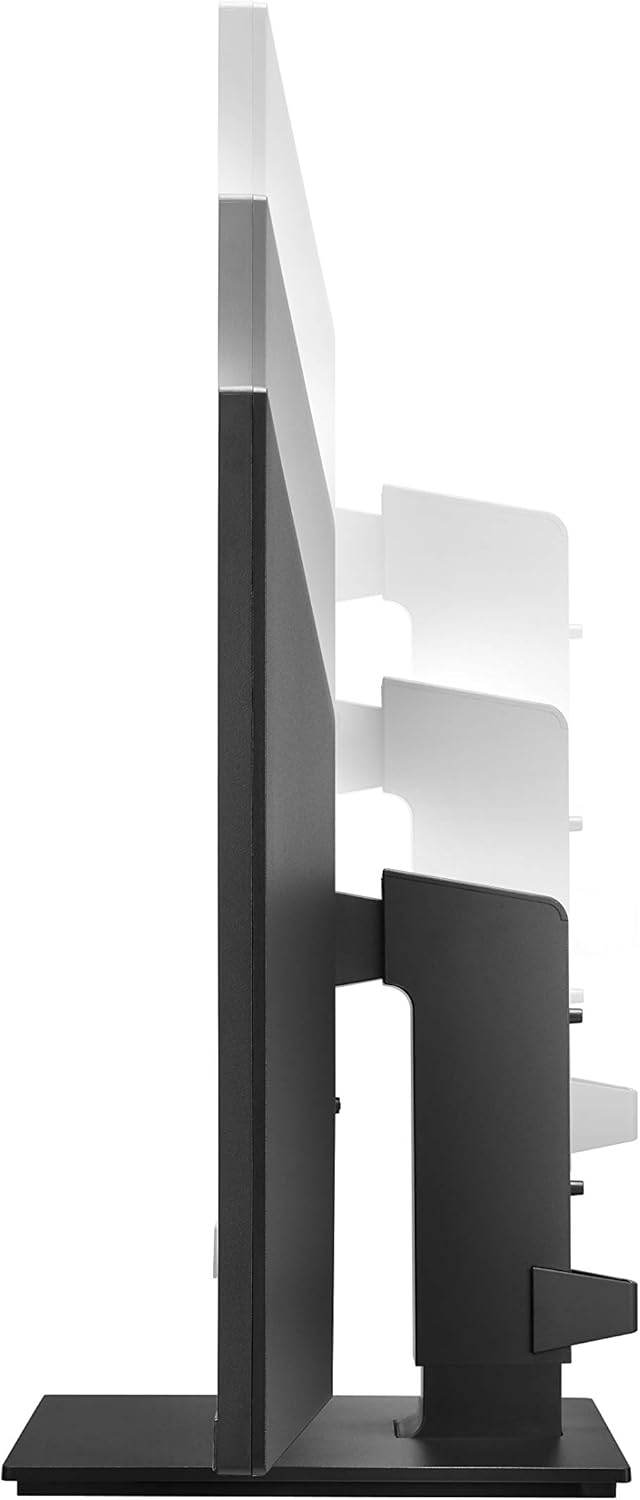
Umfanekiso 4: Ukulungiswa kokuphakama kwemonitha.

Figure 5: Monitor in portrait orientation (pivot feature).
4. Ukusebenzisa i-Monitor
4.1 Vula/Vala amandla
Press the power button, usually located on the bottom center or rear of the monitor, to turn the display on or off.
4.2 Imenyu yokubonisa okusesikrinini (OSD).
The OSD menu allows you to adjust various display settings. Access it by pressing the joystick button (often located on the bottom center of the monitor). Navigate through the menu using the joystick to control brightness, contrast, color modes, input selection, and other advanced features.
4.3 Izici ezibalulekile
- UHD (3840 x 2160) Resolution: Provides sharp, detailed images.
- Isibonisi se-IPS: Inikeza kabanzi viewama-engeli kanye nokukhiqizwa kombala okungaguquki.
- I-sRGB 99% I-Gamut Color: Ensures accurate and vibrant colors, suitable for creative professionals.
- I-HDR10: Enhances dynamic range for brighter whites and deeper blacks.
- Ubuchwepheshe be-AMD FreeSync: Kunciphisa ukudabuka kwesikrini kanye nokungakhulumi ukuze kushelele imidlalo kanye nokudlala ividiyo.
5. Isondlo
5.1 Ukuhlanza Imonitha
- Njalo vala imonitha futhi ukhiphe intambo yamandla ngaphambi kokuhlanza.
- Sebenzisa indwangu ethambile, engenalinti kancane dampifakwe ngamanzi noma isicoci sesikrini esikhethekile.
- Ungafafazi isicoci ngqo esikrinini. Yigcobe engutsheni kuqala.
- Avoid using abrasive cleaners, waxes, or solvents as they can damage the screen surface.
5.2 Ukunakekelwa Okuvamile
- Gcina imonitha ikude nelanga eliqondile, imithombo yokushisa, nothuli oluningi.
- Qinisekisa ukuthi kungena umoya ofanele eduze kwemonitha ukuvimbela ukushisa ngokweqile.
- Gwema ukubeka izinto ezisindayo kumonitha noma izintambo zayo.
6. Ukuxazulula izinkinga
Uma uhlangabezana nezinkinga ngemonitha yakho, bheka izinkinga ezilandelayo nezisombululo:
- Awekho Amandla:
- Ensure the power cord is securely connected to both the monitor and a working electrical outlet.
- Hlola ukuthi inkinobho yokuvula esikrinini icindezelwe yini.
- No Signal/Blank Screen:
- Verify that the video cable (USB-C, HDMI, or DisplayPort) is securely connected to both the monitor and your computer.
- Qinisekisa ukuthi umthombo wokufaka olungile ukhethiwe kumenyu ye-OSD yomqaphi.
- Hlola ukuthi ikhompyutha yakho ivuliwe yini futhi ayikho kwimodi yokulala.
- Image Quality Issues (e.g., blurry, distorted):
- Lungisa izilungiselelo zokuxazulula kukhompuyutha yakho ukuze zifane nokulungiswa komdabu komqaphi (3840 x 2160).
- Setha kabusha izilungiselelo zokubonisa zesikrini zibe okuzenzakalelayo kwasefekthri ngemenyu ye-OSD.
- Qinisekisa ukuthi ikhebula levidiyo alilimele.
For further assistance, please consult the official LG support webisayithi noma xhumana nesevisi yamakhasimende.
7. Imininingwane
| Isici | Imininingwane |
|---|---|
| Ibhrendi | LG |
| Inombolo Yemodeli | 27UK670-B |
| Usayizi Wesikrini | 27 amayintshi |
| Isixazululo | I-UHD (3840 x 2160) |
| Uhlobo Lwephaneli | IPS |
| Umbala we-Gamut | I-sRGB 99% |
| Ukusekelwa kwe-HDR | I-HDR10 |
| Ukuxhumana | USB Type-C (with 40W PD), 2x HDMI, DisplayPort, 2x USB 3.0, 3x USB 2.0 |
| Hlela ukulungiswa | Ukuthambekela, Ukuphakama, I-Pivot, Ukujika |
| Isisindo sento | 15.4 amakhilogremu |
| Ubukhulu bomkhiqizo (LxWxH) | 24.1 x 9.9 x 20.4 amayintshi |
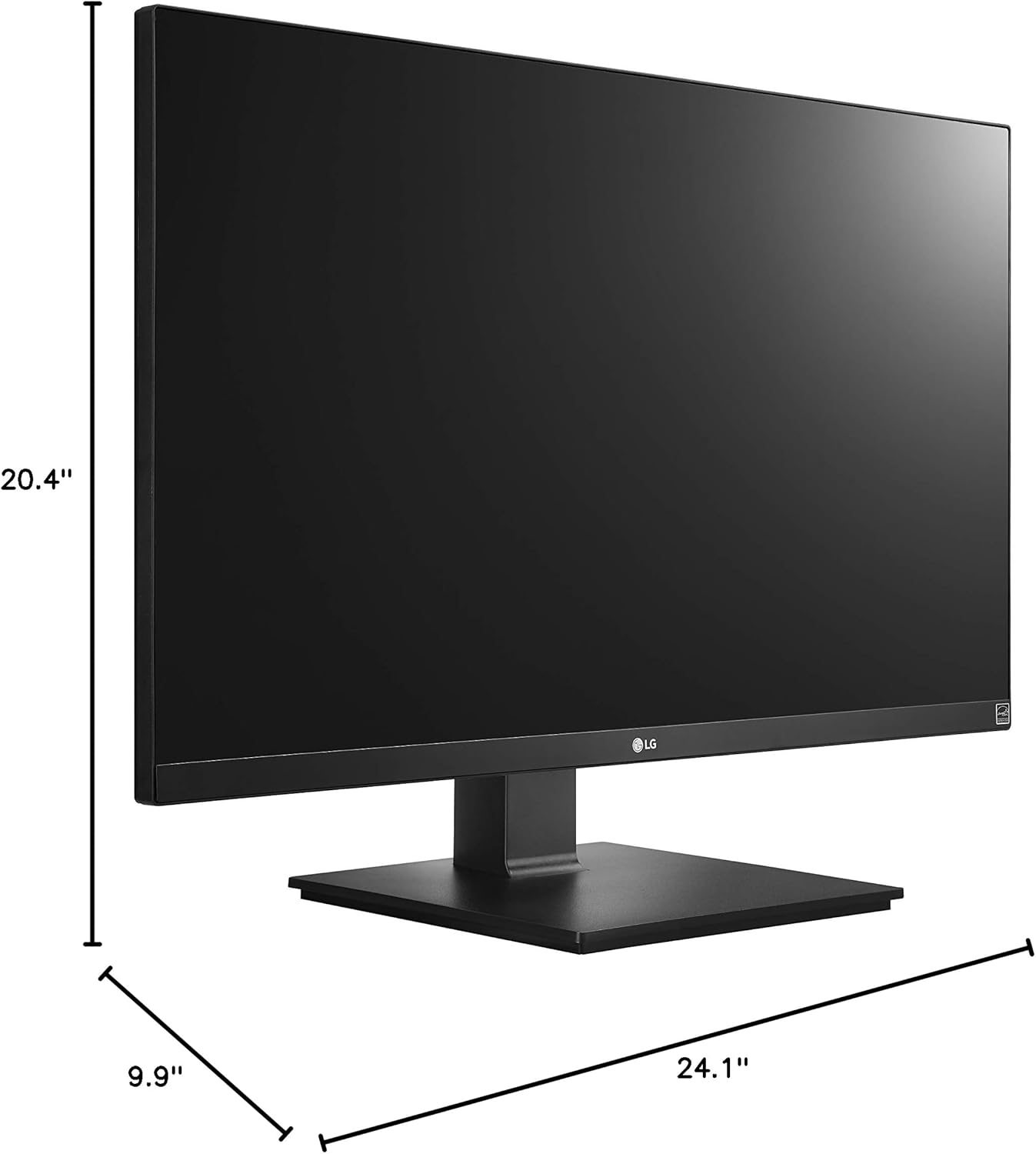
Umfanekiso 6: Ubukhulu bemonitha.
8. Iwaranti kanye Nokusekela
Your LG 27UK670-B monitor is covered by a manufacturer's warranty. For detailed information regarding warranty terms, conditions, and registration, please refer to the warranty card included in your product packaging or visit the official LG Electronics webindawo.
For technical support, service inquiries, or to download the latest drivers and software, please visit the LG support portal or contact LG customer service directly.
Ukusekelwa Kwe-inthanethi: www.lg.com/us/support