1. Umkhiqizo Uphelileview
The HIKVISION Elite 7 Touch Portable SSD is a secure and high-performance external solid-state drive designed for reliable data storage and protection. It features a fingerprint encryption function, robust construction, and high-speed data transfer capabilities.

Umfanekiso 1.1: Ngaphambili view of the HIKVISION Elite 7 Touch Portable SSD, showcasing its sleek black design and illuminated HIKVISION logo.
Izici Eziyinhloko:
- Ukusebenza Kwesivinini esikhulu: Utilizes USB 3.2 Gen2 with NVMe solution for transfer speeds up to 1060MB/s.
- Fingerprint Security: Integrated fingerprint sensor for secure data access and encryption.
- Idizayini Eqinile: All-aluminum alloy body with IPX7 waterproof rating.
- Isoftware Suite: Includes Hi Backup for data backup and Hi Security for enhanced data protection.
- Ukuhambisana Okubanzi: Supports TV, PS4, Xbox, Windows, Mac, Linux, and Android devices.
2. Okuqukethwe Kwephakheji
Ngaphambi kokuqhubeka nokusetha, sicela uqinisekise ukuthi zonke izinto zikhona kuphakheji:
- 1 x HIKVISION Elite 7 Touch Portable SSD
- 1 x Uhlobo-C kuya kukhebuli yohlobo C
- 1 x Uhlobo-C kuya kukhebula yohlobo A
- 1 x Incwadi Yomsebenzisi (le dokhumenti)

Figure 2.1: Contents of the HIKVISION Elite 7 Touch Portable SSD package, including the SSD unit, two types of USB cables, and the user manual.
3. Umhlahlandlela wokusetha
3.1 Connecting the SSD
- Select the appropriate cable: Use the Type-C to Type-C cable for devices with a USB-C port, or the Type-C to Type-A cable for devices with a standard USB-A port.
- Connect the Type-C end of the cable to the HIKVISION Elite 7 Touch Portable SSD.
- Connect the other end of the cable to an available USB port on your computer, gaming console, or compatible device.

Umfanekiso 3.1: Vala-up view of the Type-C interface on the HIKVISION Elite 7 Touch Portable SSD, indicating its high-speed data transfer capability.
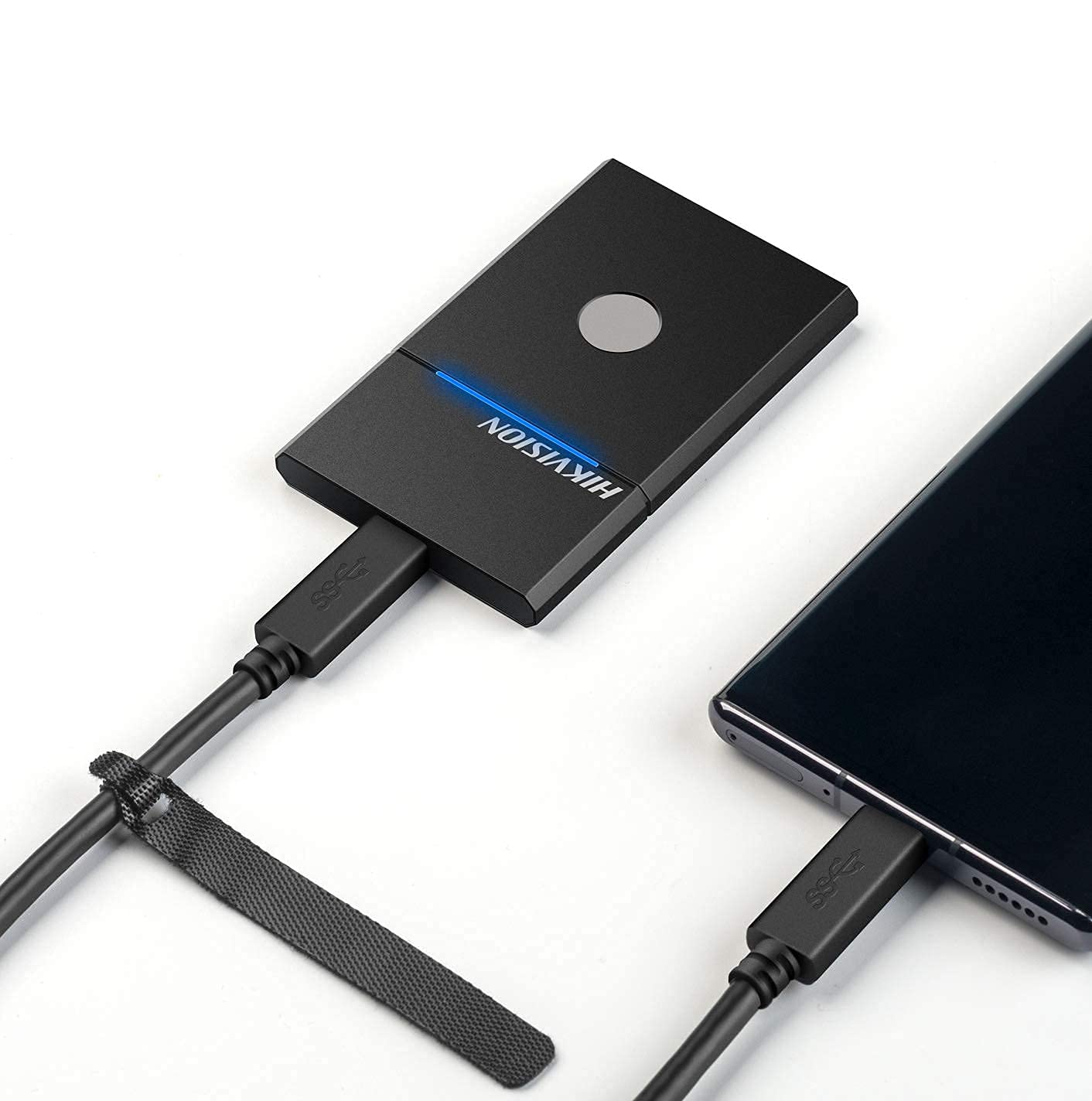
Figure 3.2: The HIKVISION Elite 7 Touch Portable SSD connected to a laptop via a USB-C cable, ready for data transfer.

Figure 3.3: The HIKVISION Elite 7 Touch Portable SSD connected to a smartphone, demonstrating its compatibility with mobile devices.
3.2 Initial Formatting (If Required)
For optimal compatibility with your specific device (TV, PS4, Xbox, Windows, Mac, Linux, Android), it may be necessary to format the SSD to the required file system. Refer to your device's operating system instructions for formatting external storage devices. Qaphela: Formatting will erase all data on the drive. Back up any important data before proceeding.
3.3 Software Installation (Hi Backup & Hi Security)
The HIKVISION Elite 7 Touch comes with pre-loaded software for enhanced data management and security. Connect the SSD to a computer and locate the installer files for 'Hi Backup' and 'Hi Security'. Follow the on-screen instructions to install these applications.
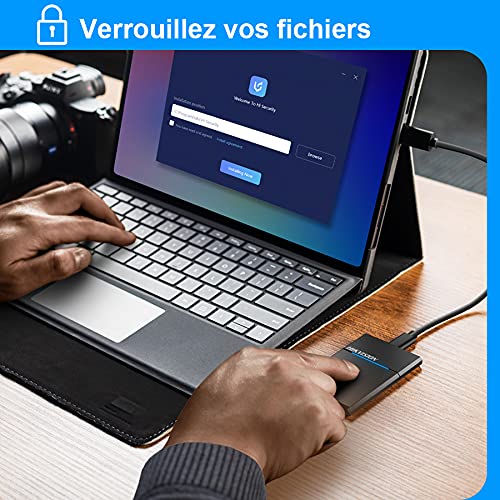
Figure 3.4: Screenshot of the 'Hi Security' software interface on a laptop, illustrating the setup process for data protection.
4. Iziqondiso Zokusebenza
4.1 Ukudluliswa Kwedatha
Once connected and recognized by your device, the SSD will appear as an external storage drive. You can drag and drop files, copy and paste, or use your operating system's file management tools to transfer data to and from the SSD.
4.2 Fingerprint Unlocking and Security
The Elite 7 Touch features a fingerprint sensor for secure access to your data. After installing the 'Hi Security' software, you can register your fingerprints. The SSD can be configured to require fingerprint authentication for unlocking, creating separate private storage areas.
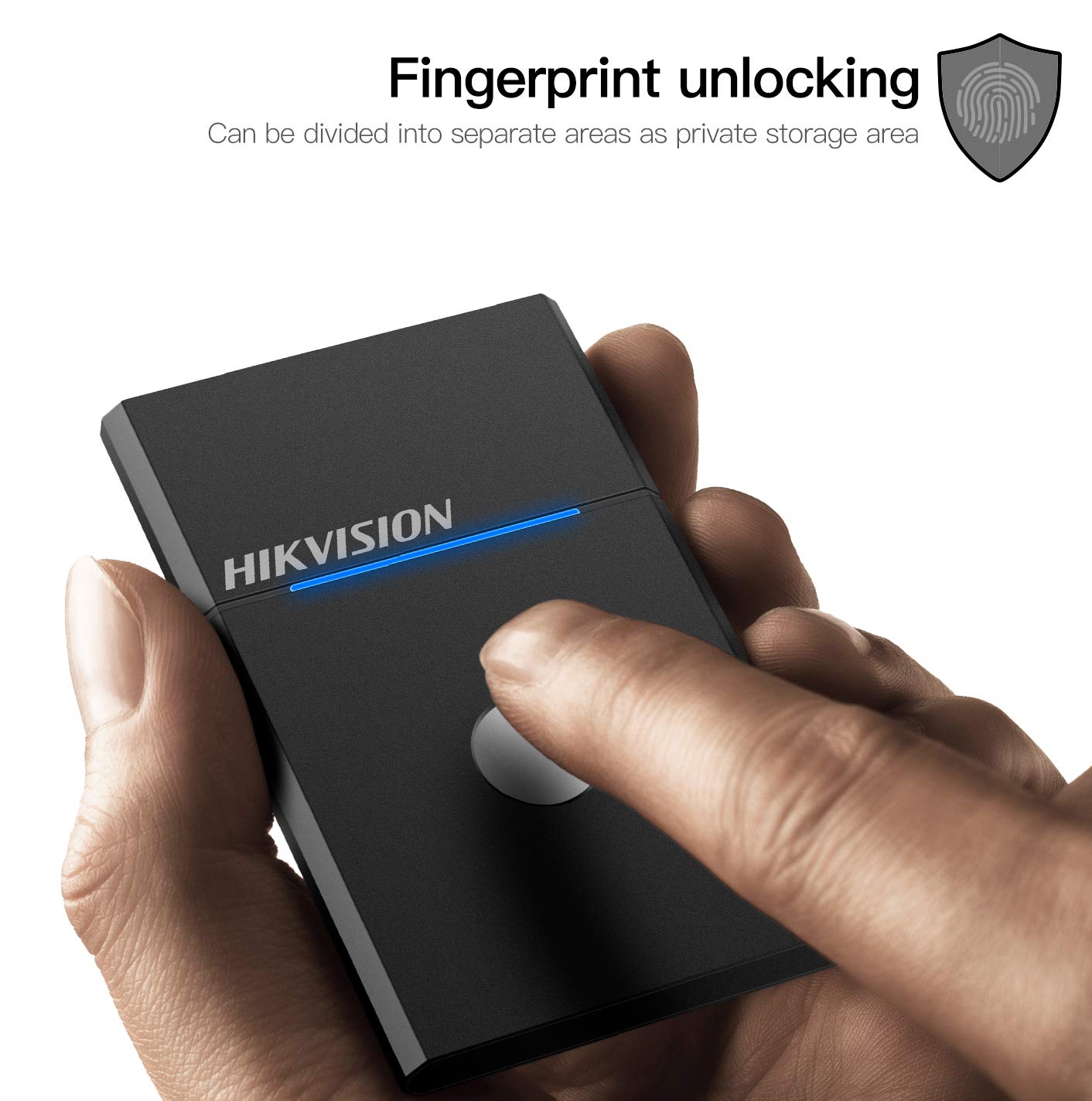
Figure 4.1: The HIKVISION Elite 7 Touch Portable SSD highlighting its fingerprint unlocking capability, allowing for secure access to data.

Figure 4.2: A user's hand interacting with the fingerprint sensor on the HIKVISION Elite 7 Touch Portable SSD to unlock the device.
4.3 Using Hi Backup Software
The 'Hi Backup' software allows you to create backups of your important files. Follow the software's interface to configure backup schedules, select files for backup, and manage your backup history. This software can also be integrated with cloud storage services for additional data redundancy.
5. Isondlo
5.1 Ukunakekelwa Okuvamile
- Keep the SSD clean by wiping it with a soft, dry cloth.
- Avoid exposing the SSD to extreme temperatures or direct sunlight for prolonged periods.
- Ensure the USB port is free from dust and debris before connecting the cable.
5.2 Waterproof Feature (IPX7)
The Elite 7 Touch Portable SSD is designed with an IPX7 waterproof rating, meaning it can withstand immersion in water up to 1 meter for 30 minutes. While this provides protection against accidental spills or submersion, it is not recommended for continuous underwater use. Always ensure the USB port is dry before connecting to a device.
6. Ukuxazulula izinkinga
- I-SSD Ayitholakali:
- Ensure the USB cable is securely connected to both the SSD and your device.
- Zama i-port ehlukile ye-USB kudivayisi yakho.
- Zama ikhebuli ye-USB ehlukile.
- Qala kabusha ikhompuyutha yakho noma idivayisi.
- Check your device's disk management utility to see if the drive is recognized but unformatted.
- Isivinini Sokudlulisa Esinensa:
- Ensure you are using a USB 3.2 Gen2 compatible port on your device for optimal performance.
- Verify that your device's drivers are up to date.
- Vala noma yiziphi izinhlelo zokusebenza ezingadingekile ezisebenza ngemuva.
- Fingerprint Sensor Not Responding:
- Qinisekisa ukuthi umunwe wakho uhlanzekile futhi womile.
- Re-register your fingerprints through the 'Hi Security' software.
- Ensure the 'Hi Security' software is running and properly configured.
- Izinkinga zokufinyelela kudatha:
- If using fingerprint security, ensure the correct fingerprint is used.
- Check if the drive requires formatting for your specific operating system (refer to Section 3.2).
7. Imininingwane

Figure 7.1: Diagram illustrating the compact dimensions of the HIKVISION Elite 7 Touch Portable SSD: 84mm length, 53mm width, and 8mm thickness.
| Isici | Ukucaciswa |
|---|---|
| Ibhrendi | UKUKHONZA |
| Imodeli | Elite 7 Touch (HS-ESSD-Elite 7 Touch) |
| Amandla | 1TB (1024 GB) |
| Isixhumi esibonakalayo | Uhlobo 3.2. C lwe-USB 2 GenXNUMX |
| Isivinini Sokudlulisa Esiphezulu | Kufika ku-1060MB/s |
| Ubukhulu (LxWxH) | 8.35 x 5.35 x 0.79 cm (3.29 x 2.10 x 0.31 amayintshi) |
| Isisindo | 280 g (0.62 lbs) |
| Isilinganiso Sokungangeni Manzi | IPX7 |
| I-Hardware Platform | Mac, Windows, Linux, Android, Gaming Consoles |
| Umbala | Mnyama |
8. Iwaranti kanye Nokusekela
8.1 Iwaranti yomkhiqizi
The HIKVISION Elite 7 Touch Portable SSD comes with a Iwaranti Yomkhiqizi Yeminyaka engu-3 kusukela ngedethi yokuthenga. Lesi siqinisekiso sihlanganisa amaphutha ezintweni zokwakha kanye nokusebenza ngaphansi kokusetshenziswa okuvamile. Sicela ugcine ubufakazi bakho bokuthenga izimangalo zewaranti.
8.2 Ukwesekwa Kwezobuchwepheshe
For technical assistance, troubleshooting beyond this manual, or warranty inquiries, please contact HIKVISION customer support through their official webisayithi noma ulwazi lokuxhumana olunikezwe kanye nedokhumenti yomkhiqizo wakho.


