1. Isingeniso
This manual provides detailed instructions for the safe and efficient operation of your KODAK Dock ERA Plus Instant Photo Printer. Please read this manual thoroughly before using the product and retain it for future reference. The KODAK Dock ERA Plus allows you to print high-quality 4x6 inch photos directly from your compatible devices using dye sublimation technology.
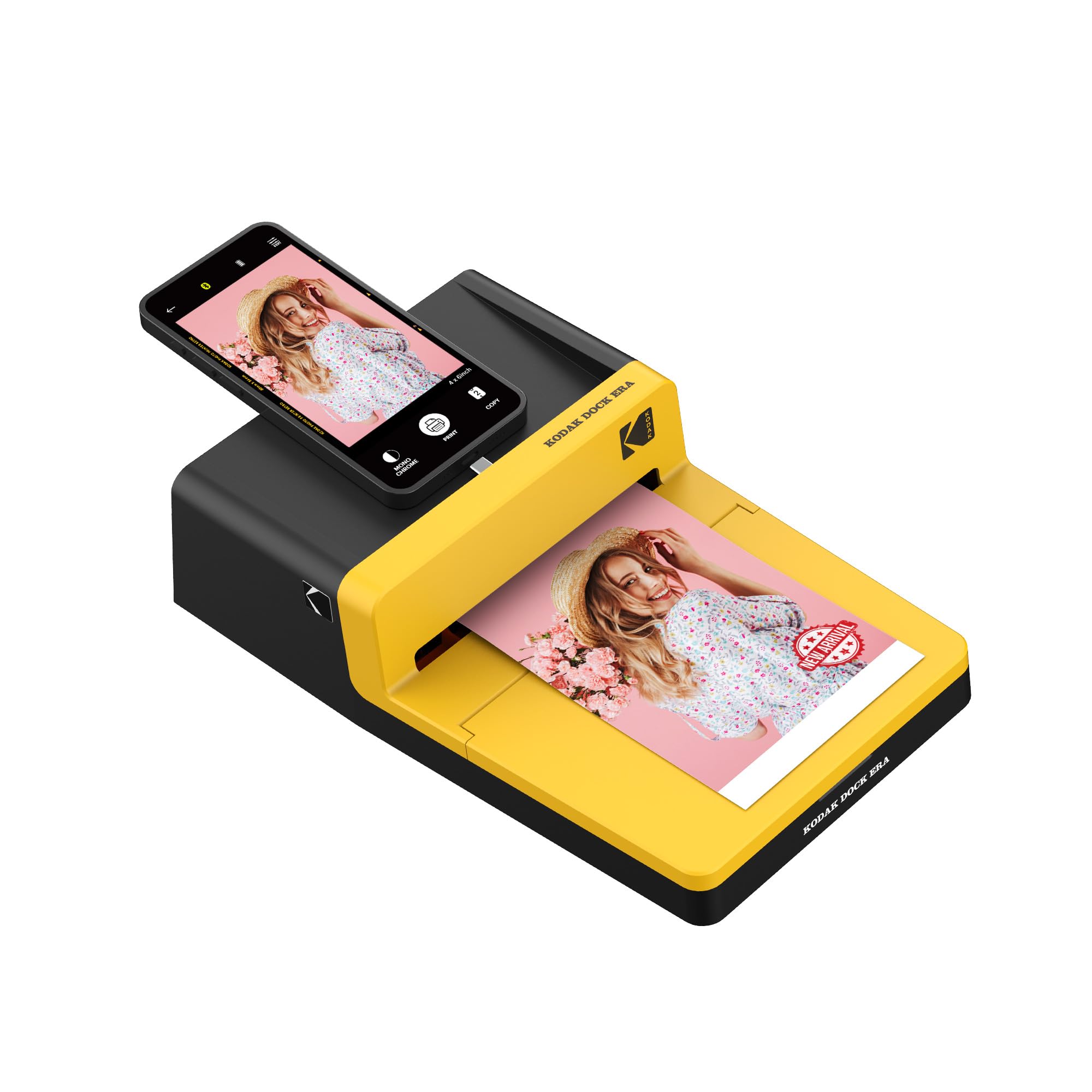
Figure 1: KODAK Dock ERA Plus Instant Photo Printer in use.
2. Setha
2.1 Ukuvula Amabhokisi Nezingxenye
Ngaphambi kokusetha, qiniseka ukuthi zonke izingxenye zikhona:
- KODAK Dock ERA Plus Photo Printer (Model: PHC-120)
- 4x6 Photo Paper Cartridge (initial 10 sheets)
- Additional 80 sheets of 4x6 photo paper
- Ikhebula le-USB
- Docking Pin with Lightning Connector
2.2 Ukuxhuma Amandla
- Connect the provided USB cable to the printer's power port.
- Plug the other end of the USB cable into a compatible power adapter (not included) and then into a wall outlet.
- Press the power button on the side of the printer to turn it on. The indicator light will illuminate.
2.3 Loading Paper and Cartridge
- Vula ikhava yethreyi yephepha kuphrinta.
- Insert the photo paper cartridge into its designated slot until it clicks into place.
- Load the 4x6 photo paper into the paper tray with the glossy side facing up and the KODAK logo (if present) facing down. Ensure the paper stack is aligned correctly.
- Vala ikhava yethreyi lephepha.
2.4 Ukuxhumana Kwedivayisi
The printer supports both direct docking and Bluetooth connectivity.
- Direct Docking: For compatible iOS devices, connect your smartphone directly to the docking pin on the printer.
- I-Bluetooth: For other devices (Android, Laptops, PC), ensure Bluetooth is enabled on your device. Open the KODAK Photo Printer app, navigate to settings, and pair with 'Kodak Era'.
3. Iziqondiso Zokusebenza
3.1 KODAK Photo Printer App
Download the 'KODAK Photo Printer' app from your device's app store. This app is essential for selecting, editing, and printing your photos.
3.2 Selecting and Editing Photos
- Open the KODAK Photo Printer app.
- Browse your device's photo gallery within the app.
- Select the photo you wish to print.
- Use the app's editing tools to adjust the image, apply filters, or choose between bordered or borderless prints.
3.3 Printing Process (4PASS Technology)
The KODAK Dock ERA Plus utilizes 4PASS (Dye Sublimation) technology for vibrant, long-lasting prints. The printing process involves four passes:
- The paper passes through the printer to apply the ophuzi ungqimba.
- The paper passes again to apply the imajenta ungqimba.
- A third pass applies the cyan ungqimba.
- The final pass applies a protective laminating layer, making the print fingerprint and water-resistant.
To initiate printing, tap the 'Print' button in the app. The printer will automatically handle the 4-pass process.
Video 1: Demonstration of the KODAK Photo Printer App and the 4-pass printing process.
4. Isondlo
4.1 Replacing the Cartridge
When the ink cartridge is empty or the print quality degrades, replace it with a new KODAK 4x6 Photo Paper Cartridge.
- Qinisekisa ukuthi iphrinta ivaliwe.
- Open the cartridge cover on the side of the printer.
- Gently remove the used cartridge.
- Insert the new cartridge, ensuring it is correctly oriented, until it clicks into place.
- Vala ikhava ye-cartridge.
4.2 Ukuhlanza Iphrinta
Regularly clean the exterior of the printer with a soft, dry cloth. Avoid using liquid cleaners or abrasive materials.
5. Ukuxazulula izinkinga
| Inkinga | Imbangela Engenzeka | Isixazululo |
|---|---|---|
| Iphrinta ayivuli | No power, loose cable | Check power connection, ensure cable is secure. |
| Ayikwazi ukuxhuma nge-Bluetooth | Bluetooth off, printer not in pairing mode | Ensure printer is on and Bluetooth is enabled on your device. Restart both devices. |
| Ikhwalithi yokuphrinta engeyinhle | Low ink, incorrect paper loading, low image resolution | Replace cartridge, ensure paper is loaded glossy side up, use high-resolution images. |
| Ujamu wephepha | Improper paper loading | Carefully remove jammed paper. Ensure paper is loaded correctly. |
6. Imininingwane
- Ibhrendi: KODAK
- Igama Lemodeli: PHC-120 (Dock ERA Plus)
- Ubuchwepheshe bokuphrinta: I-Dayi Sublimation
- Ubuchwepheshe bokuxhuma: I-Bluetooth, i-USB
- Imidiya yokuphrinta: Iphepha lesithombe elicwebezelayo
- Usayizi Weshidi: 4 x 6 amayintshi
- Ubukhulu bokulungiswa kokuphrinta kombala: 1200 dpi or higher
- Ubukhulu bokulungiswa kokuphrinta okumnyama nokumhlophe: 1200 dpi or higher
- Ukujula Kombala: awu 24bp
- Umbala kayinki: Okumnyama, Okuluhlaza okotshani, Okumagenta, Okuphuzi
- Indlela yokulawula: Uhlelo lokusebenza
- Ubukhulu bomkhiqizo: 2.7"D x 6.53"W x 2.7"H
- Amandla Eshidi Lokufaka Okuphezulu: 120
- Output Sheet Capacity: 120
- Izingxenye ezifakiwe: 4x6 Photo Paper Cartridge, USB Cable, Docking Pin with Lightning Connector
7. Iwaranti kanye Nokusekela
This KODAK product is covered by a Iwaranti yomkhiqizi. For specific warranty terms, duration, and to register your product, please refer to the warranty card included in your product packaging or visit the official KODAK support website. For technical assistance, troubleshooting, or service inquiries, please contact KODAK customer support.


