1. Isingeniso
This manual provides detailed instructions for the installation, operation, and maintenance of your Everycom EC801B 80mm Thermal Printer. Please read this manual thoroughly before using the printer to ensure proper function and longevity of the device. The EC801B is a high-speed thermal receipt printer equipped with an auto-cutter and versatile connectivity options including USB and LAN.
2. Ulwazi Lokuphepha
- DO NOT DISASSEMBLE THE PRINTER PERSONALLY. For any service-related queries, please contact Everycom support.
- The printer should be installed on a flat and solid surface to avoid vibration or impact damage.
- Ensure the power supply matches the printer's requirements to prevent electrical damage.
- Keep the printer away from water, dust, and direct sunlight.
3. Okuqukethwe Kwephakheji
Sicela uqinisekise ukuthi zonke izinto ezibalwe ngezansi zifakiwe kuphakheji yakho:
- 1 x Everycom EC801B Thermal Receipt Printer
- 1 x I-adaptha yamandla
- 1 x Ikhebula ledatha ye-USB
- 1 x Paper Roll (Sample)
- 1 x Incwadi Yomsebenzisi
- 1 x I-CD Yomshayeli

Image: Contents of the Everycom EC801B printer package, including the printer unit, power adapter, USB cable, sample paper roll, user manual, and driver CD.
4. Umkhiqizo Uphelileview
Familiarize yourself with the various parts of your Everycom EC801B thermal printer.
4.1 Ngaphambili Naphezulu View

Isithombe: Ngaphambili view of the Everycom EC801B thermal printer, showing the paper output slot and control panel.

Isithombe: Phezulu view of the Everycom EC801B thermal printer, highlighting the control panel with POWER, ERROR, PAPER indicators, and the FEED button.
4.2 Iphaneli yokulawula
- AMANDLA Inkomba: Illuminates when the printer is powered on.
- IPHUTHA Inkomba: Flashes or illuminates to indicate an error (e.g., paper out, cover open).
- PAPER Indicator: Illuminates when paper is present, flashes when paper is low.
- Inkinobho ye-FEED: Press to advance paper. Hold to print a self-test page.
4.3 Rear Panel (Connectivity Ports)

Isithombe: Emuva view of the Everycom EC801B thermal printer, showing the power port, cash drawer port, Ethernet (LAN) port, and USB port.
- Imbobo Yamandla: Ixhuma ku-adaptha yamandla.
- CASH Drawer Port: Connects to a compatible cash drawer.
- LAN (Ethernet) Port: Ixhuma kunethiwekhi ukuze kuphrintwe inethiwekhi.
- Imbobo ye-USB: Connects to a computer via USB cable.
5. Setha
5.1 Ukubekwa komzimba
Place the printer on a stable, flat surface. Ensure there is adequate space around the printer for ventilation and easy access to ports and paper loading.
5.2 Izintambo zokuxhuma
- Ukuxhuma kwamandla: Connect the power adapter to the printer's POWER port and then plug the adapter into a power outlet.
- Data Connection (Choose one):
- I-USB: Xhuma ikhebula ledatha le-USB kusuka echwebeni le-USB lephrinta kuya echwebeni le-USB elitholakalayo kukhompyutha yakho.
- I-LAN: Xhuma intambo ye-Ethernet kusuka embobeni ye-LAN yephrinta ukuya kumzila wakho wenethiwekhi noma shintsha.
- Idrowa Lemali (Ongakukhetha): If using a cash drawer, connect its cable to the printer's CASH Drawer port.
5.3 Ukulayisha Iphepha
- Open the printer cover by pushing the cover open lever (if present) or lifting the top cover.
- Insert the 80mm thermal paper roll into the compartment, ensuring the paper feeds from the bottom and the leading edge extends out of the printer.
- Close the printer cover firmly until it clicks into place. Ensure there is no slack in the paper.

Isithombe: Phezulu view of the Everycom EC801B printer with the cover open, revealing the paper roll compartment.
5.4 Ukufakwa komshayeli
For the printer to communicate with your computer, drivers must be installed.
- Insert the provided Driver CD into your computer's CD-ROM drive.
- Follow the on-screen instructions to install the printer drivers. If your computer does not have a CD drive, drivers can typically be downloaded from the Everycom official webindawo.
- After installation, configure the printer settings through your operating system's printer management tools.
6. Iziqondiso Zokusebenza
6.1 Ukuvula / Ukuvula
To power on the printer, ensure the power adapter is connected and press the power switch located on the side or rear of the printer. The POWER indicator light will illuminate. To power off, press the power switch again.
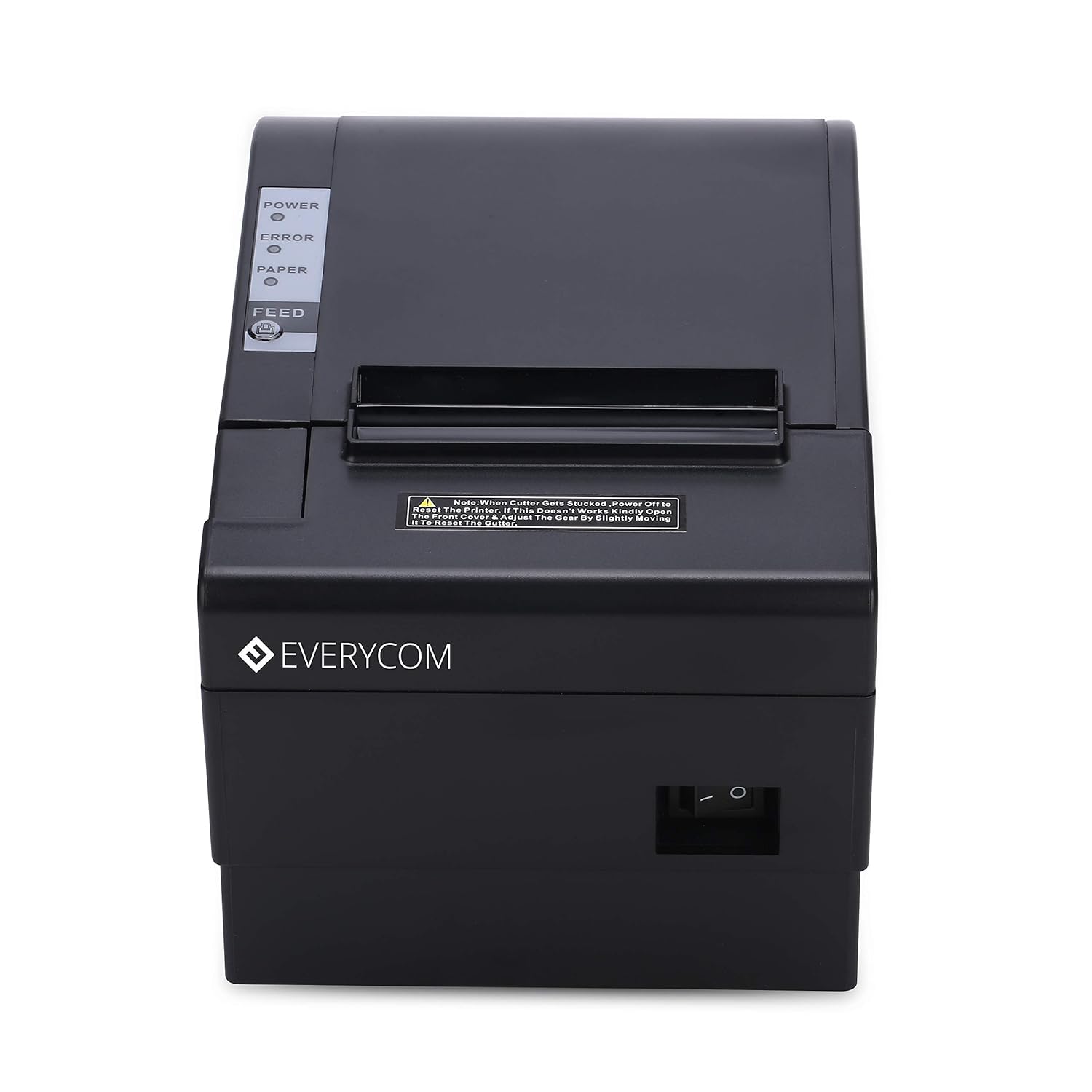
Isithombe: Ngaphambili view of the Everycom EC801B printer, showing the location of the power switch on the side.
6.2 Printing a Self-Test Page
A self-test page can confirm basic printer functionality and print quality without requiring a computer connection.
- Qinisekisa ukuthi iphrinta icishiwe futhi iphepha liyalayishwa.
- Cindezela bese ubamba i I-FEED inkinobho.
- Ngenkathi ebambe i I-FEED inkinobho, vula iphrinta.
- Khipha i I-FEED button once the printer starts printing. A self-test page will print, showing printer information and a sampukuphrinta.

Image: Everycom EC801B printer actively printing a self-test receipt with a QR code and text.
6.3 Basic Printing Operation
Once drivers are installed and the printer is connected, you can print from any application that supports printing. Select the Everycom EC801B from your list of available printers and initiate the print command.
6.4 Auto Cutter Function
The EC801B features an automatic cutter that will cut the receipt paper after each print job, or as configured in your printer settings/software.
7. Isondlo
7.1 Ukuhlanza Iphrinta
Ukuhlanza okuvamile kusiza ukugcina ikhwalithi yokuphrinta futhi kunwebe isikhathi sempilo yephrinta.
- Ikhanda lokuphrinta: Sebenzisa i-swab yekotini kancane dampened with isopropyl alcohol to gently wipe the thermal print head. Allow it to dry completely before use.
- Indlela Yephepha: Use a soft, dry cloth to remove any paper dust or debris from the paper path.
- Ingaphandle: Sula ingaphandle ngocingo oluthambile, damp indwangu. Ungasebenzisi amakhemikhali anokhahlo noma izihlanzi ezilumayo.
7.2 Ukushintsha Iphepha Lomqulu
When the PAPER indicator flashes or printing becomes faint, it's time to replace the paper roll. Follow the steps in Section 5.3 to load a new 80mm thermal paper roll.
8. Ukuxazulula izinkinga
Uma uhlangabezana nezinkinga ngephrinta yakho, bheka izinkinga ezilandelayo nezisombululo:
| Inkinga | Imbangela Engenzeka | Isixazululo |
|---|---|---|
| Iphrinta ayivuli amandla | Awekho amandla, i-adaptha enephutha | Check power cable connection, ensure outlet is working, try another adapter if available. |
| No printing / Blank output | Paper loaded incorrectly, no paper, print head issue, driver issue | Reload paper correctly (thermal side facing print head), replace paper roll, clean print head, reinstall drivers. |
| ERROR indicator on/flashing | Paper out, cover open, print head overheat | Check paper, close cover firmly, allow printer to cool down. |
| Ikhwalithi yokuphrinta engeyinhle | Dirty print head, low quality paper, old paper roll | Clean print head, use high-quality thermal paper, replace old paper. |
| Iphrinta ayibonwa yikhompyutha | Driver not installed, incorrect cable, port issue | Install/reinstall drivers, check USB/LAN cable connection, try a different port. |
If the problem persists after attempting these solutions, please contact Everycom customer support.
9. Imininingwane
Key technical specifications for the Everycom EC801B Thermal Printer:
| Isici | Imininingwane |
|---|---|
| Imodeli | I-EC801B |
| Ubuchwepheshe bokuphrinta | I-Thermal Line Printing |
| Isivinini Sokuphrinta | 220 mm/ngesekhondi |
| Ububanzi Bephepha | 80 mm |
| Ukuxhumana | USB, LAN (Ethernet) |
| I-Auto Cutter | Yebo |
| Okukhipha Iphrinta | I-Monochrome |
| Ubukhulu (LxWxH) | 18.6 x 14.5 x 13.3 cm |
| Isisindo sento | 1.2 kg |
| Umkhiqizi | Everycom Electronics (Made in India) |
10. Iwaranti kanye Nokusekela
The Everycom EC801B Thermal Printer comes with a Iwaranti Yonyaka ongu-1 kusukela ngosuku lokuthenga. Lesi siqinisekiso simboza amaphutha kanye nokungasebenzi kahle kokukhiqiza ngaphansi kwezimo ezijwayelekile zokusetshenziswa.
For technical assistance, troubleshooting, or warranty claims, please contact Everycom Customer Support:
- Inombolo Yamahhala: 1800 121 4480
- Customer Support Working Hours: Monday - Saturday, 10:00 AM - 6:30 PM (Except on Public Holidays)

Image: Everycom customer service contact details, including the toll-free number and working hours.


