1. Isingeniso
This manual provides comprehensive instructions for the installation, operation, and maintenance of the DIGI WR11-M400-DE1-XB Cellular Router. This device is designed to provide reliable 4G LTE cellular connectivity and Ethernet networking for various applications. Please read this manual thoroughly before using the product to ensure proper setup and functionality.
2. Ulwazi Lokuphepha
Qaphela lezi zinyathelo zokuphepha ezilandelayo ukuze uvimbele ukulimala kocingo noma ukulimala kwabasebenzi:
- Qinisekisa ukuthi unikezwa amandla ngevolthitagi-e ifanelana nezidingo zedivayisi.
- Ungalivezi ucingo emanzini noma kumswakama oweqile.
- Gwema ukubeka idivayisi eduze kwemithombo yokushisa noma elangeni eliqondile.
- Ungaluvuli ucingo casing; dlulisela zonke izinsiza kubasebenzi abaqeqeshiwe.
- Use only approved accessories and antennas with the router.
3. Okuqukethwe Kwephakheji
Qinisekisa ukuthi zonke izinto zikhona kuphakheji:
- DIGI WR11-M400-DE1-XB Cellular Router
- I-adaptha yamandla (ingahluka ngendawo)
- Quick Start Guide
- I-Hardware yokukhweza (uma ikhona)
Note: Antennas are not included with this model and must be purchased separately.
4. Umkhiqizo Uphelileview
The DIGI WR11-M400-DE1-XB is a compact and robust cellular router designed for reliable connectivity. Below is an image of the device with key features highlighted.
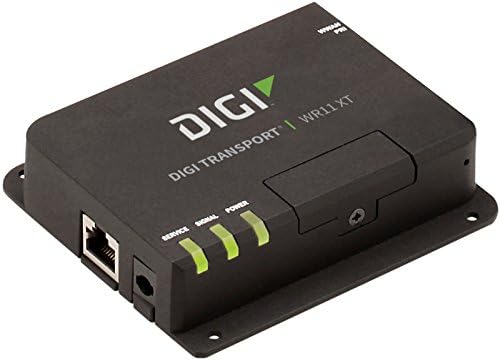
Isithombe: Ngaphambili view of the DIGI WR11-M400-DE1-XB Cellular Router, showing the Ethernet port, power input, and three LED indicators for Service, Signal, and Power. The device is black with the "DIGI TRANSPORT WR11 XT" logo.
Front Panel Izinkomba
- Isevisi ye-LED: Indicates cellular service status. (e.g., Solid Green: Connected, Blinking: Attempting connection, Off: No service)
- I-LED yesiginali: Indicates cellular signal strength. (e.g., Green: Strong, Amber: Medium, Red: Weak)
- I-LED yamandla: Indicates power status. (e.g., Solid Green: Power on, Off: Power off)
Amachweba nezixhumi
- Ethernet Port (LAN): One RJ45 port for wired network connection.
- Okokufaka kwamandla: Connector for the DC power adapter.
- Izixhumi ze-Antenna: (Not visible in image, but typically present on cellular routers for external antennas, though this model states "NO Antenna" in description, implying internal or separate purchase). Note: This model does not include antennas. External antennas must be connected to the appropriate ports (if available) for cellular connectivity.
5. Setha
Ukusethwa Kwasekuqaleni
- Ukuma: Place the router in a central location, away from obstructions and other electronic devices that may cause interference. Ensure good cellular signal reception.
- Ukufakwa kwekhadi le-SIM: If applicable, insert your activated 4G LTE SIM card into the designated SIM card slot. Ensure it is inserted correctly according to the diagram on the device or in the Quick Start Guide.
- Ukuxhumana kwe-Antenna: If using external antennas (recommended for optimal performance, and necessary for this model as it ships without antennas), connect them securely to the antenna ports.
- Ukuxhuma kwamandla: Connect the power adapter to the router's power input port, then plug the adapter into a power outlet. The Power LED should illuminate.
Uxhumano Lwenethiwekhi
- Uxhumano Lwezintambo: Connect an Ethernet cable from the router's LAN port to your computer or network switch.
- Qinisekisa Ukuxhumana: Once powered on, the router will attempt to establish a cellular connection. Monitor the Service and Signal LEDs. The Service LED should turn solid green, and the Signal LED should indicate good signal strength.
6. Iziqondiso Zokusebenza
Ukusebenza Okuyisisekelo
Once the router is powered on and has established a cellular connection (indicated by the Service and Signal LEDs), devices connected to its Ethernet port will be able to access the internet via the 4G LTE network.
Ukufinyelela ku- Web Isixhumi esibonakalayo
For advanced configuration and monitoring, you can access the router's web-based management interface:
- Ensure your computer is connected to the router via Ethernet.
- Vula a web isiphequluli (isb, Chrome, Firefox, Edge).
- In the address bar, type the router's default IP address (commonly
192.168.1.1or192.168.0.1, refer to the Quick Start Guide or device label for the exact address) and press Enter. - Enter the default username and password when prompted (typically
adminfor both, or as specified in the Quick Start Guide). - You can now configure network settings, security, and monitor device status.
7. Isondlo
Ukulungiswa njalo kusiza ukuqinisekisa ukuthi i-router yakho ihlala isikhathi eside futhi isebenza kahle:
- Ukuhlanza: Sebenzisa indwangu ethambile, eyomile ukuhlanza ingaphandle lerutha. Ungasebenzisi izinto zokuhlanza uketshezi noma ama-aerosol.
- Ukuvuselelwa kwe-Firmware: Hlola okomkhiqizi ngezikhathi ezithile webiwebhusayithi yezibuyekezo ze-firmware. Ukugcina i-firmware ibuyekeziwe kungathuthukisa ukusebenza, kungeze izici, futhi kuthuthukise ukuphepha.
- Ukungenisa umoya: Ensure the router is placed in a well-ventilated area to prevent overheating. Do not block ventilation openings.
- Umjikelezo Wamandla: If the router experiences issues, try power cycling it by disconnecting the power adapter for 10 seconds and then reconnecting it.
8. Ukuxazulula izinkinga
This section addresses common issues you might encounter with the DIGI WR11-M400-DE1-XB Cellular Router.
| Inkinga | Imbangela Engenzeka | Isixazululo |
|---|---|---|
| No Power (Power LED Off) | I-adaptha yamandla ayixhunyiwe noma i-outlet enephutha. | Check power connections. Try a different power outlet. Ensure the power adapter is functioning. |
| No Cellular Service (Service LED Off/Blinking) | No SIM card, inactive SIM, poor signal, or network issue. | Ensure SIM card is correctly inserted and activated. Relocate the router for better signal. Contact your cellular provider. |
| Poor Signal Strength (Signal LED Red/Amber) | Router location, external interference, or antenna issue. | Move the router to an area with better cellular reception. Ensure external antennas (if used) are properly connected and positioned. |
| No Internet Access via Ethernet | No cellular connection, incorrect network settings, or faulty Ethernet cable. | Verify cellular connection status (Service LED). Check Ethernet cable connection. Access web interface to verify network settings. |
| Ayikwazi Ukufinyelela Web Isixhumi esibonakalayo | Incorrect IP address, network configuration issue, or router not responding. | Verify the router's IP address. Ensure your computer is set to obtain an IP address automatically (DHCP). Try power cycling the router. |
9. Imininingwane
Key technical specifications for the DIGI WR11-M400-DE1-XB Cellular Router:
| Isici | Imininingwane |
|---|---|
| Imodeli | WR11-M400-DE1-XB |
| Ibhrendi | Digi |
| Ubuchwepheshe bokuxhumana | Cellular (4G LTE Sprint), Ethernet |
| Inani lamachweba | 1 (Ethernet) |
| Amadivayisi Ahambisanayo | Ikhompyutha yomuntu siqu |
| Indlela Yokulawula | Isilawuli kude |
| Uhlobo lwesilawuli | Shintsha |
| Isici Esikhethekile | I-WPS |
| I-UPC | 665752885062 |
| Idethi Yokuqala Etholakalayo | Julayi 23, 2018 |
10. Iwaranti kanye Nokusekela
For information regarding product warranty, technical support, or service, please refer to the warranty card included with your product or visit the official Digi International website. Support resources, including FAQs, documentation, and contact information, are typically available online.
Sicela ugcine ubufakazi bakho bokuthenga izimangalo zewaranti.


