Isingeniso
This manual provides detailed instructions for the installation, operation, and maintenance of the Foxeer Predator Micro V2 FPV Camera. Please read this manual thoroughly before using the product to ensure proper functionality and safety.
Umkhiqizo Uphelileview
The Foxeer Predator Micro V2 is a high-performance FPV camera designed for racing drones and other multirotors. It features Super WDR, 1000TVL resolution, and an On-Screen Display (OSD) for easy configuration.

Image: Foxeer Predator Micro V2 FPV Camera, front view.
Izici ezibalulekile zifaka:
- Ukulungiswa Okuphezulu: 1000TVL for clear image quality.
- Super WDR: Excellent performance in varying light conditions.
- Ukubambezeleka Okuphansi: Minimum to 4ms for responsive FPV flying.
- I-OSD: Built-in On-Screen Display for easy settings adjustment.
- Usayizi Ohlangene: Lightweight at 5.5g (excluding bracket) and small dimensions (18.6 x 19.0mm).
- I-Wide Voltage Wokufaka: Supports 5-40V.

Image: Visual representation of the Predator Micro V2 highlighting clearer image quality, brighter dark zones, and new DSY/NIGHT, LED, and V CAL features.
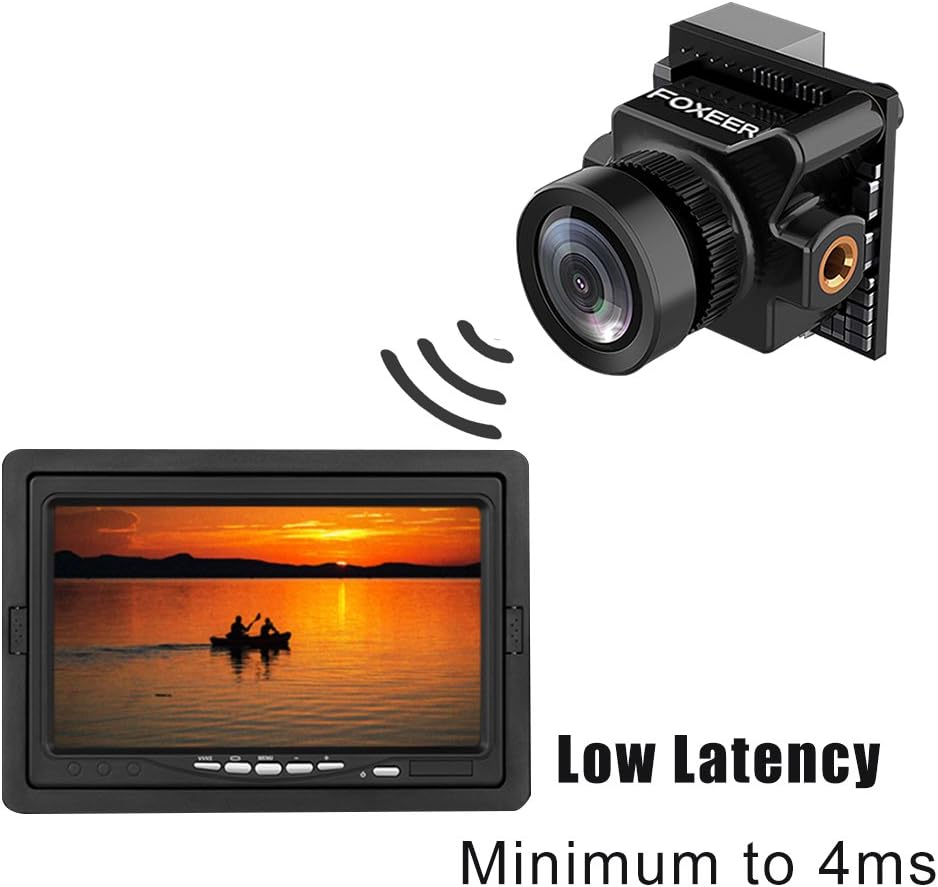
Image: Depiction of the camera's low latency, showing the camera transmitting to a monitor with minimal delay.
Okuqukethwe Kwephakheji
Qinisekisa ukuthi zonke izinto ezibalwe ngezansi zifakiwe kuphakheji yakho. Uma kukhona izinto ezingekho noma ezilimele, sicela uxhumane nomthengisi wakho.
- 1x Foxeer Predator Micro V2 Camera
- 1x OSD Board
- 1x Servo Cable
- 1x OSD Cable
- 1x Ubakaki
- 4x Gasket Rings
- 4x Izikulufo zabakaki
- 2x Case Screws
- 1x Incwadi Yomsebenzisi

Image: All components included in the Foxeer Predator Micro V2 package, including the camera, OSD board, cables, bracket, and screws.
Imininingwane
Detailed technical specifications for the Foxeer Predator Micro V2 FPV Camera:

Image: A table summarizing the technical specifications of the Foxeer Predator Micro V2 camera.
| Isici | Ukucaciswa |
|---|---|
| Imodeli | Foxeer Predator Micro V2 |
| Isixazululo | I-1000TVL |
| Uhlelo lwe-TV | I-NTSC |
| I-CVBS | 4:3 Isikrini |
| Ukubambezeleka | Minimum to 4ms |
| I-OSD | Yebo |
| I-WDR | Yebo |
| Okokufaka Voltage | 5-40V |
| Isisindo | 5.5g (excluding bracket) |
| Usayizi | 18.6 x 19.0mm |
| V CAL | Voltage calibration, range -0.5~0.5 |
| USUKU/UBUSUKU | AUTO and Manual |
| I-Flip yesithombe | Off/ H-Flip / V-Flip/ HV-Flip |
| Izilimi | English/ Deutsch/ Francais / Pyccknn / Portugues / Espanol / Chinese |
The camera features a 1.8mm lens with a FOV-D (Diagonal Field of View) of 150°.

Image: Diagram illustrating the Field of View (FOV-V, FOV-H, FOV-D) for the 1.8mm M8 lens, indicating a 150° diagonal field of view.
Setha
Ukufakwa
- Ukukhweza: Use the provided bracket and screws to securely mount the Predator Micro V2 camera onto your drone frame. Ensure the camera is oriented correctly. The multi-functional bracket allows for easy switching between standard and mini sizes.
- Izintambo: Connect the camera to your flight controller or video transmitter using the provided servo cable and OSD cable. Ensure correct polarity for power (5-40V input). Refer to your flight controller/VTX manual for specific wiring diagrams.
Amandla Aphezulu Okuqala
After installation, connect power to your drone. The camera should power on and display video output.
Isebenza
Imenyu yokubonisa okusesikrinini (OSD).
The Predator Micro V2 features an integrated OSD for easy configuration. Use the OSD board (joystick) to navigate and adjust settings.

Image: Screenshots of the OSD menu, showing options for setup (Camera ID, Picture Adjust, Day/Night, LED, V CAL, Camera Reset) and display settings (Time, Power, V CAL, LED).
Ukuzulazula ku-OSD
- Connect the OSD board to the camera.
- Vula ikhamera.
- Use the joystick on the OSD board to navigate through the menu options.
- Press the center button to select an option or confirm a setting.
- Move the joystick left/right to change values.
- Select "EXIT" to save changes and exit the menu.
Izilungiselelo ze-OSD engukhiye
- USUKU/UBUSUKU: Set to AUTO for automatic switching, or MANUAL to select permanent COLOR or B/W mode.
- I-LED: Adjust LED brightness (OFF/MID/DARK).
- V CAL (Voltage Calibration): Lungisa ivolumutage reading with a range of -0.5 to 0.5.
- Phenya isithombe: Options include Off, H-Flip (horizontal), V-Flip (vertical), and HV-Flip (horizontal and vertical).
- Izilimi: Select from English, Deutsch, Francais, Pyccknn, Portugues, Espanol, or Chinese.
Isondlo
- Ukuhlanza: Regularly clean the camera lens with a soft, lint-free cloth. Avoid abrasive materials or harsh chemicals.
- Ukuhlola: Periodically inspect all cables and connections for signs of wear or damage. Ensure the camera is securely mounted.
- Isitoreji: When not in use, store the camera in a dry, dust-free environment, away from extreme temperatures.
Ukuxazulula inkinga
| Inkinga | Imbangela Engenzeka | Isixazululo |
|---|---|---|
| Akukho okukhipha ividiyo | Incorrect wiring; No power; Damaged cable; Incorrect TV system setting. | Check all wiring connections for correct polarity and secure fit. Ensure power is supplied within the 5-40V range. Replace damaged cables. Verify TV System (NTSC) matches your receiver. |
| Image is dark/bright | Incorrect exposure settings; DAY/NIGHT mode issue. | Adjust exposure settings via the OSD menu. Check DAY/NIGHT mode; try setting it to AUTO or manually to COLOR/B&W. |
| Image is upside down/reversed | Image Flip setting enabled. | Access the OSD menu and set "Image Flip" to "Off". |
| OSD not appearing | OSD board not connected or faulty. | Ensure the OSD board is correctly connected to the camera. Test with another OSD board if available. |
| Voltage reading inaccurate | V CAL setting needs adjustment. | Use the OSD menu to adjust the "V CAL" setting to match a known voltage ukufunda. |
Iwaranti kanye Nokusekela
For warranty information and technical support, please refer to the official FOXEER webisayithi noma uthinte umsabalalisi wangakini. Gcina irisidi lakho lokuthenga njengobufakazi bokuthenga.
For further assistance, you may visit the FOXEER store on Amazon: FOXEER Amazon Store.


