1. Isingeniso
The Verizon MiFi 7730L Jetpack Mobile Hotspot provides portable high-speed internet access, allowing you to connect multiple Wi-Fi-enabled devices to the Verizon 4G LTE network. This device is designed for optimal upload and download speeds, offering a secure and reliable mobile broadband experience.
Izici ezibalulekile zifaka:
- High-speed 4G LTE connectivity.
- Intuitive onscreen information and controls via a color touchscreen.
- Advanced network and information security protocols.
- Ability to connect multiple devices simultaneously.
2. Ukusetha Kwasekuqaleni
2.1 Okuqukethwe Kwephakheji
Verify that your package contains the Verizon MiFi 7730L Jetpack, a battery, and a charging cable. A power adapter may or may not be included, depending on the specific product offering.
2.2 Ukufakwa nokushajwa kwebhethri
- Remove the back cover of the MiFi 7730L.
- Insert the battery into its compartment, ensuring the contacts align correctly.
- Shintsha ikhava yangemuva.
- Connect the charging cable to the MiFi 7730L and then to a compatible USB power source. Allow the device to fully charge before initial use.
Note: Use a compatible power adapter for efficient charging. Incompatible or faulty cables/adapters may prevent a full charge.
2.3 Ukuvula / Ukuvula
- To power on: Press and hold the Power button located on the side of the device until the screen illuminates.
- To power off: Press and hold the Power button until the power-off option appears on the screen, then confirm.
2.4 Connecting to the Hotspot
Once powered on, the MiFi 7730L will display its Wi-Fi network name (SSID) and password on the screen. Follow these steps to connect your devices:
- On your Wi-Fi-enabled device (smartphone, tablet, laptop), open the Wi-Fi settings.
- Select the network name (SSID) displayed on your MiFi 7730L screen.
- Faka iphasiwedi ye-Wi-Fi uma ucelwa.
- Idivayisi yakho kufanele manje ixhunywe kwi-inthanethi.
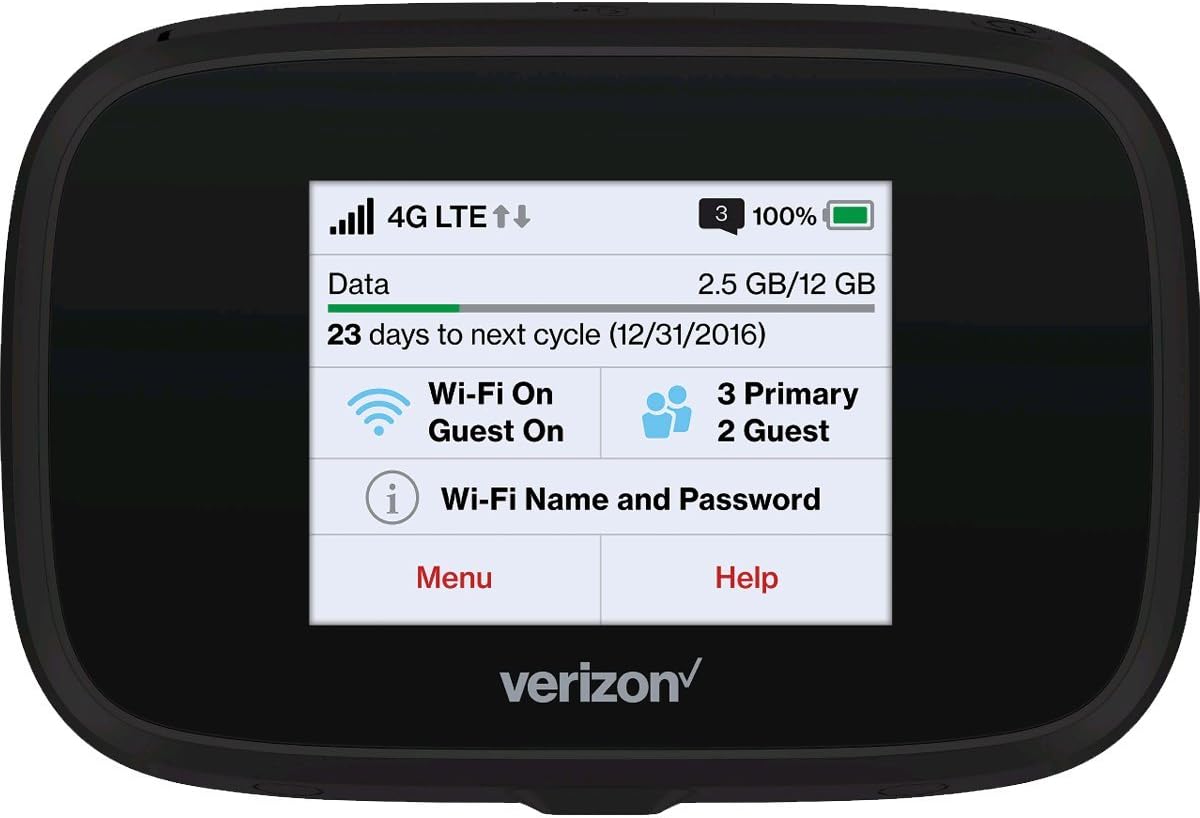
Umfanekiso 2.4.1: Ngaphambili view of the MiFi 7730L, showing the touchscreen interface with network status, data usage, and Wi-Fi details.
3. Ukusebenza
3.1 Ukuzulazula ku-Touchscreen
The MiFi 7730L features a color touchscreen for easy navigation. Swipe left or right to access different menus and settings. Tap on icons to select options or view ulwazi oluningiliziwe.
3.2 Checking Data Usage
The main screen typically displays your current data usage and the remaining data for your billing cycle. You can access more detailed usage statistics through the device's menu.
3.3 Ukuphatha Izilungiselelo ze-Wi-Fi
From the device's menu, you can:
- Change the Wi-Fi network name (SSID) and password.
- Enable or disable the guest Wi-Fi network.
- Adjust security settings (WPA2, etc.).
- View amadivayisi axhunyiwe.
3.4 Izici Ezithuthukile
The MiFi 7730L may offer additional features such as:
- USB tethering for direct connection to a computer.
- File sharing via microSD card (if supported).
- VPN passthrough.
4. Isondlo
4.1 Ukunakekelwa Kwebhethri
To prolong battery life and ensure safe operation:
- Gwema ukubeka idivayisi kumazinga okushisa aphezulu.
- Do not puncture or damage the battery.
- If the device or battery becomes excessively hot or shows signs of swelling, discontinue use immediately and contact support.
- Use only approved charging accessories.
4.2 Ukuhlanza
Wipe the device with a soft, dry cloth. Avoid using liquid cleaners or abrasive materials that could damage the screen or casing.
4.3 Ukuvuselelwa Kwesoftware
Periodically check for software updates through the device's menu or by connecting to the web interface. Updates can improve performance, add features, and enhance security.
5. Ukuxazulula izinkinga
5.1 Alukho uxhumano lwe-inthanethi
- Ensure the device is powered on and has a strong 4G LTE signal.
- Verify that your connected device is properly linked to the MiFi's Wi-Fi network.
- Check your data plan status and usage to ensure you have available data.
- Restart both the MiFi 7730L and your connected device.
5.2 Isivinini se-Wi-Fi Esihamba Kancane
- Move closer to the MiFi 7730L to improve signal strength.
- Nciphisa inani lamadivayisi axhunyiwe.
- Check for network congestion in your area.
- Restart the MiFi 7730L.
5.3 Device Not Charging / Battery Issues
- Ensure the charging cable and power adapter are fully functional and correctly connected.
- Try a different compatible charging cable and power adapter.
- If the battery appears swollen or the device overheats significantly during charging, discontinue use and seek professional assistance.
5.4 Frequent Reboots
If the device reboots frequently, try the following:
- Ensure the battery is securely installed and fully charged.
- Perform a factory reset (refer to the device's onscreen menu for this option, noting it will erase custom settings).
- If the issue persists, contact Verizon customer support.
6. Imininingwane
| Isici | Imininingwane |
|---|---|
| Ibhrendi | I-Verizon |
| Igama Lemodeli | MIFI7730L |
| Uhlobo Olungenantambo | 802.11ac |
| I-Frequency Band Class | I-Dual-Band |
| Ubuchwepheshe bokuxhumana | I-Wi-Fi |
| Isistimu esebenzayo | Verizon MiFi OS |
| Uhlelo Lokuvikela | I-WPS |
| Isisindo sento | 8.1 amakhilogremu |
| Ubukhulu bomkhiqizo (LxWxH) | 0.7 x 4.29 x 2.64 amayintshi |
| Amabhethri | 1 Ibhethri eliqondene nomkhiqizo liyadingeka |
7. Iwaranti kanye Nokusekela
7.1 Isiqinisekiso Esivuselelwe se-Amazon
This product is covered by the Amazon Renewed Guarantee. If you are not satisfied with your purchase, renewed products are eligible for replacement or refund under the terms of this guarantee. Please refer to the Amazon Renewed program details for specific coverage and duration.
7.2 Ukwesekwa Kwamakhasimende
For technical assistance, service inquiries, or further support, please contact Verizon customer service or refer to the official Verizon support website. For issues related to your Amazon Renewed purchase, contact Amazon customer support.


