1. Isingeniso
The KODAK Printomatic Digital Instant Print Camera offers a simple and enjoyable way to capture and instantly print memories. This compact camera features a 5MP sensor and utilizes Zink Zero Ink technology to produce smudge-proof, water-resistant, and tear-resistant 2x3 inch photos. These photos are also adhesive-backed, allowing for creative applications. The camera is designed for ease of use, allowing you to continue shooting while a previous photo is printing. It also includes a MicroSD card slot for additional memory storage.

Figure 1: KODAK Printomatic Digital Instant Print Camera Overview
2. Yini EseBhokisini
Upon unboxing your KODAK Printomatic camera, verify that all the following components are included:
- I-KODAK Printomatic Digital Print Instant Camera
- Ikhebula lokushaja le-USB Micro
- Zink Photo Paper Starter Pack (5 sheets)
- Quick Start Guide
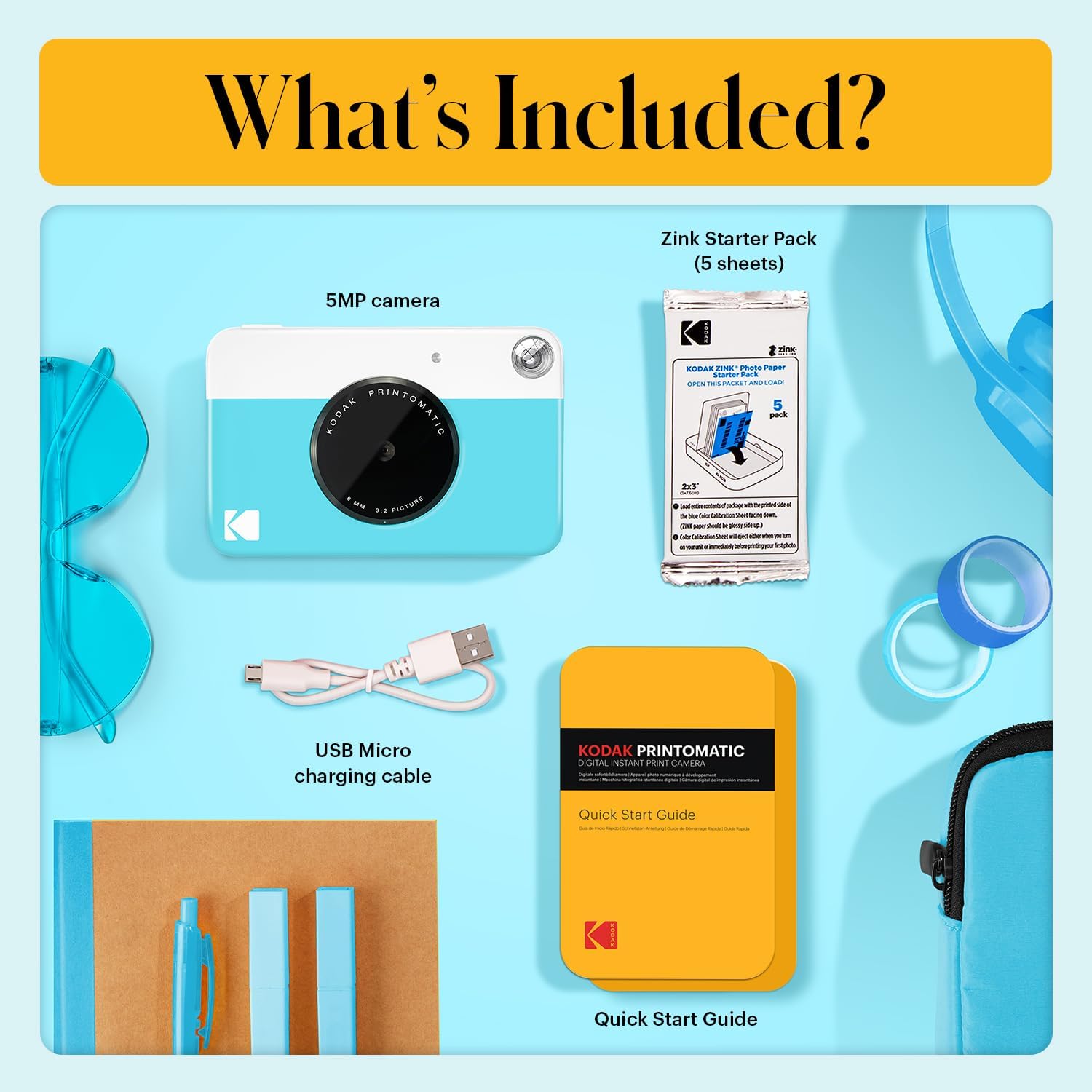
Umfanekiso 2: Izingxenye Ezihlanganisiwe
3. Setha
3.1 Ukushaja ikhamera
Before initial use, fully charge your KODAK Printomatic camera. Connect the provided USB Micro Charging Cable to the camera's charging port and plug the other end into a compatible USB power source (e.g., computer, wall adapter). The charging indicator light will illuminate during charging and turn off when fully charged.
3.2 Loading Zink Photo Paper
The Printomatic camera uses KODAK Zink Photo Paper. Each pack includes a blue calibration sheet. Ensure this sheet is loaded first, facing down, as it calibrates the printer for optimal color quality.
- Open the paper compartment door on the back of the camera.
- Insert a pack of KODAK Zink Photo Paper with the blue calibration sheet at the bottom, facing down. The glossy side of the photo paper should face up.
- Close the paper compartment door securely. The camera will automatically process the blue calibration sheet before printing your first photo.

Figure 3: Loading Photo Paper
3.3 Inserting a MicroSD Card (Optional)
To save digital copies of your photos, insert a MicroSD card (up to 32GB, not included) into the designated slot on the side of the camera. The camera will automatically save images to the card.
4. Ukusebenzisa Ikhamera
4.1 Ukuvula / Ukuvula
Press and hold the power button located on the top of the camera until the indicator light illuminates to turn the camera on. Repeat this action to turn the camera off.
4.2 Taking a Photo
Point the camera at your subject. The camera features an optical viewfinder for framing your shot. Press the shutter button firmly to capture a photo. The camera will automatically print the photo immediately after capture.
4.3 Automatic Printing
The KODAK Printomatic utilizes Zero Ink technology, meaning photos are printed directly onto the Zink paper without the need for ink cartridges. Once a photo is taken, it will automatically emerge from the side of the camera. The camera allows for continuous shooting even while a photo is being printed.

Figure 4: Photo Printing in Progress
4.4 Flash Operation
The camera is equipped with a built-in flash that automatically activates in low-light conditions to ensure proper exposure for your photos.
4.5 Adhesive-Backed Prints
All KODAK Zink Photo Paper prints are adhesive-backed. Simply peel off the backing to turn your photos into stickers, perfect for scrapbooks, journals, or decorating.

Figure 5: Adhesive-Backed Photo Feature
4.6 Saving Digital Copies
If a MicroSD card is inserted, the camera will automatically save a digital copy of each photo taken. You can later transfer these files to a computer or other device for storage or sharing.
Video 1: KODAK Printomatic Digital Instant Print Camera Overview by C&A Marketing, Inc.
Video 2: KODAK Printomatic Camera Demonstration by The Net Guy Reviews
5. Isondlo
5.1 Ukuhlanza Ikhamera
To maintain optimal performance and appearance, gently wipe the camera's exterior with a soft, dry cloth. Avoid using liquid cleaners or abrasive materials, as these can damage the surface or internal components.
5.2 Ukunakekelwa Kwebhethri
The camera contains a built-in lithium battery. For best battery life, avoid extreme temperatures and store the camera in a cool, dry place. Recharge the battery regularly, even if the camera is not in frequent use.
5.3 Photo Paper Storage
Store KODAK Zink Photo Paper in its original packaging in a cool, dry environment away from direct sunlight and humidity to preserve its quality and prevent damage.
6. Ukuxazulula izinkinga
If you encounter issues with your KODAK Printomatic camera, refer to the following common solutions:
- Ikhamera Ayivuli: Ensure the battery is fully charged. Connect the camera to a power source and allow it to charge for at least 30 minutes before attempting to power it on again.
- Poor Print Quality (Dull Colors, Blurry): Verify that the Zink Photo Paper is loaded correctly with the glossy side up and the blue calibration sheet was processed. Ensure there is adequate lighting when taking photos, as very dim or overly bright conditions can affect print quality.
- Paper Not Printing: Check if the paper compartment is empty or if the paper is jammed. Reload the paper pack, ensuring it is inserted correctly. If a jam occurs, gently open the compartment and remove any obstruction.
- Photos Not Saving to MicroSD: Confirm that a MicroSD card is properly inserted into the slot. Ensure the card is not full or corrupted. Try formatting the card (refer to the Quick Start Guide for instructions) or using a different MicroSD card.
7. Imininingwane
| Isici | Imininingwane |
|---|---|
| Ubukhulu bomkhiqizo | 5 x 1 x 3.5 amayintshi |
| Isisindo sento | 7.1 amakhilogremu |
| Inombolo Yemodeli Yento | RODOMATICBL |
| Amabhethri | 1 Amabhethri e-Lithium Polymer adingekayo (afakiwe) |
| Umkhiqizi | C&A Marketing Inc. |
| Isici Esikhethekile | Flash integrated |
| Uhlobo Lwefomethi Yefilimu | Instant (Zink Zero Ink) |
| Igama Lemodeli | Kodak Printomatic Instant Camera |
| Isivinini sokuvala esikhulu | 1/125s |
8. Iwaranti kanye Nokusekela
For detailed warranty information and customer support, please refer to the documentation included with your product or visit the official KODAK support webindawo. Gcina ubufakazi bakho bokuthenga banoma yiziphi izimangalo zewaranti.
You can find additional information and support resources on the KODAK Store on Amazon.


