1. Isingeniso
Welcome to the user manual for your Xfinity XR15 Voice Control Remote. This remote is designed to enhance your Xfinity X1 experience by providing intuitive control over your entertainment system. With its advanced voice command capabilities and user-friendly design, navigating your TV content has never been easier.

Umfanekiso 1: Ngaphambili view of the Xfinity XR15 Voice Control Remote.
2. Izici Eziyinhloko
- Ukulawulwa Kwezwi: Find content, change channels, and control your DVR using simple voice commands.
- Ikhiphedi yokukhanyisa emuva: Buttons illuminate automatically when the remote is moved, ideal for low-light environments.
- Aim Anywhere Feature: Operates without needing to be pointed directly at your TV Box.
- Ukubhangqa okuzenzakalelayo: Simplifies the setup process with compatible Xfinity equipment.
- Izici zokufinyeleleka: Easy access to Closed Captioning, video description, and voice guidance.
- TV Input Control: Manage your TV's input source directly from the remote.
3. Ukusetha nokumatanisa
3.1. Ukufakwa kwebhethri
The Xfinity XR15 remote requires two AAA batteries. To install:
- Thola indawo yebhethri ngemuva kwesilawuli kude.
- Slide the battery cover down and off.
- Faka amabhethri e-AAA amabili, uqinisekise i-polarity elungile (+ kanye -).
- Shelelisela ikhava yebhethri emuva endaweni ize ichofoze ngokuvikelekile.

Figure 2: Battery compartment location.
3.2. Ukubhanqa Okuzenzakalelayo
The XR15 remote is designed for automatic pairing with Xfinity X1 TV Boxes (Xi6, Xi5, XG2, X1). Simply ensure your TV Box is powered on and follow these general steps:
- Point the remote at your TV Box.
- Cindezela bese ubamba i I-Xfinity button (located below the directional pad) for 3-5 seconds.
- Follow any on-screen prompts that appear on your television.
- If prompted for a 3-digit pairing number, enter it even if it doesn't appear on screen.
The remote should automatically pair within a few minutes. If pairing is unsuccessful, ensure the remote is close to the TV and TV Box, and try again.
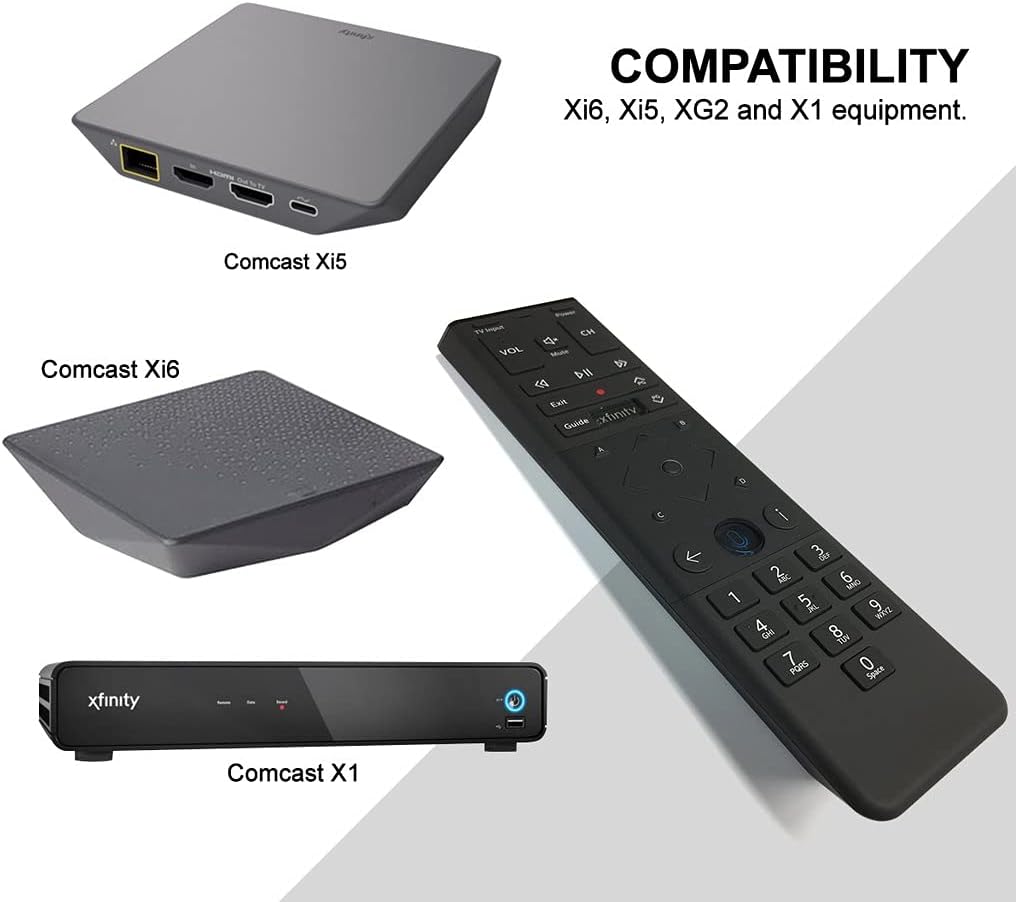
Figure 3: Compatible Xfinity TV Box models.
4. Imisebenzi Yenkinobho
The XR15 remote features a comprehensive set of buttons for controlling your TV and Xfinity services. Refer to the diagram below for a visual guide.

Figure 4: Xfinity XR15 Remote Button Layout.
| Inkinobho | Umsebenzi |
|---|---|
| Amandla | Turns the TV and TV Box on or off. |
| Okokufaka kwe-TV | Switches to the next available input on your TV. |
| I-VOL +/- | Inyusa noma yehlise ivolumu. |
| Thulisa | Turns sound off or on. |
| CH +/- | Selects the next or previous channel. |
| Dlala/Misa kancane | Plays or pauses live TV, Xfinity On Demand, or DVR content. |
| FF (Ukudlulisela phambili Ngokushesha) | Fast forwards Xfinity On Demand or DVR content. |
| Rew (Rewind) | Rewinds Xfinity On Demand or DVR content. |
| Phuma | Exits on-screen guides; stops and exits Xfinity On Demand and DVR content. |
| Record (red dot) | Records the current program or saves future programs to your DVR. |
| I-Xfinity | Displays the main menu of the guide, providing access to all guide features. |
| Umhlahlandlela | Displays TV listings. |
| Ulwazi (i) | Displays information about programs and notifications. |
| Emuva | Navigates back in menus or returns to previous screens. |
| Okhiye Bezinombolo (0-9) | Used for direct channel entry or predictive text (T9) for content search. |
5. Ukulawula Izwi
The voice control feature is a primary benefit of the XR15 remote. It allows you to quickly find content, change channels, and manage your DVR without typing.

Figure 5: Voice Control Button.
5.1. Using Voice Commands
- Cindezela bese ubamba i Ukulawulwa Kwezwi button (microphone icon) on the remote.
- Khuluma ngokucacile kumakrofoni etholakala phezulu kwesilawuli kude.
- Dedela inkinobho uma usuqedile ukukhuluma.
ExampImibhalo ye-Voice Commands:
- "Tune to CNN"
- "Thola ama-movie ezenzo"
- "Record this show"
- "What's on tonight?"
- "Launch Netflix"
6. Imininingwane
| Isibaluli | Imininingwane |
|---|---|
| Ubukhulu bomkhiqizo | 7 x 2 x 1 amayintshi |
| Isisindo sento | 3.52 amakhilogremu |
| Inombolo Yemodeli | 8541713007 |
| Kudingeka Amabhethri | 2 AAA amabhethri (afakiwe) |
| Amadivayisi Ahambisanayo | Xfinity X1 TV Boxes (Xi6, Xi5, XG2, X1) |
| Umbala | Mnyama |
| Isici Esikhethekile | Consolidated All Power and TV Power functionality |
7. Isondlo
7.1. Ukushintshwa Kwebhethri
When the remote's performance declines or the backlight feature becomes dim, it's time to replace the batteries. Follow the battery installation steps in Section 3.1.
7.2. Ukuhlanza
To clean your remote, use a soft, dry cloth. Avoid using liquid cleaners or abrasive materials, as these can damage the remote's surface or internal components.
8. Ukusekela
For further assistance, please refer to the official Xfinity support resources or contact Xfinity customer service. Detailed troubleshooting guides and additional information can be found on the Xfinity webindawo.