1. Isingeniso
This manual provides detailed instructions for the setup, operation, and maintenance of your Polk Audio Command Sound Bar. This sound bar system integrates Amazon Alexa voice control, offering a hands-free experience for controlling your home theater audio. It features 4K HDMI compatibility, multi-room music capabilities, and Polk's patented Voice Adjust technology for clear dialogue.
2. Yini EseBhokisini
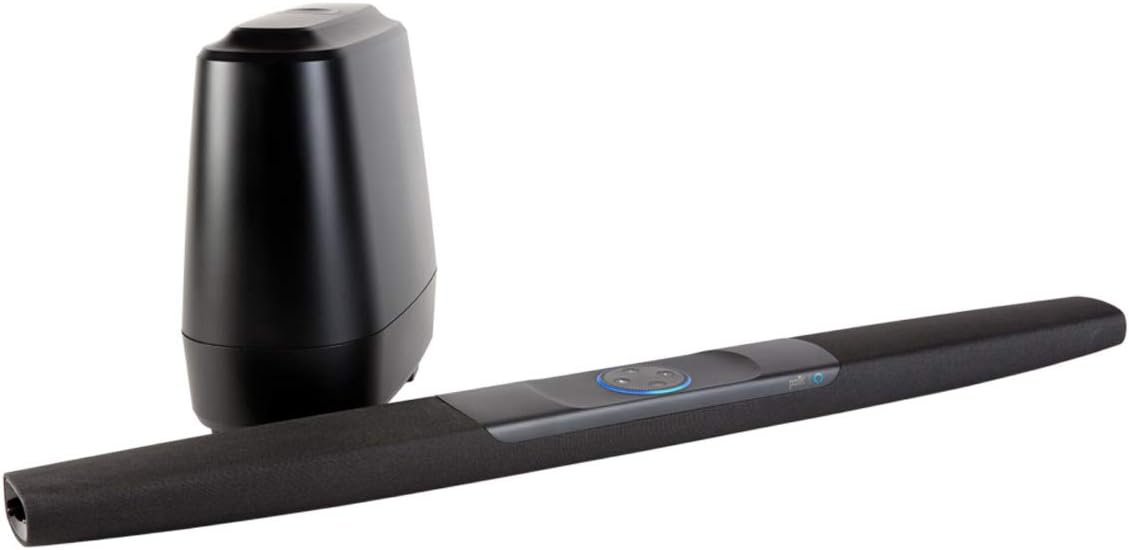
Upon unboxing your Polk Audio Command Sound Bar, ensure all components are present:
- Command Bar sound bar
- I-Wireless Subwoofer
- AAA Alkaline batteries (2)
- Sound bar power adapter with 6.5’ (2m) power cord
- Intambo yamandla ye-Subwoofer
- 6.5’ (2m) high-speed HDMI cable (4K compatible)
- 6' (1.8m) Ikhebuli yokubuka
- Sound bar wall-mount template
- Quick Start Guide
3. Setha
3.1 Ukuvula ibhokisi
To safely unbox your Command Bar, lay the product box on its side. Release the tabs and slide out the contents. All necessary components for setup are included within the packaging.

3.2 Ukuxhuma kumabonakude wakho
The Command Bar can be connected to your television using either an HDMI cable (recommended) or an Optical cable.
- I-HDMI ARC Connection (Kunconyiwe): Locate an HDMI input on your TV labeled "ARC" (Audio Return Channel). Connect one end of the provided HDMI cable to this port on your TV and the other end to the "TV (ARC) HDMI OUT" port on the Command Bar. HDMI ARC allows for high-quality multi-channel audio and enables control of the sound bar using your TV's remote via CEC (Consumer Electronics Control).
- Uxhumano Lokubona: If your TV does not have an HDMI ARC port, connect one end of the provided Optical cable to your TV's optical audio output and the other end to the "TV OPTICAL" input on the Command Bar.

For detailed information on your TV's HDMI ARC or CEC compatibility, consult your television's owner's manual.
3.3 Power Connection and Subwoofer Pairing
- Position the Command Bar and connect its power adapter to an AC outlet.
- Position the wireless subwoofer and connect its power cord to an AC outlet.
- Once both units are plugged in and powered on, the Command Bar and subwoofer should automatically pair within approximately 30 seconds.
- To verify successful pairing, check for a solid green "BAR SYNC" light on the back of the subwoofer. If the light is not solid green, refer to the Troubleshooting section or the Quick Start Guide for pairing instructions.


4. Iziqondiso Zokusebenza
4.1 Amazon Alexa Voice Control
The Polk Command Bar has Amazon Alexa built-in, allowing for hands-free control of various functions. To activate Alexa, simply say "Alexa" followed by your command. The light ring on the sound bar will illuminate to indicate Alexa is listening.
- Ukulawula ivolumu: "Alexa, turn up the volume," or "Alexa, set volume to 5."
- Ukudlala Umculo: "Alexa, play music," "Alexa, play [song/artist] on Amazon Music."
- Ukushintsha Okokufaka: "Alexa, switch to HDMI 1," or "Alexa, switch to TV optical."
- Ukulawula Ikhaya Elihlakaniphile: Control compatible smart home devices by linking them through the Alexa app.
Ensure your Command Bar is connected to your Wi-Fi network and linked to your Amazon account via the Alexa app for full functionality.
Video 4.1: An official Polk Audio video demonstrating the unboxing and setup process for the Command Sound Bar, including connecting to a TV and pairing the subwoofer.
4.2 Voice Adjust Technology
Polk's patented Voice Adjust technology allows you to customize voice levels to reproduce clear, crisp dialogue. This feature ensures you hear every word, even during action-packed scenes. Use the remote control or Alexa voice commands to adjust the Voice Adjust settings.
4.3 Multi-Room Music
With Amazon Multi-Room Music, you can play and control your music across multiple Amazon devices, including your Polk Command Bar. Group compatible devices in the Alexa app to enjoy synchronized audio throughout your home.
4.4 HDMI CEC Functionality
If connected via HDMI ARC, the Command Bar supports CEC (Consumer Electronics Control). This feature allows your TV remote to control basic functions of the sound bar, such as volume and mute. It also disables your TV's internal speakers and provides an on-screen volume graphic when adjusting the sound bar's volume.
5. Ukuxazulula izinkinga
| Inkinga | Imbangela Engenzeka | Isixazululo |
|---|---|---|
| Awukho umsindo ovela kubha yomsindo. | Incorrect input selected, volume too low, cables not connected properly. |
|
| Subwoofer not pairing. | Subwoofer not powered on, out of range, pairing issue. |
|
| Alexa not responding or connecting to Wi-Fi. | No internet connection, incorrect Alexa setup, microphone muted. |
|
| Izinga lomsindo elibi noma ukuhlanekezelwa. | Incorrect audio settings, speaker placement, source quality. |
|
Video 5.1: An official Polk Audio "How-to" video providing guidance on various functions and troubleshooting tips for the Polk Command Bar.
6. Imininingwane
| Isici | Imininingwane |
|---|---|
| Igama Lemodeli | AM9640 |
| Ibhrendi | Umsindo wePolk |
| Uhlobo lwesipika | Zungeza |
| Isici Esikhethekile | I-Subwoofer |
| Ukusetshenziswa Okunconyiwe | Umculo, Ithiyetha Yasekhaya |
| Amadivayisi Ahambisanayo | Umabonakude |
| Ububanzi be-Subwoofer | 6 amayintshi |
| Ukucushwa Kwesiteshi Somsindo Esizungezile | 2.1 |
| Umbala | Mnyama |
| Ubukhulu bomkhiqizo | 4"D x 43.3"W x 2.1"H |
| Isisindo sento | 4.95 Amakhilogremu |
| Indlela Yokulawula | Izwi |
| I-Wireless Communication Technology | I-Bluetooth |
| Umthombo wamandla | I-Corded Electric |
| Amandla Okukhipha Isipikha aphezulu | 260 Watts |
| Impendulo Yemvamisa | 22000 Hz |
| Ubuchwepheshe bokuxhumana | I-HDMI, i-Optical |
| I-UPC | 747192129606 |

7. Iwaranti kanye Nokusekela
The Polk Audio Command Sound Bar comes with a Limited Warranty. For specific warranty terms, conditions, and duration, please refer to the warranty card included in your product packaging or visit the official Polk Audio webindawo.
For technical support, product registration, or further assistance, please visit the Polk Audio Store on Amazon noma isikhulu sabo webindawo.


