1. Isingeniso
The BroadLink RM4 Pro is a versatile IR/RF universal remote control designed to integrate and manage various smart home and entertainment devices. It supports both Infrared (IR) and Radio Frequency (RF 433MHz) controlled appliances, allowing you to consolidate control of your TV, set-top box, air conditioner, fans, curtain motors, and more through a single application on your smartphone or via voice commands.
This manual provides detailed instructions for setting up, operating, maintaining, and troubleshooting your BroadLink RM4 Pro to ensure optimal performance and a seamless smart home experience.
2. Umkhiqizo Uphelileview

Figure 2.1: BroadLink RM4 Pro Device. This image shows the compact, black, oval-shaped BroadLink RM4 Pro universal remote with a subtle blue LED indicator on the front, designed to blend seamlessly into any home environment.

Figure 2.2: App Remote Control. A user is shown controlling an air conditioner remotely via the BroadLink app on their smartphone, illustrating the convenience of managing appliances from anywhere.

Figure 2.3: IR and RF Appliance Integration. This diagram highlights the BroadLink RM4 Pro's ability to integrate various IR (TV, STB, Air Conditioner, Audio Equipment, RF Fan, DVD Player) and RF (Electric Curtain, Electric Roller Blind, RF Light Switch, RF Light) appliances for full home automation.

Figure 2.4: Schedule Control. The image depicts the scheduling capability of the RM4 Pro, allowing users to set specific times for actions, such as turning on a TV to a particular channel at 2:00 PM.

Figure 2.5: BroadLink RM4 Pro with USB Cable and Sensor. Lesi sithombe sihlinzeka ngemininingwane view of the RM4 Pro unit, its micro USB power input, and the reset button. It also shows the included USB cable which can support an external temperature and humidity sensor (sold separately).
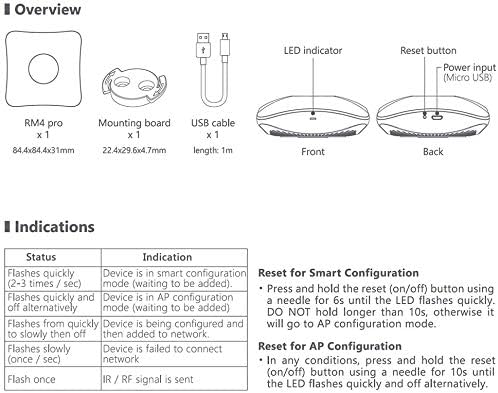
Figure 2.6: BroadLink RM4 Pro Overview. A diagram illustrating the components included with the RM4 Pro: the device itself, a mounting board, and a USB cable. It also details the LED indicator and reset button functions.
3. Umhlahlandlela wokusetha
Follow these steps to set up your BroadLink RM4 Pro universal remote.
3.1. Ukunika amandla Idivayisi
Connect the provided USB cable to the micro USB port on the RM4 Pro. Plug the other end of the USB cable into a 5V 1A (or 5V 2A) USB power adapter (not included). The device will power on, and the LED indicator will begin to flash.
3.2. Ukufakwa kohlelo lokusebenza
Download the latest BroadLink App from the App Store (for iOS) or Google Play Store (for Android). Cinga "BroadLink" or "BroadLink - Universal TV Remote".

Figure 3.1: BroadLink App. Screenshot of the BroadLink App download page in an app store.
3.3. Device Connection (Wi-Fi)
- Open the BroadLink App and sign in or create a new account.
- Tap "+" on the top right corner and choose "Add device". The app will start scanning for devices.
- Choose your home Wi-Fi network (2.4 GHz kuphela) and enter the password. The RM4 Pro does not support 5 GHz Wi-Fi networks. If you have a dual-band router, temporarily disable the 5 GHz band during setup if you encounter connection issues.
- Tap "Connect to Wi-Fi". The LED indicator on the RM4 Pro will flash slower and then turn off once successfully connected.
- Choose a room and name your device for easy identification.

Figure 3.2: Wi-Fi Setup. This image shows the BroadLink app interface for connecting the device to a 2.4 GHz Wi-Fi network, emphasizing the need to select the correct frequency.
3.4. Adding IR/RF Appliances
After connecting the RM4 Pro to your Wi-Fi network, you can start adding your appliances.
- In the app, tap "Add appliances".
- Choose the type of appliance (e.g., TV, A/C, STB) and its brand. The app will attempt to find a matching code from its cloud library.
- If your brand or model is not found, you can use the "Learn button" or "Continue match" options to manually teach the RM4 Pro commands from your original remote.
- For IR code learning, aim your appliance remote control at the RM4 Pro. Wait for the device LED indicator to light up, then briefly press the remote button you want to learn.
- For RF appliances, follow the specific instructions in the app for RF code learning, which may involve pressing buttons multiple times or for a longer duration.

Figure 3.3: Adding Appliances. The BroadLink app interface displaying various appliance categories (TV, STB, A/C, Fan, etc.) for adding and controlling via IR and RF signals.
4. Iziqondiso Zokusebenza
Once your devices are set up, you can control them using the BroadLink App or voice commands.
4.1. Ukulawulwa kohlelo lokusebenza
The BroadLink App provides a virtual remote interface for each added appliance. You can power devices on/off, change channels, adjust volume, set temperatures, and perform other functions just as you would with their original remote controls. The app also allows for creating custom scenes and routines.
4.2. Ukulawula Izwi (i-Alexa ne-Google Home)
The RM4 Pro is compatible with Amazon Alexa and Google Home for voice control. To enable this feature:
- Vula uhlelo lokusebenza lwe-Alexa noma lwe-Google Home.
- Enable the "BroadLink" skill/service.
- Link your BroadLink account with your Alexa/Google Home account.
- Discover devices. Your configured appliances from the BroadLink App should now appear in your voice assistant app.
You can then use voice commands such as: "Alexa, turn on TV" or "Hey Google, set A/C to 24 degrees."

Figure 4.1: Voice Control. A user interacting with an Alexa device to control an IR appliance, demonstrating seamless voice integration with the BroadLink RM4 Pro.
4.3. Ukuhlela kanye Nemisebenzi
Create schedules and routines within the BroadLink App or your voice assistant app to automate your devices. For example, you can set your air conditioner to turn on before you arrive home or schedule your curtains to open at sunrise.
4.4. Ukuqapha izinga lokushisa nokuswakama
If you have purchased the external Temperature and Humidity Sensor USB Cable (sold separately), connect it to the RM4 Pro. The BroadLink App will then display real-time room temperature and humidity, allowing for more intelligent automation based on environmental conditions.
5. Isondlo
To ensure the longevity and optimal performance of your BroadLink RM4 Pro, follow these maintenance guidelines:
- Ukuhlanza: Use a soft, dry cloth to wipe the device. Avoid using liquid cleaners or aerosols, as they may damage the device.
- Ukubekwa: Place the RM4 Pro in a central location within the room where it can have a clear line of sight to IR-controlled devices. Avoid placing it behind obstacles or in direct sunlight.
- Ukuvuselelwa kwe-Firmware: Regularly check for and install firmware updates through the BroadLink App. Updates often include performance improvements, bug fixes, and new features.
- Ukunikezwa kwamandla kagesi: Always use a stable 5V 1A/2A USB power adapter. Unstable power can affect device performance and lifespan.
6. Ukuxazulula izinkinga
If you encounter issues with your BroadLink RM4 Pro, refer to the following common troubleshooting steps:
- Idivayisi Ayixhumi ku-Wi-Fi:
- Ensure your Wi-Fi network is 2.4 GHz. The RM4 Pro does not support 5 GHz networks.
- Qinisekisa ukuthi iphasiwedi yakho ye-Wi-Fi ilungile.
- Try temporarily disabling the 5 GHz band on your router during the setup process.
- Move the RM4 Pro closer to your Wi-Fi router.
- Perform a factory reset on the RM4 Pro (refer to Figure 2.6 for reset button location) and attempt setup again.
- IR/RF Commands Not Working:
- Ensure the RM4 Pro has a clear line of sight to the IR-controlled appliance.
- During the learning process, ensure the original remote is aimed directly at the RM4 Pro and pressed firmly.
- Verify the frequency of your RF device (RM4 Pro supports 433MHz). Some older or specialized RF devices may use different frequencies (e.g., 308MHz, 868MHz) or rolling codes, which are not supported.
- Re-learn the problematic commands if they are not consistently working.
- Izinkinga zokulawula Izwi:
- Confirm that the BroadLink skill/service is enabled and linked correctly in your Alexa/Google Home app.
- Ensure your devices are discovered by the voice assistant.
- Hlola uxhumano lwakho lwe-inthanethi.
7. Imininingwane
| Isici | Ukucaciswa |
|---|---|
| Inombolo Yemodeli | RM4 Pro |
| Ubukhulu bomkhiqizo | 4.33 x 4.33 x 1.18 amayintshi |
| Isisindo sento | 5 amakhilogremu |
| Ubuchwepheshe bokuxhumana | Infrared, Radio Frequency 433 MHz, Wi-Fi (2.4 GHz Only) |
| Inombolo Ephezulu Yamadivayisi Asekelwe | 18 |
| Amadivayisi Ahambisanayo | Television, STB, Air Conditioner, Fan, Video Recorder, DVD, Curtain Motor, Light Switch, etc. |
| Okokufaka Amandla | 5V 1A/2A (USB Micro-B) |
| Umkhiqizi | Inkampani Hangzhou BroadLink Technology Co., Ltd. |
| Usuku Lokuqala Olutholakalayo | Agasti 24, 2017 |
8. Iwaranti kanye Nokusekela
BroadLink offers a Iwaranti Yonyaka owodwa for the RM4 Pro. For technical assistance, you can access 24/7 Technical Support. Video guides are available on the BroadLink Amazon Brand Store and YouTube channels.
You can also find the Global Hotline on the product manual (PDF) or get help and provide feedback directly through the BroadLink Community within the App.
For additional resources, please refer to the official user guide: BroadLink RM4 Pro User Guide (PDF)


