1. Isingeniso
This manual provides essential information for the installation, operation, and maintenance of your Western Digital 1TB 3.5" SATA HDD (Model WD10EZEX). This internal hard drive is designed for desktop PC and Mac systems, offering reliable storage and performance for various applications.

Umfanekiso 1: Phezulu view of the Western Digital 1TB 3.5" SATA Hard Drive.
2. Ulwazi Lokuphepha
Observe the following safety guidelines to prevent damage to the drive or personal injury:
- Njalo phatha i-hard drive ngasemaphethelweni ayo ukuze ugweme ukuthinta ibhodi yesekethe noma izixhumi.
- Ensure proper grounding to prevent electrostatic discharge (ESD) when handling the drive. Use an anti-static wrist strap.
- Disconnect power from your computer before installing or removing the hard drive.
- Gwema ukubeka idrayivu emazingeni okushisa aphezulu, umswakama, noma ilanga eliqondile.
- Ungawisi noma ubangele ukushaqeka ngokomzimba.
3. Okuqukethwe Kwephakheji
Iphakheji yakho kufanele iqukathe into elandelayo:
- Western Digital 1TB 3.5" SATA HDD (Model WD10EZEX)
Note: SATA data cables, power cables, and mounting screws are typically sold separately and are not included with this OEM drive.
4. Setha
4.1. Uhlu Lokuhlola Lokufaka ngaphambilini
- A desktop computer with an available 3.5-inch drive bay.
- A SATA data cable.
- An available SATA power connector from your power supply.
- Mounting screws (typically M3 or 6-32 UNC).
- I-screwdriver yekhanda le-Phillips.
- Anti-static wrist strap (recommended).
4.2. Ukufakwa ngokomzimba
- Cisha ugesi: Shut down your computer and disconnect the power cord from the wall outlet.
- Vula Ikesi: Susa amaphaneli aseceleni ekesi lekhompyutha yakho ukuze ufinyelele izingxenye zangaphakathi.
- Izindawo zokuhlala ezengeziwe e-Drive Bay: Identify an available 3.5-inch drive bay. Some cases may require a drive caddy.
- I-Mount Drive: Slide the hard drive into the drive bay or caddy. Secure it with mounting screws on both sides.
- Xhuma Amakhebuli:
- Connect one end of the SATA data cable to the smaller port on the hard drive and the other end to an available SATA port on your motherboard.
- Connect a SATA power cable from your power supply to the larger port on the hard drive.
- Vala Ikesi: Replace the computer case side panel(s) and reconnect the power cord.

Umfanekiso 2: Phansi view of the hard drive, showing the SATA data and power connectors.
4.3. Initial Software Setup (Windows/macOS)
After physical installation, the drive needs to be initialized and formatted by your operating system:
- Vula: Start your computer.
- Access Disk Management (Windows): Right-click on the Start button, select "Disk Management".
- Qalisa Idiski: Locate your new WD10EZEX drive (it may appear as "Unallocated Space"). Right-click on it and select "Initialize Disk". Choose MBR (Master Boot Record) for drives up to 2TB or GPT (GUID Partition Table) for drives larger than 2TB (though this 1TB drive can use either, GPT is more modern).
- Dala Ivolumu Entsha Elula: Right-click on the unallocated space, select "New Simple Volume". Follow the wizard to assign a drive letter and format the drive (NTFS for Windows).
- Okwe-macOS: Open "Disk Utility", select the new drive, and use the "Erase" function to format it (e.g., APFS or Mac OS Extended).
For migrating an existing operating system to this new drive, Western Digital offers Acronis True Image Edition software for free download. This software enables you to copy all your data, including the operating system, to the new drive without reinstalling.
5. Ukusebenzisa i-Hard Drive
Once installed and formatted, your WD10EZEX drive will function as a standard storage device. You can use it for:
- Storing documents, photos, videos, and other personal files.
- Installing applications and games.
- Creating backups of your primary drive.
The 7200 RPM rotational speed and SATA 6Gb/s interface ensure efficient data transfer and responsive performance for everyday computing tasks.
6. Isondlo
To ensure the longevity and optimal performance of your hard drive, consider the following maintenance tips:
- Izipele Ezivamile: Periodically back up important data to another storage device or cloud service.
- Disk Defragmentation (HDD only): For Windows users, run Disk Defragmenter occasionally to optimize file arrangement. SSDs do not require defragmentation.
- Gada Ezempilo: Use disk utility software (e.g., CrystalDiskInfo, WD Drive Utilities) to monitor the drive's S.M.A.R.T. (Self-Monitoring, Analysis and Reporting Technology) status for early detection of potential issues.
- Zigcine Upholile: Qinisekisa ukuthi umoya ugeleza ngokwanele ngaphakathi kwekhava yekhompyutha yakho ukuze uvimbele ukushisa ngokweqile.
- Gwema Ukushaqeka Okungokomzimba: Hard drives are mechanical devices; avoid moving the computer while it is operating or subjecting it to sudden impacts.
7. Ukuxazulula izinkinga
7.1. Drive Not Detected
- Hlola yonke idatha ye-SATA noxhumo lwekhebula lamandla ukuze uqinisekise ukuthi luvikelekile.
- Verify that the drive is properly seated in its bay.
- Check your computer's BIOS/UEFI settings to ensure the SATA port is enabled and the drive is recognized.
- Ensure the drive has been initialized and formatted in Disk Management (Windows) or Disk Utility (macOS).
7.2. Ukusebenza Kanensa
- Ensure your SATA data cable is connected to a SATA 6Gb/s port on your motherboard for optimal speed.
- Hlola izinqubo zangemuva ezisebenzisa izinsiza zediski.
- Run disk defragmentation (Windows) if the drive is heavily fragmented.
- Verify the drive's health using S.M.A.R.T. monitoring tools.
7.3. Unusual Noises
- Clicking, grinding, or repetitive noises can indicate a failing drive. Back up your data immediately and consider replacing the drive.
- A slight hum or whirring sound is normal for mechanical hard drives.
8. Imininingwane
| Isici | Incazelo |
|---|---|
| Inombolo Yemodeli | I-WD10EZEX |
| Amandla | 1 TB |
| Isixhumi esibonakalayo | I-SATA 6 Gb/s |
| I-Form Factor | 3.5 amayintshi |
| Isivinini sokujikeleza | 7200 RPM |
| Inqolobane | 64 MB |
| Ubukhulu (LxWxH) | 5.69 x 3.92 x 0.89 amayintshi |
| Isisindo sento | 15.9 amakhilogremu |
| I-Hardware Platform | PC |
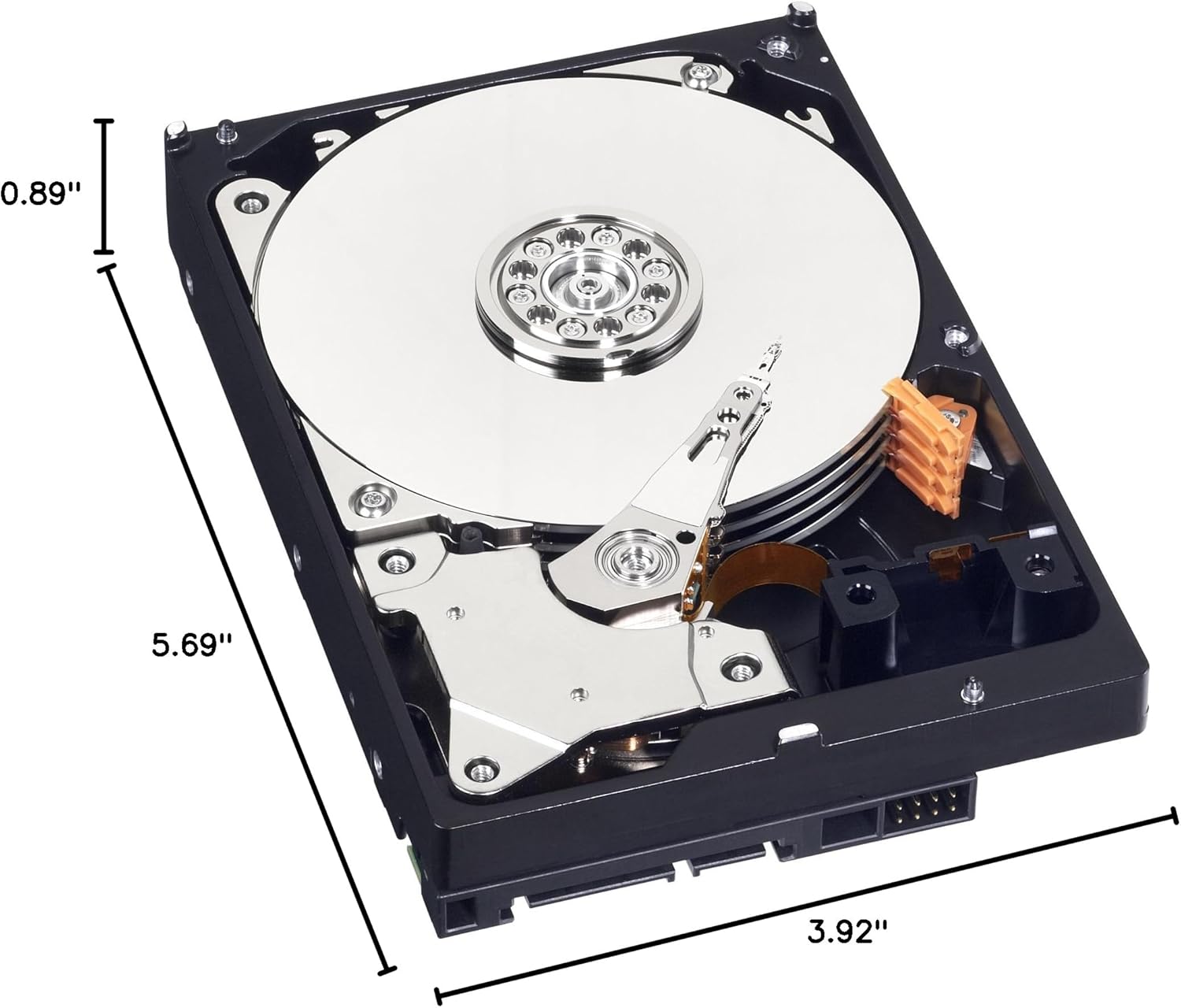
Figure 3: Dimensions of the Western Digital 1TB 3.5" SATA Hard Drive.
9. Iwaranti kanye Nokusekela
For warranty information and technical support, please refer to the official Western Digital webisayithi noma uxhumane nesevisi yabo yamakhasimende. Gcina ubufakazi bakho bokuthenga ngezimangalo zewaranti.