1. Isingeniso
The HyperX Cloud Pro Gaming Headset is engineered for serious console and PC gamers, offering superior comfort and audio performance. Featuring a durable aluminum frame, memory foam ear cushions, and 53mm drivers, this headset delivers crystal clear highs, mids, and lows. The convenient in-line audio control provides easy access to volume adjustments and microphone muting, ensuring an immersive gaming experience.
2. Okuqukethwe Kwephakheji
- HyperX Cloud Pro Gaming Headset
- Imakrofoni Esusa Umsindo Esusekayo
- In-line Audio Control Box
- PC Extension Cable (2M) with Stereo and Mic Plugs
- Ephethe Isikhwama

Image: All components included with the HyperX Cloud Pro Gaming Headset.
3. Umkhiqizo Uphelileview
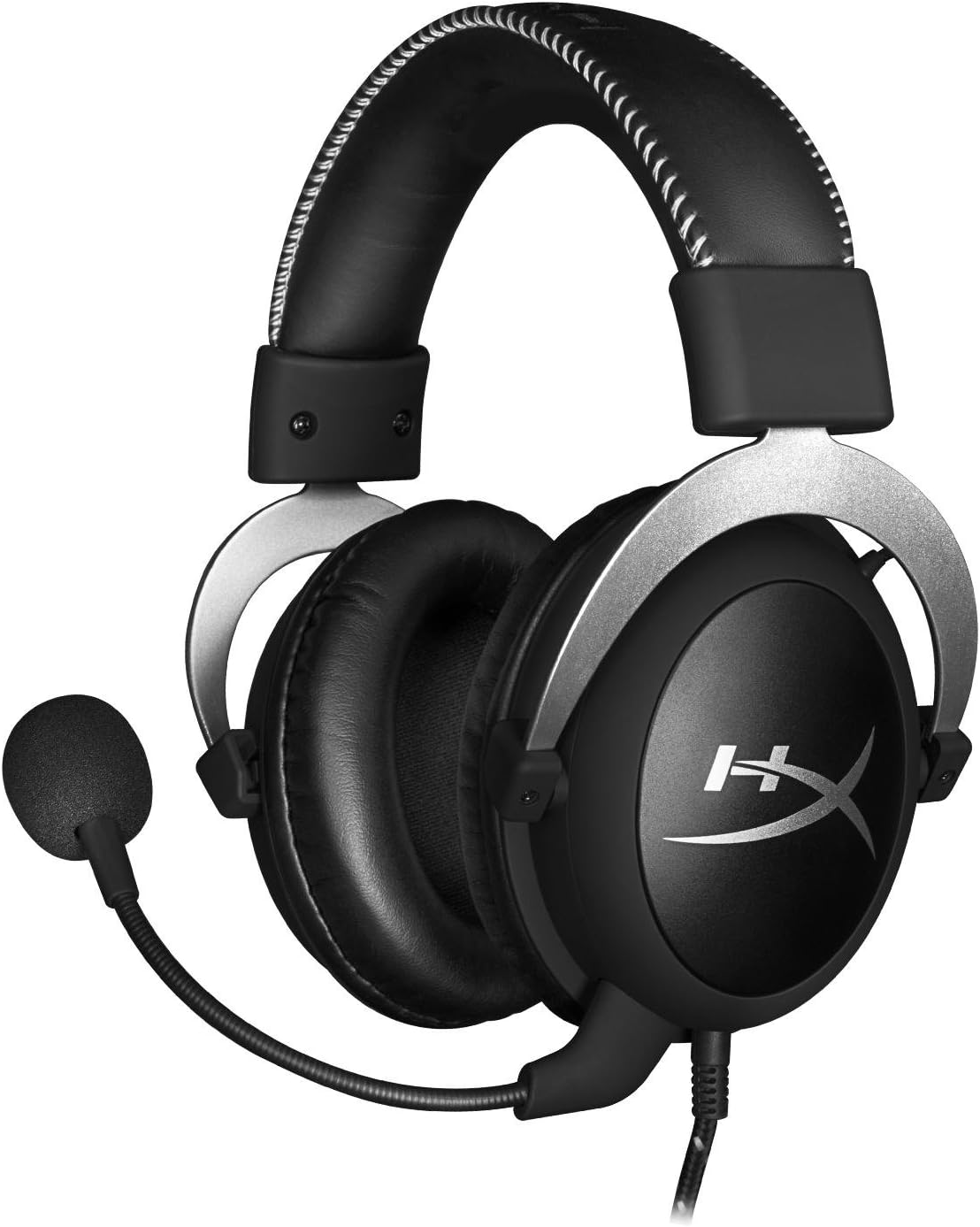
Ngaphambili view of the headset with microphone.
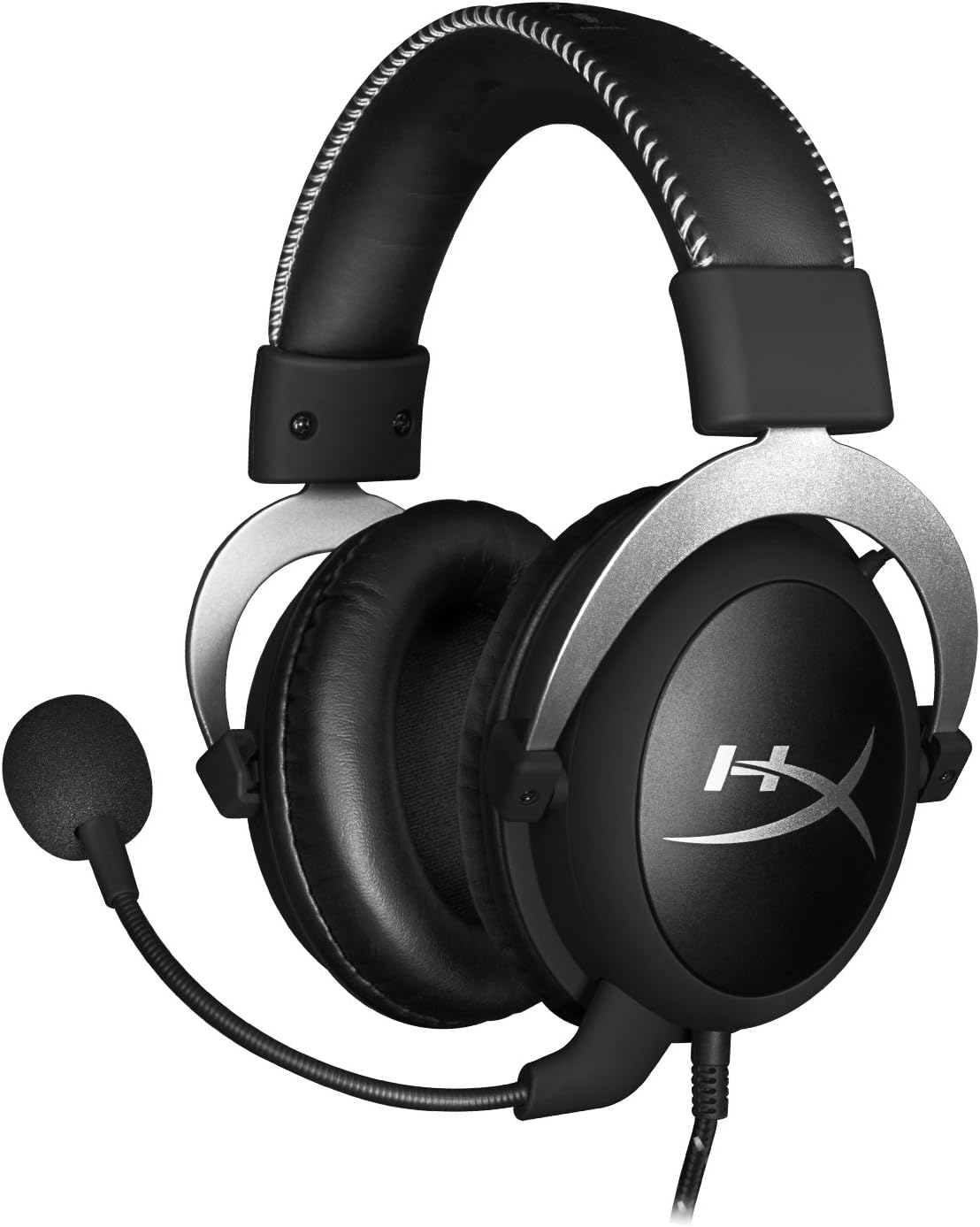
Side view kwehedisethi.

Headset folded flat for storage.

Phezulu view of the headband.
Izingxenye Ezibalulekile:
- Ibhande lasekhanda: Padded with leatherette for comfort during extended use.
- Ear Cups: Over-ear design with memory foam cushions, providing passive noise isolation.
- Imakrofoni Ekhiphekayo: Flexible, noise-cancelling microphone for clear communication.
- In-line Audio Control: Integrated unit on the cable for volume adjustment and microphone mute.
4. Isethaphu kanye Noxhumano
4.1 Ukuxhumana kwe-PC
- Connect the headset's 3.5mm plug to the in-line audio control box.
- Attach the PC extension cable to the in-line audio control box.
- Plug the green audio jack of the extension cable into your PC's audio output (headphone) port.
- Plug the pink microphone jack of the extension cable into your PC's microphone input port.
- Ensure the detachable microphone is securely inserted into the headset's microphone port.
4.2 Console Connection (PS4, Xbox One, Wii U)
- Connect the headset's 3.5mm plug directly into your console controller's 3.5mm port.
- Ensure the detachable microphone is securely inserted into the headset's microphone port.
- Adjust audio settings on your console as needed to route chat and game audio through the headset.
4.3 Ukuxhumana Kwedivayisi Yeselula
- Connect the headset's 3.5mm plug directly into your mobile device's 3.5mm audio jack.
- The microphone can be attached for calls or detached if not needed.

Image: In-line audio control unit.
5. Iziqondiso Zokusebenza
5.1 Ukulawula ivolumu
The in-line audio control features a rotary volume wheel. Rotate the wheel upwards to increase volume and downwards to decrease volume. This adjusts the headset's output volume independently of your device's master volume.
5.2 Thulisa imakrofoni
A switch on the in-line audio control allows you to quickly mute or unmute the microphone. Slide the switch to the 'Mute' position to disable the microphone, and slide it back to enable it. This is useful for privacy or when you do not wish your voice to be transmitted.
6. Isondlo Nokunakekela
- Ukuhlanza: Sebenzisa indwangu ethambile neyomile ukusula i-headset. Ukuze uthole imicamelo yendlebe, faka i-d encaneamp cloth can be used, but ensure they are completely dry before use. Avoid harsh chemicals or abrasive cleaners.
- Isitoreji: When not in use, store the headset in the provided carrying pouch to protect it from dust and scratches. Avoid extreme temperatures and humidity.
- Ukunakekelwa Kwekhebula: Do not excessively bend or pull the cables. Store them neatly to prevent tangling and damage.
7. Ukuxazulula izinkinga
| Inkinga | Imbangela Engenzeka | Isixazululo |
|---|---|---|
| Awukho umsindo ovela kumahedisethi | Incorrect connection; Volume too low; Device audio settings. | Ensure all cables are securely connected. Increase volume using the in-line control and device settings. Verify audio output settings on your PC/console. |
| Imakrofoni ayisebenzi | Microphone muted; Incorrect connection; Device microphone settings. | Check the microphone mute switch on the in-line control. Ensure the microphone is fully inserted. Verify microphone input settings on your PC/console. |
| Ikhwalithi yomsindo ephansi / I-Static | Loose connection; Interference; Damaged cable. | Reconnect all cables. Test on another device to rule out interference. If issues persist, the cable may be damaged. |
| Headset uncomfortable | Ukulingana okungalungile. | Adjust the headband for a comfortable fit. The memory foam ear cushions are designed for extended comfort. |
8. Imininingwane Yezobuchwepheshe
- Igama Lemodeli: HyperX Cloud Pro Gaming Headset - Silver - with In-Line Audio Control
- Inombolo Yemodeli: HX-HSCL-SR/NA
- Ukuxhumana: Intambo (i-Jack engu-3.5mm)
- Abashayeli: 53mm Abashayeli Abanamandla
- Impendulo esuka ku Frequency: 15 Hz - 25 kHz
- Okubalulekile: Foam, Aluminum, Leather
- Isisindo Sento: 0.6 Kilogram (1.32 pounds)
- Amadivayisi Ahambisanayo: PS5, PS4, Xbox One, Wii U, Mac, Mobile Devices, PC
- Uhlobo Lokulawula: Volume Control, Microphone Mute
- Ukulawula umsindo: Ukukhansela Umsindo Okusebenzayo (Imakrofoni)
9. Iwaranti kanye Nokusekela
The HyperX Cloud Pro Gaming Headset is backed by a Iwaranti yonyaka ongu-2. For technical support or warranty claims, please contact HyperX customer service. You can also refer to the official Incwadi Yomsebenzisi (PDF) ukuze uthole ulwazi olwengeziwe.


