1. Umkhiqizo Uphelileview
The Brinno BCC200-BLE is a specialized time-lapse camera system designed for indoor construction and remodeling projects. It features a High Dynamic Range (HDR) camera for optimal image quality in varying light conditions and is controlled wirelessly via a Bluetooth remote controller with a 2.8-inch touch panel. This system allows for flexible scheduling and easy management of your time-lapse recordings.

Image 1.1: The Brinno BCC200-BLE Time Lapse Camera (left) and its dedicated Bluetooth Remote Controller (right).

Isithombe 1.2: Phezuview of the camera's key features, including HDR imaging, 2.8" touch panel, ready-to-view time-lapse video, flexible schedule setup, IPX4 weather resistance, and multilingual user interface.
2. Okuqukethwe Kwephakheji
Qinisekisa ukuthi zonke izinto ezibalwe ngezansi zifakiwe kuphakheji yakho:
- Brinno Time Lapse Camera (TLC200PRO-BLE)
- Bluetooth Remote Controller (ARC1000)
- Hand Rope and Hook (for controller)
- Ikhadi le-SD
- AA Batteries (for camera)
- Ikhebula le-Micro USB
3. Ukusetha Kwasekuqaleni
3.1. Ukufakwa kwebhethri
- Open the battery compartment on the Brinno Time Lapse Camera.
- Insert the provided AA batteries, ensuring correct polarity (+/-).
- Vala indawo yebhethri ngokuphephile.
3.2. Ukufakwa kwekhadi le-SD
- Thola indawo yekhadi le-SD kukhamera.
- Insert the provided SD card into the slot until it clicks into place. Ensure the card is oriented correctly.
- Ukuze ulikhiphe, phushela ikhadi ngobumnene lize liphume.
3.3. Ivula amandla
Press and hold the power button on the camera until the indicator light illuminates. Similarly, power on the Bluetooth Remote Controller.
3.4. Connecting the Remote Controller
The camera and controller are designed to pair automatically via Bluetooth 4.0 when both devices are powered on and within range (up to 33 feet). The controller's screen will display the camera's status once connected.
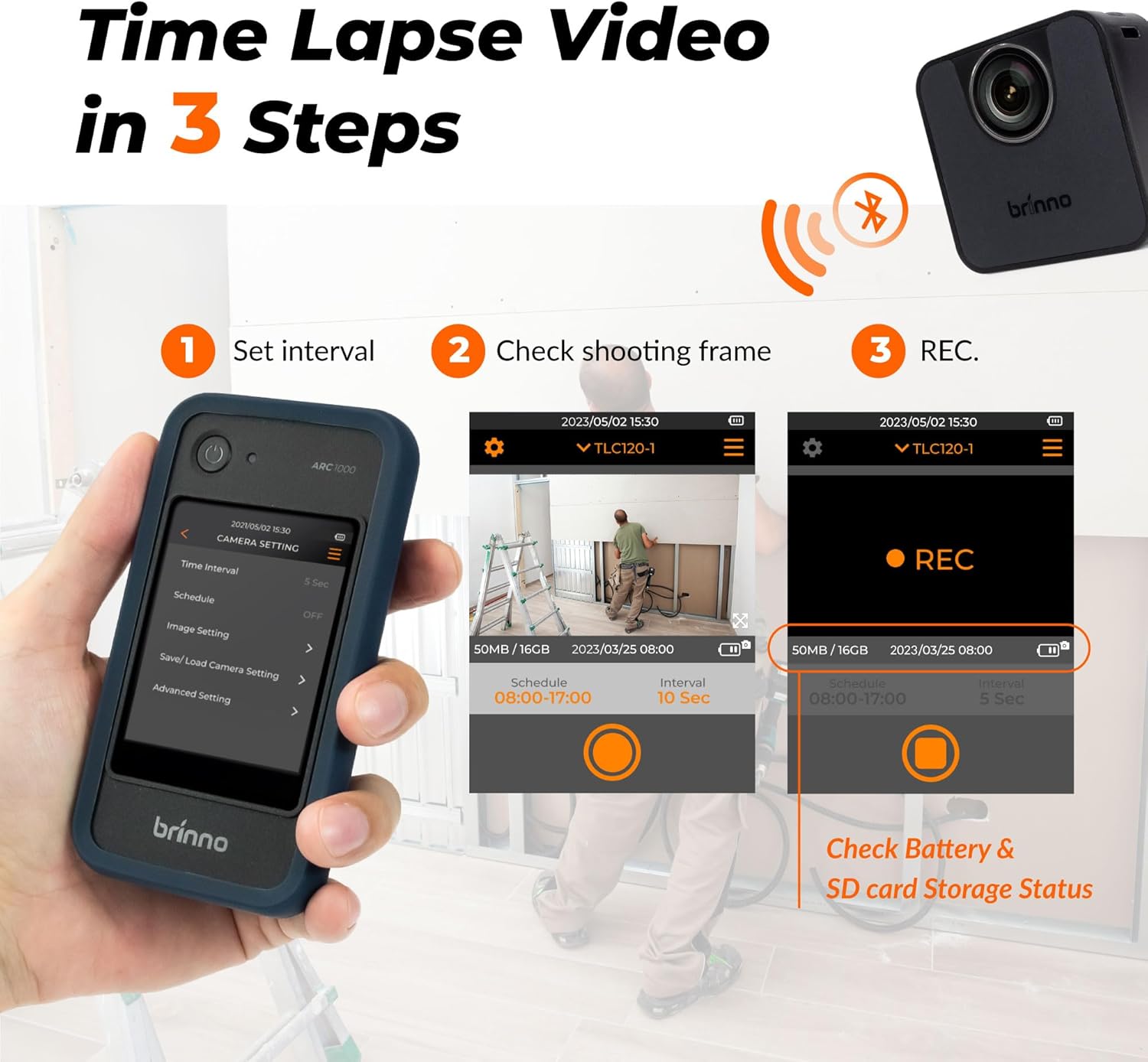
Image 3.1: The three-step process for time-lapse video creation: 1. Set interval on the controller, 2. Check shooting frame via live preview, 3. Initiate recording (REC). The controller also displays battery and SD card storage status.
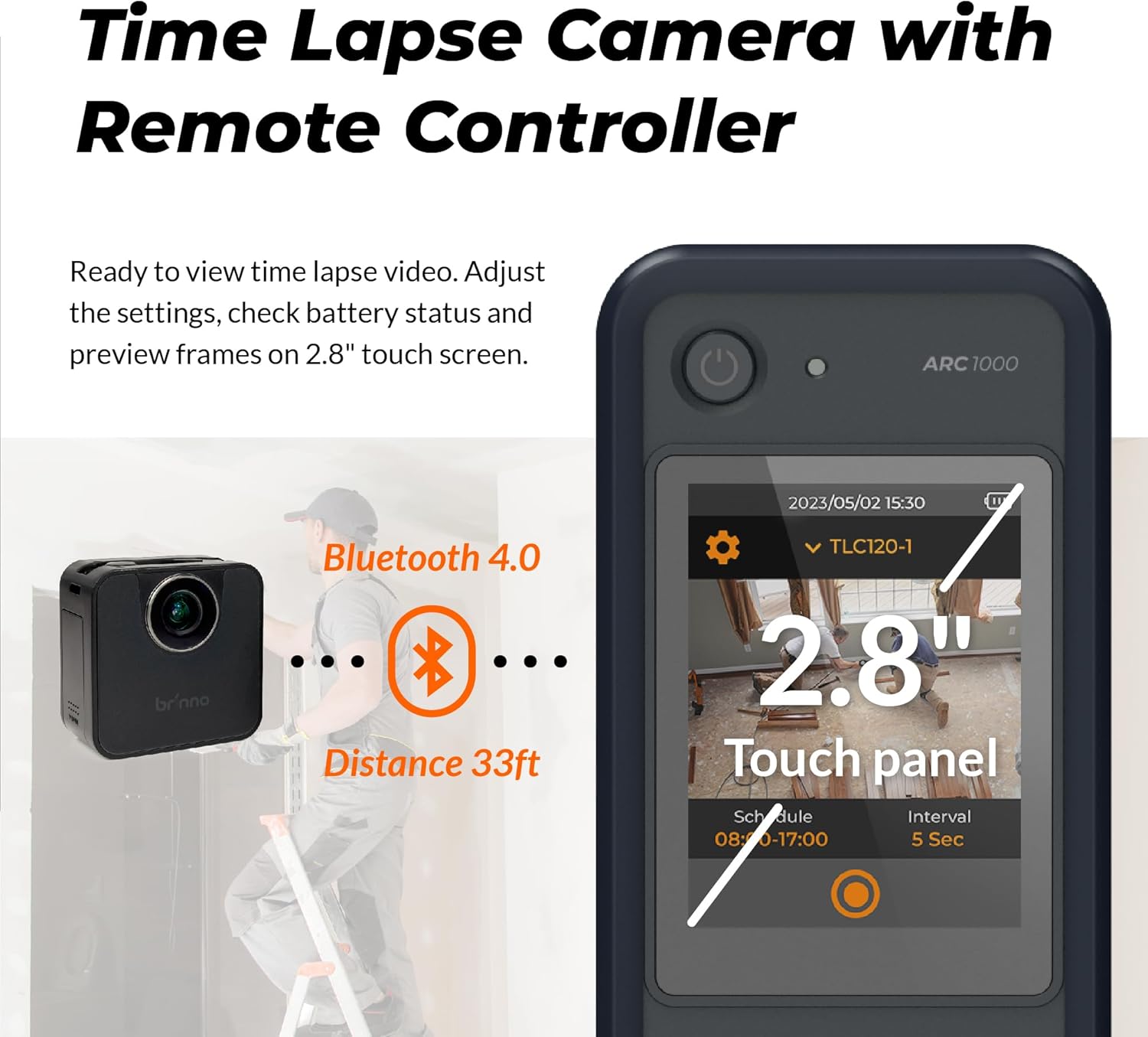
Image 3.2: Illustration of the Bluetooth 4.0 connection between the camera and controller, indicating a maximum effective distance of 33 feet.
4. Iziqondiso Zokusebenza
4.1. Ukurekhoda Okuyisisekelo
Once the camera and controller are connected, use the 2.8-inch touch panel on the controller to navigate the menu and initiate recording. The controller provides a live preview of the camera's field of view, allowing for precise framing.

Image 4.1: A user managing the Brinno camera with the BLE Remote Controller, highlighting the intuitive 2.8-inch touch panel for adjusting settings and previewing frames.
4.2. Setting Time-Lapse Intervals
From the controller's menu, select the desired time interval between captured frames. Options typically range from seconds to hours, depending on the total duration of your project and desired playback speed.
4.3. HDR Imaging
The camera features High Dynamic Range (HDR) technology, which enhances image quality in challenging lighting conditions, such as low light or high contrast environments. This ensures clear and detailed footage throughout the recording period.

Image 4.2: A sequence of images captured over time, demonstrating the camera's ability to maintain premium image quality in low light conditions using HDR technology, capturing the full dynamic range of scenes.

Image 4.3: A visual representation of the camera's imaging technologies at work in a construction environment, emphasizing its capability to handle low light and high contrast scenarios for visually striking time-lapse videos.
4.4. Flexible Schedule Setup
Program the camera to record only during specific hours or days using the flexible scheduling feature. This conserves battery life and storage space by capturing footage only when relevant.
4.5. Multilingual Interface
The user interface of the remote controller supports 8 languages: English, German, Italian, Spanish, French, Japanese, Traditional Chinese, and Simplified Chinese. You can select your preferred language from the settings menu.

Image 4.4: The Brinno controller screen showing the language selection menu, illustrating the availability of 8 different languages for the user interface.
4.6. Viewing Recorded Footage
Kuya view the recorded time-lapse videos, remove the SD card from the camera and insert it into a computer or compatible device. The videos are saved in MP4 format for easy playback.
5. Isondlo
5.1. Cleaning the Camera and Controller
- Use a soft, dry cloth to wipe the exterior of the camera and controller.
- Ngokungcola okunenkani, kancane dampen indwangu ngamanzi. Gwema ukusebenzisa amakhemikhali anokhahlo noma izinto ezilumayo.
- Keep the lens clean using a lens cleaning cloth or brush.
5.2. Ukunakekelwa Kwebhethri
- Replace batteries when the low battery indicator appears on the controller.
- If storing the camera for an extended period, remove the batteries to prevent leakage.
5.3. Isitoreji
Store the camera and controller in a cool, dry place away from direct sunlight and extreme temperatures. Use the original packaging or a protective case for storage and transport.
6. Ukuxazulula Izinkinga Ezivamile
- Ikhamera ayivuli: Qinisekisa ukuthi amabhethri afakwe kahle futhi ashajwe ngokugcwele. Zama amabhethri amasha.
- Controller not connecting to camera: Ensure both devices are powered on and within the 33ft Bluetooth range. Restart both devices.
- Ikhwalithi yesithombe engeyinhle: Check the lens for smudges or dirt. Ensure adequate lighting in the recording area. Verify HDR settings are appropriate for the environment.
- Iphutha lekhadi le-SD: Ensure the SD card is properly inserted. Try formatting the SD card via the controller's settings (this will erase all data). If the issue persists, try a different compatible SD card.
- Video playback issues on computer: Ensure your computer has the necessary codecs to play MP4 files. Try a different media player.
7. Imininingwane Yezobuchwepheshe
| Isici | Ukucaciswa |
|---|---|
| Inombolo Yemodeli | BCC200BLE |
| Ibhrendi | Brinno |
| Isisindo sento | 1.52 amakhilogremu |
| Ubukhulu bomkhiqizo | 11 x 7 x 3 amayintshi |
| Amabhethri | Kudingeka amabhethri angu-3 AA (afakiwe) |
| Umbala | Mnyama |
| Izici ezikhethekile | Time Lapse, High Dynamic Range (HDR) |
| Ubuchwepheshe benzwa yesithombe | Okunye |
| Ukulungiswa kokuthwebula ividiyo | 720p |
| Ubude bokugxila obukhulu | 35 amamilimitha |
| Isikhala esiphezulu | 2 f |
| Uhlobo Lwememori Ye-Flash | SD |
| Ifomethi yokuthwebula ividiyo | MP4 |
| Screen Size (Controller) | 2.8 amayintshi |
| Ubuchwepheshe bokuxhumana | I-Bluetooth |

Image 7.1: A comparison table highlighting the differences between the BCC200-BLE and the older BCC200 model, detailing aspects like LCD screen size, frame preview method, camera status display, wireless connectivity, multilingual options, and power source.
8. Ulwazi Lwewaranti Nokusekela
For detailed warranty information, please refer to the warranty card included with your product or visit the official Brinno website. If you encounter any issues not covered in this manual or require technical assistance, please contact Brinno customer support through their official channels.
No official product videos with 'Seller' as creator type were found in the provided data to embed in this manual.

Image 8.1: The Brinno camera shown with various compatible accessories, demonstrating its expandable versatility for different recording needs, such as outdoor housing, rechargeable power banks, and solar panels.


