
Isingeniso
Thank you for choosing the Trueque Wireless Keyboard and Mouse Combo. This product is designed to provide a comfortable and efficient computing experience with its ergonomic design, backlit keys, and wireless connectivity. This manual will guide you through the setup, operation, maintenance, and troubleshooting of your new device.
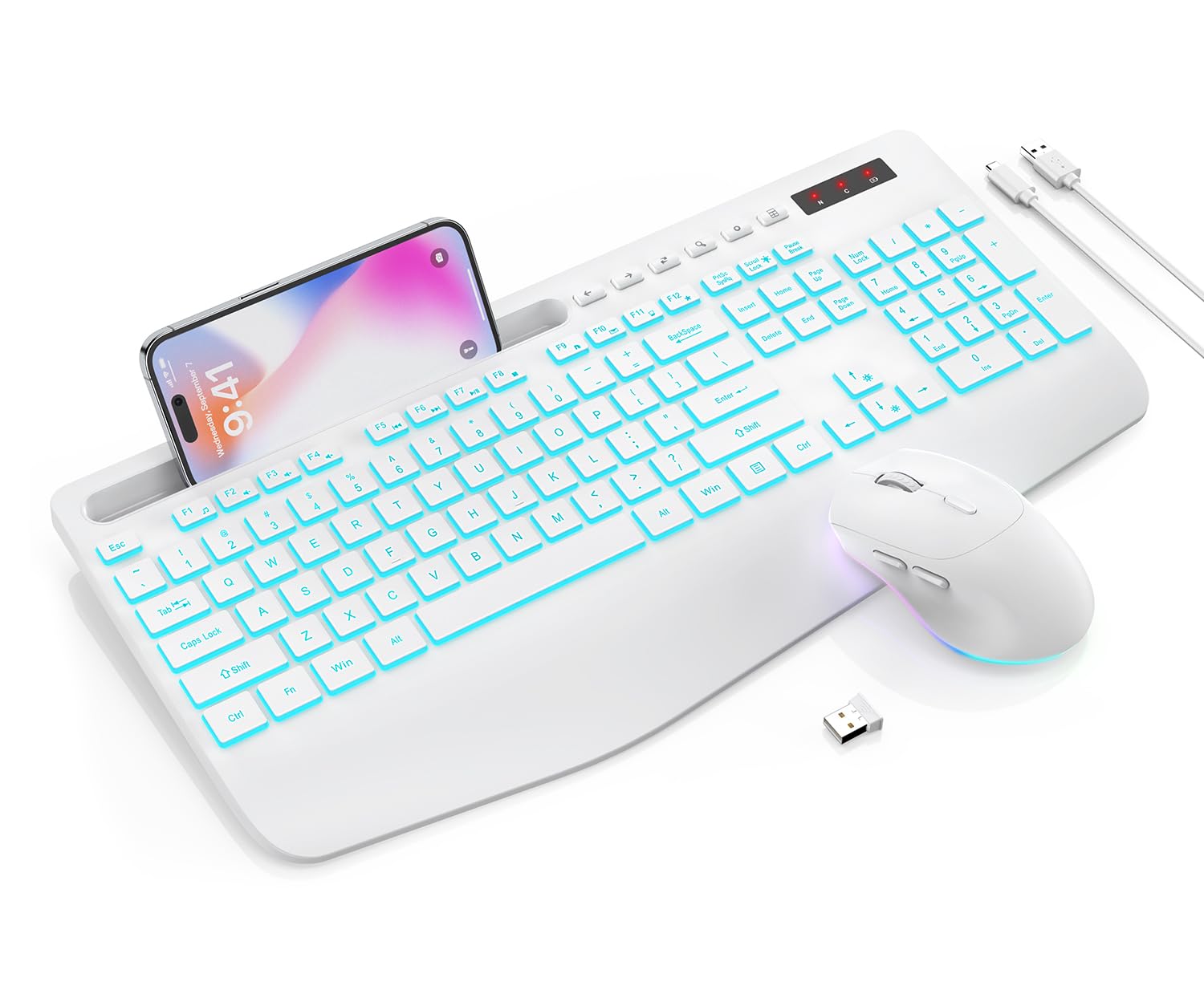
Image: The Trueque Wireless Keyboard and Mouse Combo in Cloud White, showcasing its full-size layout and ergonomic design.
Okuqukethwe Kwephakheji
Sicela uhlole iphakheji ukuze uqinisekise ukuthi zonke izinto zikhona:
- 1 x Ikhibhodi engenantambo
- 1 x Igundane Elingenantambo
- 1 x USB Receiver (stored inside the mouse)
- 1 x Ikhebuli yokushaja yohlobo C
- 1 x Incwadi Yomsebenzisi

Image: An illustration showing the wireless keyboard, mouse, USB receiver, Type-C charging cable, and user manual included in the box.
Setha Imiyalelo
1. Ixhuma Isamukeli se-USB
- Locate the USB receiver. It is typically stored in a compartment on the underside of the wireless mouse.
- Khipha isamukeli se-USB kugundane.
- Plug the USB receiver into an available USB port on your computer (PC, laptop, etc.).

Image: The underside of the keyboard and mouse, highlighting the compartment where the USB receiver is stored in the mouse.
2. Ivula amandla
- Ikhibhodi: Locate the power switch on the keyboard, usually on the top right or back edge. Slide it to the 'ON' position.
- Igundane: Locate the power switch on the underside of the mouse. Slide it to the 'ON' position.
The keyboard and mouse should automatically connect to your device via the USB receiver. No additional drivers are typically required for Windows, Mac OS, Android, Linux, or Chrome OS.
3. Ukushaja Kwasekuqaleni
For optimal performance, it is recommended to fully charge both the keyboard and mouse before first use. Use the provided Type-C charging cable.
- Connect the Type-C end of the cable to the charging port on the keyboard/mouse.
- Connect the USB-A end of the cable to a USB power source (e.g., computer USB port, USB wall adapter).
- A blue indicator light will appear during charging. The light will turn off when fully charged.

Image: The keyboard and mouse connected to a power source using the Type-C charging cable, indicating the charging process.
Imiyalelo yokusebenza
1. Keyboard Backlight Control
The keyboard features 7 colored backlights and 3 adjustable brightness levels.
- Turn ON/OFF Backlight & Switch Colors: Cindezela Fn + Skrola Lock to cycle through the 7 available backlight colors or turn the backlight off.
- Lungisa Ukukhanya: Cindezela Fn + ↑ (Umcibisholo Ophezulu) ukuze ukhulise ukukhanya futhi Fn + ↓ (Down Arrow) to decrease brightness. There are 3 levels of brightness.

Image: Visual representation of the keyboard displaying various backlight colors and the key combinations for adjusting brightness and changing colors.
2. Mouse Lighting Effects
The mouse features 15 switchable lighting effects to enhance your setup.
- The mouse lighting effects will cycle automatically.
- To turn off the mouse lighting, use the dedicated switch on the underside of the mouse, if available, or allow it to enter smart sleep mode.

Image: The wireless mouse showcasing its RGB lighting effects and indicating options for 3 levels of tracking speed and quiet clicks.
3. Function Keys and Shortcut Keys
The keyboard includes 12 combined function keys (Fn + F1-F12) and 6 independent shortcut keys for increased efficiency.
- Fn+F1: Isidlali Semidiya
- Fn+F2: Yehlisa Ivolumu
- Fn+F3: Nyusa Ivolumu
- Fn+F4: Thulisa
- Fn+F5: Ithrekhi Edlule
- Fn+F6: Ithrekhi Elandelayo
- Fn+F7: Dlala/Misa kancane
- Fn+F8: Ima
- Fn+F9: Ikhasi eliyisiqalo
- Fn+F10: I-imeyili
- Fn+F11: Ikhompyutha Yami
- Fn+F12: Izintandokazi
Additional shortcut keys are located above the number pad for functions like Previous Page, Next Page, Refresh, Search, Stop Loading, and Calculator.

Image: The keyboard layout with callouts for the Fn key combinations and dedicated shortcut keys for various functions.
4. Device Holder
The keyboard features an integrated device holder designed to securely hold your smartphone or tablet, allowing for convenient multi-tasking or media viewing.
- Simply place your phone or tablet into the slot above the function keys.
- The holder supports devices in both horizontal and vertical orientations.

Image: The keyboard with a smartphone placed in its integrated device holder, demonstrating its utility.
5. Mouse Tracking Speed
The mouse offers 3 adjustable tracking speed (DPI) levels to suit your preference and task requirements.
- Press the DPI button (usually located behind the scroll wheel) to cycle through the tracking speed settings.
Isondlo
1. Ukuhlanza
To clean your keyboard and mouse:
- Ensure both devices are powered off.
- Sebenzisa okuthambile, damp cloth to wipe the surfaces. Avoid harsh chemicals or abrasive materials.
- The keyboard features a spill-resistant design, but it is not fully waterproof. Avoid submerging it in liquids.

Image: The keyboard surface with water droplets, illustrating its waterproof and dustproof design for easy cleaning.
2. Battery Care and Smart Sleep Mode
The keyboard and mouse are equipped with rechargeable batteries and a smart energy-saving feature.
- Iyashaja kabusha: Recharge the devices when the battery indicator (red light flashes) signals low power. Use the provided Type-C cable. A blue light indicates charging, and it turns off when fully charged.
- Imodi Yokulala Ehlakaniphile: The backlight automatically turns off after 90 seconds of inactivity. The devices will enter a smart sleep mode after a period of non-use to conserve power. To wake them up, simply press any key on the keyboard or click a mouse button.
- For extended storage, ensure the devices are fully charged and powered off.
Image: The keyboard and mouse illustrating the smart sleep mode feature, with indicators for 365 days standby time and 15 minutes auto sleep.
Ukuxazulula inkinga
1. Devices Not Responding or Lagging
- Hlola Ibhethri: Ensure both the keyboard and mouse are sufficiently charged. Recharge if necessary.
- Isamukeli se-USB: Qiniseka ukuthi umamukeli we-USB uxhumeke ngokuphephile embobeni ye-USB esebenzayo kukhompyutha yakho. Zama imbobo ye-USB ehlukile.
- Ukushintsha Amandla: Confirm that both the keyboard and mouse power switches are in the 'ON' position.
- Ibanga: Ensure the devices are within the 33ft (10m) wireless range of the USB receiver and there are no major obstructions.
- Ukuphazamisa: Move away from other wireless devices (e.g., Wi-Fi routers, other 2.4GHz devices) that might cause interference.
- Lungisa kabusha: In rare cases, you might need to re-pair the devices. Turn off both devices, unplug the receiver, plug it back in, then turn on the mouse and keyboard.
2. Keyboard Backlight Not Working
- Hlola Ibhethri: The backlight consumes power. Ensure the keyboard is charged.
- Ukukhanya Kwangemuva Kuvuliwe/Kuvaliwe: Cindezela Fn + Skrola Lock to ensure the backlight is not turned off. Cycle through the colors.
- Ukukhanya: Lungisa ukukhanya usebenzisa Fn + ↑ (Up Arrow).
3. Mouse Cursor Jumps or is Inaccurate
- Ubuso: Ensure you are using the mouse on a clean, non-reflective, and even surface.
- Ukulungiselelwa kwe-DPI: Adjust the tracking speed (DPI) using the DPI button on the mouse.
- Ukuhlanzeka kwezinzwa: Check the optical sensor on the underside of the mouse for any dust or debris and clean it gently.
Imininingwane
| Isici | Imininingwane |
|---|---|
| Ibhrendi | Ukushintshanisa |
| Imodeli | B0G5NF61MX |
| Umbala | Ifu Elimhlophe |
| Ubuchwepheshe bokuxhumana | 2.4GHz Radio Frequency (Wireless) |
| Uhlobo olungenantambo | Kufika ku-33ft (10m) |
| Izici ezikhethekile | Backlit (7 colors, 3 brightness levels), Ergonomic, Phone Holder, Quiet Keys, Rechargeable, Wrist Rest |
| Amadivayisi Ahambisanayo | Windows XP/Vista/7/8/10/X, MacBook Pro, MacBook Air, iMac, Tablet, Television, Smartphone |
| Ukusekelwa Kombala Wokukhanya Okungemuva Kwekhibhodi | I-RGB |
| Umthombo wamandla | AC & Battery Powered (Rechargeable) |
| Uhlobo Lwebhethri | Ibhethri Elingajwayelekile elingu-1 (lifakiwe) |
| Isakhiwo Sekhibhodi | I-QWERTY |
| Incazelo Yekhibhodi | I-membrane |
| Isisindo sento | 1.03 kg |
Ulwazi Lwewaranti
Trueque offers a 24-month warranty for each backlit wireless ergonomic keyboard and mouse combo. Please retain your proof of purchase for warranty claims.
Ukwesekwa Kwamakhasimende
If you encounter any issues or have questions not covered in this manual, please refer to the contact information provided with your product packaging or visit the official Trueque webisayithi ukuze uthole ukwesekwa.