
1. Isingeniso
Thank you for choosing the Picun G2 Wireless Gaming Headset. This manual provides detailed instructions for setting up, operating, and maintaining your headset to ensure optimal performance and an immersive gaming experience. Please read this manual thoroughly before use.
Yini EseBhokisini
- 1 x Picun G2 Wireless Gaming Headset
- 1 x USB-A & Type-C 2-in-1 Wireless Dongle
- 1 x Ikhebula lokushaja le-USB-C
- 1 x 3.5mm Ikhebula Lomsindo
- 1 x Incwadi Yomsebenzisi
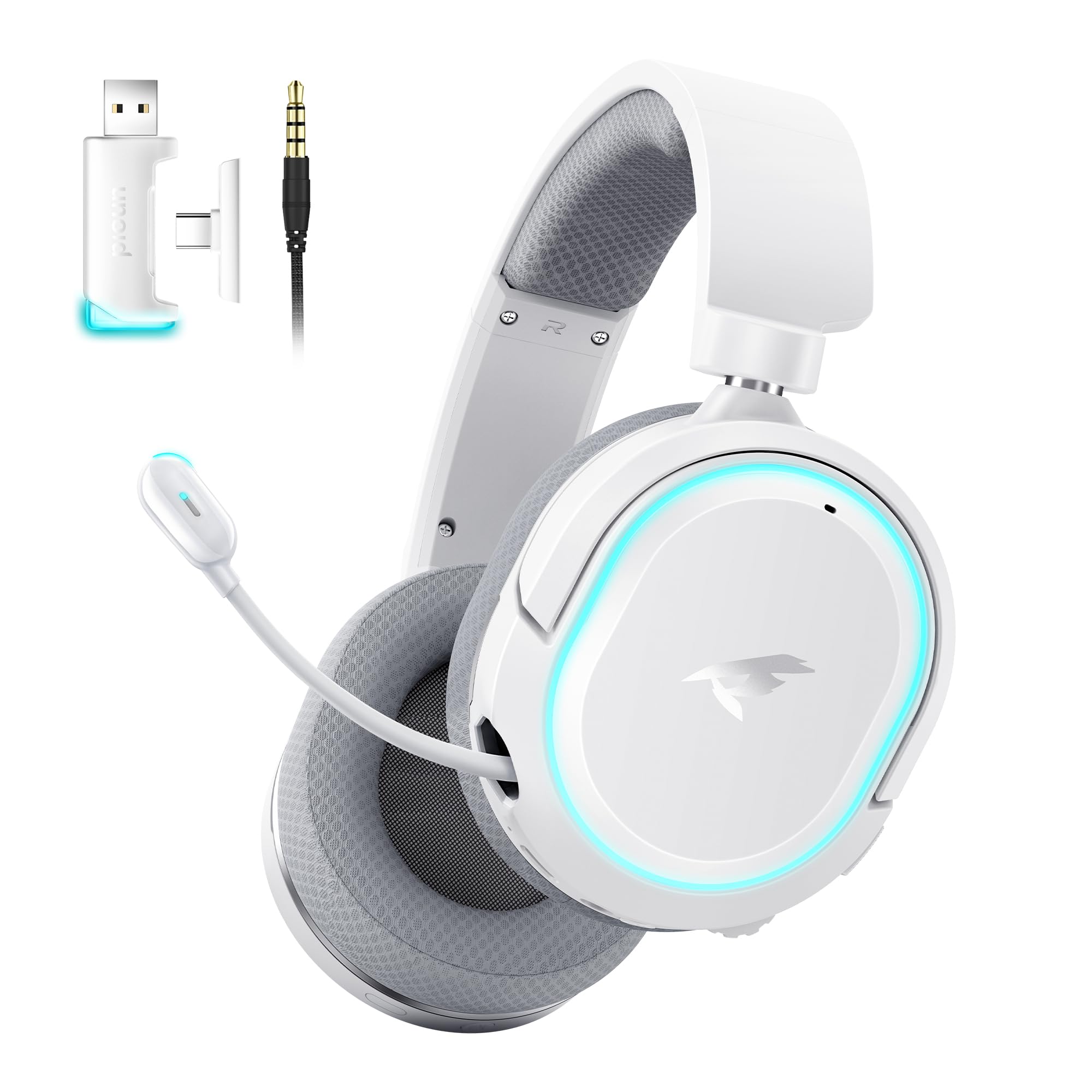
Image: Picun G2 Wireless Gaming Headset (Grey)
2. Umkhiqizo Uphelileview
Familiarize yourself with the various components and controls of your Picun G2 headset.

Image: Headset Controls Diagram
- 7.1 Mode Light Control: Button to activate/deactivate 7.1 virtual surround sound and control RGB lighting.
- Imbobo yokushaja: USB-C port for charging the headset.
- Imbobo yomsindo engu-3.5mm: For wired connection using the included 3.5mm audio cable.
- Inkinobho yamandla: Press and hold to power on/off. Short press for play/pause in Bluetooth mode.
- Isondo Lomthamo: Scroll up or down to adjust the volume.
- Thulisa uMic: Slide switch to mute or unmute the microphone.
3. Isethaphu kanye Noxhumano
3.1 Ukushaja ihedisethi
Before first use, fully charge the headset using the provided USB-C charging cable. Connect the USB-C end to the headset's charging port and the USB-A end to a power source (e.g., computer USB port, USB wall adapter).
3.2 Connecting via 2.4GHz Wireless (Dongle)
For ultra-low latency gaming on PC, PS5, PS4, or Nintendo Switch (docked mode):
- Insert the 2.4GHz USB-A/Type-C dongle into an available USB port on your device.
- Power on the headset. It will automatically connect to the dongle.
- Qinisekisa ukuthi i-headset ikhethiwe njengedivayisi yokukhipha umsindo kanye neyokufaka kuzilungiselelo zomsindo zedivayisi yakho.
3.3 Ukuxhuma nge-Bluetooth 5.4
For wireless connection to smartphones, tablets, and other Bluetooth-enabled devices:
- With the headset powered off, press and hold the Power Button until the LED indicator flashes blue and red, indicating pairing mode.
- On your device, enable Bluetooth and search for "Picun G2".
- Select "Picun G2" to pair. The LED will turn solid blue once connected.
3.4 Connecting via 3.5mm Wired
For universal compatibility with devices featuring a 3.5mm audio jack:
- Xhuma isiphetho esisodwa sekhebuli yomsindo engu-3.5mm kumbobo yomsindo ye-earphone engu-3.5mm.
- Connect the other end to your device's 3.5mm audio jack.
- Note: Microphone functionality may vary or be unavailable in wired mode depending on the device.

Image: Multiple Connection Options
4. Iziqondiso Zokusebenza
4.1 Vula/Vala amandla
- Vula: Cindezela bese ubamba Inkinobho Yamandla imizuzwana emi-3.
- Cisha ugesi: Cindezela bese ubamba Inkinobho Yamandla imizuzwana emi-3.
4.2 Ukulawula ivolumu
- Zungezisa i- Isondo levolumu upwards to increase volume.
- Zungezisa i- Isondo levolumu downwards to decrease volume.
4.3 Microphone Usage (Retractable ENC Noise-Canceling Mic)
- Extend/Retract Mic: Gently pull out or push in the microphone from the left earcup.
- Thulisa/Susa ukuthula: Sebenzisa i- Thulisa uMic slide switch located on the earcup.

Image: Retractable ENC Noise-Canceling Microphone
4.4 7.1 Virtual Surround Sound Activation
- Cindezela inkinobho 7.1 Mode Light Control button to toggle 7.1 virtual surround sound on or off.
- The RGB lighting will indicate the status of the 7.1 mode.

Image: 7.1 Surround Sound Activation
5. Ulwazi Lwebhethri
The Picun G2 headset offers extended battery life for prolonged usage.
- Up to 100 hours playtime in Bluetooth mode (RGB off).
- Approximately 42-45 hours playtime via 2.4GHz wireless (RGB on).
- Full charge typically takes 2-3 hours.
- The headset supports charging while in use.

Image: Battery Life and Charging
6. Induduzo Nokuklama
The Picun G2 is designed for comfort during extended gaming sessions.
- Ibhande lekhanda elilungisekayo: Customize the fit for various head sizes.
- Rotatable Earcups: Allows for flexible positioning and storage.
- Soft Memory Sponge Cushions: Breathable fabric earcups and headband provide comfort and reduce pressure.

Image: Comfort Features
7. Ukuxazulula izinkinga
If you encounter any issues with your Picun G2 headset, please refer to the following common solutions:
| Inkinga | Isixazululo |
|---|---|
| Awukho umsindo ovela kumahedisethi |
|
| Imakrofoni ayisebenzi |
|
| Ayikwazi ukuxhuma nge-wireless engu-2.4GHz |
|
| Ayikwazi ukuxhuma nge-Bluetooth |
|
| Impilo yebhethri emfushane |
|
8. Imininingwane
| Isici | Imininingwane |
|---|---|
| Ibhrendi | I-Picun |
| Igama Lemodeli | Picun-G2 |
| Ubuchwepheshe bokuxhumana | 2.4GHz Wireless, Bluetooth 5.4, 3.5mm Wired |
| Ukubekwa Kwendlebe | Ngendlebe |
| Uhlobo Lomshayeli Womsindo | I-Dynamic Driver (40mm) |
| Impedance | 32 ohm |
| I-Frequency Range | 20 Hz - 20,000 Hz |
| Ukubambezeleka komsindo | 5 Milliseconds (2.4GHz) |
| Inguqulo ye-Bluetooth | 5.4 |
| I-Bluetooth Range | 10 Amamitha |
| Impilo Yebhethri | Up to 100 Hours (Bluetooth, RGB off) / 42-45 Hours (2.4GHz, RGB on) |
| Isikhathi sokushaja | Amahora angu-2-3 |
| Imakrofoni | Retractable ENC Noise-Canceling Omnidirectional Mic |
| Amadivayisi Ahambisanayo | PC, Mac, Laptop, Desktop, Phone, Pad, Tablet, PlayStation 4/5/pro/Slim, Gaming Consoles, Switch, Nintendo Switch (microphone invalid on Switch via 3.5mm) |
| Okubalulekile | ABS, Breathable Fabric, PC, Soft Memory Sponge Cushions |
| Izici Ezengeziwe | 7.1 Virtual Surround Sound, RGB Lighting, Adjustable Headband, Rotatable Earcups |
9. Iwaranti kanye Nokusekela
9.1 Ulwazi Lwewaranti
The Picun G2 Wireless Gaming Headset comes with a Iwaranti yonyaka ongu-1 from the date of purchase. This warranty covers manufacturing defects and ensures the product is free from defects in material and workmanship under normal use. Please retain your proof of purchase for warranty claims.
Iwaranti ayibandakanyi:
- Damage caused by misuse, abuse, accident, or negligence.
- Ukulungiswa noma ukuguqulwa okungagunyaziwe.
- Ukuguga okujwayelekile.
9.2 Ukwesekwa Kwamakhasimende
For technical assistance, warranty claims, or any questions regarding your Picun G2 Wireless Gaming Headset, please contact Picun customer support through the following channels:
- I-imeyili: support@picun.com (Eksample, i-imeyili yangempela ayinikeziwe)
- Webindawo: Visit the official Picun webisayithi lama-FAQ nezinsiza zokusekela.
Please have your model number (Picun-G2) and proof of purchase ready when contacting support.