
1. Isingeniso
This manual provides essential information for setting up, operating, maintaining, and troubleshooting your HP Pavilion 16-inch 2K Laptop. Please read this guide thoroughly to ensure optimal performance and longevity of your device.
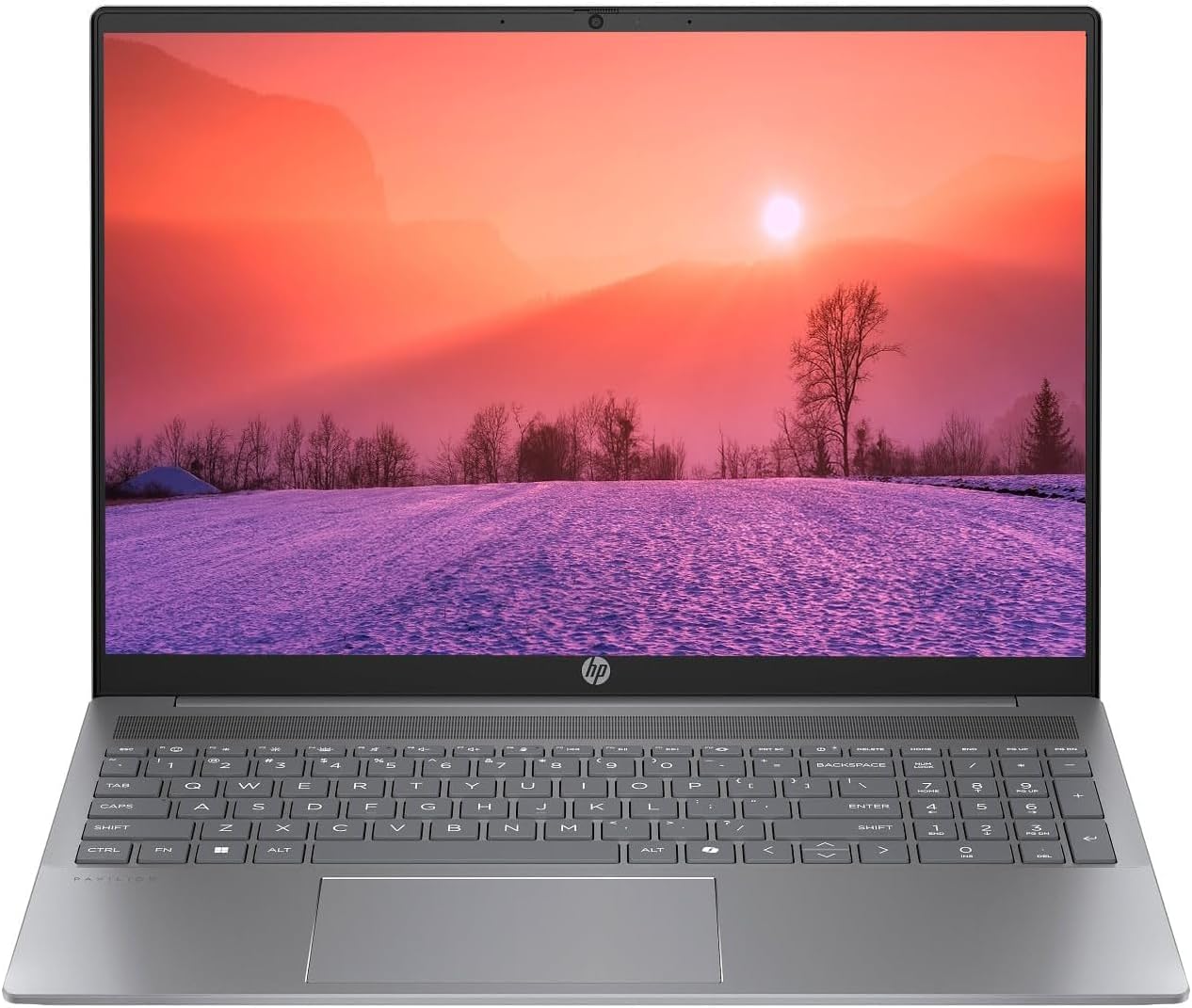
Figure 1.1: HP Pavilion 16-inch Laptop (Angled View)
This image displays the HP Pavilion 16-inch laptop in an open, angled position, highlighting its display and keyboard layout.
2. Setha
2.1 Ukuqaqa kanye Nokuhlola Kokuqala
Carefully remove the laptop and all accessories from the packaging. Inspect for any signs of damage. If any components are missing or damaged, contact your retailer or HP support immediately.
2.2 Amandla okuxhuma
- Connect the AC adapter to the power connector on the side of your laptop.
- Xhuma intambo yamandla endaweni kagesi.
- Allow the laptop to charge for at least 30 minutes before initial use, especially if the battery is completely drained.
2.3 Ukuqalisa Kokuqala kanye Nokusetha i-Windows 11
Press the power button to turn on your laptop. Follow the on-screen instructions to complete the Windows 11 Home OS setup, including language selection, network connection, and user account creation.
2.4 Ukuxhumanisa amaPheripheral
I-laptop yakho inezimbobo ezahlukahlukene zokuxhuma amadivayisi angaphandle:
- USB Type-C Ports (2): For data transfer, charging compatible devices, and video output.
- USB Type-A Ports (2): Ukuxhuma amadivayisi e-USB ajwayelekile njengegundane, amakhibhodi, noma amadrayivu angaphandle.
- HDMI Port (1): Okokuxhuma kuzibonisi zangaphandle noma amaphrojektha.
- Headphone/Microphone Combo Jack (1): Ukuxhuma ama-headphone, izipikha zangaphandle, noma i-headset ene-microphone.
3. Iziqondiso Zokusebenza
3.1 Vula/Vala kanye nemodi yokulala
- Vula: Cindezela inkinobho yamandla etholakala kudekhi yekhibhodi.
- Vala shaqa: Chofoza inkinobho ethi Qala ku-Windows, bese ukhetha Amandla > Vala shaqa.
- Imodi Yokulala: Vala isivalo se-laptop noma chofoza inkinobho ethi Qala, bese ukhetha i-Power > Sleep.
3.2 Ukusebenzisa ikhibhodi nephedi yokuthinta
I-laptop inekhibhodi enkulu kanye ne-touchpad enembile.
- Ikhibhodi Ekhanyisiwe: To activate or adjust the keyboard backlight, use the dedicated function key (usually F5 or F4, look for a keyboard icon).
- Ukuthinta kwephedi yokuthinta: Refer to Windows 11 settings for customizable touchpad gestures (e.g., two-finger scroll, pinch-to-zoom).
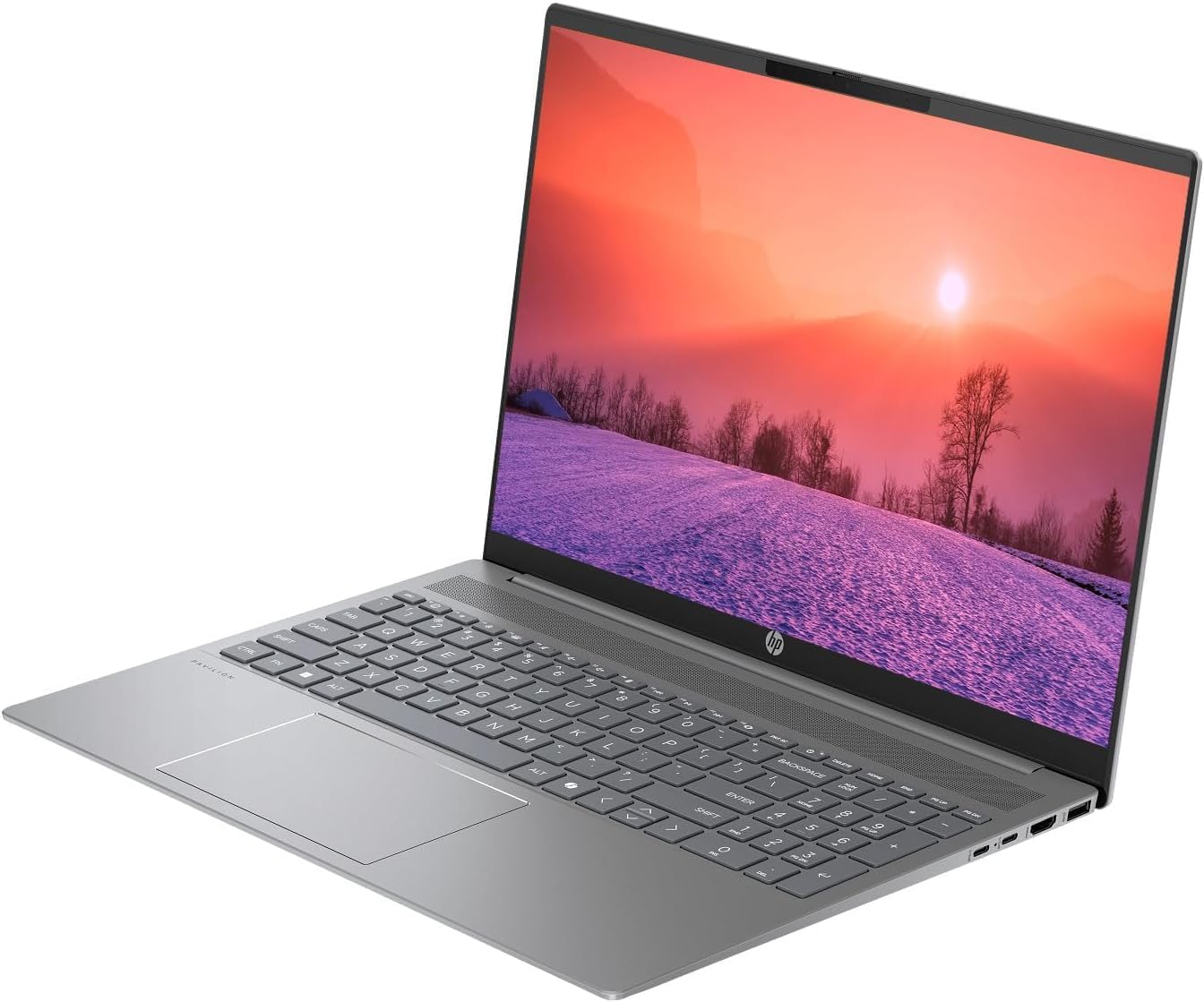
Figure 3.1: HP Pavilion 16-inch Laptop (Front View)
This image shows the HP Pavilion 16-inch laptop from a direct front view, highlighting the screen and keyboard.
3.3 Ukuxhumana okungenantambo
- I-Wi-Fi 6: Ukuze uxhumeke kunethiwekhi engenantambo, chofoza isithonjana se-Wi-Fi kubha yomsebenzi, khetha inethiwekhi yakho, bese ufaka iphasiwedi.
- I-Bluetooth: To pair Bluetooth devices, go to Windows Settings > Bluetooth & devices, and turn on Bluetooth.
3.4 Ukusebenzisa i- Webikhamera
The integrated HD webcam can be used for video calls and conferences. Access it through applications like Camera, Microsoft Teams, or Zoom.
4. Isondlo
4.1 Ukuhlanza iLaptop
- Sebenzisa indwangu ethambile, engenalinti kancane dampifakwe ngamanzi noma isicoci sesikrini sokuboniswa.
- Ngekhibhodi ne-chassis, sebenzisa indwangu ethambile. Gwema amakhemikhali anokhahlo.
- Sebenzisa umoya ocindezelwe ukuze usule uthuli ezintubeni ngezikhathi ezithile.
4.2 Ukunakekelwa Kwebhethri
- Gwema ukukhipha ibhethri ngokuphelele njalo.
- Gcina ikhompuyutha ephathekayo endaweni epholile, eyomile uma ingasetshenziswa isikhathi eside.
- For optimal battery health, avoid continuous charging at 100% for prolonged durations.
4.3 Ukuvuselelwa Kwesoftware
Regularly check for and install Windows updates to ensure system stability, security, and performance. Go to Windows Settings > Windows Update.
4.4 Ukuphathwa Kwesitoreji
Hlanza ngezikhathi ezithile ngokungadingekile files and applications to maintain optimal performance of the 512GB SSD. Use Windows built-in tools like Disk Cleanup or Storage Sense.
5. Ukuxazulula izinkinga
This section addresses common issues you might encounter with your HP Pavilion laptop.
5.1 Laptop Not Powering On
- Qinisekisa ukuthi i-adaptha ye-AC ixhumeke ngokuvikelekile kukho kokubili ikhompuyutha ephathekayo kanye nesisetshenziswa samandla esisebenzayo.
- Qinisekisa ukuthi indawo kagesi iyasebenza ngokuxhuma enye idivayisi.
- Uma ibhethri seliphelelwe amandla, livumele ukuthi lishaje okungenani imizuzu engama-30 ngaphambi kokuzama ukulivula.
5.2 Izinkinga Zokuxhumeka kwe-Wi-Fi
- Hlola ukuthi i-Wi-Fi ivuliwe yini kuzilungiselelo ze-Windows.
- Qala kabusha irutha yakho nemodemu.
- Qiniseka ukuthi ungaphakathi kwenethiwekhi ye-Wi-Fi.
- Zama ukukhohlwa inethiwekhi bese uxhuma kabusha.
5.3 Keyboard Backlight Not Working
- Press the dedicated keyboard backlight function key (e.g., F5 or F4) to toggle or adjust the brightness.
- Check Windows Mobility Center settings (search for it in the Start menu) for backlight options.
5.4 Ukusebenza Okunensayo
- Vala izinhlelo zokusebenza ezingadingekile ezisebenza ngemuva.
- Qinisekisa ukuthi iWindows isesikhathini.
- Run a disk cleanup and check for malware.
- Verify that the laptop is not overheating.
6. Imininingwane
| Isici | Ukucaciswa |
|---|---|
| Igama Lemodeli | HP 16" Laptop |
| Iphrosesa | AMD Ryzen 5 8540U (Up to 4.89GHz) |
| RAM | I-8GB LPDDR5 |
| Isitoreji | 512GB SSD |
| Bonisa | 16-inch WUXGA 2K (1920 x 1200 pixels) LED |
| Izithombe | AMD Radeon Graphics (Dedicated) |
| Isistimu esebenzayo | Windows 11 Home OS |
| Amachweba | 2x USB Type-C, 2x USB Type-A, 1x HDMI, 1x Headphone/Microphone Combo Jack |
| Ukuxhumana Okungenantambo | I-Wi-Fi 6 (802.11ax), i-Bluetooth |
| Ikhibhodi | Khanyisa emuva |
| Webikhamera | Yebo |
| Dimensions (L x W x Th) | 14.17" x 9.2" x 0.7" |
| Ibhethri | Lithium Ion, 4 Watt Hours |
| I-UPC | 197961359091 |
7. Iwaranti kanye Nokusekela
7.1 Ulwazi Lwewaranti
This HP Pavilion laptop comes with a Iwaranti Yezinsuku ezingu-30. Please retain your proof of purchase for any warranty claims. The warranty covers manufacturing defects under normal use conditions.
7.2 Ukwesekwa Kwamakhasimende
For further assistance, technical support, or warranty inquiries, please visit the official HP support website or contact their customer service. You can typically find contact information and support resources by searching for "HP Support" online.