
1. Isingeniso
This manual provides detailed instructions for the installation, operation, and maintenance of your AINAVI 11.5-inch Car Radio Stereo. This advanced system is designed to upgrade your vehicle's infotainment experience with Android 13.0, wireless CarPlay, Android Auto, GPS navigation, and various multimedia features. Please read this manual thoroughly before installation and use to ensure proper functionality and safety.
2. Umkhiqizo Uphelileview
The AINAVI 11.5-inch Car Radio Stereo is a high-performance multimedia system compatible with specific Jeep Wrangler JK, Dodge Grand Caravan, and Dodge Ram models. It features an 11.5-inch QLED touchscreen with 1280x800 resolution, running on Android 13.0 with 4GB RAM and 64GB ROM for smooth operation. Key features include:
- 11.5-inch QLED Touchscreen: G+G full lamination technology with 178° full-viewi-angle.
- I-Android 13.0 OS: Latest operating system for enhanced performance.
- Wireless/Wired CarPlay & Android Auto: Seamless smartphone integration.
- Ukuzulazula kwe-GPS: Supports online and offline maps.
- 5G WiFi & Bluetooth 5.4: Fast internet connectivity and stable device pairing.
- AM/FM/RDS Radio: Access to various radio stations.
- Ukulawula Isondo Lokuqondisa: Retains original vehicle controls.

Image: The 11.5-inch HD IPS Touch Screen, showcasing its vibrant display and full lamination technology for clarity and responsiveness.
3. Okuqukethwe Kwephakheji
Qinisekisa ukuthi zonke izinto ezibalwe ngezansi zifakiwe kuphakheji yakho. Uma kukhona izinto ezingekho noma ezilimele, sicela uxhumane nokwesekwa kwamakhasimende.
- 11.5-inch Car Head Unit for Jeep Wrangler JK
- Uhlaka Lwepulasitiki
- AHD 1080P Rear View Camera + Extension Power Cable
- Imakrofoni
- I-GPS Antenna
- USB 4Pin Cable
- USB 6Pin Cable
- Incwadi Yomsebenzisi (le dokhumenti)
- Ikhebula Lamandla
- Power Harness with CAN BUS (for some models)
- Blue Frame Removal Tool
- Ikhebula le-RCA
- Reversing Control Cable
Note: The specific cables included may vary slightly depending on the vehicle model.
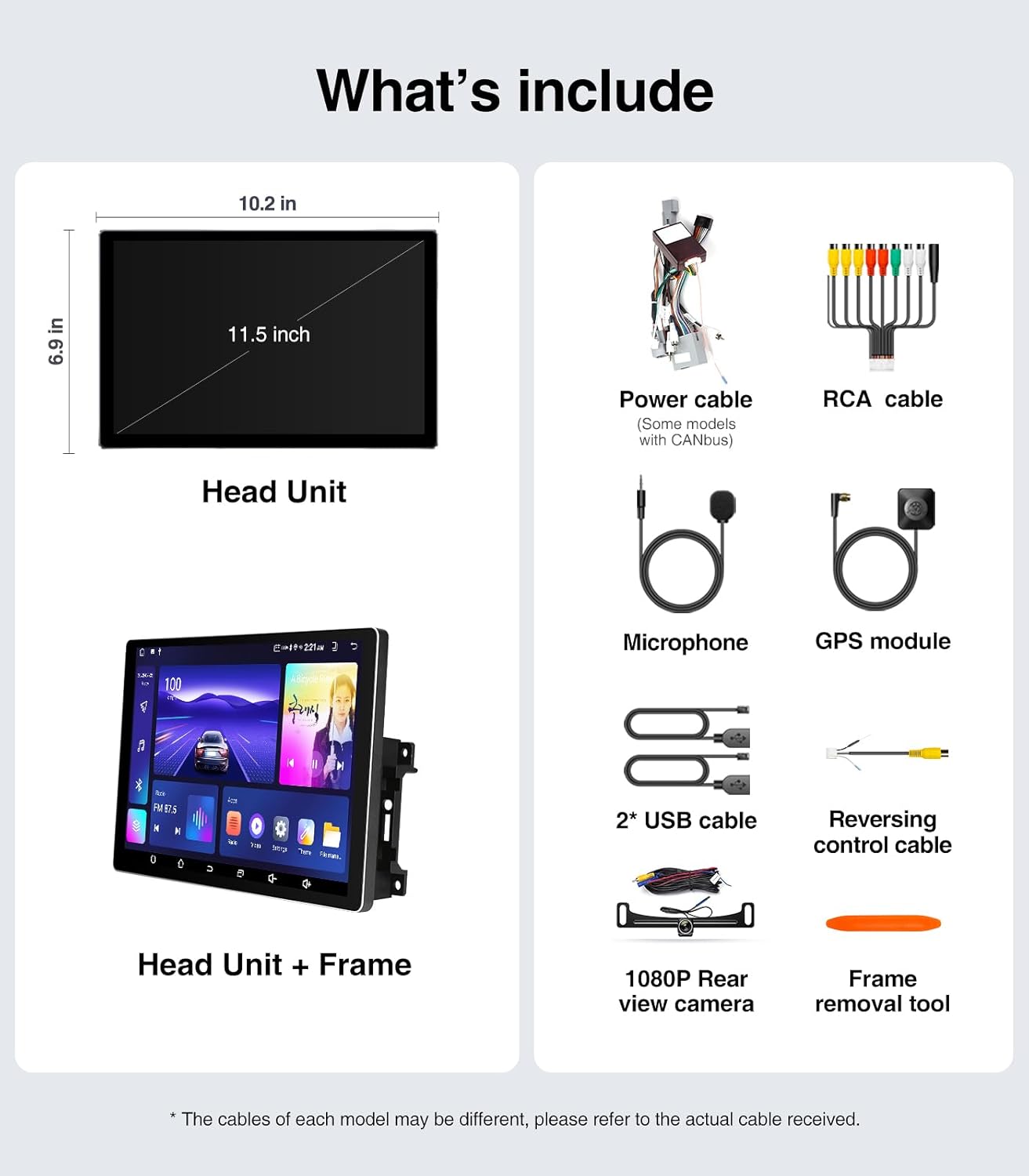
Image: A visual representation of all components included in the package, such as the head unit, frame, various cables, camera, microphone, and tools.
4. Umhlahlandlela wokufaka (Ukusetha)
The AINAVI Car Radio Stereo is designed for a plug-and-play installation for compatible vehicles. However, professional installation is recommended if you are unfamiliar with car audio system wiring.
4.1 Hlola Ngaphambi Kokufaka
- Ensure your vehicle is compatible with the head unit (Jeep Wrangler JK 2007-2018, Dodge Grand Caravan 2011-2020, Dodge Ram 2009-2012, etc.).
- Gather all necessary tools, including the provided frame removal tool.
- Disconnect the vehicle's battery before starting the installation to prevent electrical shorts.
4.2 Izinyathelo Zokufaka
- Carefully remove the original car radio and dashboard trim using the frame removal tool. Refer to your vehicle's service manual for specific trim removal instructions.
- Connect the provided power harness and CAN BUS (if applicable) to the vehicle's wiring. Ensure all connections are secure.
- Connect the GPS antenna, USB cables, microphone, and rear view camera cables to the corresponding ports on the new head unit.
- Mount the new 11.5-inch head unit into the dashboard opening. Ensure it fits securely within the plastic frame.
- Xhuma kabusha ibhethri lemoto.
- Turn on the vehicle's ignition and test the head unit's basic functions (power, audio, touch screen).
- Reinstall the dashboard trim panels.

Image: A comparison showing the vehicle's dashboard before and after the installation of the AINAVI 11.5-inch car radio stereo, highlighting the significant visual upgrade.

Image: Illustrates the plug-and-play nature of the installation, showing a user connecting wiring harnesses, along with icons indicating support for Steering Wheel Control and AMP.
5. Iziqondiso Zokusebenza
5.1 Ukusebenza Okuyisisekelo
- Vula/Vala: The unit powers on with the vehicle's ignition. Press and hold the power button (if available) for manual power control.
- Isikrini sokuthinta: Navigate the Android interface by tapping, swiping, and pinching gestures.
- Ukulawula ivolumu: Adjust volume using the on-screen controls or your vehicle's steering wheel buttons.
5.2 Wireless/Wired CarPlay & Android Auto
Connect your iPhone or Android smartphone for seamless integration of navigation, communication, and entertainment apps.
- Ensure Bluetooth is enabled on your smartphone and the head unit.
- On the head unit, open the CarPlay or Android Auto application.
- For wireless connection, pair your phone via Bluetooth. For wired, connect your phone using a USB cable to the designated USB port.
- Follow the on-screen prompts to complete the connection.
Once connected, you can use voice commands (e.g., "Hey Siri" or "Hey Google") for hands-free operation.

Image: A visual of the head unit displaying the Wireless CarPlay and Android Auto interface, with a smartphone icon indicating connectivity and various app logos.
5.3 GPS Navigation
The unit supports both online and offline navigation.
- Online Maps: Connect the head unit to a WiFi hotspot (e.g., from your phone) to access real-time traffic information and updated maps.
- Amamephu angaxhunyiwe ku-inthanethi: Download maps for your region to the unit's internal storage. This allows navigation without an internet connection.
- Use the pre-installed navigation app or download your preferred app from the Google Play Store.
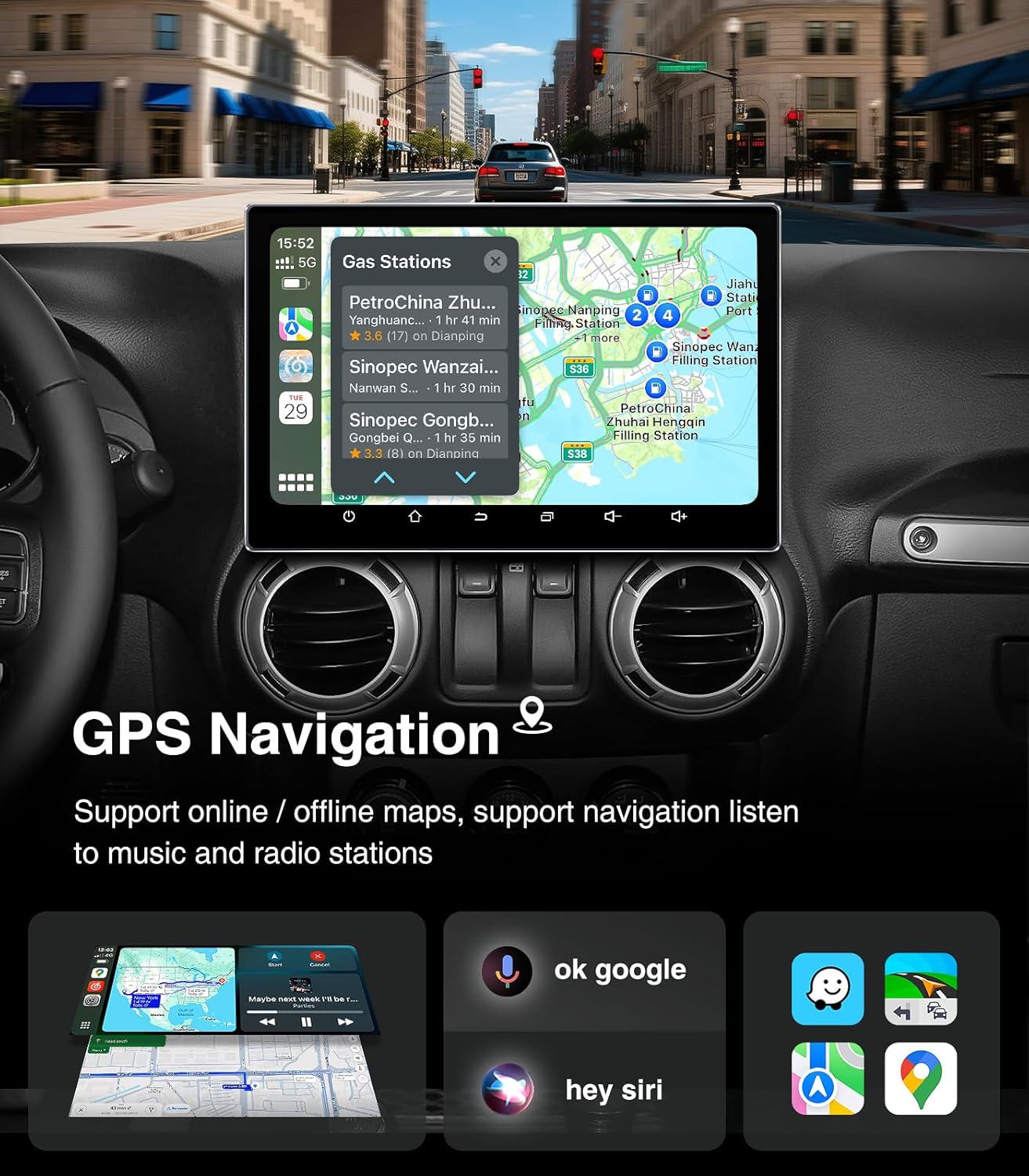
Image: The head unit displaying a GPS navigation map with points of interest and traffic information, alongside icons for voice commands like "ok google" and "hey siri".
5.4 AM/FM/RDS Radio
Access your favorite radio stations with the built-in tuner.
- Open the "Radio" application on the head unit.
- Scan for available stations or manually tune to a specific frequency.
- Londoloza iziteshi zakho ozithandayo njengezilungiselelo zokufinyelela okusheshayo.
- The RDS (Radio Data System) feature displays station information where available.

Image: The head unit displaying the AM/FM/RDS radio interface, showing frequency tuning and preset options, with a scenic road background.
5.5 5G WiFi Hotspot & Bluetooth Connection
Enhance your connectivity with fast WiFi and stable Bluetooth.
- I-WiFi: Connect to a mobile hotspot or home WiFi network to browse the internet, download apps, and stream content. Supports dual-band 2.4GHz & 5GHz.
- I-Bluetooth 5.4: Pair your smartphone for hands-free calls, Bluetooth music streaming, and phonebook synchronization.

Image: The head unit displaying a phone dialer interface, indicating Bluetooth connectivity with a smartphone, and icons for various supported apps like Google Play, Chrome, YouTube, Instagram, and Netflix.
6. Isondlo
To ensure the longevity and optimal performance of your AINAVI Car Radio Stereo, follow these maintenance guidelines:
- Ukuhlanza isikrini: Sebenzisa indwangu ethambile, engena-lint ukuze usule kahle isikrini esithintwayo. Kuma-smudge anenkani, kancane dampFaka indwangu ngamanzi noma isihlanzi esivikela isikrini. Gwema amakhemikhali anamandla noma izinto ezihudulayo.
- Izibuyekezo zesofthiwe: Periodically check for system updates through the unit's settings menu. Keeping the software updated ensures optimal performance, security, and access to new features.
- Ukulawula izinga lokushisa: Avoid exposing the unit to extreme temperatures for extended periods. While designed for automotive environments, prolonged exposure to direct sunlight or freezing conditions can affect performance.
- Izixhumanisi zekhebula: Qinisekisa ukuthi zonke izintambo zihlala zixhunywe ngokuphephile. Ukuxhumeka okuxegayo kungadala izinkinga ngezikhathi ezithile.
7. Ukuxazulula izinkinga
If you encounter issues with your car radio stereo, refer to the following common problems and solutions:
| Inkinga | Imbangela Engenzeka | Isixazululo |
|---|---|---|
| Iyunithi ayivuli | Ukuxhumeka kwamandla okuxekethile, i-fuse eshaywayo, inkinga yebhethri yemoto. | Check power cables and fuse. Ensure vehicle battery is charged. |
| Awukho umsindo | Ivolumu iphansi kakhulu, ithulisiwe yenziwe yasebenza, inkinga yezintambo zesipika, umthombo womsindo ongalungile. | Nyusa ivolumu, hlola isimo sokuthulisa, qinisekisa ukuxhumana kwezipikha, khetha umthombo womsindo olungile. |
| Isikrini esithintwayo asiphenduli | Software glitch, screen calibration issue. | Restart the unit. If issue persists, perform a factory reset (data will be lost). |
| I-CarPlay/Android Auto ayixhumi | Bluetooth/USB issue, phone settings, app not updated. | Ensure Bluetooth is on and paired. Try a different USB cable. Update phone OS and apps. |
| Isignali ye-GPS ilahlekile noma ayinembile | GPS antenna obstruction, poor satellite reception. | Qinisekisa ukuthi i-antenna ye-GPS icacile view of the sky. Check antenna connection. |
If these solutions do not resolve the issue, please contact AINAVI customer support.
8. Imininingwane
| Isici | Imininingwane |
|---|---|
| Ibhrendi | AINAVI |
| Isistimu esebenzayo | I-Android 13.0 |
| Amandla Okugcina Inkumbulo | 64 GB (ROM) |
| RAM | 4 GB |
| Usayizi Wesikrini | 11.5 amayintshi |
| Uhlobo lokubonisa | QLED, G+G Full Lamination |
| Isixazululo | 1280x800 |
| Ubuchwepheshe bokuxhumana | Bluetooth 5.4, USB, Wi-Fi (2.4Ghz & 5Ghz), Wireless CarPlay, Wired Android Auto |
| Izici ezikhethekile | AM/FM/RDS radio, 5G WiFi, CarPlay+Android Auto+Mirror Link+AirPlay, Split Screen Function, Touch Screen |
| Amadivayisi Ahambisanayo | Smartphone, iPhone |
| Uhlobo Lokukhweza | IDashboard Mount |
| Imodi Yokukhipha Umsindo | Isitiriyo |
| Uhlobo Lwezinsizakalo Zezimoto | Imoto |
9. Iwaranti kanye Nokusekela
AINAVI provides technical support for this product. If you have any questions regarding installation, operation, or troubleshooting that are not covered in this manual, please do not hesitate to contact us via Amazon email. We are committed to providing prompt assistance.
Please retain your proof of purchase for warranty claims. Specific warranty terms and conditions may apply and are available upon request or through the product's purchase platform.